Global Sat GV-370 User manual
Other Global Sat GPS manuals

Global Sat
Global Sat BT-368 User manual
Global Sat
Global Sat EM-408 User manual

Global Sat
Global Sat ND-105X User manual

Global Sat
Global Sat EB-5318RF User manual

Global Sat
Global Sat TR-203A User manual
Global Sat
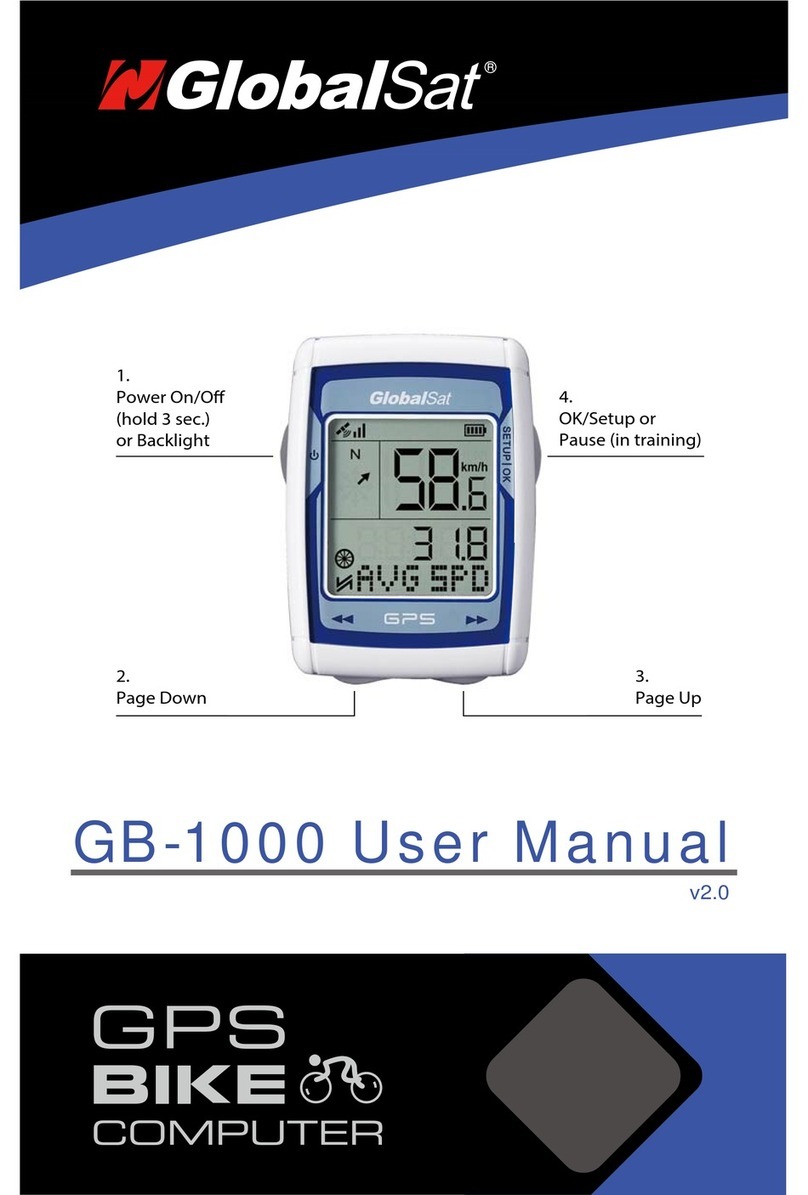
Global Sat GB-1000 User manual
Global Sat
Global Sat GA-5718 User manual
Global Sat
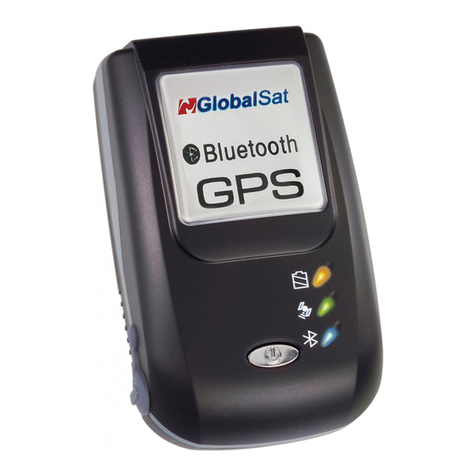
Global Sat BT-338 User manual
Global Sat
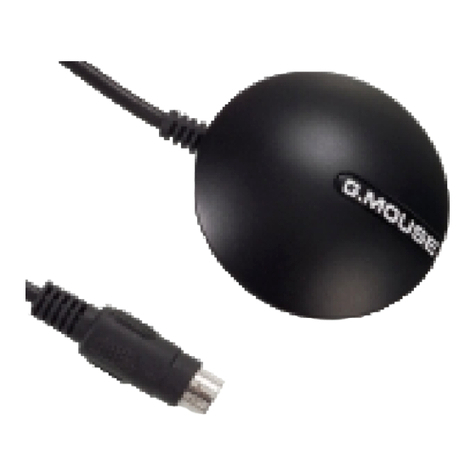
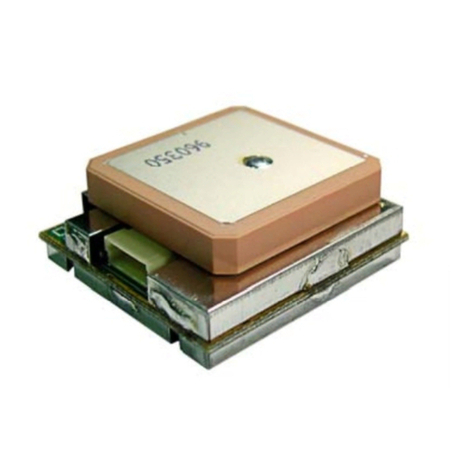
Global Sat BR-355 User manual
Global Sat
Global Sat EM-406a User manual

Global Sat
Global Sat GPS Director YE-GD101 User manual
Global Sat
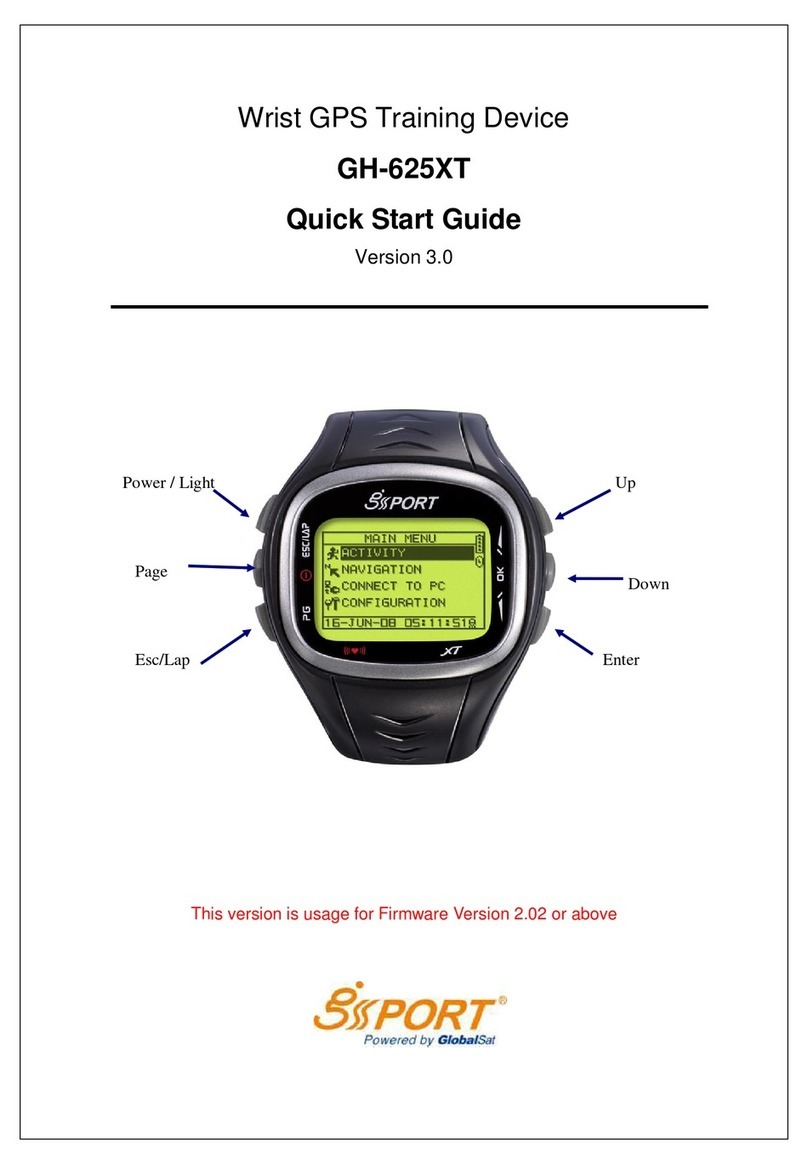
Global Sat GH-625XT User manual
Global Sat
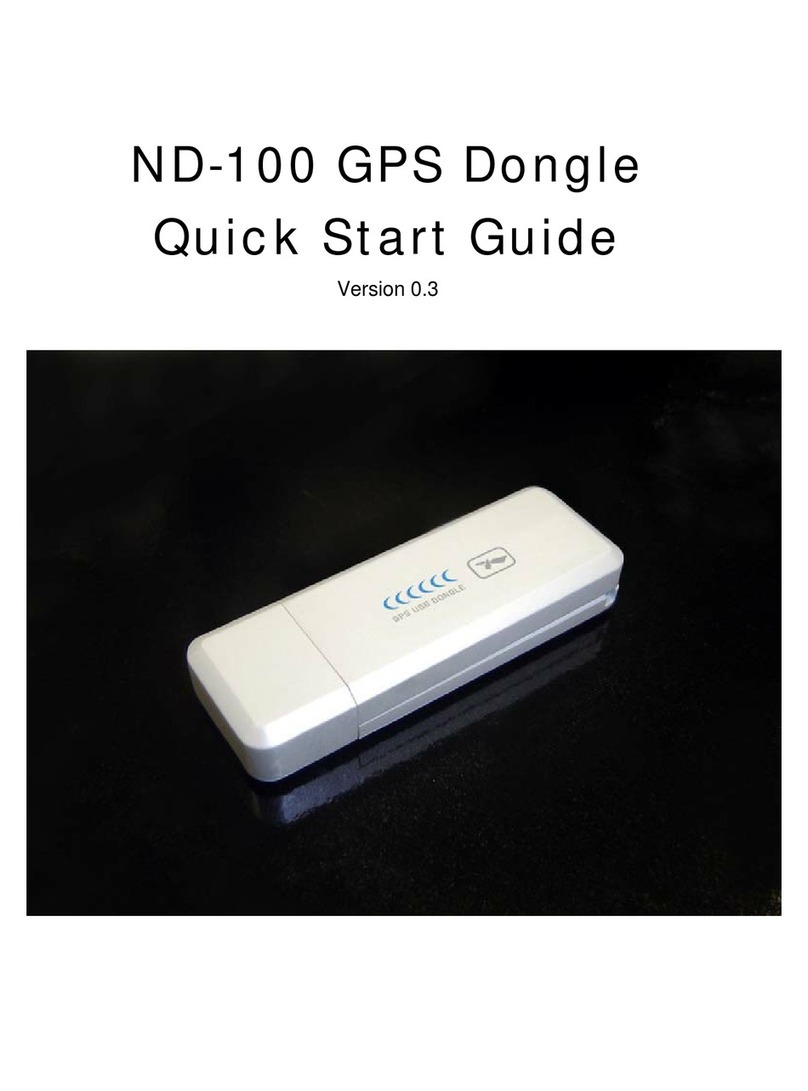
Global Sat USB GPS Dongle ND-100 User manual
Global Sat
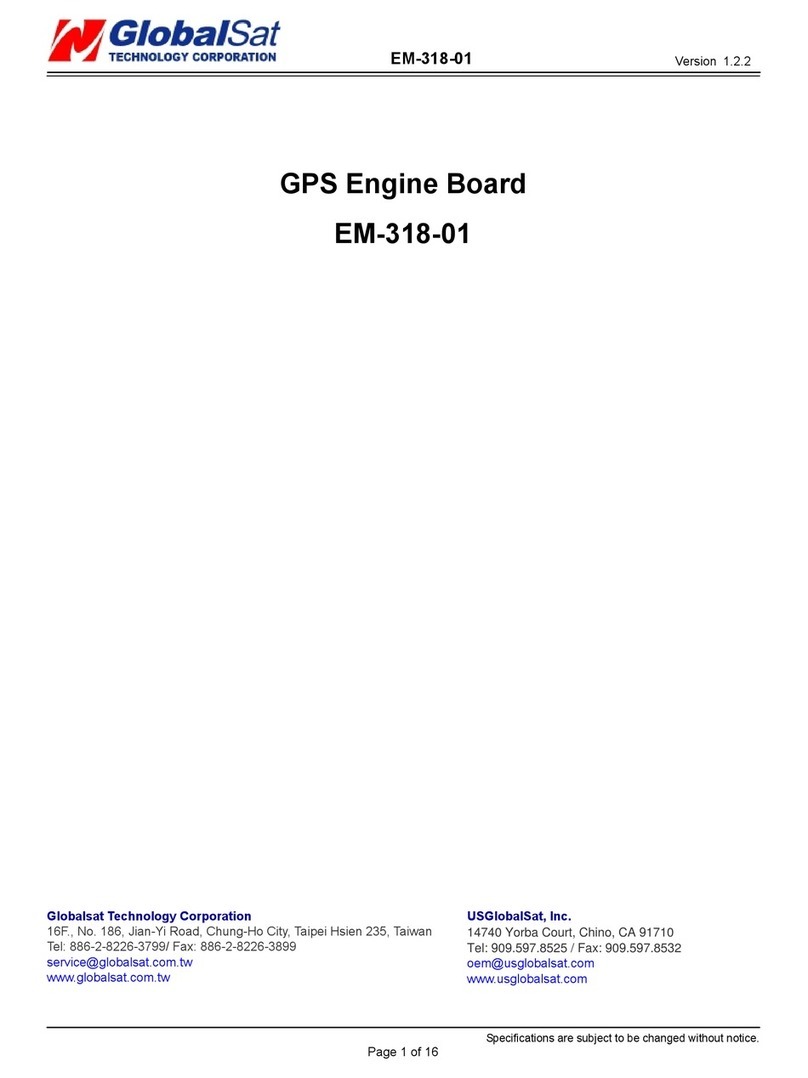
Global Sat EM-318-01 User manual
Global Sat
Global Sat EM-406 User manual

Global Sat
Global Sat BT-368i User manual

Global Sat
Global Sat GB-580 User manual

Global Sat
Global Sat GH-561 GPS Trek Pro User manual
Global Sat
Global Sat ER-332 User manual
Global Sat
Global Sat BC-307 User manual