Mode stops playback of the sequencer. In Live Mode, the RED’s internal synth can be played as a MIDI
module (velocity is mapped to Grain 2 pitch), and notes can be entered via an attached MIDI keyboard,
either with auto advance, or manual step selection.
Synth Controls
The synth controls in Live Mode are the same as in Edit Mode and Pattern Mode, with two exceptions:
1. Grain 2 Pitch is still adjusted with Pot 3, but it is also affected by incoming MIDI note velocity.
2. since the sequencer is not running, automation can not be recorded in Live Mode.
Note Entry (auto advance)
When entering Live Mode, the sequencer will stop and rewind to the first step. When a MIDI note
arrives, the note’s value will be stored in the current step, and the sequencer will advance to the next
step. After the 16th step is reached, the sequencer will jump back to the first step. Note: the MIDI
channel for receiving notes on the RED is the same channel used to send notes. Select your preferred
channel in the Preferences Mode. NOTE: it’s not possible to add rests, ties accents or slides with the
auto advance feature active. Add any note where a rest should be, and add the rest in a separate step.
Note entry, rests, ties, accents and slides (manual step select)
Note: manual step selection is initiated when any step is selected with Control. To switch the auto
advance function back on, exit from and return to Live Mode.
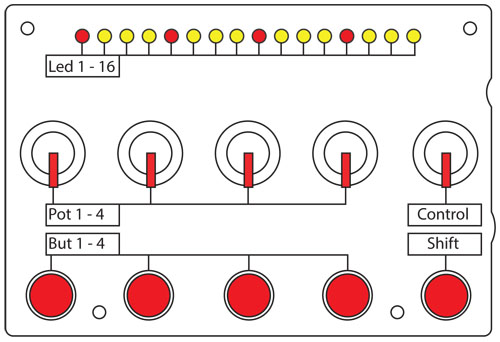
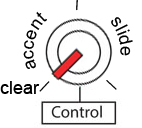
Step select (Control) – Use Control to select the desired step.
Add note (MIDI keyboard) – press a key on a MIDI keyboard to add a note to the step.
Rests (But 1) – press Button 1 to add a rest to a step. All the LEDs will flash to confirm.
Ties (But 2) - press Button 2 to add a tie to a step. All the LEDs will flash to confirm.
Accents (But 3) - press Button 3 to add a accent to a step. All the LEDs will flash to confirm.
Slides (But 4) – press Button 4 to add a slide to a step. All the LEDs will flash to confirm.
Note: due to an oversight on my part, there is currently no way to remove ties, accents and slides in
Live Mode :^/ Apologies for any frustration this might cause – it will be addressed in a future update.
In the meantime, they can still be removed in Edit Mode.
PREFERENCES MODE
Enter Preferences Mode from any other mode by holding Buttons 1, 2 and 3, and pressing Shift.
Selecting preferences page
There are two pages of preferences – the Red Page and the Yellow Page. Choose between Red and
Yellow with Control. With Control anticlockwise of the 12 o’clock position, you’re on the Red Page. With
Control clockwise of the 12 o’clock position, you’re on the Yellow Page. When entering Preferences
Mode, or when switching between Red and Yellow, all 4 status LEDs will light on briefly before
reflecting the current values of the 4 preferences on each page.
Red Page