
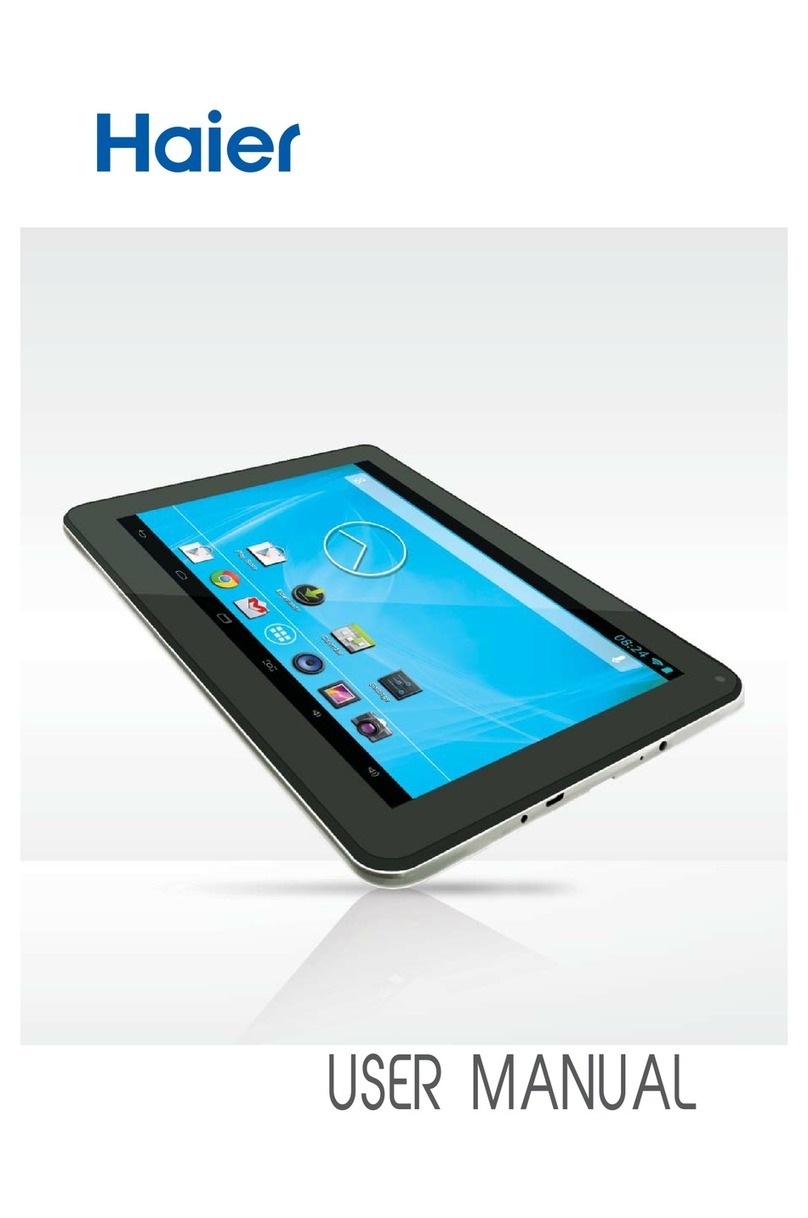
Haier PAD702 User manual

1

2
Specification 3GGPSBluetoothPhoneCallWi-Fi7inchTablet
Modle PAD702
CPU MTK6572 Dual-core1.0GHZCortex-A7
GPU Mali400MP
Operation GoogleAndroid4.4OS
RAM DDR 512MB
StorageDevice Built-in4GBmemory
DisplaySize 7inch
TouchPanel CapacitiveTouchPanel
Sensor G-Sensor
Resolution 1024*600(16:9)
Camera 0.3MPFront+2.0MPBack
Batterytype BatteryLi-PolymerRechargeable3.7v2000mah
Speaker yes
MIC yes
WIFI IEEE802.11b/g/nnetwork
3G Built-in3G: WCDMA 850/1900
GPS YES
I/Oports
1*DCIn
1*Earphone
1*TFcardslot(4G~32G);2*SimcardIn
1*MicroUSB2.0(supportusbhost)
MenuLanuage English,French,Spanish,Portuguese,Chinese
Accessories Giftbox ,InstructionManual,Charger,Microusb

3
Content
Content..............................................................................................................................................3
1 Introduction....................................................................................................................................4
1.1 Acknowledgement...............................................................................................................4
1.2 Announcements...................................................................................................................4
1.3 Safety Instruction................................................................................................................4
1.4 Abbreviation/Terminology..................................................................................................5
2 PAD Introduction ...........................................................................................................................6
2.1 PAD Operation and Preparation..........................................................................................6
2.2PAD Status and Reminder.............................................................................................6
3 Quick Start Guide...........................................................................................................................7
3.1 Keys Function.....................................................................................................................7
3.2 Startup and Shutdown.........................................................................................................7
3.3 Open and Close of the Screen.............................................................................................7
3.4 Usage of Touch Screen........................................................................................................8
3.5 Home Page..........................................................................................................................9
3.6 Visit Application Procedures.............................................................................................12
3.7 USB Connection ...............................................................................................................12
3.8 Typing words.....................................................................................................................13
3.9 Operation Technique.........................................................................................................15
4 Troubles Shooting.....................................................................................................................16
5 FCC Statement..........................................................................................................................17
6 FCC Statement..........................................................................................................................17

4
1 Introduction
1.1 Acknowledgement
Thanks for your purchase of our product. Pad 702 is high definition tablet PC. Its CPU is
MT6572, which apply the Cortex-A7, dominant frequency is 1GHz, it is based on Android 4.4
operation system, and easy to expand the third application procedure.
The product is designed with various functions, including WCDMA, WIFI, BT, GPS,FM,
voice call and so on. It is easy to achieve wireless communication and internet, you have access to
surf the internet anytime and anywhere; it is also built with high accuracy GPS module, so that it
can be used for navigating through installing map software. There are many sensors which offer
you brand-new operation and entertainment; besides, it has camera shooting, which leads
electronic consumption to enter into a fresh palm internet entertainment time.
The manual systemically introduces the functions, use techniques and announcements, please
read this manual carefully before your operation.
1.2 Announcements
Preventive maintainance
Please always keep the PAD dry. To avoid the device short trouble, corrosion fault and
electric short, please prevent the device, battery and charger from water and moisture,
and don’t operate the device or charger by wet hand.
To avoid failure of device, battery and charger, please prevent the device, battery,
charger from violent shock or shake.
To avoid failure of device, battery and charger, please prevent the device, battery,
charger of all over heating or too cold circumstance
Never shock, throw, prod the Pad 702, or drop, extrude, bend the Pad 702.
Never disassemble the device and accessories arbitrarily, otherwise the device and
accessories are not in our company warranty scope.
1.3 Safety Instruction
Before the operation of the PAD, please read this chapter and teach your kids about these
information. For further details, please refer to the safety instructions and announcement.

5
Never use the PAD when driving car, in order to ensure safe driving.
In the medical area, please abide by related rules and regulations. Please shut
down the PAD when it is near to the medical area.
To avoid the wireless signal to interrupt the plane- controlled signal, please shut
down the PAD or using airplane mode when you are boarding a flight,
To avoid electronic equipment failure, please shut down the PAD in the vicinage
of high-accuracy electronic equipments.
Please don’t disassemble the PAD and accessories. Only authorized agent has
access to service the PAD.
Please keep the PAD far away from magnetic equipments, the radiation of PAD
may erase the data stored in the magnetic equipments.
Never use the PAD in the vicinage of high temperature, inflammable gas ( gas
station).
Protect the PAD and accessories from kids reach scope, and avoid the kids to use
the PAD without parents’ supervision.
Please comply with related rules and regulations, and respect others’ privacy and
legal rights while using the PAD.
Please strictly adhere to related instructions in the manual when using USB cable
to ensure the safety of the PAD or PC.
Never use the PAD in bathroom or other humid environment, and please protect
the PAD from liquid wash or wet.
1.4 Abbreviation/Terminology
Abbreviation/Terminology Full Name Description
PAD Mobile Internet Device Mobile Internet Terminal
WIFI Wireless Fidelity Base on IEEE 802.11b standard
wireless LAN
T F TransFlash Alternative name Micro SD,super
miniature memory card

6
2 PAD Introduction
2.1 PAD Operation and Preparation
Battery Charging
If this navigator is first used, please use AV adaptor to fully charge it.
1. Apply the power adptor to charge for PAD.
2.2PAD Status and Reminder
Reminder icons
When some remind message appears in your reminder window, please click column and slip
the screen to open the reminder list. Choose the menu you need, and confirm the information.
Then you can close the reminder window through clicking the column to slide up. Please refer to
below status icons:
New email Airplane Mode on
USB connected USB debugging connected
Return button
Downloading
Display recently-used application
Home button
Current electric volume. WIFI connected, internet is
available
Reminder board
Reminder icons will work while receiving emails, WIFI is open, you can open the reminder
board to view the detailed information.
Open the reminder board
When the reminder column shows new reminder icon, please hold the column and slip down
your finger, then the reminder board is opened.

7
3 Quick Start Guide
3.1 Keys Function
Keys Funcction Description:
Power button Short press to sleep/wake up, long press to startup and
shutdown.
Volume +(up)increase the volume
Volume -(down)decrease the volume
HOME button (home)
Click it in any interface will return to main interface.
Back button(back)click it in any interface will return to previous menu
Menu button This button will display in menu interface.
Setting button display recently browsed history
3.2 Startup and Shutdown
Startup
Long press POWER key for three seconds, you can enter into startup picture. The system
enters into screen lock status, please unlock it.
Shutdown
1. Long press POWER, it will popoup shutdown window.
2. Shutdowm window contains mute mode, airplane mode,reboot mode and shutdown
four options.
3. Click Shutdown is the last step.
3.3 Open and Close of the Screen
Screen will be closed on its own when no operation happens.
1. Screen will be closed on its own if no operation happens for some time to save battery

8
power
2. When screen is open, press POWER key, the screen will be closed immediately.
Open the screen when it is closed.
If the screen is closed, short press POWER to open the screen. The screen will be locked
open it, it will show the picture as below picture, left slide to unlock and enter into camera, right
slide the unlock icon to unlock the screen.
Picture 3.1
3.4 Usage of Touch Screen
PAD operating methods
There are below methods to view the main screen, menu and application procedure in your PAD.
Click
When you want to use the screen keyboard typing or choose application in the main interface, you
only need to touch it by your finger.
Press on
If you want to open some item( textbox or the link in the webpage), or shortcut and main
procedure move, you can press on this item.
Quickly slide or slide
Quickly slide or slide indicates make quick vertical or horizoncial movement by finger.

9
Pull
Before you pull, you need to hold the it with strenghth until you pull it into the position you want.
Rotate
For most pictures, you only need to retate the PAD sidewise to change the screen direction from
horizoncial to vertical. For instance, when you are typing wods, and watching movies.
3.5 Home Page
Main interface as below picture 3.2, long press the blank and it will popup windows to set
wallpaper, folder, widgets, and shortcut.
Figura 3.2
The extended home page
The home page can be extended beyond the wideness of screen to provide more space,
which you can put new-added shortcuts and widgets. Click the blank space in home page
then slide right or left to extend to the right or left of the screen. In the home page, there are
two extended pictures, as Picture 3.3.
Regresar
Home
Historia
recientemente vista
Buscar
Hora
Nivel de la Batería
Columna de
noticias

10
Picture 3.3
The shortcut icons management in desktop application.
Create folder icon in desktop
1. Drag the icons need to be put together on one icon(can also overlay several
icons)as Picture 3.4.
2. Then click the overlayed icons, the applications can be folded, as Picture 3.5.
Click the unnamed folder in the black box, it will popup the hidden keyboard, the folder name
can be renamed (this is similiar with Apple IOS system), the icons position can be changed
through long press.
Picture 3.4
Table of contents
Other Haier Tablet manuals



Popular Tablet manuals by other brands

Laser
Laser MID-1060 Quick operation guide

MUNBYN
MUNBYN IRT09J Easy setup guide

Motorola
Motorola MC3090R - Win CE 5.0 Professional 520 MHz quick start guide

Dell
Dell Latitude ST Setup and features information

Lenovo
Lenovo IdeaTab S6000L Hardware Maintenance Manual

Venturer
Venturer WT9L11 quick start guide











