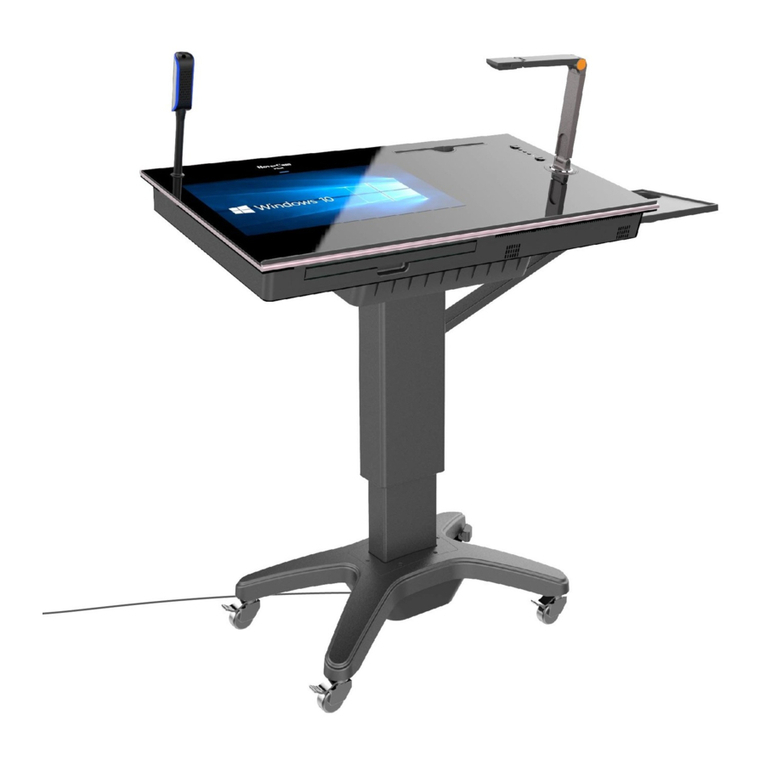
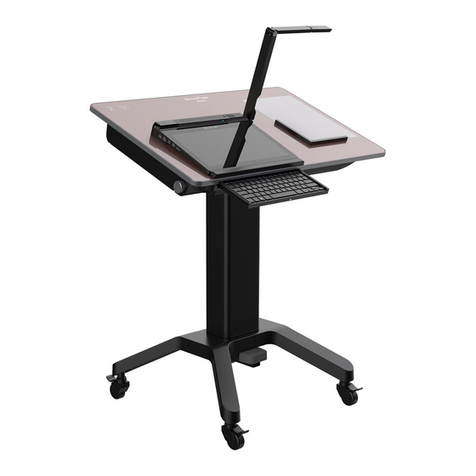
HoverCam Pilot 3 User manual

!
Pilot 3
User’s Manual

!
Warranty
Notices
Pilots have a standard 1-year warranty. This warranty can be upgraded to 3-year or 5-year. To purchase an extended
warranty, please contact your authorized HoverCam reseller.
Designed by HoverCam in San Diego, California

Welcome
3
Diagram
4
Getting Started
6
"Connecting to Power
Imaging
"Powering-On
Built-In PC
"Power Save Modes
Activating Windows 10
Setting-Up
8
"Adjusting the Pilot
Installing the Side Tray
Operating the Pilot
9
"Built-In Touchscreen
Digital Keyboard and Trackpad
"Digital Keyboard and Trackpad
Third Party Accessories
Connecting to a Display
11
"Wireless via HoverCast
Wired via HDMI
"HoverCast Set-Up
Display Mode
Audio
14
"Built-In Speakers
Auxiliary
"Output Display Speakers
Bluetooth
"HDMI Audio De-Embedder
Audio-In / Microphone
Interfacing with Other Devices
16
"HDMI / Lightning Port
Wireless via Reflector
Document Camera
18
"Adjusting the Camera
Operating the Camera
Software
19
"Flex 11 Camera Software
Knotester Classroom Management
Troubleshooting
20
Service and Support
22
Content

!
3
9985 Pacific Heights Blvd, #100 #
San Diego, California 92121#
www.hovercam.com#
+1 (858) 750-3499
Welcome
Congratulations! With the Pilot, you’ve taken a major step in revolutionizing your
classroom. Designed by educational technology professionals in California, the Pilot
allows you to operate your computer, classroom display and document camera without
turning your back to the class.#
Main Features:
•Wirelessly connect to any display via HoverCast#
•Wirelessly cast bi-directional annotations between USB-touch enabled displays#
•Capture stunning visuals with included 4K Solo 8Plus document camera#
•Record and upload lessons with included Flex 11 and KnoteSter software#
•Interface with iOS, Android, Chromebook, Mac, PC and more#
What’s in the Box:
•Pilot podium #
•Accessory trey with mounting hardware and two hex keys for installation #
•HoverCast transceiver #
•HoverCast AC power supply (9V 2A), HDMI cable, USB cable. #
•USB flash-drive with Pilot drivers#
Have any questions, feedback or issues? Contact HoverCam Support
(866)-201-2056 | support@hovercam.com#

PAGE INTENTIONALLY LEFT BLANK

!
Diagram
4
Pull-Out
Keyboard and
Trackpad
Height-
Adjustable
Pillar
Base with
Retractable
Power
Cable
Wheels with
Locks
Tilt-
Adjustable
Surface
HoverCast
Wireless
Transceiver
40” Glass Surface
Solo 8Plus #
Document
Camera
21” Multitouch
Display
Document
Positioning
Mat
Podium
Controls
iOS Lightning Port
Multiple Ports
Available on
Sides and Back

!
Diagram
5
Tilt#
Controls
Height#
Controls
Sound and Audio
Indicator Lights
Interface Switch
Controls
Zoom-In
Zoom-Out
Rotate Image
Focus Lock
AutoFocus
Audio#
Out
Audio#
In
USB 3.0 #
(Type A)
HDMI %
In
Reset #
Button
Power#
Button
RJ45 Ethernet
Port
HDMI#
Out

!
Getting Started
6
Connecting to Power
To get started, find the retractable power cable (AC100-240V 50/60Hz) on the right side of the base
and plug it into an available AC Power Outlet with ground. If you’d like to retract the power cable,
carefully extend it to its maximum length (16 feet) and release it. The reel-tension system should
automatically wind the cable back into the base for easy storage and transportation. #
Next, press and hold the power button on located on right side of the device until the Pilot “beeps”,
signaling the start of the boot-up process. Boot-up typically takes around minute, but can vary across
models and usage. #
Power
Button
Powering - On
Power Save / Sleep Modes
If left idle, the Pilot will automatically enter power save
mode. To return your system from power save mode, touch
anywhere on the touch screen or press any key on the
keyboard. If left in power save mode for an extended period,
your Pilot will enter sleep mode. To exit sleep mode, press
the power button on the right side of the touch screen
module.

!
7
Getting Started
The Pilot includes a RJ45 ethernet port to simplify
imaging and facilitate wired networking. For detailed
instructions as well as the necessary drivers, please
For convenience, the Pilot’s required drivers are
saved on an included flash-drive for reinstallation
after imaging.
Imaging
RJ45 Ethernet
Port
Activating Windows 10
Built-In PC
The Pilot features a fully-functional self-contained
PC, including an Intel i5 processor (or an Intel i7
processor with the Pilot Plus), a 500GB HDD (and
an additional 128GB SSD with the Pilot Plus), WiFi
and bluetooth connectivity, and other standard PC
features. An additional computer is not required to
operate the Pilot.
Once powered-on, your Pilot will operate the latest trial-
version of Windows 10. Essential functions, settings,
operations and commands are comparable to that of a
new Windows-operating desktop including interface and
system presets. A Windows license is not included, so a
license key will be needed to access the full capabilities.
For more information on how to use your Windows 10
operating system, see the full manual at
www.windows10-guide.com

!
8
Setting-Up
Tilt #
Up/Down
Raise #
Up/Down
Adjusting the Pilot
Installing the Side Tray
The Pilot is easily height and tilt adjustable via the podium
control panel (located on the upper-right corner of the
podium surface). The podium can go from a minimum
height of 28in to a maximum height of 40in. The surface
can tilt from 0º (flat) to 30º (tilted).
The Podium’s adjustability is compliant with the ADA
wheelchair accessibility standards.
For added convenience, the Pilot includes an attachable side
tray for additional desk real-estate. The tray is sturdy enough to
support a laptop, and can be positioned right next to the HDMI
inputs for simple interfacing.
Before installation, make sure the Pilot is in flat mode. To install,
simply guide the trey into the two seating holes on either side of
the Pilot, and slide to the right until it locks in place. Next, insert
the support bar into the two support bar seating holes, and
fasten it with the included support bar key and nut.
Tray
Seating
Tray
Seating
Support Bar
Seating
Support
Bar Nut
Other manuals for Pilot 3
2
Table of contents
Other HoverCam Desktop manuals