2.2 System settings Windows CE
In the Windows CE Control panel time & date, IP-address of measuring computer, colour profiles, … can
be set.
Most important menus :
Time, date and time zone Menu „Start / Settings / Control Panel / Date & Time“
IP-Address, DNS-Server, … Menu „Start / Settings / Control Panel / Network “
Switch Taskbar on/off Menu „Start / Settings / Start menu & Taskbar“
Saving of settings :
The changed settings must be afterwards saved, otherwise they are lost on switching the Mecc off :
1. Start „Start / Programs / ColibriTools / SaveReg“.
2. The settings will be saved.
2.3 Save data on USB-Sticks
An USB-Stick will become visible as directory „\USB HD\“ on IMB-pc1.
By Windows CE Explorer the data can be copied onto USB-Stick or from USB-stick to IMB-pc1.
2.4 Printouts from ComGage
-In printer menu the folder of a network printer can be inserted.
-For printing on an USB printer „LPT1:“ must be selected.
2.5 Configuration of ComGage
-ComGage is automatically started on booting of IMB-pc1.
-ComGage is stored in directory „\hard disk\ComGage“.
!!! Only files in „\hard disk\“ ( incl. subdirectories ) may be created, deleted, changed, … on IMB-pc1. For example the
directory „\hard disk\ts“ can be used for storing the test schemes.
-In ComGage menu „Options / Data directories“ the directories for saving the data are selected. A
subdirectory of „\hard disk\“, a subdirectory of „\USB HD\“ ( USB-Stick ) or a network directory can be
used.
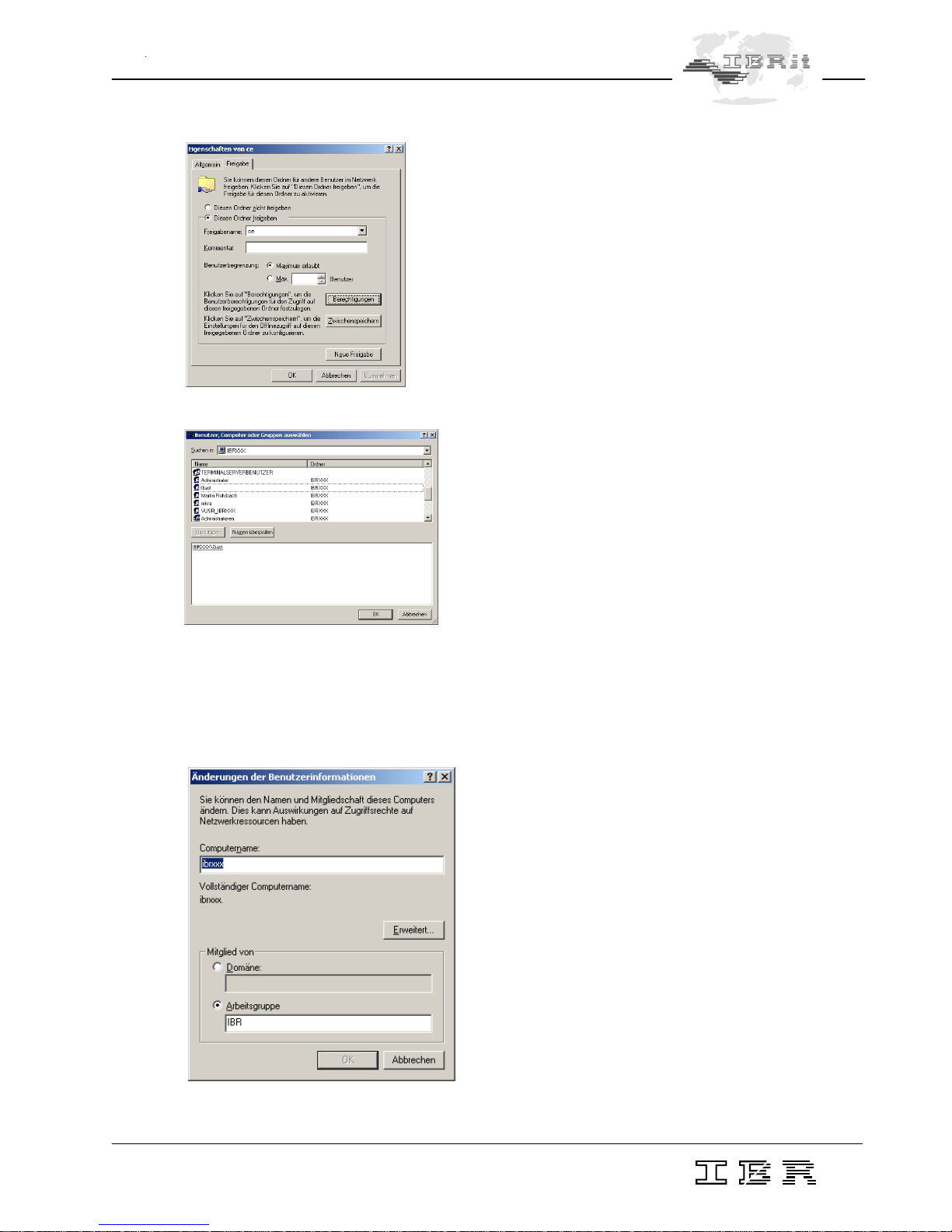
-In the example the data are stored in directory CE of the computer ibrxxx. ibrxxx can be a server or a
workplace PC :
-The further basic settings of ComGage are explained in ComGage manual.