manuals.online logo
Brands
  1. Home
  2. •
  3. Brands
  4. •
  5. IMC Networks
  6. •
  7. Media Converter
  8. •
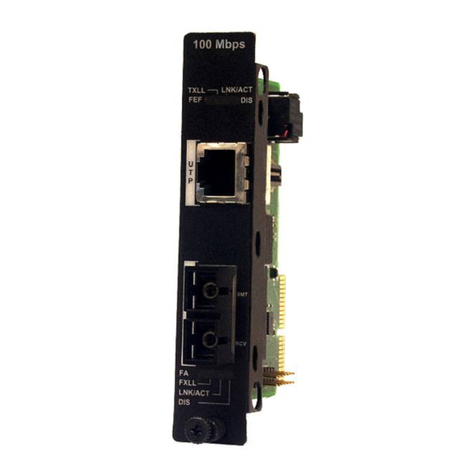
  9. IMC Networks FiberLinX Installation and operating manual

IMC Networks FiberLinX Installation and operating manual

Other manuals for FiberLinX

1

This manual suits for next models

3

Other IMC Networks Media Converter manuals
IMC Networks Giga-MiniMc TX/FX User manual

IMC Networks

IMC Networks Giga-MiniMc TX/FX User manual

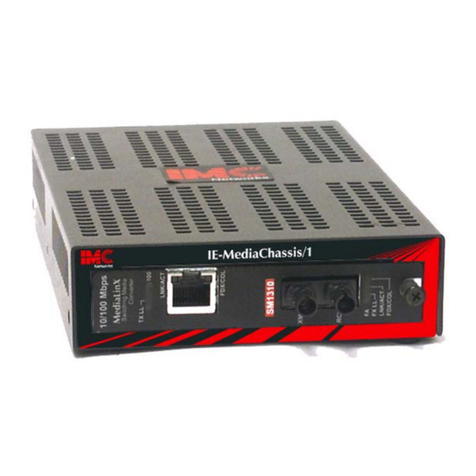
IMC Networks IE-MediaChassis/1 Manual

IMC Networks

IMC Networks IE-MediaChassis/1 Manual

IMC Networks McPC-TX-FX Manual

IMC Networks

IMC Networks McPC-TX-FX Manual

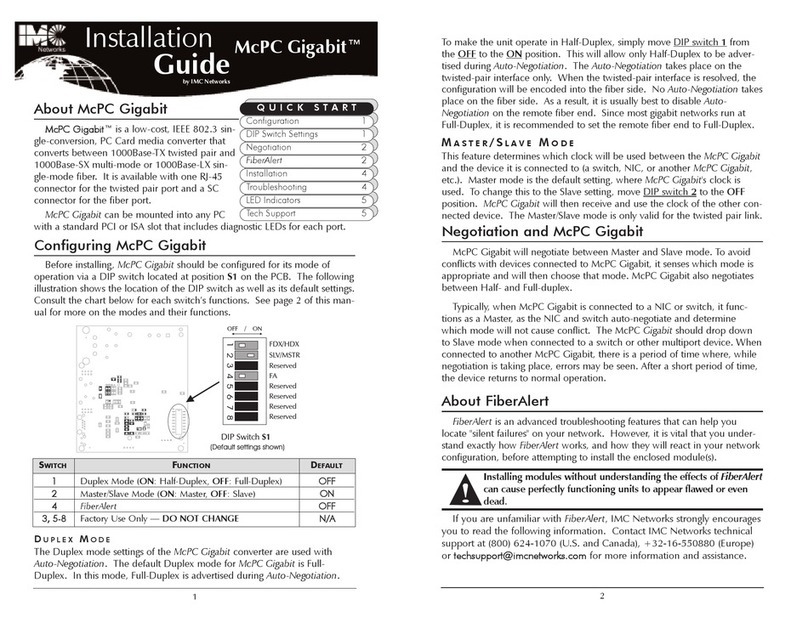
IMC Networks McPc-Gigabit User manual

IMC Networks

IMC Networks McPc-Gigabit User manual

IMC Networks IE-Giga-MiniMc/LFPT TX/SFP User manual

IMC Networks

IMC Networks IE-Giga-MiniMc/LFPT TX/SFP User manual

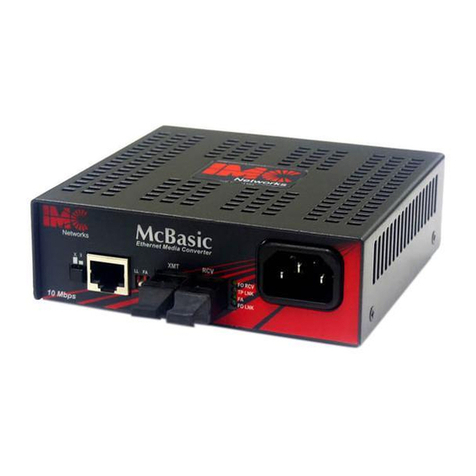
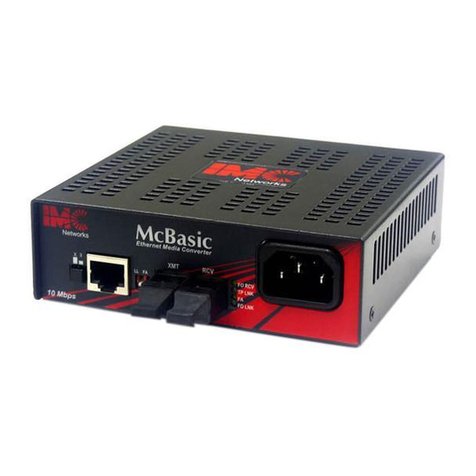
IMC Networks McBasic Gigabit User manual

IMC Networks

IMC Networks McBasic Gigabit User manual

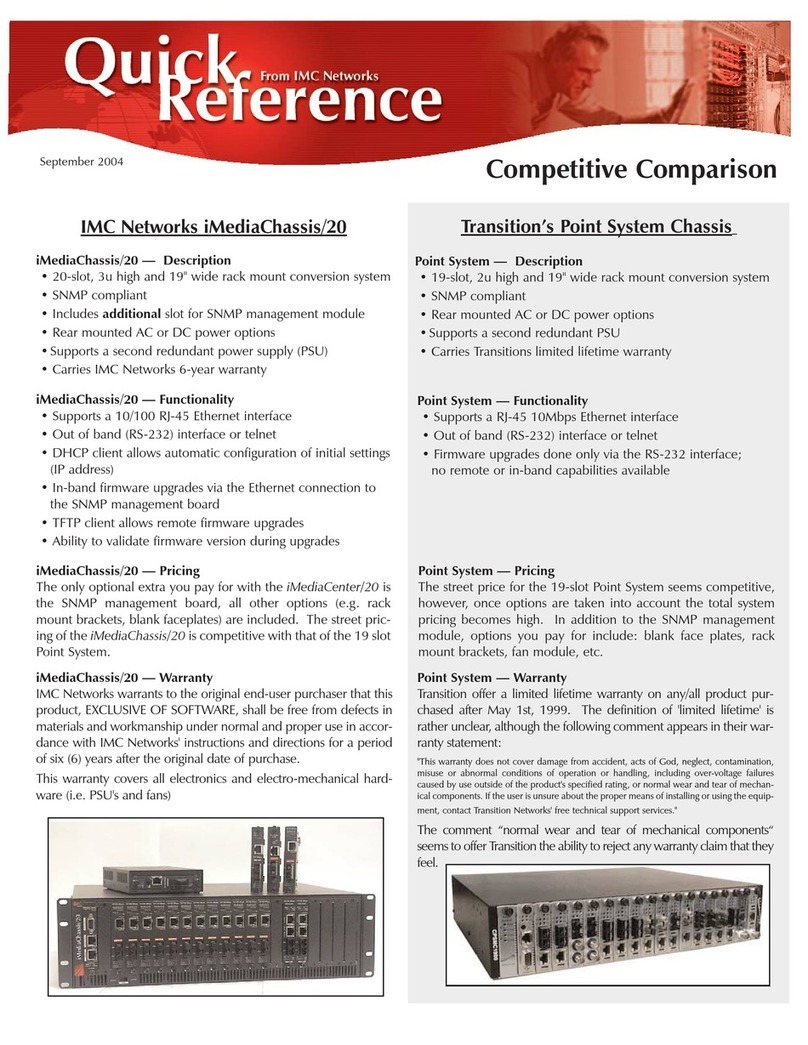
IMC Networks iMediaChassis/20 User manual

IMC Networks

IMC Networks iMediaChassis/20 User manual

IMC Networks McBasic TX/FX Manual

IMC Networks

IMC Networks McBasic TX/FX Manual

IMC Networks McBasic User manual

IMC Networks

IMC Networks McBasic User manual

IMC Networks McPC TP-TX/FX User manual

IMC Networks

IMC Networks McPC TP-TX/FX User manual

IMC Networks iMcV-MediaLinX TX/SSFX User manual

IMC Networks

IMC Networks iMcV-MediaLinX TX/SSFX User manual

IMC Networks MediaConverter/1 User manual
IMC Networks

IMC Networks MediaConverter/1 User manual

IMC Networks McBasic User manual

IMC Networks

IMC Networks McBasic User manual
IMC Networks McPc-Gigabit Manual

IMC Networks

IMC Networks McPc-Gigabit Manual

IMC Networks IE-MultiWay User manual

IMC Networks

IMC Networks IE-MultiWay User manual

IMC Networks PSE-McBasic Series Manual

IMC Networks

IMC Networks PSE-McBasic Series Manual

IMC Networks MiniMc-Gigabit User manual

IMC Networks

IMC Networks MiniMc-Gigabit User manual

IMC Networks MediaChassis Series User manual

IMC Networks

IMC Networks MediaChassis Series User manual

IMC Networks iMcV-DS3/E3-LineTerm User manual

IMC Networks

IMC Networks iMcV-DS3/E3-LineTerm User manual

IMC Networks McPC TP/BNC User manual

IMC Networks

IMC Networks McPC TP/BNC User manual

IMC Networks PSE-McBasic Series User manual

IMC Networks

IMC Networks PSE-McBasic Series User manual

IMC Networks MiniMc TP-TX/FX User manual

IMC Networks

IMC Networks MiniMc TP-TX/FX User manual

IMC Networks IE-Giga-MiniMc User manual

IMC Networks

IMC Networks IE-Giga-MiniMc User manual

IMC Networks IE-Giga-MiniMc User manual

IMC Networks

IMC Networks IE-Giga-MiniMc User manual

Popular Media Converter manuals by other brands

TR-Electronic CMS582M-4096/4096 IOL DMS 14H7 KRF Assembly instructions

TR-Electronic

TR-Electronic CMS582M-4096/4096 IOL DMS 14H7 KRF Assembly instructions

Korenix JetCon 2301S user manual

Korenix

Korenix JetCon 2301S user manual

StarTech.com ET91000LCOAM manual

StarTech.com

StarTech.com ET91000LCOAM manual

Alesis AI-3 Reference manual

Alesis

Alesis AI-3 Reference manual

Caton Vpro 5100 user guide

Caton

Caton Vpro 5100 user guide

Cypress CSC-5500 Operation manual

Cypress

Cypress CSC-5500 Operation manual

H&B TX-100 Installation and instruction manual

H&B

H&B TX-100 Installation and instruction manual

Bolin Technology D Series user manual

Bolin Technology

Bolin Technology D Series user manual

IFM Electronic Efector 400 RN30 Series Device manual

IFM Electronic

IFM Electronic Efector 400 RN30 Series Device manual

GRASS VALLEY KUDOSPRO ULC2000 user manual

GRASS VALLEY

GRASS VALLEY KUDOSPRO ULC2000 user manual

Linear Technology DC1523A Demo Manual

Linear Technology

Linear Technology DC1523A Demo Manual

Lika ROTAPULS I28 Series quick start guide

Lika

Lika ROTAPULS I28 Series quick start guide

Weidmuller IE-MC-VL Series Hardware installation guide

Weidmuller

Weidmuller IE-MC-VL Series Hardware installation guide

Optical Systems Design OSD2139 Series Operator's manual

Optical Systems Design

Optical Systems Design OSD2139 Series Operator's manual

Tema Telecomunicazioni AD615/S product manual

Tema Telecomunicazioni

Tema Telecomunicazioni AD615/S product manual

KTI Networks KGC-352 Series installation guide

KTI Networks

KTI Networks KGC-352 Series installation guide

Gira 0588 Series operating instructions

Gira

Gira 0588 Series operating instructions

Lika SFA-5000-FD user guide

Lika

Lika SFA-5000-FD user guide

manuals.online logo
manuals.online logoBrands
  • About & Mission
  • Contact us
  • Privacy Policy
  • Terms and Conditions

Copyright 2025 Manuals.Online. All Rights Reserved.

19772 Pauling  Foothill Ranch, CA 92610-2611 USA
TEL: (949) 465-3000  FAX: (949) 465-3020
www.imcnetworks.com
FiberLinX
Installation Manual
and User Reference Guide
Document Number 50-80111-01 A0 February 2000
Disclaimer
IMC Networks makes no warranties with respect to this document and disclaims any implied
warranties of merchantability or fitness for a particular purpose. IMC Networks assumes no
responsibility for any errors that may appear in this document or for incidental consequential
damages in connection with the performance or use of this material.
This document contains proprietary information which is protected by copyright. No part may
be reproduced in any way without prior consent of IMC Networks.
Copyright
© 1999-2000 IMC Networks. All rights reserved.
Trademarks
FiberLinX is a trademark of IMC Networks. Other brands, product names or features may be
trademarks and are the properties of their respective companies.
Preface
This manual contains information to assist with installation and use of
IMC Networks FiberLinX product line.
For more information about IMC Networks products, please visit the IMC
Networks Web site at www.imcnetworks.com.
Contents
Chapter 1: Introduction
About FiberLinX . . . . . . . . . . . . . . . . . . . . . . . . . . . . . . . . . . . . . . . .1.1
About FiberLinX Modules . . . . . . . . . . . . . . . . . . . . . . . . . . . . . . . . .1.2
How FiberLinX Works . . . . . . . . . . . . . . . . . . . . . . . . . . . . . . . . . . .1.2
Chapter 2: Hardware Installation
Configuring FiberLinX Modules . . . . . . . . . . . . . . . . . . . . . . . . . . . . .2.1
Switches 1 & 2: Fiber Optic Type . . . . . . . . . . . . . . . . . . . . . .2.2
Switches 3 & 4: Selecting Duplex Mode . . . . . . . . . . . . . . . . .2.2
Switches 5 & 6: SNMP Management Traffic . . . . . . . . . . . . . .2.2
Switches 7 & 8: Configuring FiberLinX as a Host, Remote or
fielrStandalone Unit . . . . . . . . . . . . . . . . . . . . . . . . . . . . . . . . .2.3
FiberAlert . . . . . . . . . . . . . . . . . . . . . . . . . . . . . . . . . . . . . . . . . . . .2.3
Installing a FiberLinX Module . . . . . . . . . . . . . . . . . . . . . . . . . . . . . .2.4
Selecting a Twisted Pair Crossover/Pass-Through Connection . . . . . .2.5
LED Operation . . . . . . . . . . . . . . . . . . . . . . . . . . . . . . . . . . . . . . . .2.5
LEDs for the Fiber Data Port . . . . . . . . . . . . . . . . . . . . . . . . . .2.5
LEDs for the Twisted Pair Data Port . . . . . . . . . . . . . . . . . . . . .2.5
LEDs for the Twisted Pair Management Port . . . . . . . . . . . . . .2.5
DB-9 Serial Connector . . . . . . . . . . . . . . . . . . . . . . . . . . . . . . . . . .2.6
Chapter 3: Configuring and Managing FiberLinX
Required Management Configuration Steps . . . . . . . . . . . . . . . . . . .3.1
Assigning IP Information to FiberLinX . . . . . . . . . . . . . . . . . . . . . . . .3.1
HUBCTRL 32 . . . . . . . . . . . . . . . . . . . . . . . . . . . . . . . . . . . . .3.2
Serial Port Configuration . . . . . . . . . . . . . . . . . . . . . . . . . . . . .3.2
About iView . . . . . . . . . . . . . . . . . . . . . . . . . . . . . . . . . . . . . . . . . . .3.2
System Requirements . . . . . . . . . . . . . . . . . . . . . . . . . . . . . . .3.3
Using iView To Manage FiberLinX . . . . . . . . . . . . . . . . . . . . . . . . . .3.3
If Using iView with HP OpenView . . . . . . . . . . . . . . . . . . . . . . . . . .3.3
If NOT using iView . . . . . . . . . . . . . . . . . . . . . . . . . . . . . . . . . . . . .3.4
Chapter 4: Application Examples
Example 1: Direct Fiber Switch Connection
from Central Site to Remote Site . . . . . . . . . . . . . . . . . . . . . . . .4.1
Example 2: Fiber Conversion and Remote
Management Between Two Copper-Based Switches . . . . . . . . . .4.2
Example 3: Fiber Conversion and Highly Secure Remote
Management Between Two Copper-Based Switches . . . . . . . . . .4.3
Chapter 5: Technical Specifications
Fiber Optic Cleaning Guidelines . . . . . . . . . . . . . . . . . . . . . . . . . . .5.1
Electrostatic Discharge Precautions . . . . . . . . . . . . . . . . . . . . . . . . .5.1
Unit Specifications . . . . . . . . . . . . . . . . . . . . . . . . . . . . . . . . . . . . .5.2
Environmental . . . . . . . . . . . . . . . . . . . . . . . . . . . . . . . . . . . . .5.2
Power . . . . . . . . . . . . . . . . . . . . . . . . . . . . . . . . . . . . . . . . . . .5.2
Heat . . . . . . . . . . . . . . . . . . . . . . . . . . . . . . . . . . . . . . . . . . . .5.2
Fiber Optic . . . . . . . . . . . . . . . . . . . . . . . . . . . . . . . . . . . . . . .5.2
Chapter 6: General Information
Technical Support . . . . . . . . . . . . . . . . . . . . . . . . . . . . . . . . . . . . . .6.1
Warranty . . . . . . . . . . . . . . . . . . . . . . . . . . . . . . . . . . . . . . . . . . . . .6.1
Federal Communications Commission Radio Frequency
Interference Statement . . . . . . . . . . . . . . . . . . . . . . . . . . . . . . . .6.3
Appendix
Assiging IP Information to FiberLinX Using Serial Port . . . . . . . . . . . .Ap.1
HUBCTRL32 Installation Instructions . . . . . . . . . . . . . . . . . . . . . . . .Ap.4
Chapter 1:
Introduction
About FiberLinX
FiberLinX from IMC Networks is an IEEE 802.3 compliant, SNMP-
manageable media converter/LAN extender/Ethernet bridge that can be
managed remotely. FiberLinX is designed to convert between 10 Mbps
Ethernet twisted pair (10Base-T) and 10 Mbps Ethernet (10Base-FL) single-
mode or multi-mode fiber optic cabling.
Each FiberLinX features the following three ports:
10Base-T data port
10Base-FL data port
10Base-T port specifically
for SNMP traffic (i.e., the
management port).
NOTE: Although the
management port is designed to
accept SNMP traffic, ANY port on the FiberLinX Module can be configured to
serve as the SNMP management port.
NOTE: The twisted pair management port is not designed to handle data
traffic, and therefore should NOT serve as a redundant twisted pair port.
The primary advantage of FiberLinX is that it allows the administrator to
completely monitor and manage fiber traffic between switches and routers
while remaining isolated from the remote (or customers) network.
1.1
Figure 1.1 FiberLinX Port Connections
Figure 1.2 Example FiberLinX Installation
1.2
See Chapter 4 of this guide for more example FiberLinX installations.
About FiberLinX Modules
FiberLinX Modules can be installed into any IMC Networks
PowerChassis/100-Series. The following versions of FiberLinX Modules are
available:
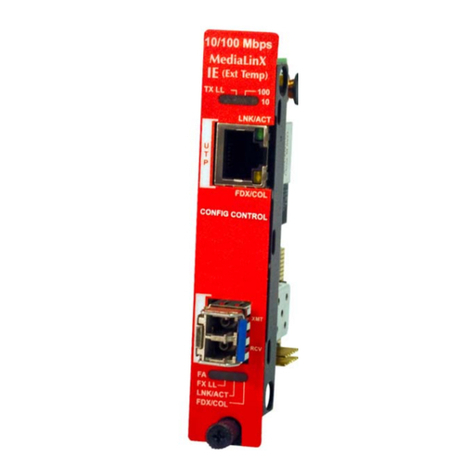
FiberLinX  10Base-T twisted pair and 10Base-
FL 850 nm multi-mode fiber; includes
two RJ-45 connectors and one pair ST
or SC connectors.
FiberLinX 1300  10Base-T twisted pair and
10Base-FL 1300 nm multi-mode fiber;
includes two RJ-45 connectors and one
pair ST or SC connectors.
FiberLinX-SingleMode  10Base-T twisted pair
and 10Base-FL 1300 nm single-mode
fiber; includes two RJ-45 connectors
and one pair ST or SC connectors.
FiberLinX-SingleMode/PLUS  as above with
higher power budget.
How FiberLinX Works
Each port on the FiberLinX includes its own MAC Address. The movement
of data from one port to another is
accomplished via packet switching.
The destination address of each
Ethernet packet entering the
FiberLinX is checked to determine
whether it is a management packet
or a downstream data packet, and
is switched appropriately. Packets
not addressed for management
ports are sent through to the
network. Similarly, management
packets are switched internally to
the management engine and are
not forwarded.
More information about how FiberLinX works can be found on the IMC
Networks Web site at www.imcnetworks.com.
Figure 1.4 FiberLinX Packet Switching
Figure 1.3
10 Mbps FiberLinX
Module
Chapter 2:
Hardware Installation
Installing a FiberLinX Module involves the following steps:
1) Configuring the FiberLinX Module via its eight-position Dip
switch for the following:
lHalf/Full Duplex setting (data ports only),
ldesignating the management traffic port,
lhost/remote or standalone operation;
2) Installation of a PowerChassis/100-Series chassis;
3) Installation of the FiberLinX Module into the above-mentioned
PowerChassis; and,
4) Selecting a crossover or pass-through connection for the twisted
pair data port.
Configuring FiberLinX Modules
FiberLinX Modules have an eight-position Dip switch, located at position
S2 (shown below), for configuring the module.
Figure 2.1 Dip Switch Location on FiberLinX
(default settings shown)
2.1
The following table shows the function for each of the eight Dip switches
on FiberLinX. Refer to the section on each feature for specific configuration
information.
Switches 1 & 2: Fiber Optic Type
These Dip switch settings are configured at the factory and should NOT
be changed in the field.
Switches 3 & 4: Selecting Duplex Mode
Each data port on FiberLinX can operate in either Half-Duplex (HDX) or
Full-Duplex (FDX) Mode. (NOTE: The Twisted Pair management port is
ALWAYS Half-Duplex.) You will need to set the duplex mode of these ports
depending on the capabilities of the connected hardware.
FiberLinX is shipped from the factory with HDX selected on each data port
(i.e., Dip switches 3and 4in the OFF position). Select FDX for the fiber
data port by setting Dip switch 3to ON. Select FDX for the twisted pair data
port by setting Dip switch 4to ON.
Switches 5 & 6: SNMP Management Traffic
Although FiberLinX provides a twisted pair port solely for management
traffic, you can configure FiberLinX to accept SNMP management traffic from
any of its three ports. There are four different ways you can configure
FiberLinX to accept (or not accept) SNMP management traffic. Only one
source for SNMP management traffic can be active at any time, and only the
SNMP management traffic directed to the modules IP address will be
accepted.
FiberLinX is configured at the factory to accept SNMP management traffic
from the twisted pair data port (i.e., Dip switch 5ON, Dip switch 6OFF).
You can change this setting by adjusting Dip switches 5and 6. The
following table shows the switch settings for each configuration.
2.2
FIBERLINX DIP SWITCH GUIDE
Switch
1
2
3
4
5
6
7
8
Feature
DO NOT CHANGE
DO NOT CHANGE
Enables Full-Duplex mode on the Fiber Data port
Enables Full-Duplex mode on the Twisted Pair Data port
Specifies from which port SNMP traffic is accepted
Configures
FiberLinX
as a Remote unit
Configures
FiberLinX
as a Host unit
Default
Varies
Varies
OFF
OFF
ON
OFF
OFF
OFF
Switches 7 & 8: Configuring FiberLinX as a Host, Remote
or Standalone Unit
When two FiberLinX units are paired with one another, each FiberLinX
unit can be configured to be either a Host unit or a Remote unit. As a Host,
FiberLinX requests management information from any attached remote unit
and displays that information, along with its own, upon SNMP query. As a
Remote, FiberLinX will not respond to requests for management information
from an attached unit. In single installation, the sole FiberLinX should be
configured as standalone unit (factory default). Following is a table showing
the Dip switch configurations for each setting. Please see Chapter 4 of this
guide for possible installations and their related Host, Remote and
standalone Dip switch settings.
Configure FiberLinX to be a Host unit by setting Dip switch 8to ON.
Configure FiberLinX to be a Remote unit by setting Dip switch 7to ON.
FiberAlert
Since media converters are a transparent link in a network, FiberLinX
features FiberAlert, a troubleshooting feature that assists in pinpointing link
faults between media conversion products. If a media converter is not
2.3
SNMP MANAGEMENT TRAFFIC DIP SWITCHES
Switch 5
(
Designated Mgmt. Port
)
OFF
OFF
ON
ON
Result
Accepts no SNMP commands, even if directed to
FiberLinX
’s
IP address. All SNMP traffic on the data ports is passed
through. All traffic on the management port is discarded.
Accepts SNMP commands only from the management port.
All SNMP traffic on the data ports is passed through.
Accepts SNMP commands only in-band from the twisted pair
data port. All traffic on the management port is discarded.
All SNMP traffic on the fiber data port is passed through.
Accepts SNMP commands only in-band from the fiber data
port. All traffic on the management port is discarded. All
SNMP traffic on the twisted pair data port is passed through.
Switch 6
OFF
ON
OFF
ON
HOST AND REMOTE DIP SWITCHES
Switch 7
OFF
ON
OFF
Result
Standalone Configuration (no Host or Remote)
DEFAULT
Remote Unit Configuration (Slave)
Host Unit Configuration (Master)
Switch 8
OFF
OFF
ON
(
none
)
(
TP mgmt. port
)
(
TP data port
)
DEFAULT
(
FO data port
)
receiving a fiber link, FiberAlert disables the media converter's fiber
transmitter, thus mirroring the link status of the opposite end of the fiber.
Both fiber link LEDs on either side of the devices should extinguish, alerting
you to the fault.
NOTE: FiberAlert should only be activated on one side of a media
conversion.
More information on FiberAlert can be found on the IMC Networks Web
site at www.imcnetworks.com/to-fa.htm.
Installing a FiberLinX Module
Once you configure a FiberLinX Module, it is ready to be installed in a
chassis. You can install a FiberLinX Module into any IMC Networks
PowerChassis/100-Series chassis (e.g., PowerChassis/101, etc.). FiberLinX
Modules may be safely installed or removed with power on (i.e., FiberLinX
Modules are hot-swappable). Please read the electrostatic discharge
precautions on page 5.1 of this manual before proceeding
NOTE:FiberLinX Modules should be installed into a PowerChassis
only AFTER the PowerChassis has been installed. Please see the
installation guide included with your chassis for assistance in installing
the chassis.
PowerChassis come with blank brackets covering the slots where the
modules are to be installed. To install a FiberLinX Module, remove the blank
bracket by loosening the screws located on the outside edges of the bracket.
Slide the FiberLinX Module into the chassis until the module is seated
securely in the connector. Secure the module to the chassis by tightening
the captive screws.
2.4