manuals.online logo
Brands
  1. Home
  2. •
  3. Brands
  4. •
  5. Insignia
  6. •
  7. Media Converter
  8. •
  9. Insignia NS-HZ313 User manual

Insignia NS-HZ313 User manual

Other manuals for NS-HZ313

2

This manual suits for next models

1

Other Insignia Media Converter manuals

Insignia NS-HZ313 User manual

Insignia

Insignia NS-HZ313 User manual

Insignia NS-DXA3 User manual

Insignia

Insignia NS-DXA3 User manual

Insignia NS-HZ308 User manual

Insignia

Insignia NS-HZ308 User manual

Insignia NSDXA2 User manual

Insignia

Insignia NSDXA2 User manual

Insignia NS-A2113 User manual

Insignia

Insignia NS-A2113 User manual

Insignia NS-DXA1 User manual

Insignia

Insignia NS-DXA1 User manual

Insignia NS-HZ313 User manual

Insignia

Insignia NS-HZ313 User manual

Insignia NS-HZ330 User manual

Insignia

Insignia NS-HZ330 User manual

Insignia NS-DXA3 User manual

Insignia

Insignia NS-DXA3 User manual

Insignia NSDXA2 User manual

Insignia

Insignia NSDXA2 User manual

Insignia NSDXA2 User manual

Insignia

Insignia NSDXA2 User manual

Popular Media Converter manuals by other brands

TR-Electronic CMS582M-4096/4096 IOL DMS 14H7 KRF Assembly instructions

TR-Electronic

TR-Electronic CMS582M-4096/4096 IOL DMS 14H7 KRF Assembly instructions

Korenix JetCon 2301S user manual

Korenix

Korenix JetCon 2301S user manual

StarTech.com ET91000LCOAM manual

StarTech.com

StarTech.com ET91000LCOAM manual

Alesis AI-3 Reference manual

Alesis

Alesis AI-3 Reference manual

Caton Vpro 5100 user guide

Caton

Caton Vpro 5100 user guide

Cypress CSC-5500 Operation manual

Cypress

Cypress CSC-5500 Operation manual

H&B TX-100 Installation and instruction manual

H&B

H&B TX-100 Installation and instruction manual

Bolin Technology D Series user manual

Bolin Technology

Bolin Technology D Series user manual

IFM Electronic Efector 400 RN30 Series Device manual

IFM Electronic

IFM Electronic Efector 400 RN30 Series Device manual

GRASS VALLEY KUDOSPRO ULC2000 user manual

GRASS VALLEY

GRASS VALLEY KUDOSPRO ULC2000 user manual

Linear Technology DC1523A Demo Manual

Linear Technology

Linear Technology DC1523A Demo Manual

Lika ROTAPULS I28 Series quick start guide

Lika

Lika ROTAPULS I28 Series quick start guide

Weidmuller IE-MC-VL Series Hardware installation guide

Weidmuller

Weidmuller IE-MC-VL Series Hardware installation guide

Optical Systems Design OSD2139 Series Operator's manual

Optical Systems Design

Optical Systems Design OSD2139 Series Operator's manual

Tema Telecomunicazioni AD615/S product manual

Tema Telecomunicazioni

Tema Telecomunicazioni AD615/S product manual

KTI Networks KGC-352 Series installation guide

KTI Networks

KTI Networks KGC-352 Series installation guide

Gira 0588 Series operating instructions

Gira

Gira 0588 Series operating instructions

Lika SFA-5000-FD user guide

Lika

Lika SFA-5000-FD user guide

manuals.online logo
manuals.online logoBrands
  • About & Mission
  • Contact us
  • Privacy Policy
  • Terms and Conditions

Copyright 2025 Manuals.Online. All Rights Reserved.

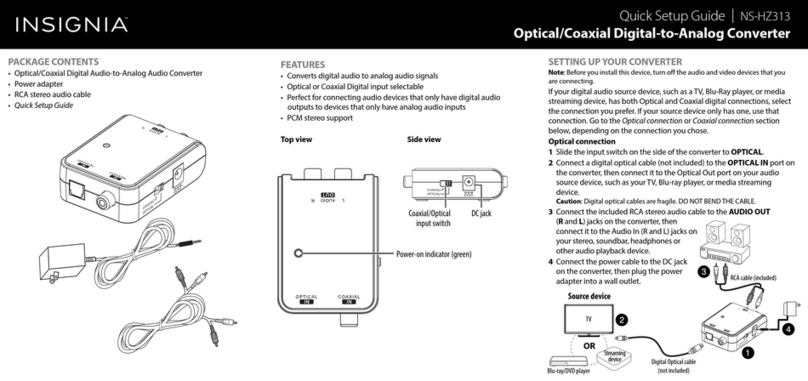
FEATURES
• Converts digital audio to analog audio signals
• Optical or Coaxial Digital input selectable
• Perfect for connecting audio devices that only have digital audio
outputs to devices that only have analog audio inputs
• PCM stereo support
Top view Side view
SETTING UP YOUR CONVERTER
Note: Before you install this device, turn o the audio and video devices that
you are connecting.
If your digital audio source device, such as a TV, Blu-Ray player, or
media streaming device, has both Optical and Coaxial digital
connections, select the connection you prefer. If your source device
only has one, use that connection. Go to the Optical connection or
Coaxial connection section below, depending on the connection you
chose.
Optical connection
1Slide the input switch on the side of the converter to OPTICAL.
2Connect a digital optical cable (not included) to the OPTICAL IN
port on the converter, then connect it to the Optical Out port on
your audio source device, such as your TV, Blu-ray player, or media
streaming device.
Caution: Digital optical cables are fragile. DO NOT BEND THE CABLE.
3 Connect the included RCA stereo audio cable to the AUDIO OUT
(Rand L) jacks on the converter, then connect it to the Audio In
(R and L) jacks on your stereo, soundbar, headphones or other audio
playback device.
4Connect the power cable to the DC
jack on the converter, then plug the
power adapter into a wall outlet.
Coaxial/Optical
input switch
DC jack
Power-on indicator (green)
PACKAGE CONTENTS
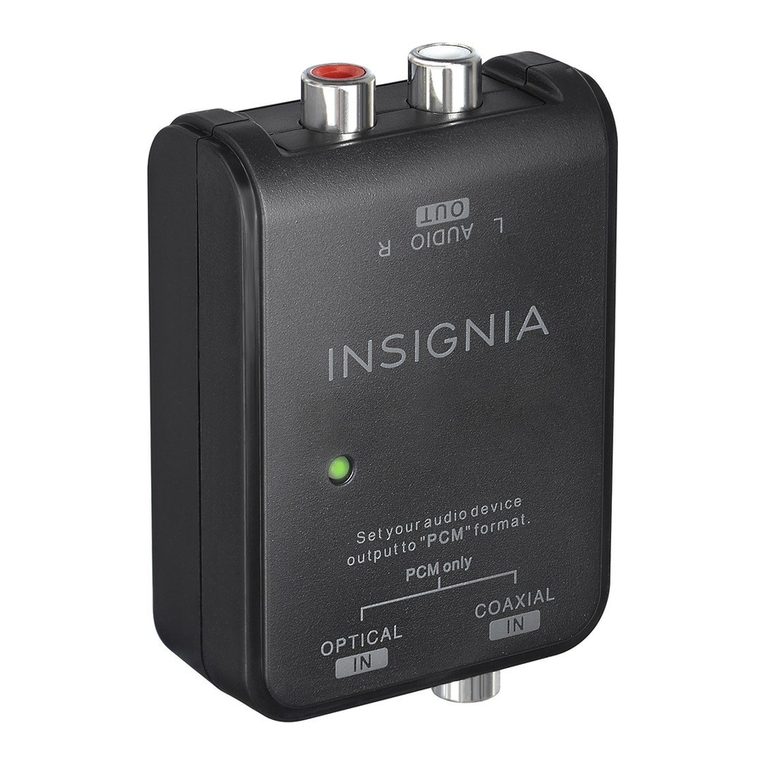
• Optical/Coaxial Digital Audio-to-Analog Audio Converter
• Power adapter
• RCA stereo audio cable
• Quick Setup Guide
Before using your new product, please read these instructions to prevent any damage.
OR
Digital Optical cable
(not included)
Source device
RCA cable (included)
TV
Streaming
device
Blu-ray/DVD player
QUICK SETUP GUIDE
Optical/Coaxial
Digital-to-Analog
Converter
NS-HZ313 / NS-HZ313-C
5Turn on the connected devices and begin playback. If you are unable
to hear the audio from your speakers or headphones, check the
connections and settings to make sure that they are all correct.
6Change the audio source device’s (e.g. TV, Blu-ray player, or media
streaming device) audio output to“PCM” format. Refer to the manual
you received with the audio source device for additional information.
Coaxial connection
1Slide the input switch on the side of the converter to COAXIAL.
2Connect a coaxial digital cable (not included) to the COAXIAL IN port on
the converter, then connect it to the Digital Out port on your audio
source device, such as your TV, Blu-ray player, or media streaming device.
3Connect the included RCA stereo audio cable to the AUDIO OUT
(Rand L) jacks on the converter, then connect it to the Audio In
(R and L) jacks on your stereo, soundbar, headphones or other audio
playback device.
4Connect the power cable to the DC jack on the converter, then plug
the power adapter into a wall outlet.
5Turn on the connected devices and begin playback. If you are unable
to hear the audio from your speakers or headphones, check the
connections and settings to make sure that they are all correct.
6 Change the audio source device’s
(e.g. TV, Blu-ray player, or media
streaming device) audio output to
“PCM”format. Refer to the manual
you received with the audio source
device for additional information.
V5 ENGLISH 19-0560
SPECIFICATIONS
Dimensions (H × W × D): 2.7 × 2 × .9 in. (6.9 × 5 × 2.3 cm)
Digital audio format support: LPCM 44 kHz, 48 kHz, 96 kHz
Power: 5 V DC, 600 mA
IMPORTANT SAFETY INFORMATION
• Indoor use only.
• There are no user serviceable parts. Do not open the housing.
• Do not use in a high humidity environment.
• Use the attached AC/DC adapter only.
TROUBLESHOOTING
ONE-YEAR LIMITED WARRANTY
Visit www.insigniaproducts.com for details.
CONTACT INSIGNIA:
For customer service, call 1-877-467-4289 (U.S. and Canada) or
01-800-926-3000 (Mexico)
www.insigniaproducts.com
INSIGNIA is a trademark of Best Buy and its aliated companies
Distributed by Best Buy Purchasing, LLC
7601 Penn Ave South, Richeld, MN 55423 U.S.A.
©2019 Best Buy. All rights reserved.
RCA cable (included)
Digital Coaxial cable
(not included)
OR
Source device
TV
Streaming
device
Blu-ray/DVD player
PROBLEM
No sound
POSSIBLE SOLUTIONS
• Check the connections and make sure that they are
correct and secure.
• Make sure that the audio source device output is in
“PCM” format.
• Make sure that the audio source device is powered
on and playing back.
• Make sure that the volume on the audio source
device is in the mid-level and is not muted.
• If the power on indicator is not on, make sure that
the wall outlet that the AC adapter is plugged into
is a live outlet and that it is turned on (if it is
switched).