EnglishDeutsch
 logo
Brands
  1. Home
  2. •
  3. Brands
  4. •
  5. Insignia
  6. •
  7. TV
  8. •
  9. Insignia NS-37D20SNA14 User manual

Insignia NS-37D20SNA14 User manual

Other manuals for NS-37D20SNA14

8

This manual suits for next models

1

Other Insignia TV manuals

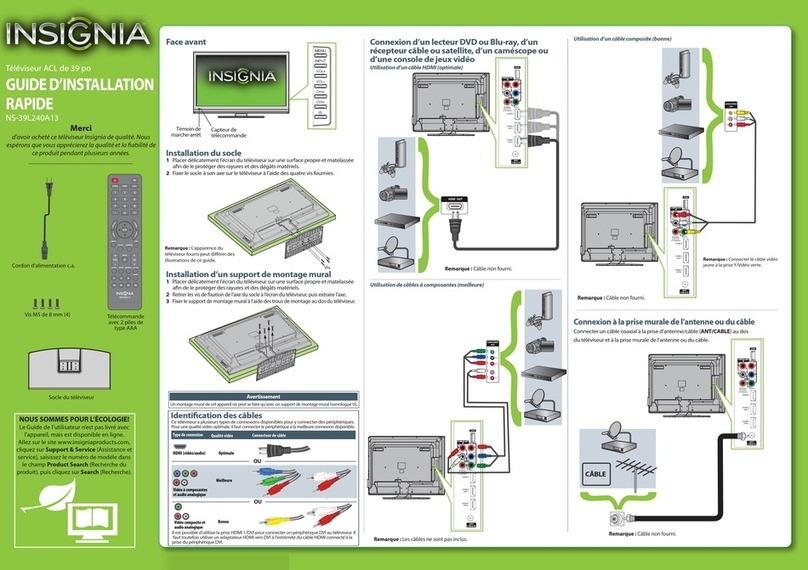
Insignia NS-39L240A13 Installation and operation manual

Insignia

Insignia NS-39L240A13 Installation and operation manual

Insignia NS-40D40SNA14 Operating manual

Insignia

Insignia NS-40D40SNA14 Operating manual

Insignia NS-22E400NA14 Quick start guide

Insignia

Insignia NS-22E400NA14 Quick start guide

Insignia NS-32L430A11 Quick start guide

Insignia

Insignia NS-32L430A11 Quick start guide

Insignia NS-F27C User manual

Insignia

Insignia NS-F27C User manual

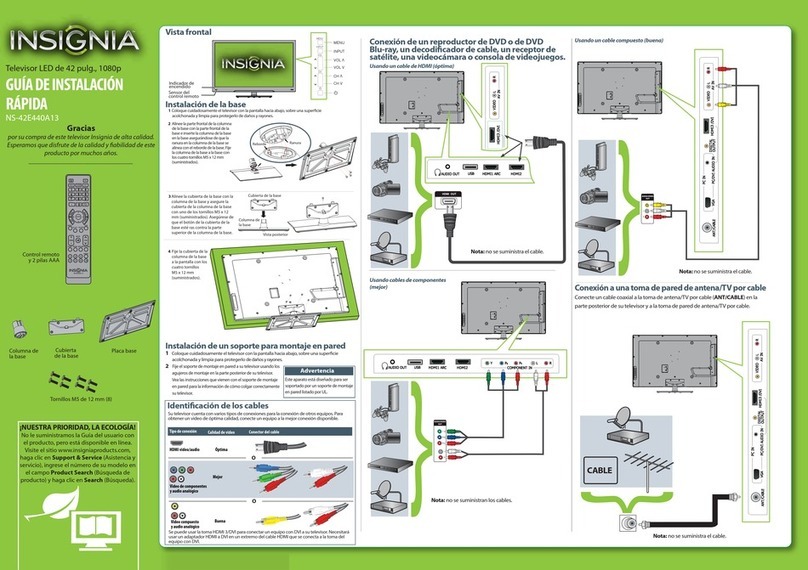
Insignia NS-42E440A13 Parts list manual

Insignia

Insignia NS-42E440A13 Parts list manual

Insignia NS-48D420NA16 User manual

Insignia

Insignia NS-48D420NA16 User manual

Insignia NS-22E730A12 Quick start guide

Insignia

Insignia NS-22E730A12 Quick start guide

Insignia NS-24E40SNA14 User manual

Insignia

Insignia NS-24E40SNA14 User manual

Insignia NS-39L240A13 User manual

Insignia

Insignia NS-39L240A13 User manual

Insignia NS-49DR420NA18 User manual

Insignia

Insignia NS-49DR420NA18 User manual

Insignia NS-32D201NA14 User manual

Insignia

Insignia NS-32D201NA14 User manual

Insignia NS-65D260A13 User manual

Insignia

Insignia NS-65D260A13 User manual

Insignia NS-42E470A13A Operating manual

Insignia

Insignia NS-42E470A13A Operating manual

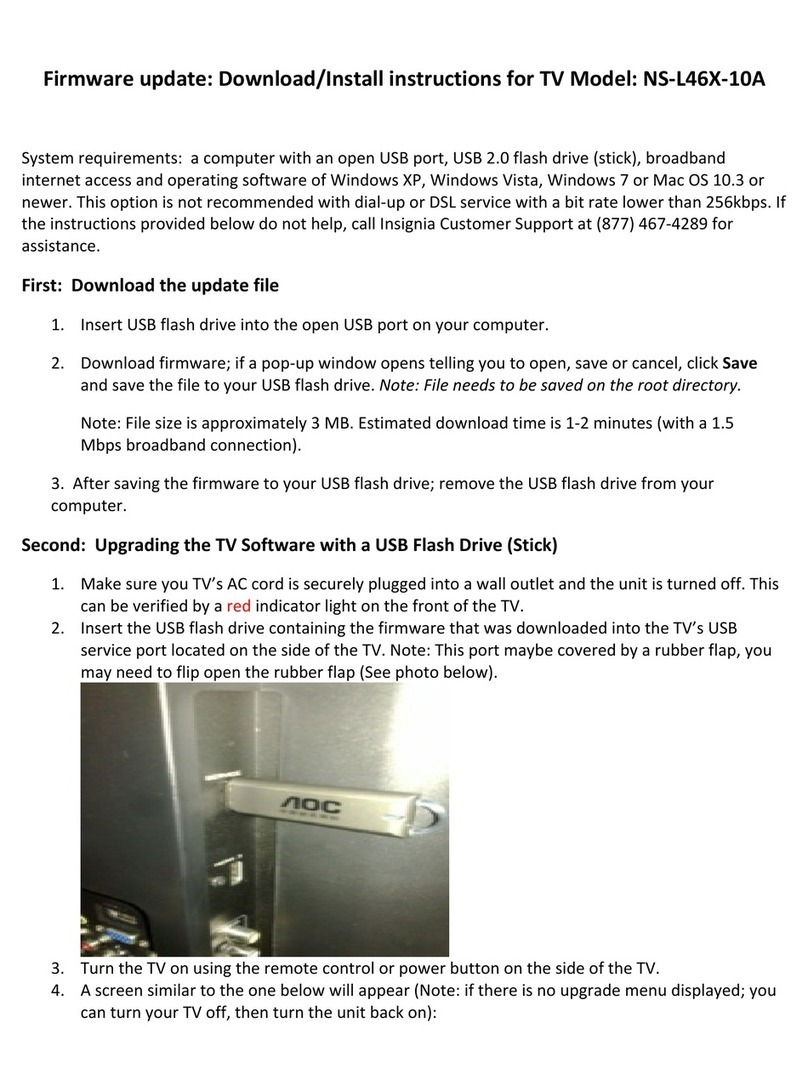
Insignia NS-L46X-10A Mounting instructions

Insignia

Insignia NS-L46X-10A Mounting instructions

Insignia NS-40D510NA15 User manual

Insignia

Insignia NS-40D510NA15 User manual

Insignia NS-L42X-10A User manual

Insignia

Insignia NS-L42X-10A User manual

Insignia NS-55D440NA14 Quick start guide

Insignia

Insignia NS-55D440NA14 Quick start guide

Insignia NS-46E440NA14 Operating manual

Insignia

Insignia NS-46E440NA14 Operating manual

Insignia NS-55L260A13 Quick start guide

Insignia

Insignia NS-55L260A13 Quick start guide

Insignia NS-55L260A13 Operating manual

Insignia

Insignia NS-55L260A13 Operating manual

Insignia NS-37D20SNA14 Operating manual

Insignia

Insignia NS-37D20SNA14 Operating manual

Insignia NS-32DD200NA14 User manual

Insignia

Insignia NS-32DD200NA14 User manual

Insignia NS-50L240A13 User manual

Insignia

Insignia NS-50L240A13 User manual

Popular TV manuals by other brands

Philips 32PFL7403D null

Philips

Philips 32PFL7403D null

Philips 19PFL3403D null

Philips

Philips 19PFL3403D null

Philips 19PFL5403D null

Philips

Philips 19PFL5403D null

Philips 32PFL7605C null

Philips

Philips 32PFL7605C null

Philips 32PFL7603D - annexe 1 null

Philips

Philips 32PFL7603D - annexe 1 null

Haier HS-2190 null

Haier

Haier HS-2190 null

Philips 19PFL3404D null

Philips

Philips 19PFL3404D null

Toshiba 27A10 owner's manual

Toshiba

Toshiba 27A10 owner's manual

Philips 42PF9630A/37 user manual

Philips

Philips 42PF9630A/37 user manual

Hitachi 32FX48B operating guide

Hitachi

Hitachi 32FX48B operating guide

DAEWOO ELECTRONICS DTQ-14V1FC Service manual

DAEWOO ELECTRONICS

DAEWOO ELECTRONICS DTQ-14V1FC Service manual

Changhong Electric uhd55b6000is Operation manual

Changhong Electric

Changhong Electric uhd55b6000is Operation manual

Philips Matchline 21CE7551 operating instructions

Philips

Philips Matchline 21CE7551 operating instructions

Panasonic Genus TX-G10 operating instructions

Panasonic

Panasonic Genus TX-G10 operating instructions

Toshiba 19A20 Service manual

Toshiba

Toshiba 19A20 Service manual

Philips 25PT4523-16 manual

Philips

Philips 25PT4523-16 manual

Sony XBR-100Z9D reference guide

Sony

Sony XBR-100Z9D reference guide

Philips PR0930X3 owner's manual

Philips

Philips PR0930X3 owner's manual

https://manuals.online logo
https://manuals.online logoBrands
  • About & Mission
  • Contact us
  • Privacy Policy
  • Terms and Conditions

Copyright 2026 Manuals.Online. All Rights Reserved.

AUDIO
L R Y/VID EO PBPR
COMPONENTIN
AV IN
DIGITAL
OUTPUT
(OPTICAL)
DVI
AUDI O IN
ANT/
CABL E IN
/
AUDI O OUT
HDMI 1
( )
DVI+ARC
HDMI I N
USB
HDMI 2
DVI
AUDI O IN
ANT/
CABL E IN
HDMI 1
(DVI+ARC)
HDMI I N
HDMI 2
AUDIO
L R Y/VIDEO PBPR
COMPONENTIN
AV IN
DVI
AUDI O IN
ANT/
CABL E IN
HDMI 1
(DVI+ARC)
HDMI I N
HDMI 2
QUICK SETUP
GUIDE
37" LED TV
NS-37D20SNA14/LE-37MY83
Thank you
for purchasing this state-of-the-art
Insignia television. We hope you enjoy
the quality and reliability of this
television for years to come.
FIND YOUR
USER GUIDE ONLINE!
We are going green so a copy of your
User Guide is not provided in the box
but is available online.
Go to www.insigniaproducts.com,
then click Support & Service. Enter your
model number in the box under Manual,
Firmware, Drivers & Product Information,
then click .
Before using your new product, please read these instructions to prevent any damage.
Included accessories
Which cables do you have?
Your TV has several dierent jacks for connecting devices. For the
best video quality, use the best available connection. Use the cables
that came with your devices.
Note: You can use the HDMI1(DVI+ARC) jack to connect a DVI device to your TV. Attach
an HDMI-to-DVI adapter to the end of the HDMI cable. The adapter connects to the DVI
device’s jack. See your online User Guide for more information about dierent types of
HDMI (ARC and DVI).
Note: Images do not necessarily represent the exact design of your television.
Features
Front view
Back view
VIDEO QUALITY
BEST
BETTER
GOOD
GOOD
HDMI video/audio
Component video and analog audio
Composite video and analog audio
Coaxial video/audio
JACK TYPE CABLE CONNECTOR
STOP!
Do not plug your
power cord in until all
other devices have
been connected.
Remote control
and two AAA batteries
Stand column
TV stand
M4 screws (12 mm length) (2 pcs. )
T4 screws (12 mm length) (6 pcs.)
Remote control sensor
Power indicator
OVER
CABLE
Multipurpose jacks: You can plug any
device that uses HDMI into either HDMI
jack. However, an ARC or DVI device must
be connected to the HDMI1 (DVI+ARC)
jack.
See the instructions that came
with your DVI device for more
information.
Note: The HDMI1 (DVI +ARC) jack is a
shared jack. This means that you can
connect only one ARC or DVI device at
a time.
Note: The component video and AV
jacks are shared. This means you can
connect only one component video or
AV device at a time. We suggest using
HDMI if your device supports it.
Note: Connect the yellow video cable
connector to the green Y/VIDEO jack
on the back of your TV.
Using an HDMI cable (BEST)
Using component cables (BETTER)
- OR -
Using an AV cable (GOOD)
How do I connect my TV to an antenna or cable wall jack?
Component cable option
AV cable option
MAKING CONNECTIONS
How do I watch TV (cable or satellite receiver) or connect a device such as a DVD or
Blu-ray Disc player, game console, or camcorder?
- OR -
START HERE
How do I attach the stand to my TV? (not for wall mounting)
You’ll need: A Phillips screwdriver and a soft surface to lay the TV on.
ACarefully place your TV face-down on a cushioned, clean surface
to protect the screen from damages and scratches.
BAlign the stand column with the TV, then secure the stand column
to the TV using two M4 and two T4 screws (All screws are provided.)
C Align the TV stand with the stand column, then secure the TV stand
to the column with four providedT4 screws.
How do I prepare my TV for wall mounting? (not for use with a TV stand)
A Carefully place your TV face-down on a cushioned, clean surface to protect the screen from
damages and scratches.
B See the instructions that came with your wall mount for more information about how
to correctly mount your TV.
A
T4screws
M4screws
Front
T4screws
O P T IC A L
A U D IO IN
DIGI TAL
OUTPUT
(OPTICAL)
DVI
AUDI O IN
ANT/
CABL E IN
/
AUDI O OUT
HDMI 1
( )
DVI+ ARC
HDMI I N
USB
HDMI 2
DIGI TAL
OUTP UT
(OPT ICAL )
DVI
AUDI O IN
ANT/
CABL E IN
/
AUDI O OUT
HDMI 1
( )
DVI+ARC
HDMI I N
USB
HDMI 2
I already have a universal remote control. How do I make it control this TV?
UNIVERSAL REMOTE TV CODES
CABLE BOX, SATELLITE BOX, OR OTHER SET-TOP BOX
Cablevision 068, 069, 078, 096, 100, 164, 168, 229, 026
Charter 2002, 1204, 1423, 1517, 0171, 1963, 0463, 1463, 0842, 1326, 167, 415, 424, 450, 456, 461,
507, 523, 567, 577, 586
Comcast 10171, 11204, 11326, 11463, 11517, 11641, 11780, 11785, 11892, 11963, 12002
Cox 1326, 1463
Direct TV 10171, 11204, 11326, 11517, 11564, 11641, 11963, 12002
Dish Network 720
Time Warner 400, 450, 461, 456, 10463, 1463, 0463
Tivo 0091
Verizon 0198, 0490
One for All 0054
Philips 0198, 0490
RCA 135
Sony 068, 069, 078, 096
If you already have a universal remote control that you would like to program to work with your TV and don’t
want to use the included Insignia remote control, see the table for common codes.
For an up-to-date list of codes for other
cable providers and universal remote brands,
scan this QR code or visit
www.insigniaproducts.com/remotecodes
UNIVERSAL REMOTE CONTROLS
V1 ENGLISH 13-0511
The best time to turn on your TV is after you have attached the TV
stand or wall-mounted your TV and connected all devices.
When your television is in place:
1 Plug the power cord into a power outlet.
2Install the remote control batteries.
3Press (power) on your remote control.
4Follow the on-screen instructions.
TURNING ON MY TV
When can I turn on my TV?
Power cord
Power outlet
NORMAL: Original aspect ratio is preserved.
Black bars are present if content is not
widescreen (16:9).
ZOOM: Expands the image to ll the screen.
The top and bottom of the image may be
cropped.
WIDE: Displays content recorded in a
16:9 (wide-screen) aspect ratio.
CINEMA: Stretches the image at the edges,
but keeps a clear image in the center.
AUTO: Automatically adjusts the image based
on the screen size and the TV program. Select
this option if you are uncertain which aspect
ratio to choose. Note: Auto is only available
when Auto Aspect Ratio in the CHANNELS
menu is set to On.
What are my screen-size options?
Using digital audio
Using analog audio
Note: Refer to the instructions that came
with your speakers for more information.
Note: Refer to the instructions that came
with your speakers for more information.
CONNECTING AUDIO DEVICES
How do I connect my TV to external speakers?
- OR -
37" LED TV IQUICK SETUP GUIDE I NS-37D20SNA14/LE-37MY83
Using your remote control
One-year limited warranty
Visit www.insigniaproducts.com for details.
Need additional help?
See your online User Guide! This
comprehensive guide includes everything
from basic how-to steps to more advanced
features. A copy of your User Guide is not
provided in the box but is available online.
Go to www.insigniaproducts.com,
then click Support & Service. Enter your
model number in the box under Manual,
Firmware, Drivers & Product Information,
then click .
Check out our online community forum at
www.insigniaproducts.com for helpful
information from other Insignia TV owners.
We’re here for you
www.insigniaproducts.com
For customer service, call:
877-467-4289
(U.S./Canada markets)
INSIGNIA is a registered trademark of BBY Solutions, Inc.
Registered in some countries.
Distributed by Best Buy Purchasing, LLC,
7601 Penn Ave South, Richeld, MN 55423 U.S.A.
©2013 BBY Solutions, Inc.
All Rights Reserved
1-877-467-4289
www.insigniaproducts.com
RECALL
Returns to the previous channel.
HOME
Opens the on-screen menu.
Arrows
Navigate in on-screen menus.
INFO*
Opens a TV status banner.
CCD
Turns closed captioning on or o.
MUTE
Mutes the sound.
Channel
Changes the TV channels.
MTS/SAP
Analog TV – Cycles through mono, stereo,
and secondary audio for analog programs.
Digital TV – Selects the audio language
for the current channel.
PICTURE
Selects the picture mode.
AUDIO
Selects the audio mode.
INPUT
Opens the INPUT SOURCE list.
Power
Turns your TV on or o.
Numbers
Enter channel numbers and
parental control password.
Enters a digital sub-channel
number (for example 4.1).
MENU
Opens the on-screen menu.
ENTER
Conrms selections or changes
or opens a sub-menu.
EXIT
Closes the on-screen menu.
ASPECT
Changes how the picture is
displayed on the screen.
Volume
Changes the volume.
SLEEP
Sets the sleep timer.
FAVORITE
Opens the Favorite Channel List.
INlink Controls
Control HDMI-CEC devices
connected to your TV.
TM