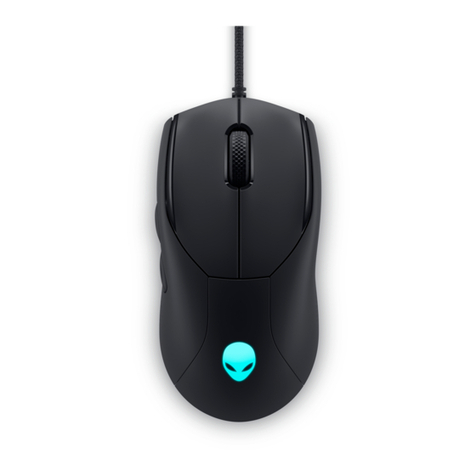
Jasco 98505 User manual

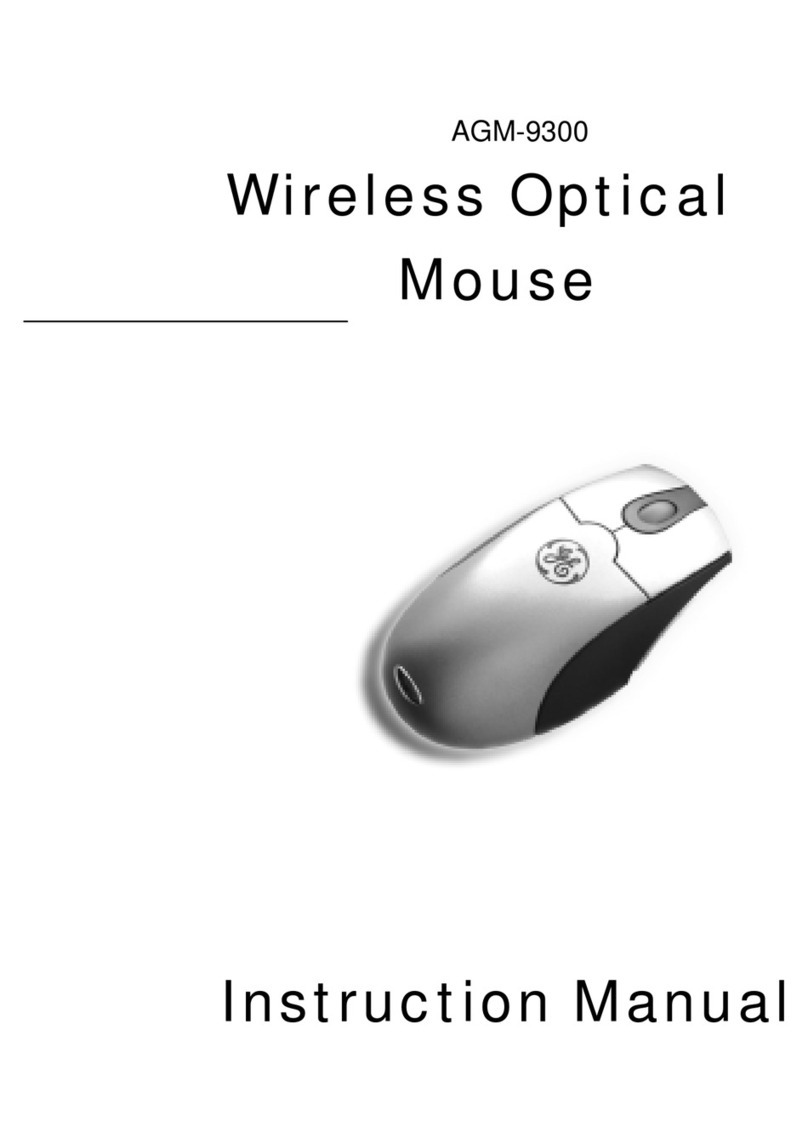
98505
Wireless Optical
Presentation Mouse
Instruction Manual
For technical support contact Jasco Products at 1-800-654-8483 or
www.jascoproducts.com

2
TABLE OF CONTENTS
Package Contents............................................................................................ 2
System Requirements.................................................................................... 2
Battery Installation .......................................................................................... 3
Mouse Installation............................................................................................ 3
Reconnecting the Mouse to the Receiver............................................ 4
Using the Laptop Clip..................................................................................... 4
Presentation Mode .......................................................................................... 5
Mouse Suite Software.................................................................................... 6
Troubleshooting..............................................................................................10
5 Year Limited Warranty.............................................................................11
FCC & FDA Statements................................................................................11
Package Contents
• Wireless Optical Presentation Mouse
• Laptop Clip
• 1 AA Battery
• Instruction Manual
• Mini USB Receiver
System Requirements
• Windows®98 SE or higher
• Available USB Port

3
Battery Installation
1. Press the battery release button on top of the mouse.
2. The battery door will open.
3. Insert 1 AA battery, being sure to match the polarity
of the battery with the polarity markings inside the
battery compartment.
4. Close the battery door.
Mouse Installation
1. Slide the USB Receiver out of the bottom of the mouse.
2. Once the receiver has been removed, the Battery Meter
will light up.
Green Light = battery life is good.
Red Light (Blinking slowly) = battery is low.
Red Light (Blinking rapidly) = change battery.
3. Insert the USB receiver into an available USB port.
The receiver has an LED on the top.
Green Light on Receiver = Mouse movement.
Red Light on Receiver = Low battery.
4. Please refer to page 6 of this manual for the
Mouse Suite Installation.
Battery Light
LED

4
Reconnecting the Mouse to the Receiver
This mouse will usually automatically connect to the receiver. If needed,
you can connect the mouse to the receiver by following these steps.
1. Press the button on top of the receiver. The LED will light up on
the receiver.
2. Press the button on the bottom of the mouse. It is located where the
receiver is stored.
3. The LED on the receiver will blink and you are finished.
Storing the Receiver
To help conserve battery and increase portability you
may store the receiver under the mouse. To do this,
simply unplug the receiver from your USB slot and
place it in the designed position on the bottom of the
mouse. Once the receiver is correctly in place, the power
will automatically shut off.
Using the Laptop Clip
Your mouse is equipped with the Laptop Clip. This is used for easy storage
of the mouse while on the go with your laptop. To use this clip, simply insert
the clip on the bottom of the mouse then place your mouse into the modem
slot on your laptop. Please ensure that your modem slot is not in use before
attaching the storage clip.

5
Presentation Mode
To switch your mouse to
Presentation Mode please
slide the switch on the bottom
of the mouse towards the
presentation icon.
Presentation Mode Functions
Your mouse is equipped with a variety of functions to help assist you with
any presentation. Please refer to the diagram above for a short description
of the button functions.
!CAUTION!
Do not aim or look into the integrated laser pointer. Direct exposure to
laser will cause damage to the eye.

6
Mouse Suite Software (for Windows®Vista, XP & 2000 only)
The Mouse Suite is a software program with many features that give
amazing functionality to your GE mouse. Here is a brief overview.
Installation Procedure
1. Insert the Installation CD into the computer CD drive.
2. Run the file named “Setup”.
3. Follow the instructions on the screen.
4. Click Finish when completed.
Buttons Tab
From this screen you can set the function of each button on your mouse.
There are over 33 functions to choose from. To specify the function of each
button follow these steps:

7
1. Select the button you
want from the Button
drop down menu.
2. Next select the function
you want by using the
Function drop down menu.
3. After you have selected
the features you want
click apply at the bottom
of your screen. You may
change these features at
any time.
You may also check your battery life from this screen. The battery indicator
is located on the right side of the window.
Magnifier Function
This feature allows you to
use the scroll button as a
magnifier.
To enable this feature,
simply check the box labeled
“Magnifier” and click Apply.
Press the middle scroll button
to activate the magnifier.
To make the magnifier size
taller, press and hold the
scroll button again and move
the mouse up or down. To make the magnifier size wider, move the mouse
right or left.

8
Double-Click Tab
This screen allows you to
set the double-click speed
of your mouse. Use the
slider to set the desired
speed. You must click Apply
to update any changes.
Orientation Tab
This feature allows you to
set the orientation of the
mouse while finding the
most comfortable position
to hold the mouse. Please
follow the directions on the
screen to set the orientation.

9
Wheel Tab
This screen allows you to
select different wheel
operations. You may also
select vertical scrolling
speed as well as horizontal
scrolling speed. If you would
like to reverse the scrolling
direction of the mouse,
please check the box
labeled Reverse Scrolling
Direction.
Pointer Utility Tab
From this screen you can
select different functions
for the pointer.
Pointer Wrap
The pointer wrap feature
allows the pointer to go in
one side of the screen and
come out of the opposite
side. This works at both
sides of the screen as well
as top and bottom. This allows easier and more functional mouse
navigation with less wrist and arm movement.

10
Slow Motion
This feature allows the pointer to move in slow motion by pressing the Shift
key. This will help the precision of the pointer.
X-Focus
This feature allows you to make an inactive window active by simply moving
the pointer over the title bar.
Troubleshooting
• Mouse does not work properly
- Check the battery life on your mouse. If it is low please install new batteries.
- Reconnect your mouse to the receiver. Press the link button on the receiver.
Press the link button on the bottom of your mouse. (page 4)
• Mouse does not move on screen.
- Reconnect your mouse to the receiver.
- Change the batteries on your mouse.
- Make sure that your USB receiver is completely plugged into the
computer’s USB port.
Questions? Please call 1-800-654-8483 (option #4)
Monday—Friday, 9:00 am—5:00 pm CST.
Table of contents
Other Jasco Mouse manuals