manuals.online logo
Brands
  1. Home
  2. •
  3. Brands
  4. •
  5. KinAn
  6. •
  7. Extender
  8. •
  9. KinAn KED101S TX User manual

KinAn KED101S TX User manual

This manual suits for next models

1

Other KinAn Extender manuals

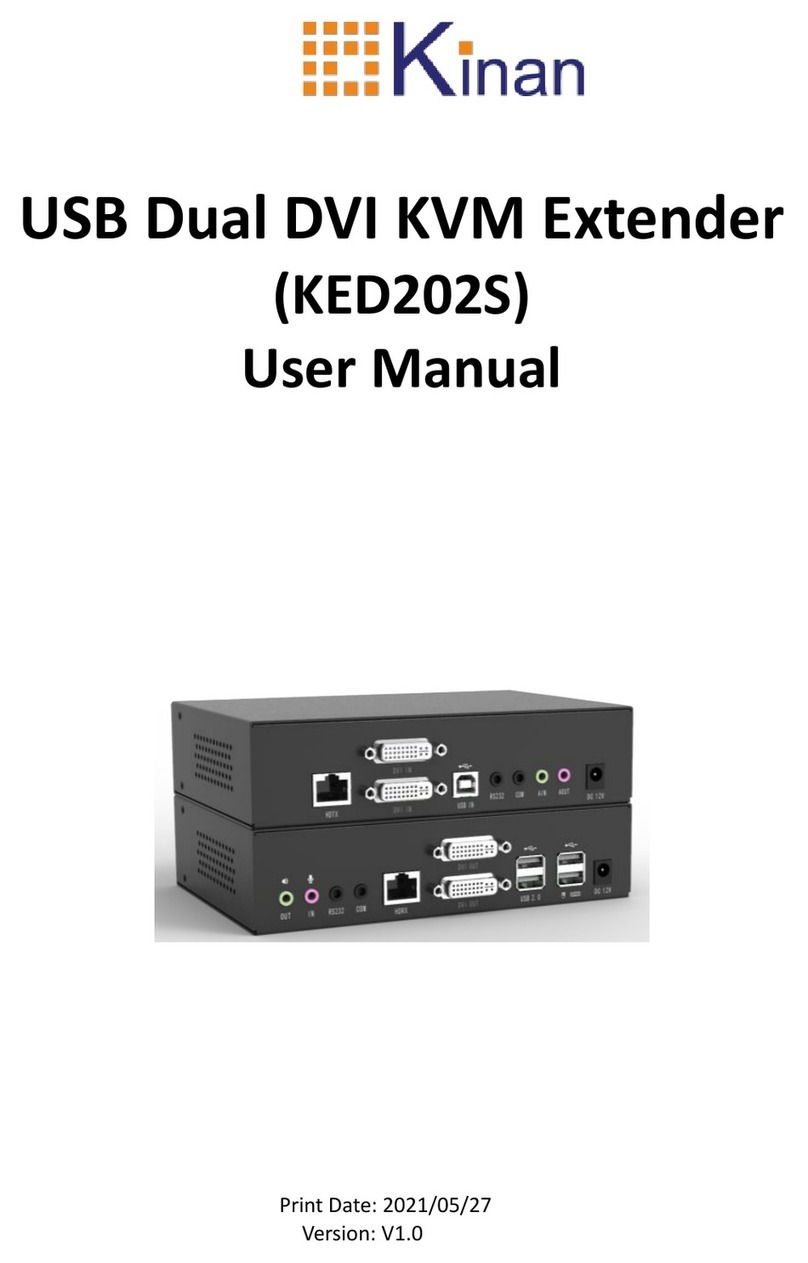
KinAn KED202S User manual

KinAn

KinAn KED202S User manual

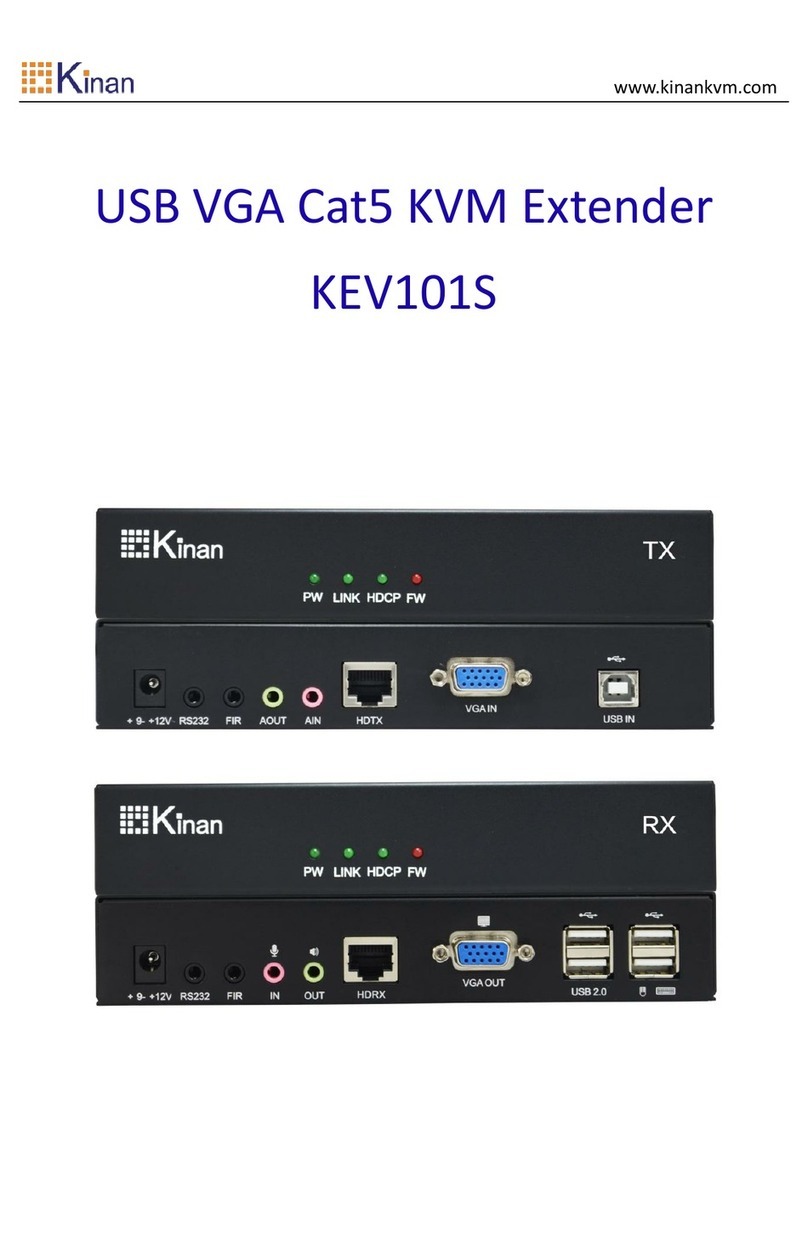
KinAn KEV101S User manual

KinAn

KinAn KEV101S User manual

KinAn KEV101S User manual

KinAn

KinAn KEV101S User manual

KinAn KFH101S User manual

KinAn

KinAn KFH101S User manual

KinAn KED101S Series User manual

KinAn

KinAn KED101S Series User manual

KinAn KED202S User manual

KinAn

KinAn KED202S User manual

KinAn KEH101S User manual

KinAn

KinAn KEH101S User manual

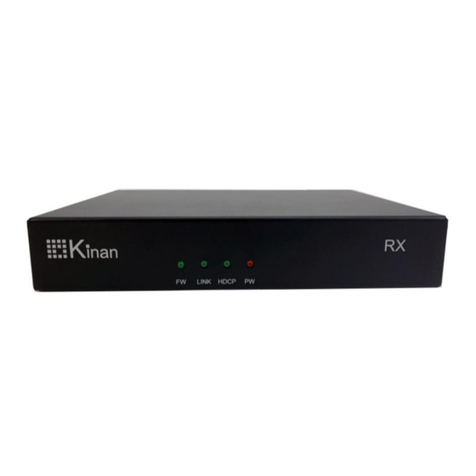
KinAn KFH151S/E TX User manual

KinAn

KinAn KFH151S/E TX User manual

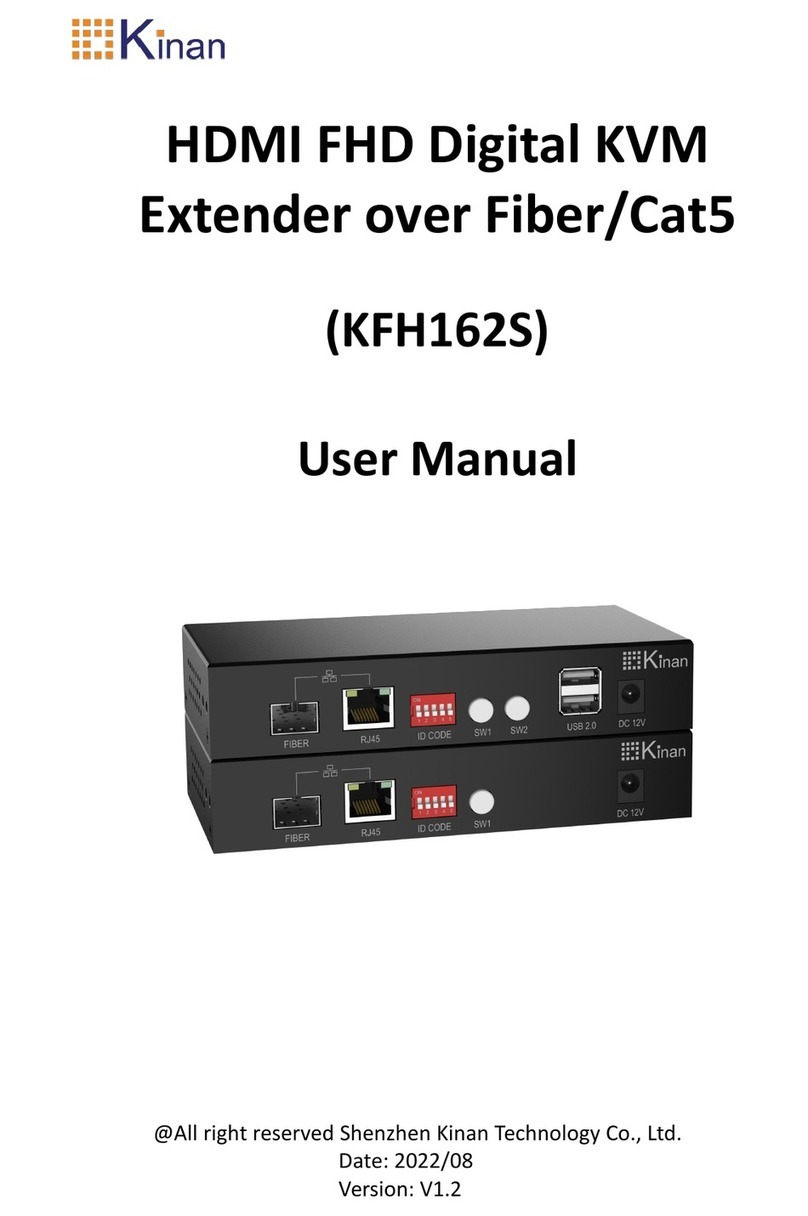
KinAn KFH162S User manual

KinAn

KinAn KFH162S User manual

Popular Extender manuals by other brands

Paugge ENT-EXT20B user manual

Paugge

Paugge ENT-EXT20B user manual

REIGN XRE-100 manual

REIGN

REIGN XRE-100 manual

Lindy 42805 user manual

Lindy

Lindy 42805 user manual

Digi ConnectPort Network Device user manual

Digi

Digi ConnectPort Network Device user manual

British General N300 instructions

British General

British General N300 instructions

VPI ST-WLHDMI-L-30M Installation and operation manual

VPI

VPI ST-WLHDMI-L-30M Installation and operation manual

Gefen EXT-DIGAUD-141 user manual

Gefen

Gefen EXT-DIGAUD-141 user manual

AMX netlinx NXC-MPE Dimensional drawing

AMX

AMX netlinx NXC-MPE Dimensional drawing

SY HDBT-60T installation guide

SY

SY HDBT-60T installation guide

Appsys ProAudio ADX-16 user manual

Appsys ProAudio

Appsys ProAudio ADX-16 user manual

Atlona RS232 user manual

Atlona

Atlona RS232 user manual

IDK OPF-TH1000-A user guide

IDK

IDK OPF-TH1000-A user guide

Enable-IT 824WP quick start guide

Enable-IT

Enable-IT 824WP quick start guide

Worx Landroid RadioLink WA0864 Get started

Worx

Worx Landroid RadioLink WA0864 Get started

TP-Link TL-WA730RE user guide

TP-Link

TP-Link TL-WA730RE user guide

Camplex CMX-HDMI-SFPL user manual

Camplex

Camplex CMX-HDMI-SFPL user manual

SC&T HE03-4K user manual

SC&T

SC&T HE03-4K user manual

Samsung SCS-26UC4 user guide

Samsung

Samsung SCS-26UC4 user guide

manuals.online logo
manuals.online logoBrands
  • About & Mission
  • Contact us
  • Privacy Policy
  • Terms and Conditions

Copyright 2025 Manuals.Online. All Rights Reserved.

KVM Extender
User Manual
www.kinankvm.com
@All right reserved Shenzhen Kinan Technology Co., Ltd.
Date:2021/11
Version: V2.1
KED101S User Manual
- 1 -
Product Description
The KED101S USB DVI HDBaseT™ KVM extender integrates the latest
HDBaseT™ technology and delivers HD DVI video, USB and stereo audio
signals up to 100m via single Cat5 / Cat6 cable.
A complete set of KED101S including Transmitter (KED101S-TX) and
Receiver (KED101S-RX). The Transmitter is connected to a computer or
server, and the receiver is connected to a display, keyboard, audio player
and other USB devices.
The KED101S enables remote high-speed access to a single computer at HD
display resolution, while improving workplace ergonomics and separating
employees from a noisy working environment.
Features
Allows access to your computer from a remote console up to 100m
Support USB keyboard and mouse
Uncompressed DVI HD video, resolution up to 1920 x 1200
@60Hz@100m
Transparent USB 2.0 – Supports a wide range of USB devices including
keyboards, mice, mass storage devices and printers. It provides 4 USB
ports on the Receiver and 1 USB on the Transmitter.
Support individual 2-channel stereo audio, 1 LINEIN + 1 LINEOUT
Extends video, audio, USB, RS-232 signals via a single Cat5e / Cat 6
cable
Easy to install - no software required - connecting cables to the
devices is all it takes
Plug and play
Support EDID transparent transmission
KED101S User Manual
- 2 -
KED101S_RX (Front View)
No.
Function
Description
1
HDCP
Indicate video status
2
LINK
Indicate the connection status with local unit
3
PW
Indicate power status
4
FW
Device status
KED101S_RX (Rear View)
No.
Function
Description
1
OUT
Audio output
2
IN
MIC input
3
RS232
Serial port
4
COM
Reserved port
5
HDRX
CAT5E/CAT6 cable connection port
6
DVI OUT
Display connection port
7
USB2.0
Connect USB peripherals
8
USB port
Connect USB keyboard and mouse
9
Power socket
12V power connection port
KED101S User Manual
- 3 -
KED101S_TX (Front View)
No.
Function
Description
1
HDCP
Indicate video status
2
LINK
Indicate the connection status with local unit
3
PW
Indicate power status
4
FW
Device status
KED101S_TX (Rear View)
No.
Function
Description
1
HDTX
CAT5E/CAT6 cable connection port
2
DVI IN
Video input port
3
USB IN
Server USB Connection port
4
RS232
Serial port
5
COM
Reserved port
6
AIN
Server MIC input port
7
AOUT
Server Audio output port
8
Power socket
12V power connection port
KED101S User Manual
- 4 -
Connection Diagram
1. Connect the KED101S_TX to PC’s video, USB port and audio port. (① in
the above diagram)
2. Connect the KED101S_RX to keyboard, mouse, display and audio device.
(② in the above diagram)
3. Connect KED101S_TX unit and KED101S_RX unit with CAT5E/CAT6 cable
through the HDTX and HDRX ports. (Max 100m) (③in the above diagram)
4. Power on the KED101S_TX and KED101S_RX unit. (④in the above
diagram)
KED101S User Manual
- 5 -
Specifications
Model
KED101S (TX)
KED101S (RX)
Connector
DVI Input
1
NA
DVI Output
NA
1
Power
12V
12V
Network
RJ45 x1
RJ45 x 1
Microphone
3.5MM Stereo Jack
(pink) x1
3.5MM Stereo Jack
(pink) x1
Speaker
3.5MM Stereo Jack
(green) x1
3.5MM Stereo Jack
(green) x1
USB
1
N/A
USB 2.0
N/A
USB x 4
Resolution
1920×1200 @ 60 Hz
Cable
CAT 5E / 6
I/R Value
DC12V / 2A
DC12V / 2A
Power Consumption
4W
7W
Operating Temperature
0 ~ 50 ℃
Storage Temperature
-20 ~ 60 ℃
Humidity
0~80% RH, Non-condensing
Net Weight (kg)
0.66 kg
0.66kg
Product Dimension
(W × D × H)
180mmx122mmx44mm
Package Dimension
(W × D × H)
260 mmx179 mm x102mm
KED101S User Manual
- 6 -
FQA
No.
Issue
Solution
1
PW light does not
light up
Check whether the extender is connected to
the 12V power adapter
Check whether the power adapter is well
connected with the power cord and the
power strip
Check whether the power strip has mains
power (100-240V)
2
LINK light does not
light up
Check whether the TX/RX network cable is
connected properly
Change a CAT5e/ CAT6/ CAT7 network cable
that can be used normally
3
HDCP light does not
light up
Check whether the DVI signal cable between
RX and monitor, TX and PC host is well
connected
Check whether the host PC or monitor is in
normal working condition
Plug and unplug the DVI signal cable on the
PC host