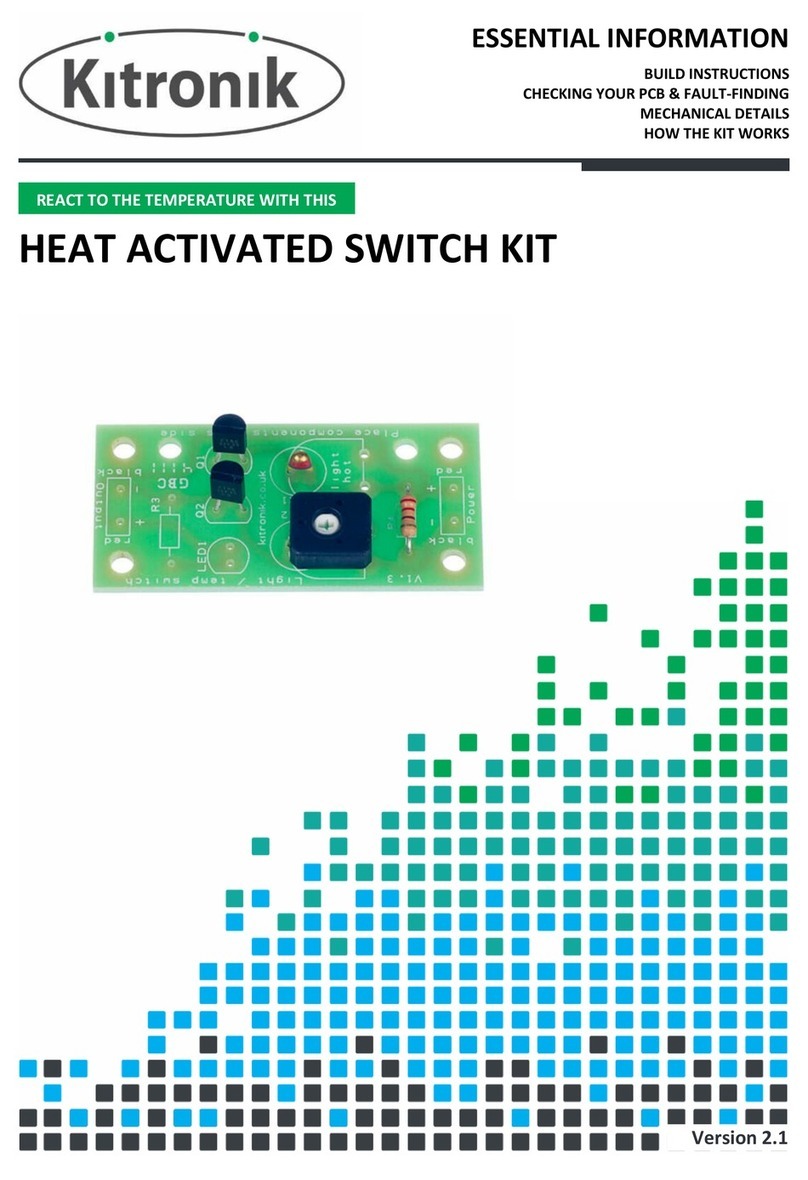
Kitronik 2112 User manual

Build instructions & circuit description
More information is available on the Kitronik
website or on the school resources CD
Technical specification
Email: sales@kitronik.co.uk
Web: www.kitronik.co.uk
Tel: 0845 8380781
Fax: 0845 8380782
Circuit diagrams
Light activated switch kit
Stock code 2112
Light activated switch kit
Description
2112
Code
www.kitronik.co.uk/quicklinks/2112/
Example boat that automatically stops when it enters a
dark tunnel, made by Fernwood Comprehensive School
Supply Voltage
Minimum = 3V
Maximum = 12V
A supply voltage of 3V to 5V allows for better adjustment.
Output voltage
Vout = Supply voltage less 0.9V
Output current
Maximum = 0.5A
Guidance note
You should ensure that you have a stable power source when
using the output to switch on high output loads. This is because
if the power source is unable to provide enough power this may
result in a supply voltage dip and cause output to switch off. At
this point the voltage is likely to recover and turns the output on
again. The output would then be in state where it is rapidly
switching on and off.
53
4 x 3.3mm diameter mounting holes
4
4
25
V+
LED1
R4
220
Transistor
Q2
Transistor
Q1
R1
47K
R2
0V
R3
+
-
Output
Dark activated version
Light activated version
LED1
R4
220
Transistor
Q2
Transistor
Q1
R2
47K
R1
R3
Output
V+
0V
+
-

Build Instructions Checking your PCB
Check the following before you connect power to the board:
Check the bottom of the board to ensure that:
All the leads are soldered.
Pins next to each other are not soldered together.
Check the top of the board to ensure that:
The body of the two transistors matches the outline on the
PCB.
External connections
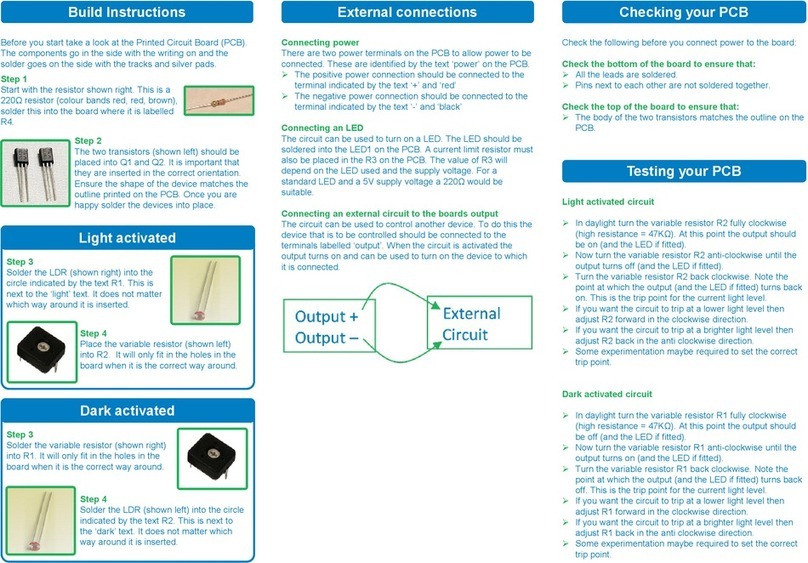
Before you start take a look at the Printed Circuit Board (PCB).
The components go in the side with the writing on and the
solder goes on the side with the tracks and silver pads.
Step 1
Start with the resistor shown right. This is a
220Ω resistor (colour bands red, red, brown),
solder this into the board where it is labelled
R4.
Step 3
Solder the variable resistor (shown right)
into R1. It will only fit in the holes in the
board when it is the correct way around.
Step 4
Solder the LDR (shown left) into the circle
indicated by the text R2. This is next to
the ‘dark’ text. It does not matter which
way around it is inserted.
Step 2
The two transistors (shown left) should be
placed into Q1 and Q2. It is important that
they are inserted in the correct orientation.
Ensure the shape of the device matches the
outline printed on the PCB. Once you are
happy solder the devices into place.
Testing your PCB
Light activated circuit
In daylight turn the variable resistor R2 fully clockwise
(high resistance = 47KΩ). At this point the output should
be on (and the LED if fitted).
Now turn the variable resistor R2 anti-clockwise until the
output turns off (and the LED if fitted).
Turn the variable resistor R2 back clockwise. Note the
point at which the output (and the LED if fitted) turns back
on. This is the trip point for the current light level.
If you want the circuit to trip at a lower light level then
adjust R2 forward in the clockwise direction.
If you want the circuit to trip at a brighter light level then
adjust R2 back in the anti clockwise direction.
Some experimentation maybe required to set the correct
trip point.
Dark activated circuit
In daylight turn the variable resistor R1 fully clockwise
(high resistance = 47KΩ). At this point the output should
be off (and the LED if fitted).
Now turn the variable resistor R1 anti-clockwise until the
output turns on (and the LED if fitted).
Turn the variable resistor R1 back clockwise. Note the
point at which the output (and the LED if fitted) turns back
off. This is the trip point for the current light level.
If you want the circuit to trip at a lower light level then
adjust R1 forward in the clockwise direction.
If you want the circuit to trip at a brighter light level then
adjust R1 back in the anti clockwise direction.
Some experimentation maybe required to set the correct
trip point.
Connecting power
There are two power terminals on the PCB to allow power to be
connected. These are identified by the text ‘power’ on the PCB.
The positive power connection should be connected to the
terminal indicated by the text ‘+’ and ‘red’
The negative power connection should be connected to the
terminal indicated by the text ‘-’ and ‘black’
Connecting an LED
The circuit can be used to turn on a LED. The LED should be
soldered into the LED1 on the PCB. A current limit resistor must
also be placed in the R3 on the PCB. The value of R3 will
depend on the LED used and the supply voltage. For a
standard LED and a 5V supply voltage a 220Ω would be
suitable.
Connecting an external circuit to the boards output
The circuit can be used to control another device. To do this the
device that is to be controlled should be connected to the
terminals labelled ‘output’. When the circuit is activated the
output turns on and can be used to turn on the device to which
it is connected.
Dark activated
Step 3
Solder the LDR (shown right) into the
circle indicated by the text R1. This is
next to the ‘light’ text. It does not matter
which way around it is inserted.
Step 4
Place the variable resistor (shown left)
into R2. It will only fit in the holes in the
board when it is the correct way around.
Light activated
Other manuals for 2112
2
Other Kitronik Switch manuals