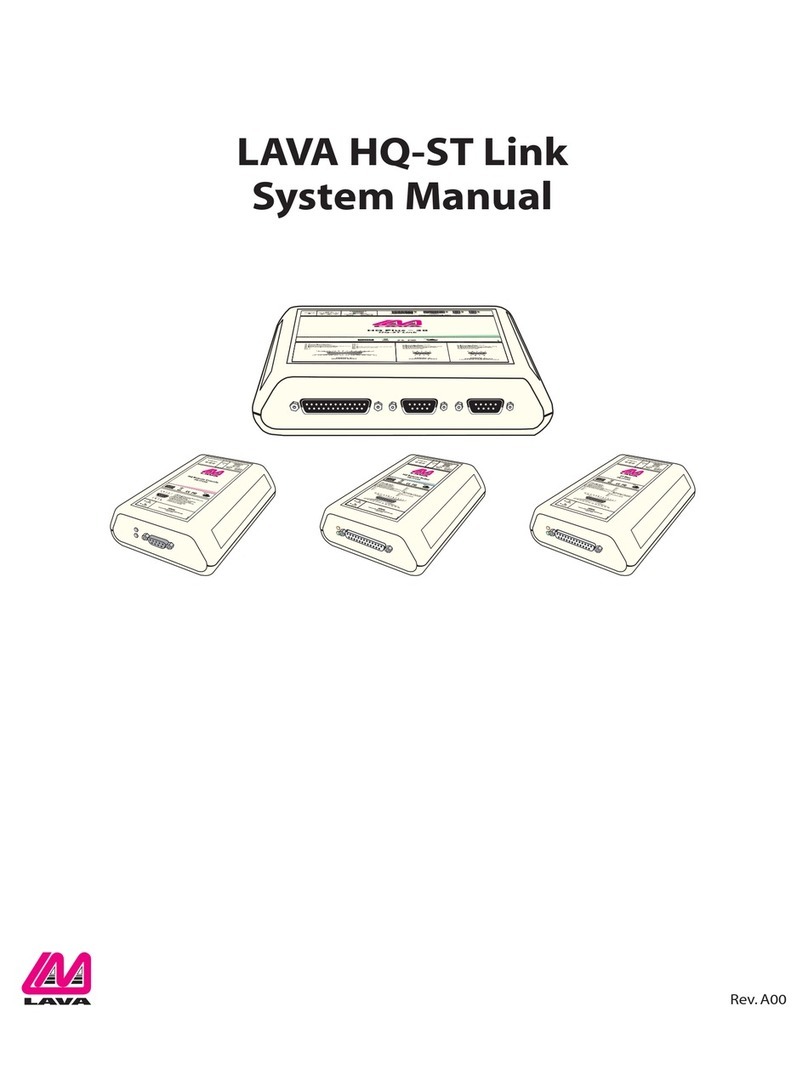
Lava PayLink-IP/Dial User manual

Rev. B00
™
LAVA PayLink-IP/Dial
Quick Installation Guide

1
Congratulations on your purchase of a LAVA PayLink-IP/Dial.
PayLink-IP devices securely connect payment terminals to payment
processors over an Ethernet/TCP/IP connection. Any payment
terminal that can transmit transaction information over a POTS port
can send its information to the The
establishes an SSL-secured connection to the
payment processor, places the serial data in a TCP/IP wrapper and
sends it out its Ethernet port. Data moving the other direction, from
the Ethernet side of the to the payment
terminal, undergoes the same process in reverse.
• Securely network payment terminals
• Stop using dial-up modems
• Eliminate long-distance phone-modem charges
LAVA PayLink-IP/Dial. LAVA
PayLink-IP/DIal
LAVA PayLink-IP/DIal
LAVA PayLink-IP/Dial
LAVA PayLink-IP/Dial
With a , you can:
Included with your package, you should have the following:
•
• Power supply
• Quick Installation Guide
Getting Started
Before Proceeding:The PayLink-IP is factory preset with an
IP address of 192.168.0.35. If this IP address conflicts with a
device already installed on the network, follow the
procedure described in the "Configuring network settings"
section of this manual to set the IP address to a usable
address.

Hardware Setup
2
1. Connect the power supply to the and to
AC power.The power (red) LED will light to indicate that the
unit is receiving power.
2. Connect to the Ethernet RJ-45 jack
of the . Attach the other end of the
crossover network cable to a host PC directly.
Network status is indicated by two LEDs on the RJ-45 connector.
The left (yellow) LED indicates network activity. It is on by default,
turning off when network activity occurs at the PayLink-IP.The right
(green) LED indicates a network link. It is off by default, but lights
when a network link exists.
LAVA PayLink-IP/Dial
an Ethernet cross-over cable
LAVA PayLink-IP/Dial
Power
connector
Power
indicator
Network
connector (RJ-45)
Network
Activity and Link
indicators

3
3. Open a web browser to the IP address of the PayLink-IP and
configure the device as described in the "Configuration"
section of this manual.
4. After configuring the LAVA PayLink-IPDial, attach it to your
network and connect a payment terminal to its serial port.
Serial port activity is indicated by two status LEDs per port.The
yellow LED lights when the serial port is transmitting data.The
green LED lights when the serial port is receiving data.
Single Port PayLink-IP/Dial
RJ-11 POTS
connector
POTS Tx
indicator
POTS Rx
indicator

4
Configuration consists of the following:
B. Host configuration
C. Protocol configuration
D. Password selection
E. Upgrading software
A. Configuring network settings
Configuration
A. Configuring network settings
PayLink-IP devices installed on your network will need unique IP
addresses.These are set by using a web browser.
The factory default network settings for the PayLink-IP are:
IP address: 192.168.0.35
Subnet mask: 255.255.255.0
Gateway address: 0.0.0.0
Name: [empty]
Workgroup: [empty]
DHCP detection: disabled
To set a PayLink-IP's network settings, open a web browser and
enter the IP address of the PayLink-IP into the browser's location
bar.The embedded web server running on the PayLink-IP will
display the opening screen of the PayLink-IP.
Configuring PayLink-IP network settings

5
Click "Configure" if no password has been set, or enter the
password for the PayLink you are configuring, and then click
"Configure." The Configuration menu will open.
Opening screen
Configuration Menu

6
Choose the "Configure the LAVA PayLink-IP on my network" link. In
the configuration screen that appears, enter the network settings
you wish for that PayLink-IP. Once the new values are entered and
accepted, the PayLink-IP will reboot to implement the new network
settings.
Changing the network settings of a PayLink-IP device that is
installed on a network may make that device unavailable to other
stations that have activated a connection to that device using older
network settings.
NOTE:
The following network parameters can be configured for the LAVA
PayLink-IP/Dial:
Network Settings

7
Device name
IP address
Subnet mask
Default gateway
HTTP port
DHCP enabled
Use this field to supply a“friendly”name for the
device being configured.The friendly name is optional, and
can be chosen to provide a conveniently-remembered name for
the unit.
The IP address for the will identify the device
on the LAN on which it is located. Any conventional IP address can
be used.The ships with its default IP address
as 192.168.0.35; ensure that this IP address is available on the LAN
onto which the is being installed.
A subnet mask can be configured for the in
this dialog box; by default the has a subnet
mask of 255.255.255.0.
Configure the IP address of the default gateway that the
will use when communicating with devices outside
its network segment.The default gateway is configurable as a 12
digit numeric address.
By default, the communicates on port number
80. A measure of increased security may be obtained by changing
this port number to a non-standard TCP port for HTTP
communications.
When installing the onto a network where IP
addresses are assigned by DHCP servers, please ensure that the
LAVA PayLink-
IP/Dial
LAVA PayLink-IP/Dial
LAVA PayLink-IP/Dial
LAVA PayLink-IP/Dial
LAVA PayLink-IP/Dial
LAVA PayLink-IP/Dial
LAVA
PayLink-IP/Dial
LAVA PayLink-IP/Dial
LAVA PayLink-IP/Dial

8
“DHCP enabled” checkbox has been set.The
will then act as a DHCP client and obtain its IP address from the
DHCP server on its LAN that first leases an IP address to the
.
Use this dialog box to change the TCP port number assigned to the
serial port of the . By default the
assigns TCP port 2300 to its serial port; if another device on
the network is already using this TCP port number, reassign the
serial port to another TCP address.
After making changes to the network settings, four options exist:
This option will register the changes you have entered into the
dialog box and reboot the , implementing the
changes on reboot.
This option will restore factory defaults and reboot the
, implementing the changes on reboot.
This option will discard changes entered into the dialog box and
return you to the “Administrator Menu”screen.
This option will reboot the device with the settings currently
implemented, and discard changes entered into the dialog box and
not submitted.
Assigned local TCP port
Submit changes and reboot device
Restore factory defaults and reboot device
Exit without changes
Reboot device
LAVA PayLink-IP/Dial
LAVA
PayLink-IP/Dial
LAVA PayLink-IP/Dial LAVA PayLink-
IP/Dial
LAVA PayLink-IP/Dial
LAVA
PayLink-IP/Dial

9
B. Host configuration
The PayLink-IP/Dial POTS port can be configured through a web
browser.The settings for the LAVA PayLink-IP/Dial's host connection
should match the requirements of the hosting server used by the
payment terminal.
Host Configuration
The Host Side configuration dialog provides settings for a Primary
Host, a Secondary host, and two additional user-defined hosts. Each
host can be configured or SDLC or asynchronous communications.
Table of contents
Other Lava Network Hardware manuals
Popular Network Hardware manuals by other brands

Matrix Switch Corporation
Matrix Switch Corporation MSC-HD161DEL product manual

B&B Electronics
B&B Electronics ZXT9-IO-222R2 product manual

Yudor
Yudor YDS-16 user manual

D-Link
D-Link ShareCenter DNS-320L datasheet
Samsung
Samsung ES1642dc Hardware user manual
Honeywell Home
Honeywell Home LTEM-PV Installation and setup guide