6
6 STATIC IP MODE
Confirm the DAS is properly connected to the computer, and both are powered on.
1. On the DAS, click the “Menu” button to select the “TCP/IP Config” option.
2. Click the “Select” button to enter the “TCP/IP Menu”.
3. Select the “DHCP+UPnP on/off” option by scrolling through options using the “Menu” button and
using “Select” button to enter.
4. Disable the DHCP+UPnP by clicking the “Menu” button, and navigating back to
the “TCP/IP Config” Menu.
5. Scroll through options (using “Menu” button) and select “IP Address” option using
the “Select” Button.
6. Confirm the IP address is 192.168.40.50
7. Scroll through the menu options and select “Previous Menu”, to return to the home menu options.
This change will require a reboot.
8. Click “Select” button to execute the reboot.
The DAS default network configuration is:
a. IP Address: 192.168.40.50
b. Netmask: 255.255.255.0
c. Gateway: 192.168.40.1
9. Configure the computer with the following static IP settings:
a. IP Address: 192.168.40.1
b. Netmask: 255.255.255.0
c. Gateway: 192.168.40.1
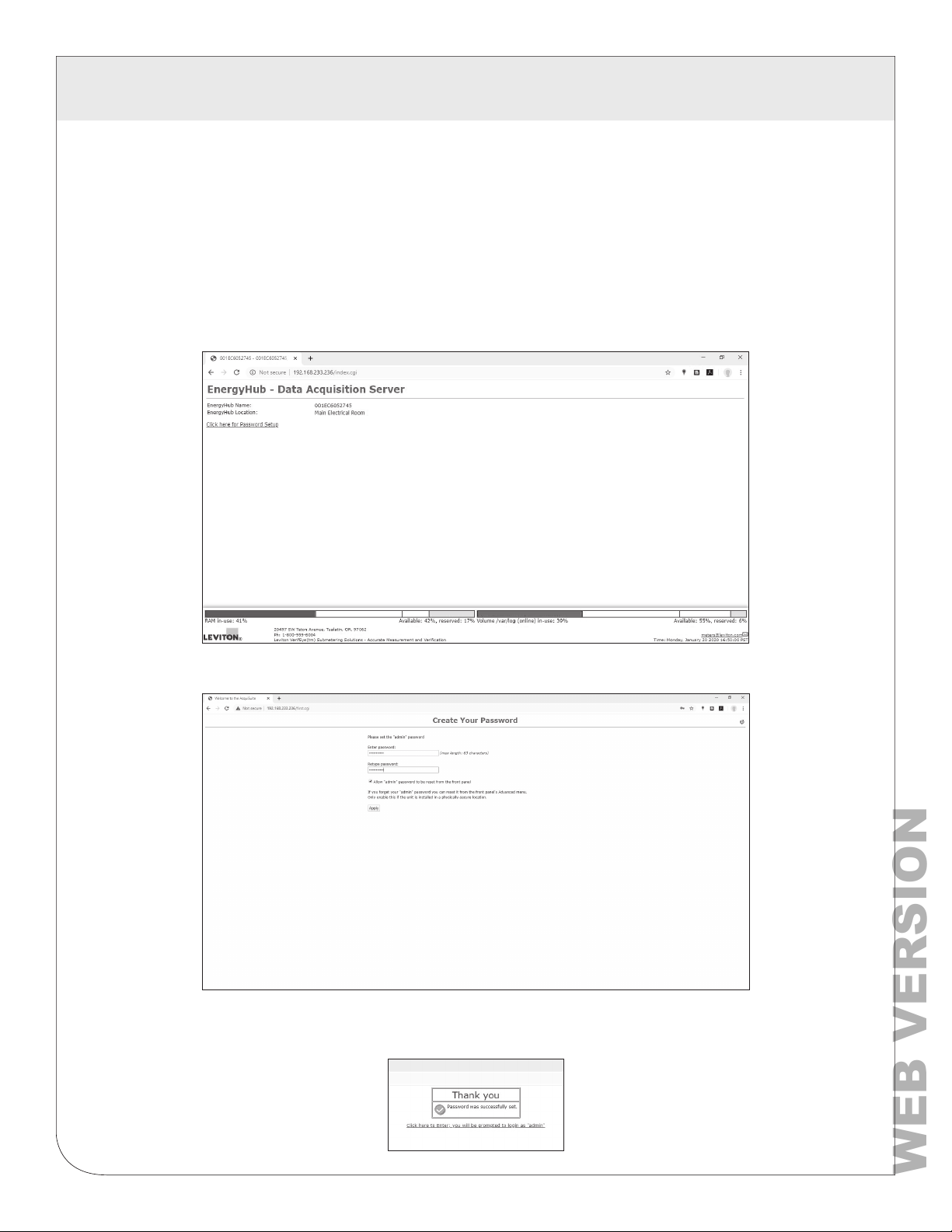
10. Open a browser and type the IP address, shown on the LCD display of the DAS, on the
address bar.
11. This will open the web browser interface of the DAS.
12. At initial setup a password must be created. Click on the “click here for Password Setup” to create
the admin user password.
Figure 5