manuals.online logo
Brands
  1. Home
  2. •
  3. Brands
  4. •
  5. McIntosh
  6. •
  7. Storage
  8. •
  9. McIntosh LB200 User manual

McIntosh LB200 User manual

Popular Storage manuals by other brands

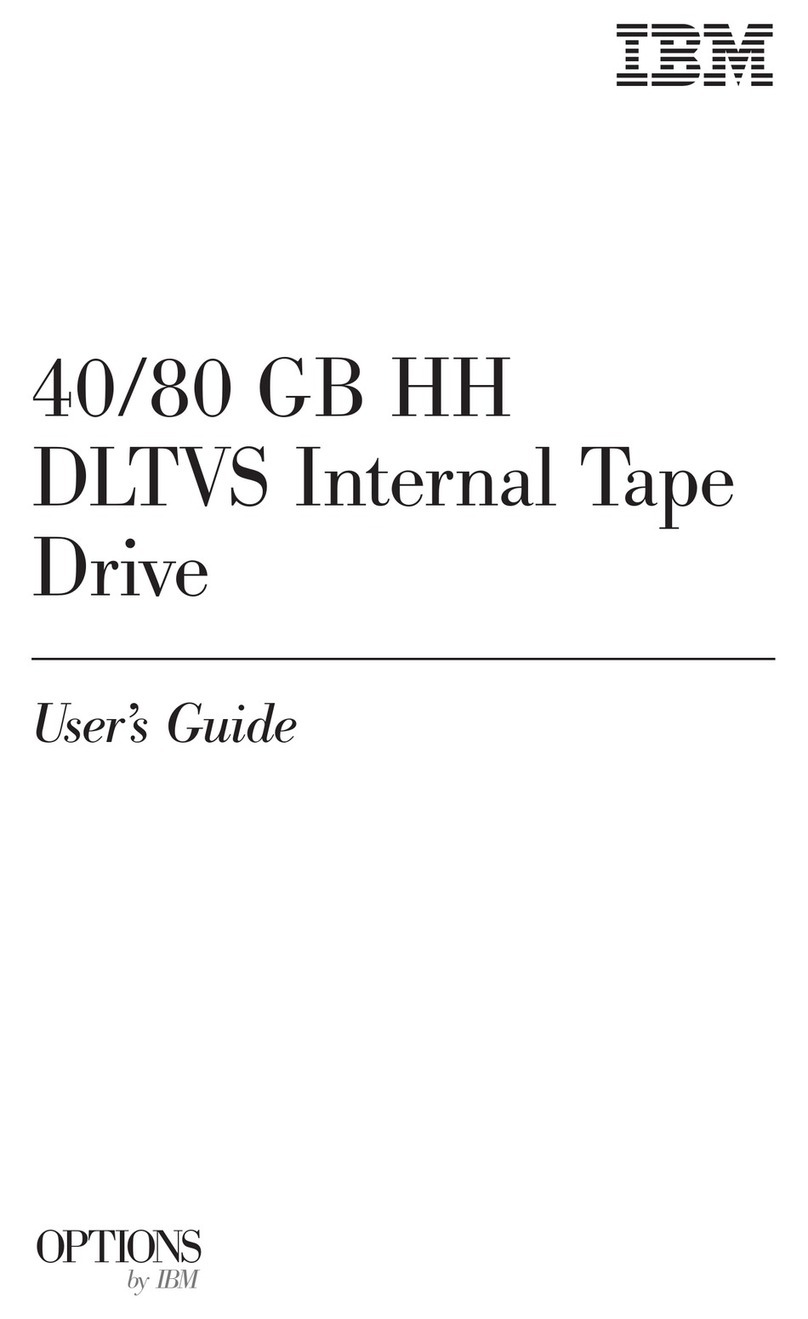
IBM 40/80 GB HH DLTVS user guide

IBM

IBM 40/80 GB HH DLTVS user guide

Synology DiskStation DS716+II Quick installation guide

Synology

Synology DiskStation DS716+II Quick installation guide

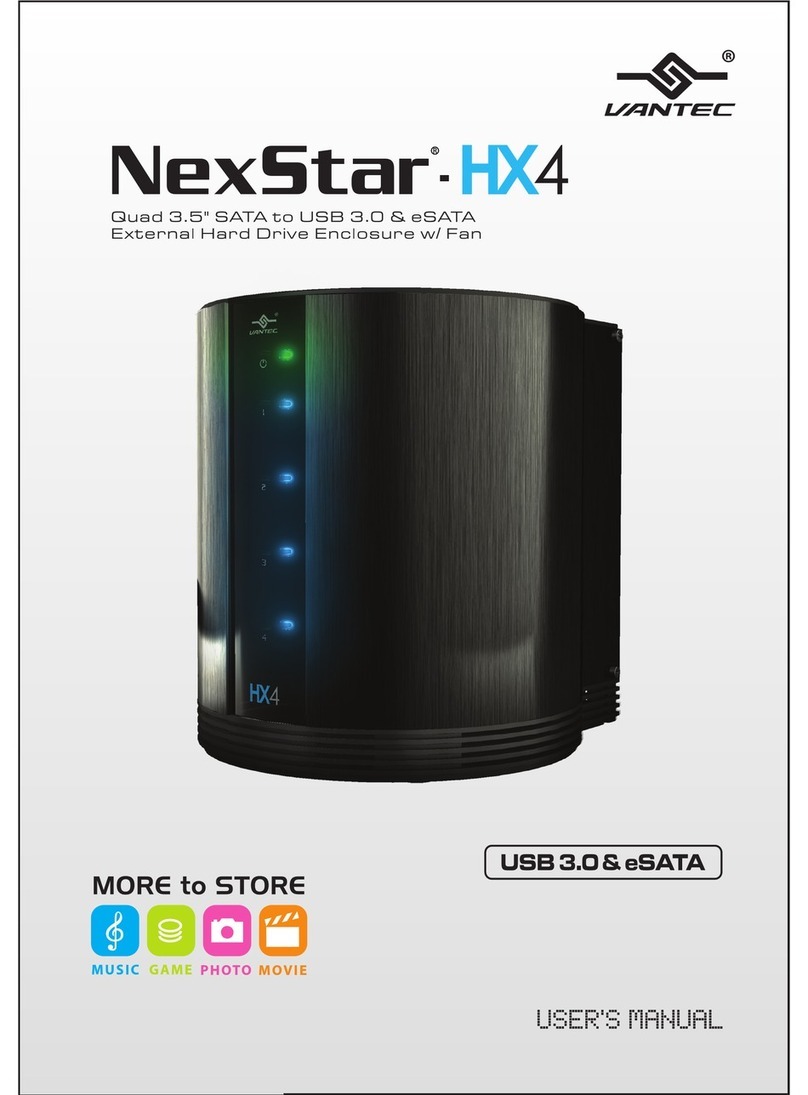
Vantec NexStar-HX4 user manual

Vantec

Vantec NexStar-HX4 user manual

LaCie Christofle Galet datasheet

LaCie

LaCie Christofle Galet datasheet

LaCie Rugged Thunderbolt user manual

LaCie

LaCie Rugged Thunderbolt user manual

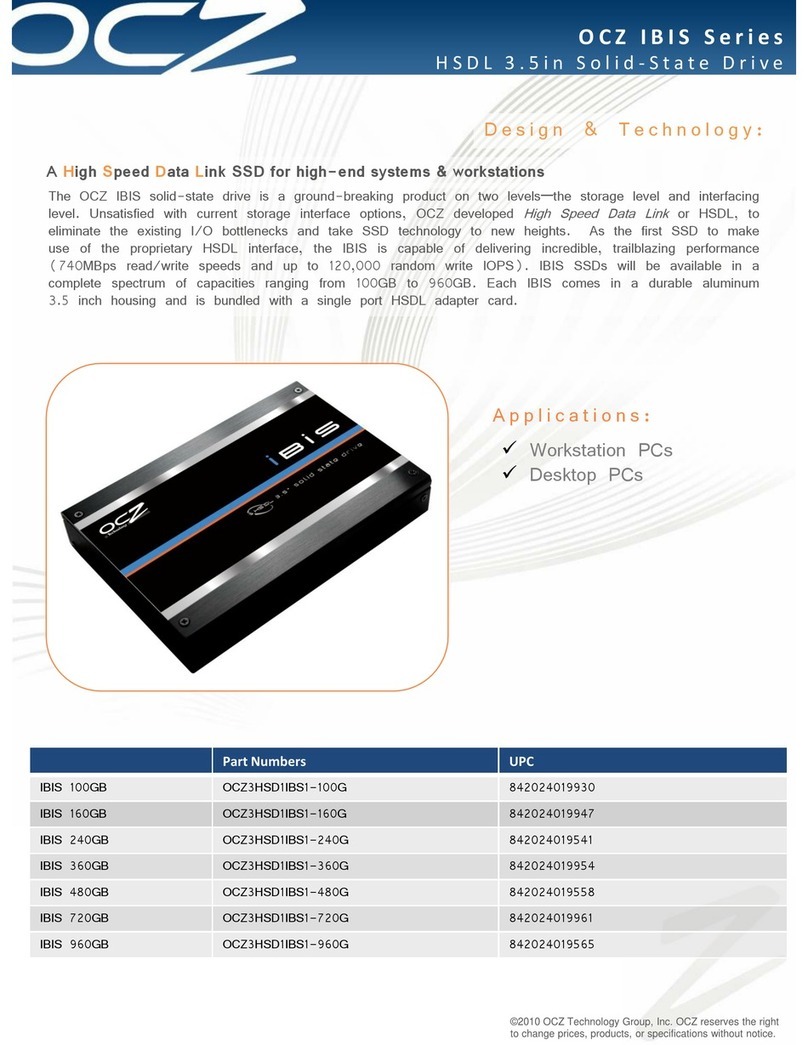
OCZ IBIS datasheet

OCZ

OCZ IBIS datasheet

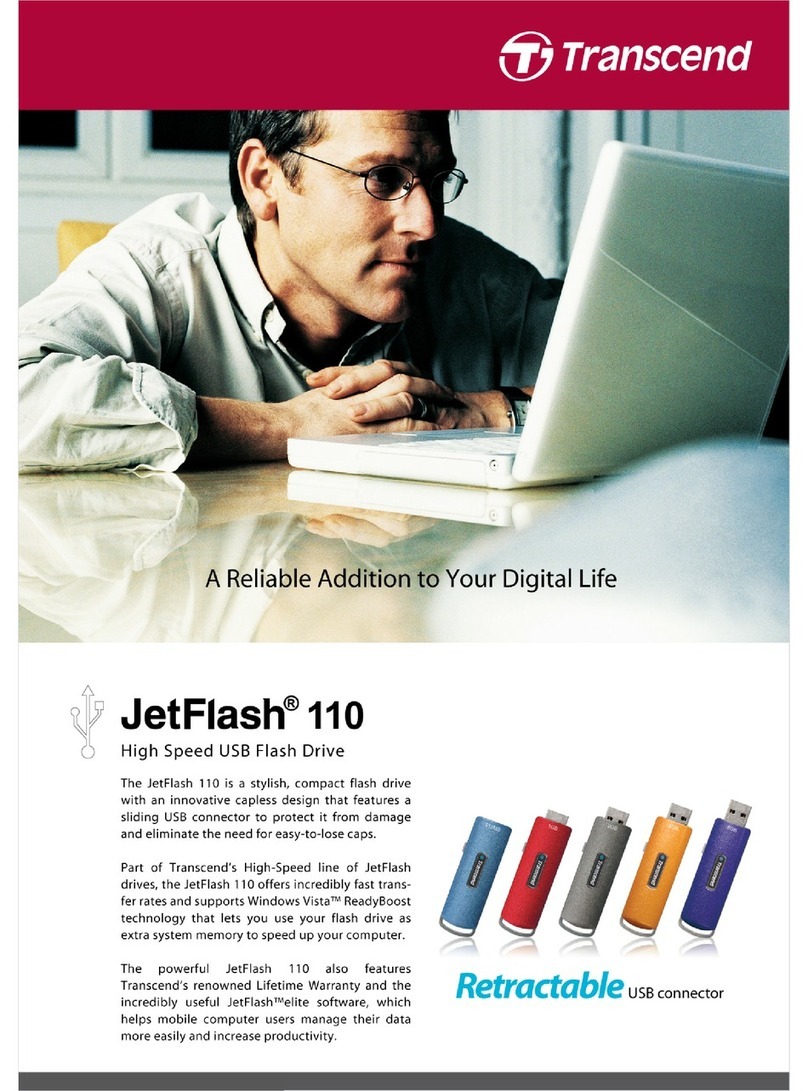
Transcend JetFlash 110 Brochure & specs

Transcend

Transcend JetFlash 110 Brochure & specs

QNAP TS 32PXU Series user guide

QNAP

QNAP TS 32PXU Series user guide

LaCie RUGGED RAID user manual

LaCie

LaCie RUGGED RAID user manual

Freecom CLS DOCK Quick install guide

Freecom

Freecom CLS DOCK Quick install guide

PNY Attache P-FD64MBATT3 install guide

PNY

PNY Attache P-FD64MBATT3 install guide

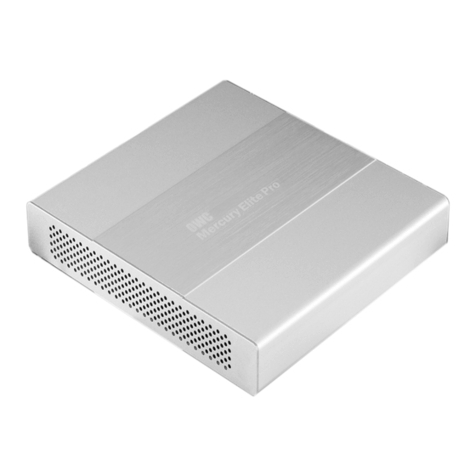
OWC Mercury Elite Pro Dual mini Assembly manual

OWC

OWC Mercury Elite Pro Dual mini Assembly manual

OLT 6x6 Maximizer Assembly manual

OLT

OLT 6x6 Maximizer Assembly manual

Transcend JetFlash 160 Specifications

Transcend

Transcend JetFlash 160 Specifications

Thunderbolt 600 user manual

Thunderbolt

Thunderbolt 600 user manual

Intel RAID High Availability user guide

Intel

Intel RAID High Availability user guide

LaCie 12big Thunderbolt 3 Quick install guide

LaCie

LaCie 12big Thunderbolt 3 Quick install guide

Spectra Logic T-Series Spectra T50e quick start guide

Spectra Logic

Spectra Logic T-Series Spectra T50e quick start guide

manuals.online logo
manuals.online logoBrands
  • About & Mission
  • Contact us
  • Privacy Policy
  • Terms and Conditions

Copyright 2025 Manuals.Online. All Rights Reserved.

McINTOSH LB200 OPERATION GUIDE
Connection Diagram and Light Box Operation
A059764 LB200 REAR VIEW 4/29/22 JM
PC IN
PC OUT
ON
OFF/REMOTE
DC IN 5V
Use Only The
Power Adapter Provided
SERIAL
NUMBER
LB200 LIGHT BOX
McINTOSH LABORATORY, INC., BINGHAMTON, NY
HANDCRAFTED IN USA WITH US AND IMPORTED PARTS
PC IN (Power Control/Trigger) receives turn-
on signals from a McIntosh component and PC
OUT (Power Control/Trigger) sends turn-on
signals on to another McIntosh Component
Connect the supplied
AC/DC Power Adapter
DC Output Connnector
The AC/DC Power Adapter supplied
with the LB200 McIntosh Light Box
Connect to a live AC outlet (always
On) using the supplied AC Power Cord.
Refer to information on the power
supply to determine the correct voltage
Connect to the DC IN
5V connector on the
Rear Panel of the LB200
McIntosh Light Box
Integrated Amplifier or Preamplifier
Connect to another
McIntosh Component
Power Control or
Trigger Input Jack
Power On
Place the ON-OFF/REMOTE Power Control Switch in the ON
position or, if the PC IN Jack is connected to the Power Control/
Trigger Jack from a McIntosh Component, place the switch in the
OFF/REMOTE position.
Power Off
Place the ON-OFF/REMOTE Power Control Switch in the OFF/
REMOTE position or, if the PC IN Jack is connected to the
Power Control/Trigger Jack from a McIntosh Component, switch
power Off on the connected McIntosh Component.
2
Copyright © 2022 by McIntosh Laboratory, Inc. McIntosh Part Number 24118102
McINTOSH LB200 OPERATION GUIDE
Using LB200 for Device Consolidation
The McIntosh LB200 Light Box enables you to place devices (such as a cable box or streaming box) inside of it to help declutter your entertainment setup
without losing the ability to send signals to those devices using your remote control(s). Perform the following steps to take advantage of this functionality.
Rear View
Top View
1. Remove the screws on the top (circled in dots in Top
View photo) and the screws from the upper edge of the
rear (circled in dots in Rear View photo). Carefully lift
and remove top cover.
2. Hold your hand on the inside of the Light Box up
against the back plate in the rear. This will support the
back plate and prevent it from falling as you remove
the screws on the outside. Remove the screws (circled
in solid white in Rear View photo) and carefully
remove back plate to reveal an opening in the rear of
the Light Box.
3. Place your desired devices inside the Light Box
and funnel their respective wiring through the opening
of rear of the Light Box. You can use the additional
holes in the rear to zip tie your wires together.
4. Inside the Light Box is a Xantech XT-DL-IRK
DinkyLink™ IR Receiver Kit (circled in white in
the Inside View photo). Follow the IR Receiver Kit's
included Installation Instructions to connect your
devices to the IR Receiver Kit.
Inside View
Front View
5. When all devices are connected correctly, replace
the top cover and secure it in place with the four top
screws (circled in dots in Top View and Rear View
photos).The devices inside the Light Box will now
receive signals from their respective remote controls
from the sensor on the front of the Light Box (circled
in white in the Front View photo).