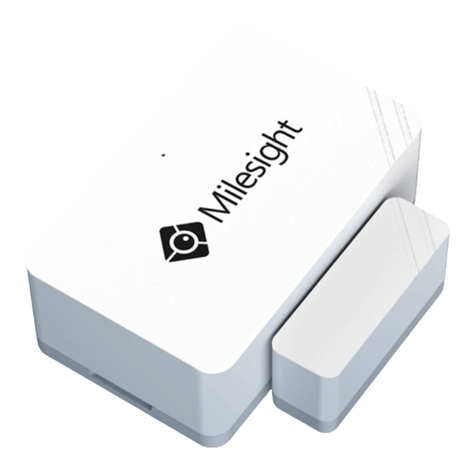
Milesight WS301 User manual

Milesight IoT
Magnet Contact Switch
Featuring LoRaWAN®
WS301
User Guide

2
Safety Precautions
Milesight will not shoulder responsibility for any loss or damage resulting from not following the
instructions of this operating guide.
The device must not be remodeled in any way.
Do not place the device close to objects with naked flames.
Do not place the device where the temperature is below/above the operating range.
Make sure electronic components do not drop out of the enclosure while opening.
When installing the battery, please install it accurately, and do not install the reverse or
wrong model.
The device must never be subjected to shocks or impacts.
Declaration of Conformity
WS301 is in conformity with the essential requirements and other relevant provisions of the CE,
FCC, and RoHS.
Copyright © 2011-2021 Milesight. All rights reserved.
All information in this guide is protected by copyright law. Whereby, no organization or individual
shall copy or reproduce the whole or part of this user guide by any means without written
authorization from Xiamen Milesight IoT Co., Ltd.
For assistance, please contact
Milesight technical support:
Email: iot.support@milesight.com
Tel: 86-592-5085280
Fax: 86-592-5023065
Address: 4/F, No.63-2 Wanghai Road,
2nd Software Park, Xiamen, China
Revision History
Date
Doc Version
Description
Apr. 13, 2021
V 1.0
Initial version
June 30, 2021
V 1.1
Delete power button features

3
Contents
1. Product Introduction.................................................................................................................................4
1.1 Overview........................................................................................................................................... 4
1.2 Features............................................................................................................................................4
2. Hardware Introduction..............................................................................................................................4
2.1 Packing List......................................................................................................................................4
2.2 Hardware Overview.........................................................................................................................5
2.3 LED Patterns.................................................................................................................................... 5
2.4 Dimensions(mm)............................................................................................................................ 5
3. Operation Guide.........................................................................................................................................6
3.1 NFC Configuration.......................................................................................................................... 6
3.2 LoRaWAN Settings..........................................................................................................................7
3.3 General Settings............................................................................................................................10
3.4 Maintenance.................................................................................................................................. 11
3.4.1 Upgrade...............................................................................................................................11
3.4.2 Backup.................................................................................................................................11
3.4.3 Reset to Factory Default...................................................................................................12
4. Installation................................................................................................................................................13
5. Device Payload........................................................................................................................................ 14
5.1 Basic Information..........................................................................................................................14
5.2 Sensor Data....................................................................................................................................14
5.3 Downlink Commands................................................................................................................... 15

4
1. Product Introduction
1.1 Overview
WS301 simply enables you to know when someone enters the office/building through a door
/window or something has been moved. The minimal magnet is placed inside the portable part,
while the sensor is inside the fixed part that can be attached to door/window or other objects. W
S301 can be easily mounted on the doors, panes, or cabinets, greatly providing real applications
for smart homes, smart offices or smart factories.
Sensor data are transmitted in real-time using the standard LoRaWAN®protocol. LoRaWAN®
enables encrypted radio transmissions over long distances while consuming very little power.
The user can obtain sensor data and view the trend of data change through Milesight IoT Cloud
or through the user's own Application Server.
1.2 Features
Up to 15 km communication range
Easy configuration via NFC
Standard LoRaWAN®support
Milesight IoT Cloud compliant
Low power consumption with 1200mAh replaceable battery
2. Hardware Introduction
2.1 Packing List
1 ×
WS301 Sensor
2 ×
Mounting Screws
1 ×
Quick Guide
If any of the above items is missing or damaged, please contact your sales representative.

5
2.2 Hardware Overview
Sensor:
Magnet:
2.3 LED Patterns
Function
Action
LED Indicator
Door/Window Status
Switch On/Off (network unregistered)
Red, blink once
Switch On/Off (network registered)
Green, blink once
Network Status
Send join network requests
Red, blink once
Joined the network successfully
Green, blink twice
Tamper Detection
The device is un-installed (tamper is detected)
Red, blink once
The device is installed
Green, blink once
Reboot
Press and hold the reset button (internal) for
more than 3 seconds
Slowly Blinks
Reset to Factory
Default
Press and hold the reset button (internal) for
more than 10 seconds
Quickly Blinks
2.4 Dimensions (mm)

6
3. Operation Guide
3.1 NFC Configuration
WS301 can be configured via a NFC supported mobile phone.
1. Pull out the battery insulating sheet to power on the device. The indicator will light up in green for 3
seconds when device turns on.
2. Download and install “Milesight ToolBox” App from Google Play or Apple Store.
3. Enable NFC on the smartphone and open Milesight ToolBox.
4. Attach the smartphone with NFC area to the device to read device information.
5. Basic information and settings of devices will be shown on ToolBox if it’s recognized
successfully. You can read and configure the device by tapping the Read/Write button on the
App. In order to protect the security of devices, password validation is required when configuring
via an unused phone. Default password is 123456.
Note:
1) Ensure the location of smartphone NFC area and it’s recommended to take off phone case.
2) If the smartphone fails to read/write configurations via NFC, keep the phone away and back
to try again.
3) WS301 can also be configured by ToolBox software via following ways:
Via dedicated NFC reader, which can be purchased from Milesight IoT.

7
Via TTL UART interface inside the device. Please select General type to log in ToolBox and
configure the device. (Default password: 123456)
3.2 LoRaWAN Settings
LoRaWAN settings are used for configuring the transmission parameters in LoRaWAN®network.
Basic LoRaWAN Settings:
Go to Device->Setting->LoRaWAN Settings of ToolBox App to configure join type, App EUI, App
Key and other information. You can also keep all settings by default.

8
Parameters
Description
Device EUI
Unique ID of the device which can also be found on the label.
App EUI
Default App EUI is 24E124C0002A0001.
Application Port
The port used for sending and receiving data, default port is 85.
Join Type
OTAA and ABP modes are available.
Application Key
Appkey for OTAA mode, default is 5572404C696E6B4C6F52613230313823.
Device Address
DevAddr for ABP mode, default is the 5th to 12th digits of SN.
Network Session
Key
Nwkskey for ABP mode, default is 5572404C696E6B4C6F52613230313823.
Application
Session Key
Appskey for ABP mode, default is 5572404C696E6B4C6F52613230313823.
Spread Factor
If ADR is disabled, the device will send data via this spread factor.
Confirmed Mode
If the device does not receive ACK packet from network server, it will resend
data 3 times at most.
Rejoin Mode
Reporting interval ≤ 30 mins: device will send specific mounts of LoRaMAC
packets to check connection status every 30 mins; If no reply after specific
packets, the device will re-join.
Reporting interval > 30 mins: device will send specific mounts of LoRaMAC
packets every to check connection status every reporting interval; If no reply
after specific packets, the device will re-join.
ADR Mode
Allow network server to adjust datarate of the device.

9
Tx Power
Based on LoRaWAN®regional parameter document.
Note:
1) Please contact sales for device EUI list if there are many units.
2) Please contact sales if you need random App keys before purchase.
3) Select OTAA mode if you use Milesight IoT cloud to manage devices.
4) Only OTAA mode supports rejoin mode.
LoRaWAN Frequency Settings:
Go to Setting->LoRaWAN Settings of ToolBox App to select supported frequency and select
channels to send uplinks. Make sure the channels match the LoRaWAN®gateway.
If frequency is one of CN470/AU915/US915, you can enter the index of the channel that you
want to enable in the input box, making them separated by commas.
Examples:
1, 40: Enabling Channel 1 and Channel 40
1-40: Enabling Channel 1 to Channel 40
1-40, 60: Enabling Channel 1 to Channel 40 and Channel 60
All: Enabling all channels
Null: Indicates that all channels are disabled

10
Note:
For -868M model, default frequency is EU868;
For -915M model, default frequency is AU915.
3.3 General Settings
Go to Device->Setting->General Settings of ToolBox App to change the reporting interval, etc.
Parameters
Description
Reporting Interval
Reporting interval of magnet, tamper and battery level to network server.
Default: 1080min
Note: WS301 will also transmit alarm when magnet status if changed or
tamper button is activated.
LED Indicator
Enable or disable the light indicating in chapter 2.3.
Note: The indicator of reset button is not allowed to disable.
Low Power Alarm
Interval
The sensor will report low power alarms according to this interval when the
battery is lower than 10%.
Other manuals for WS301
1
Table of contents
Other Milesight Switch manuals