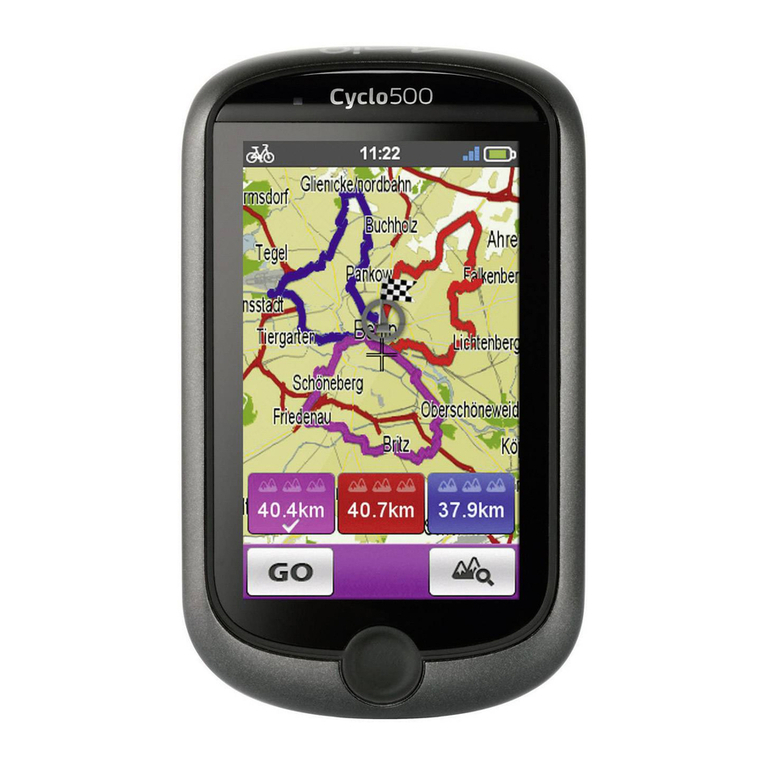
Mio DigiWalker C520 User manual

User’s Manual

R00 (USA)
Trademarks
The Bluetooth word mark and logo are owned by the Bluetooth SIG, Inc. All other
brand and product names are trademarks or registered trademarks of their
respective companies.
Disclaimer
Specifications and manuals are subject to change without notice. Mio Technology
assumes no liability for damage incurred directly or indirectly from errors,
omissions, or discrepancies between the device and the manuals.

Table of Contents
Precautions and Notices ......................................................................vii
1Getting Started..................................................................................1
1.1 Understanding Hardware Components................................................ 1
Front Components ............................................................................... 1
Back Components................................................................................ 2
Left-Side Components ......................................................................... 2
Top Components.................................................................................. 3
Bottom Components ............................................................................ 3
1.2 Performing the Initial Start Up.............................................................. 4
1.3 Connecting to AC Power and Charging the Battery............................. 6
1.4 Charging the Battery via the USB Cable.............................................. 7
1.5 Using Your Device in a Vehicle............................................................ 8
Using the Device Holder ...................................................................... 8
Connecting the Car Charger ................................................................ 8
1.6 Operating Basics.................................................................................. 9
Turning On and Off .............................................................................. 9
Navigating on the Screen..................................................................... 9
Home Screen ..................................................................................... 10
Using the Soft Keyboard .................................................................... 11
1.7 Inserting a SD/MMC Card.................................................................. 13
2Video ................................................................................................15
2.1 Starting and Exiting Videos................................................................ 15
2.2 Preparing the Video Files for Your Device......................................... 16
2.3 Playing Video Clips ............................................................................ 17
2.4 Video Playback Controls .................................................................... 18
3Audio................................................................................................21
3.1 Starting and Exiting Audio.................................................................. 21
3.2 Preparing the Audio Files for Your Device......................................... 22
3.3 Playing Audio Files............................................................................. 22
i

3.4 Playback Controls .............................................................................. 23
3.5 Displaying Lyrics ................................................................................ 25
Preparing the Lyrics Files for your Device ......................................... 25
Playing Songs with Lyrics .................................................................. 25
3.6 Using the Play Lists............................................................................ 26
Creating a Play List ............................................................................ 26
Opening a Play List ............................................................................ 27
3.7 Equalizer ............................................................................................ 28
3.8 Settings .............................................................................................. 29
4Pictures............................................................................................31
4.1 Starting and Exiting Pictures.............................................................. 31
4.2 Preparing the Pictures for Your Device.............................................. 31
4.3 Viewing Pictures in Thumbnail View .................................................. 32
4.4 Viewing a Picture in Full Screen ........................................................ 32
4.5 On-Screen Control Buttons ................................................................ 33
4.6 Viewing the Slideshow ....................................................................... 34
5Bluetooth .........................................................................................35
5.1 About Bluetooth Profiles..................................................................... 35
5.2 Connecting a Bluetooth Mobile Phone............................................... 36
Connecting a Mobile Phone for the First Time................................... 36
Connecting a Different Mobile Phone ................................................ 39
Using the Mobile Phone Shortcut....................................................... 39
Disconnecting the Mobile Phone........................................................ 40
5.3 Phone Operations .............................................................................. 40
Placing a Call ..................................................................................... 40
Receiving a Call ................................................................................. 43
Operations during a Call .................................................................... 44
5.4 Connecting a Bluetooth Headset ....................................................... 45
Connecting a Headset for the First Time ........................................... 45
Connecting a Different Headset......................................................... 47
Using the Headset Shortcut ............................................................... 47
Disconnecting the Headset ................................................................ 47
6Contacts ..........................................................................................49
6.1 Starting and Exiting Contacts............................................................. 49
6.2 Using the Contacts List ...................................................................... 50
6.3 Using the Summary Screen ............................................................... 51
6.4 Navigating to a Contact’s Address..................................................... 51
6.5 Making a Phone Call to a Contact ..................................................... 52
6.6 Managing Contacts ............................................................................ 53
Adding a Contact................................................................................ 53
ii

Editing a Contact................................................................................ 55
Deleting a Contact.............................................................................. 55
7Calculator ........................................................................................57
7.1 Starting and Exiting Calculator........................................................... 57
7.2 Using the Calculator Mode................................................................. 58
Calculator Memory ............................................................................. 59
7.3 Using the Currency Mode .................................................................. 59
Editing Exchange Rate....................................................................... 61
7.4 Using the Conversion Mode............................................................... 62
8File Manager....................................................................................65
8.1 Starting and Exiting File Manager...................................................... 65
8.2 Transferring Files ............................................................................... 66
From the Storage Card to Your Device.............................................. 66
From Your Device to the Storage Card.............................................. 68
8.3 Managing Folders and Files............................................................... 68
9Settings............................................................................................69
9.1 Starting and Exiting Settings.............................................................. 69
9.2 Backlight............................................................................................. 70
9.3 Volume ............................................................................................... 71
9.4 Screen ................................................................................................ 72
9.5 Power ................................................................................................. 73
9.6 Date/Time........................................................................................... 74
9.7 Language ........................................................................................... 76
9.8 Bluetooth ............................................................................................ 77
BT Preferences .................................................................................. 78
Auto-answer Preferences................................................................... 78
Delete Preferences ............................................................................ 79
9.9 Restore............................................................................................... 79
10 MioTransfer .....................................................................................81
10.1 Installing MioTransfer......................................................................... 81
10.2 Starting and Exiting MioTransfer........................................................ 82
10.3 Copying Multimedia Files to Your Device .......................................... 83
Managing Files................................................................................... 85
10.4 Copying Contacts Information to Your Device ................................... 86
11 Video ToolBox.................................................................................89
11.1 About Video ToolBox ......................................................................... 89
11.2 Installing Video ToolBox..................................................................... 89
iii

11.3 User Interface..................................................................................... 90
11.4 Four Steps to Create a Video File...................................................... 91
Step 1: Determine Video Output Setting............................................ 91
Step 2: Add/Edit Media Clip ............................................................... 91
Step 3: Choose Style ......................................................................... 92
Step 4: Create Video File ................................................................... 93
11.5 Adding Media Clips ............................................................................ 94
Inserting Clips into Your Project......................................................... 94
Capturing Digital Video ...................................................................... 94
Capturing Analog Video ..................................................................... 95
Capturing Still Images ........................................................................ 95
11.6 Editing Video Clips ............................................................................. 96
Trimming a Clip .................................................................................. 97
Trimming a Video into Multiple Clips.................................................. 98
11.7 Creating an Image Slideshow .......................................................... 100
11.8 Choosing a Style .............................................................................. 101
Selecting a Movie Style.................................................................... 101
Changing the Transition Effect......................................................... 102
Editing Text ...................................................................................... 102
Change the Background Music........................................................ 103
12 POI Loader.....................................................................................105
12.1 Installing POI Loader........................................................................ 105
12.2 Preparing the Source Files............................................................... 106
Excel File Format Example .............................................................. 106
CSV File Format Example................................................................ 106
12.3 Importing POIs ................................................................................. 107
Using the Imported POIs with Your Device...................................... 108
13 Troubleshooting and Maintenance .............................................109
13.1 Restart and Shut Down.................................................................... 109
Restarting Your Device .................................................................... 109
Shutting Down Your Device ............................................................. 109
13.2 Troubleshooting ............................................................................... 110
Power Problems............................................................................... 110
Screen Problems.............................................................................. 110
Connection Problems....................................................................... 111
GPS Problems.................................................................................. 111
13.3 Maintaining Your Device .................................................................. 112
14 Regulatory Information ................................................................113
14.1 Regulations Statements ................................................................... 113
Class B Regulations......................................................................... 113
iv

Bluetooth .......................................................................................... 115
14.2 Safety Precautions ........................................................................... 115
About Charging ................................................................................ 115
About the AC Adapter ...................................................................... 115
About the Battery ............................................................................. 116
v


Precautions and Notices
For your own safety, do not operate the controls of the product while driving.
Use this product prudently. The product is intended for use solely as a
navigation aid. It is not for precise measurement of direction, distance,
location or topography.
The calculated route is for reference only. It is the user’s responsibility to
follow the traffic signs and local regulations along the roads.
When you get out of the car, do not leave your device on the dashboard
subjected to direct sunlight. Overheating of the battery can cause malfunction
and/or danger.
GPS is operated by the United States government, which is solely responsible
for the performance of GPS. Any change to the GPS system can affect the
accuracy of all GPS equipments.
GPS satellite signals cannot pass through solid materials (except glass). When
you are inside a tunnel or building, GPS positioning is not available.
A minimum of 4 GPS satellite signals is needed to determine current GPS
position. Signal reception can be affected by situations such as bad weather or
dense overhead obstacles (e.g. trees and tall buildings).
Other wireless devices in the vehicle might interfere with the reception of
satellite signals and cause the reception to be unstable.
vii

A car holder is needed when using the device in a car. Be sure that you place
the device in an appropriate place, so as not to obstruct the driver’s view, or
deployment of airbags.
Do not mount where the driver’s
field of vision is blocked.
Do not place unsecured
on the dashboard.
Do not mount in front of
airbag panels.
Do not mount in front of an
airbag field of deployment.
viii
This manual suits for next models
1
Table of contents
Other Mio GPS manuals

Mio
Mio Cyclo 215 Series User manual
Mio
Mio DigiWalker C320 User manual
Mio
Mio Digiwalker C710 User manual
Mio
Mio Moov 380 User manual
Mio
Mio Moov R503T User manual

Mio
Mio 168 User manual
Mio
Mio DigiWalker C230 User manual

Mio
Mio 269+ User manual
Mio
Mio DigiWalker C310 Quick start guide

Mio
Mio Spirit 7800 Series Instructions for use
Mio
Mio Moov 200 Series User manual
Mio
Mio Mio 268 User manual

Mio
Mio Mio 269 User manual
Mio
Mio S300 series User manual
Mio
Mio Moov 200 Series User manual
Mio
Mio Cyclo 100 Series User manual

Mio
Mio Digiwalker C710 User manual
Mio
Mio DigiWalker C720T User manual
Mio
Mio Cyclo series User manual
Mio
Mio Cyclo 305 User manual