The menu changes and Setup is highlighted. Use the5. or button to highlight Delete Scene
instead (a fourth menu choice not displayed among the first three). Press the button.
The screen displays, “Press the desired scene button.” Press the scene button for the scene6.
you wish to delete.
The screen reads, “SUCCESS” and returns to the menu in step #4 for removing additional7.
scenes if desired.
Controlling Scene Controllers (Monster IlluminEssence Scene Controllers)
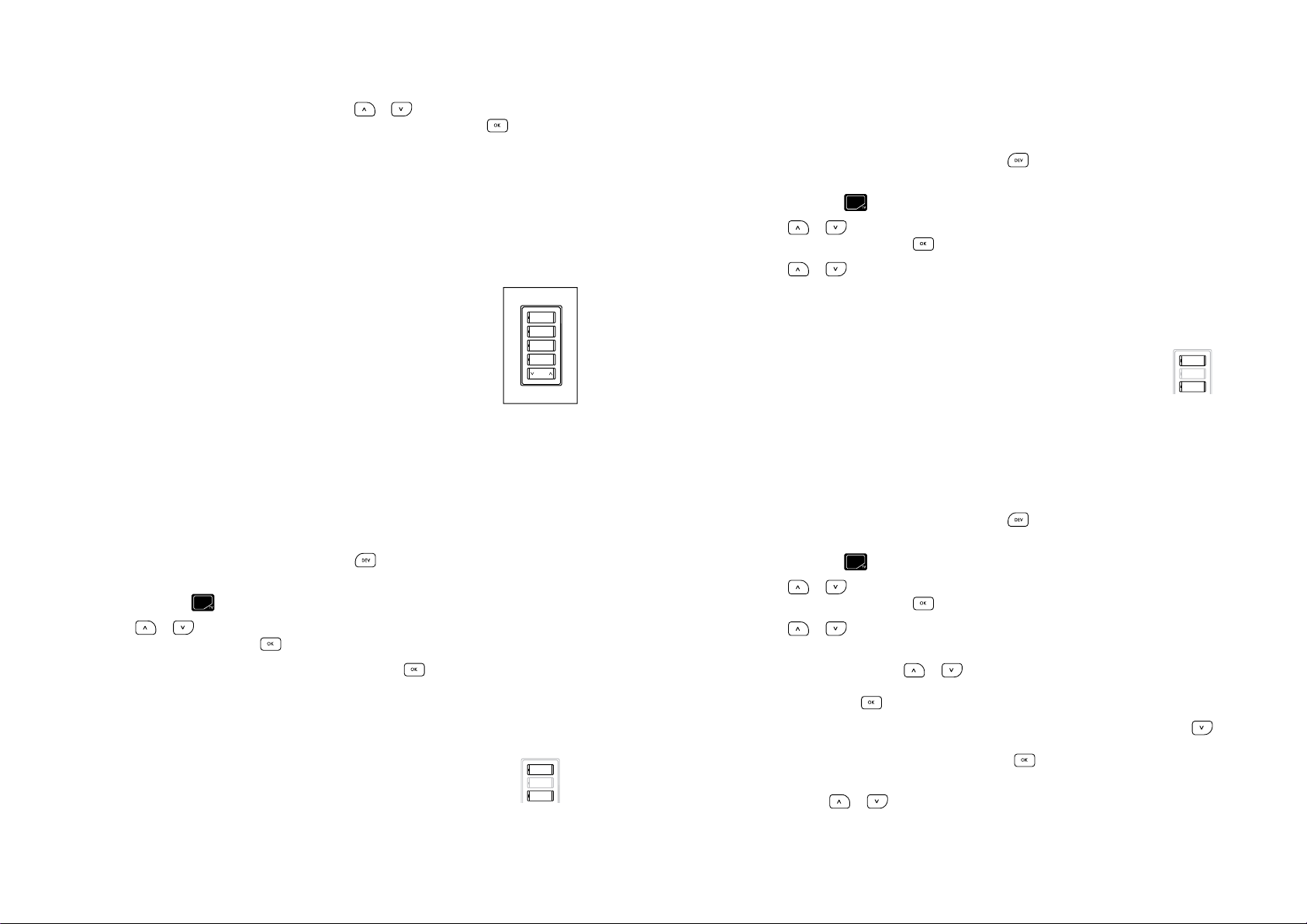
Scene controllers are in-wall lighting fixtures with four buttons where each can control a
different scene. To make use of scene controllers, you must have at least one
scene containing one or more nodes already set up on your remote. Once you do,
you can use your remote to assign a scene to a button on your scene controller.
From then on, you can use the scene controller’s button to toggle that scene on or
off. There is a total of 18 scenes that can be setup in the network. Each scene can
be associated/disassociated with each button of the same scene controller or
different scene controller, however it only supports Monster scene controller.
There are five commands related to scene controllers you can perform with your
remote: Include, Delete, Associate, Disassociate, Update Controller.
How to Include an IlluminEssence Scene Controller
“Including” is to a scene controller what “pairing” is to other kinds of lighting modules.
Once you include a particular scene controller, it enables the remote to perform any other
scene controller command.
So, to include a scene controller:
If you’re not already at the Home screen, press the1. button to move back one screen
at a time until ‘MONSTER’ is highlighted.
Press and hold the2. key
shift button for 3 seconds. The menu changes and Nodes is highlighted.
Use the3. or button to highlight Scene Controller (a fourth menu choice not displayed
among the first three). Press the button.
The Include menu choice is highlighted by default. Press the4. button.
The remote displays the message, “Set Scene Ctrl in Program Mode and Waiting.” Make sure5.
to hold the remote 3” to 5” from the scene controller.
On the scene controller, hold the6. first and third buttons down together to send the pairing or
include signal to the remote.
Once the remote acknowledges the signal and briefly reads, “SUCCESS,” it will7.
display “Scene Controller 001” though the numbering will change as you include
more scene controllers.
The menu returns to step #4 with Scene Controller highlighted by default.8.
How to Delete / Remove a Scene Controller from your Z Wave Network
To delete a scene controller from the memory of your remote:
If you’re not already at the Home screen, press the1. button to move back one screen
at a time until ‘MONSTER’ is highlighted.
Press and hold the2. key
shift button for 3 seconds. The menu changes and Nodes is highlighted.
Use the3. or button to highlight Scene Controller (a fourth menu choice not displayed
among the first three). Press the button.
Use the4. or button to highlight Delete.
The remote displays the message, “Set Scene Ctrl in Program Mode and Waiting.” Make sure5.
to hold the remote 3” to 5” from the scene controller.
On the scene controller, hold the6. first and third buttons down together to send the delete sig-
nal to the remote.
Once the remote acknowledges the signal and briefly reads, “SUCCESS,” it will7.
display “Scene Controller 001” (if that’s the name of the scene controller whose
buttons you were pressing in the previous step).
The menu returns to step #4 with Scene Controller highlighted by default.8.
How to Program a Button on the Scene Controller to Turn a Lighting Scene On / Off
To assign one of the four buttons of a scene controller to control a given scene:
If you’re not already at the Home screen, press the1. button to move back one screen
at a time until the MONSTER is highlighted.
Press and hold the2. key
shift button for 3 seconds. The menu changes and Nodes is highlighted.
Use the3. or button to highlight Scene Controller (a fourth menu choice not displayed
among the first three). Press the button.
Use the4. or button to highlight Associate.
The remote displays the message, “Select Scene Controller” followed by Controller #15.
highlighted by default. Use the or buttons to cycle through the choices of scene
controllers you’ve already included in your Z-Wave network. Once you have made
a selection, press the button.
The remote displays the message, “Select Scene” followed by a list of scenes. Use the6.
button to highlight the scene you want to associate with a button on the scene controller you
selected in the previous step. To continue, press the button.
The remote displays the message, “Select Button 1-4” followed by Button #1 highlighted by7.
default. Use the or buttons to cycle through the choices of Button #1, Button #2,
Button #3, or Button #4. Once you have selected the Button # you want to associate with the