Functions in Bluetooth Mode
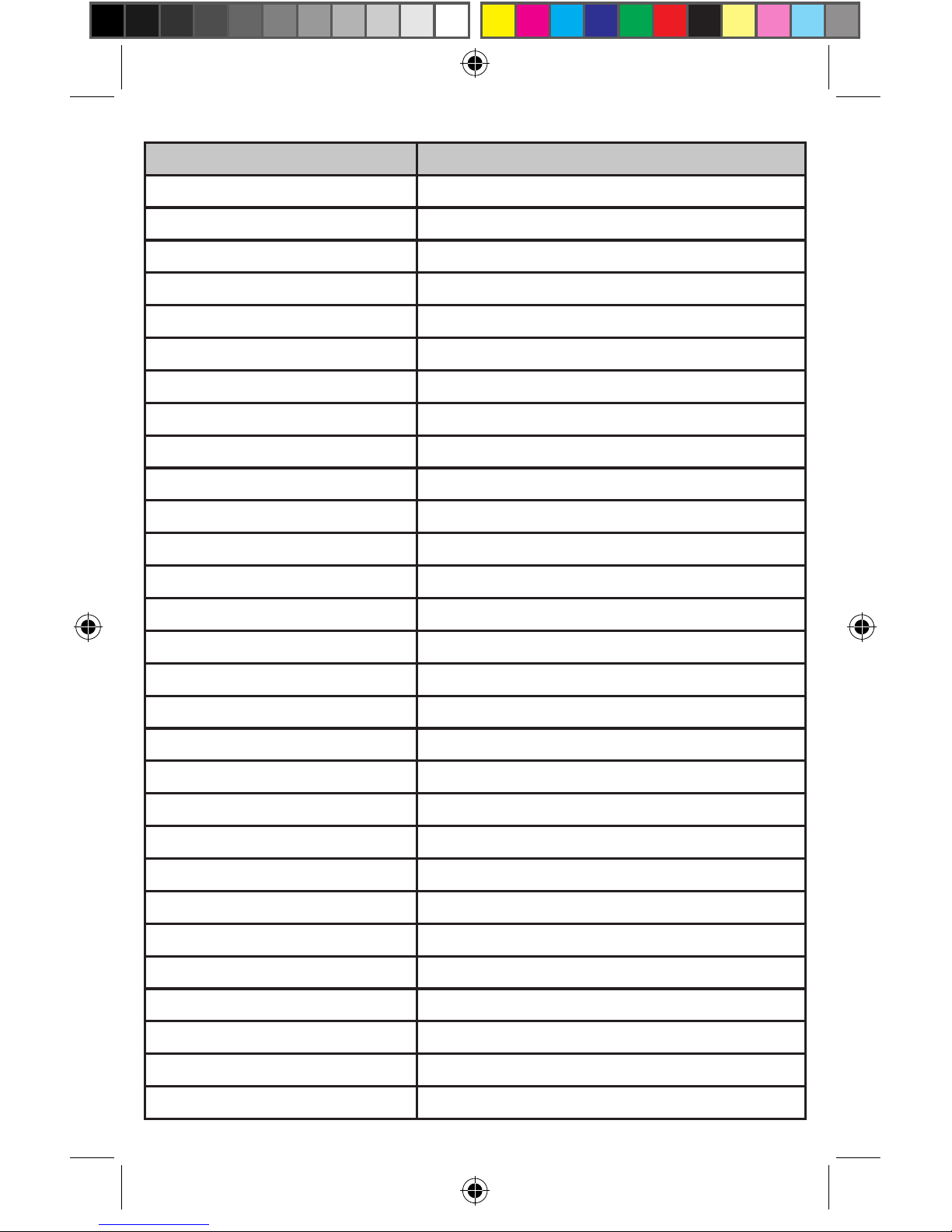
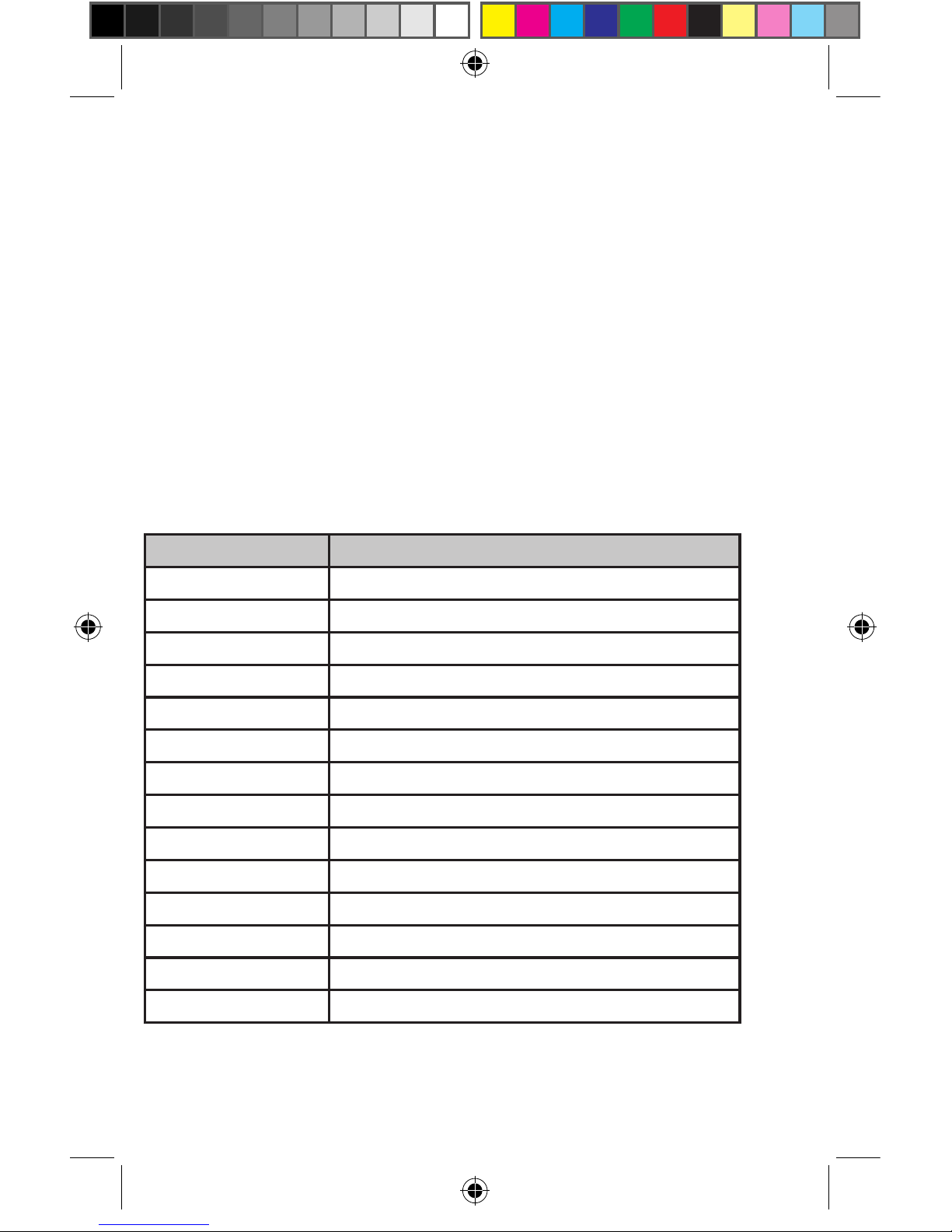
Function Action
Pick up call Press & release talk button
Hang up call Press & release talk button
Volume up Press up on volume switch
Volume down Press down on volume switch
Mute Microphone Press in on volume switch (red LED lights
up to indicate that the mic is muted)
Dial out using name dialing function on
cellular phone
Press & hold talk button, wait for tone from
the cellular phone, then say the voice tag that
was recorded on the cellular phone.
Transfer call to handset Press in volume switch (mute LED lights
up), then press talk button to transfer call to
the cellular phone
Transfer call to speakerphone Press talk button to transfer call to the
MV900
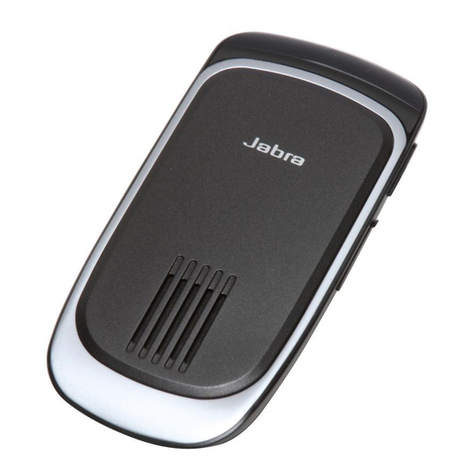
Using as a USB speakerphone
To use the MV900 as a USB speakerphone for conference calls and chatting through IM and
VoIP applications, simply plug the unit into a USB port on the computer (with the included
USB cable). Now you have a speaker and microphone all in one small package.
After connecting to the USB port, use the computerʼs volume control panel to access volume
up, volume down, and mute controls. Users can also adjust speaker and microphone volume
settings in the Adjust Audio Properties menu of the operating system.
Using with Desktop Phones
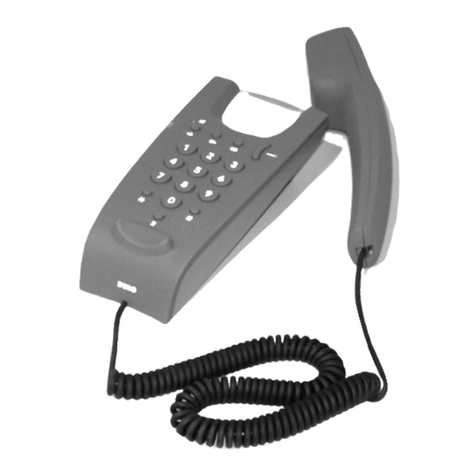
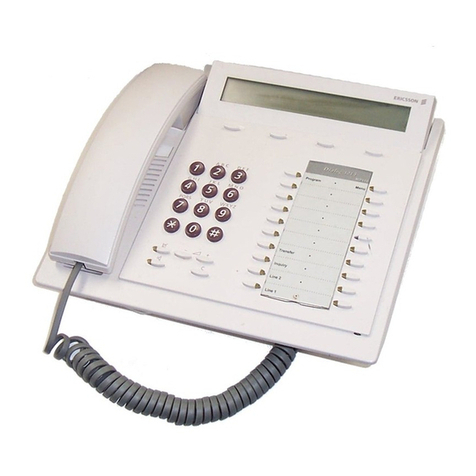
The MV900 includes an analog mode, which is designed
to connect to the handset of a desktop phone through
an optional adapter (available on www.mvox.com).
This allows a regular landline telephone to be used as a
speakerphone.
Headset mode (Privacy mode)
The MV900 includes an earpiece for private
conversations through an optional headset.
Using the Voice Command Recognition and Voice Keypad (VKP)
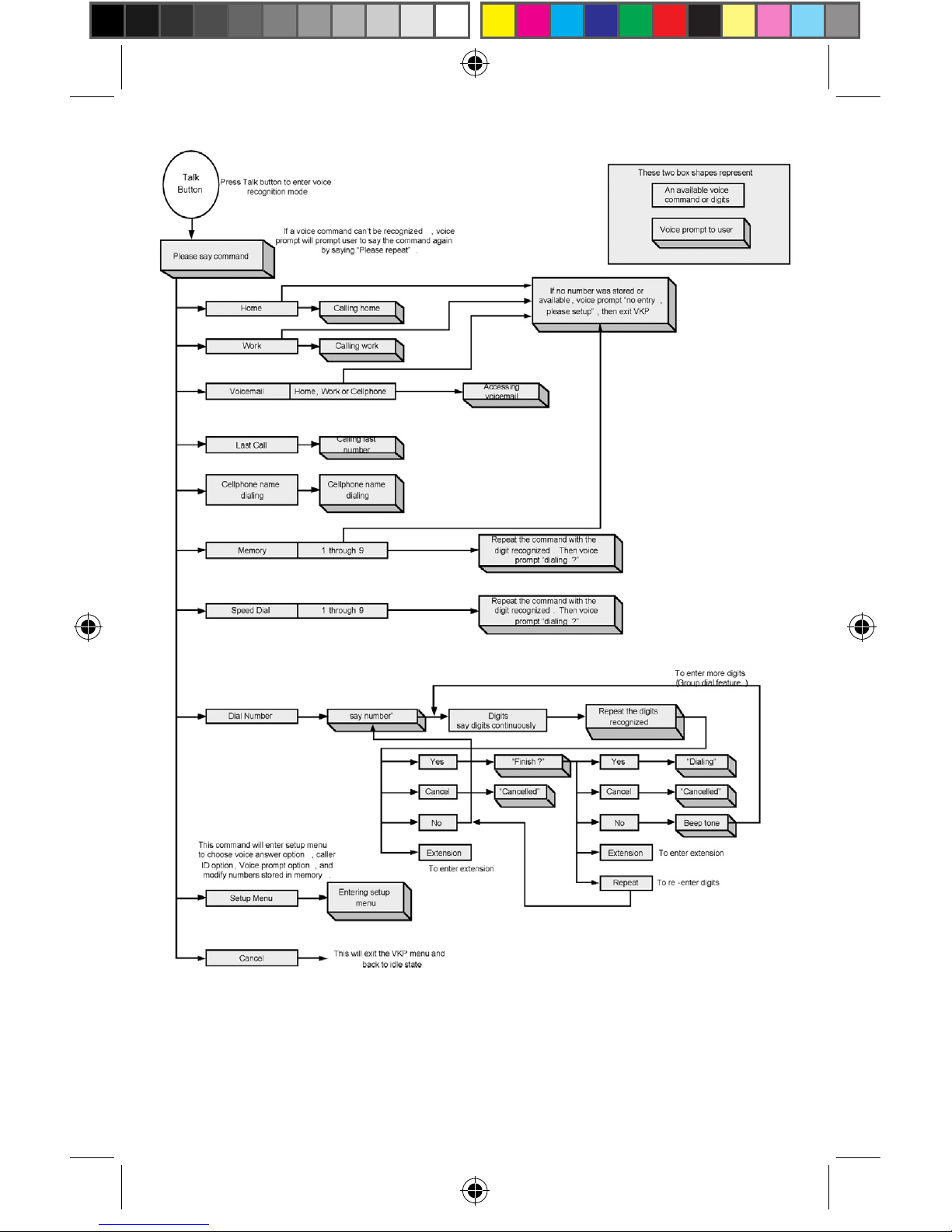
To get into the voice command recognition mode, first press and release the Talk button,
then wait for voice prompt “please say command.” Proceed by saying one of the following
commands.