MVOX electronics MV900 User manual
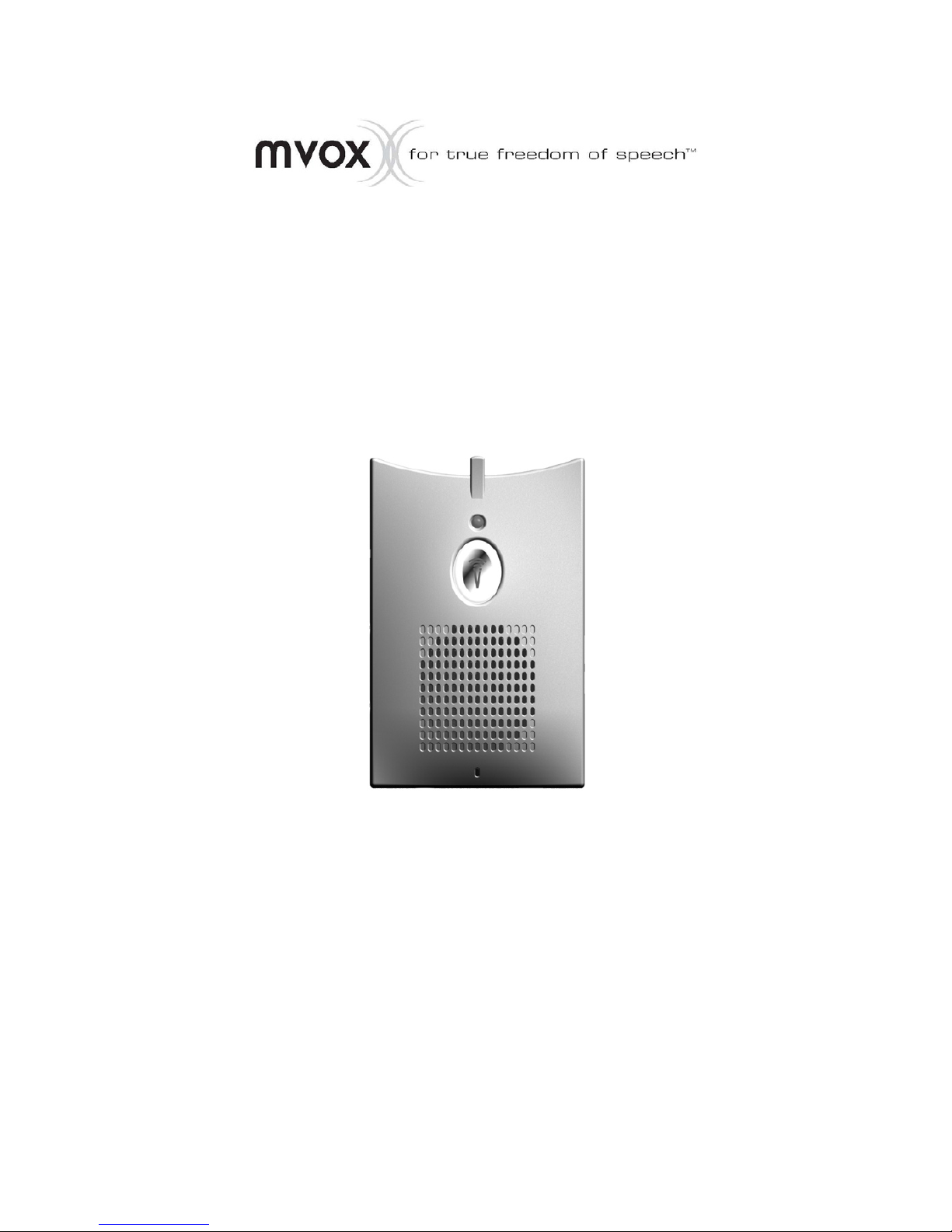
MV900
User Manual

Table of Contents
Table of Contents 1
1. Introduction 2
2. Function Modes and Compatibility 2
3. Charging 3
4. Turning on the MV900 3
5. Basic operations 3
6. Headset mode (Privacy mode) 3
7. Using as a USB Speakerphone 3
8. Using with Desktop Phones 3
9. Using as a Bluetooth Speakerphone with Cell Phones 4
1) Pair with a Bluetooth Cell phone 4
2) Connect MV900 to your Cell Phone 4
10. Operations in Bluetooth mode 5
1) Receive and reject an incoming call 5
2) Hang up a call 5
3) Transfer a call from or to Cell Phone 5
11. Using the Voice Command Recognition
and Voice Keypad (VKP) 6
1) Using Home, Work, Voicemail, Memory 7
2) Voice Keypad Dialing 8
3) Cell Phone Name Dialing 8
4) Speed Dial 9
5) Last Call 9
6) Group Number Dialing 10
7) Entering Touch Tone Numbers 11
12. Setup Menu 12
13. Regulatory Information 14
14. Limited Warranty 14
1
2
1. Introduction
Thank you for purchasing the mVox MV900 Bluetooth speakerphone. The MV900
is a true hands-free speakerphone with built-in DSP voice processing technology,
user independent voice dialing, and Bluetooth connectivity. The DSP-enabled
echo cancellation and noise suppression allowing natural and smooth full-
duplex conversations, whether you’re driving under noisy highway conditions,
engaging in a conference call through Voice over IP (VoIP), or just sitting in
front of your computer chatting on Instant Messenger (IM). An earpiece is
also included for private conversations. Get ready to experience the best
in hands-free communication!
2. Function Modes and Compatibility
The MV900 can operate in 3 modes:
• As a Bluetooth speakerphone when it has been paired with a
Bluetooth Cell phone
• As a USB speakerphone when plugged into an Internet-ready computer with
Instant Messenger or Voice over IP software
• As a speakerphone for desktop phones when used with an optional adapter
The MV900 is designed to work with any Bluetooth Cell phone and any
Instant Messenger or Voice over IP software.
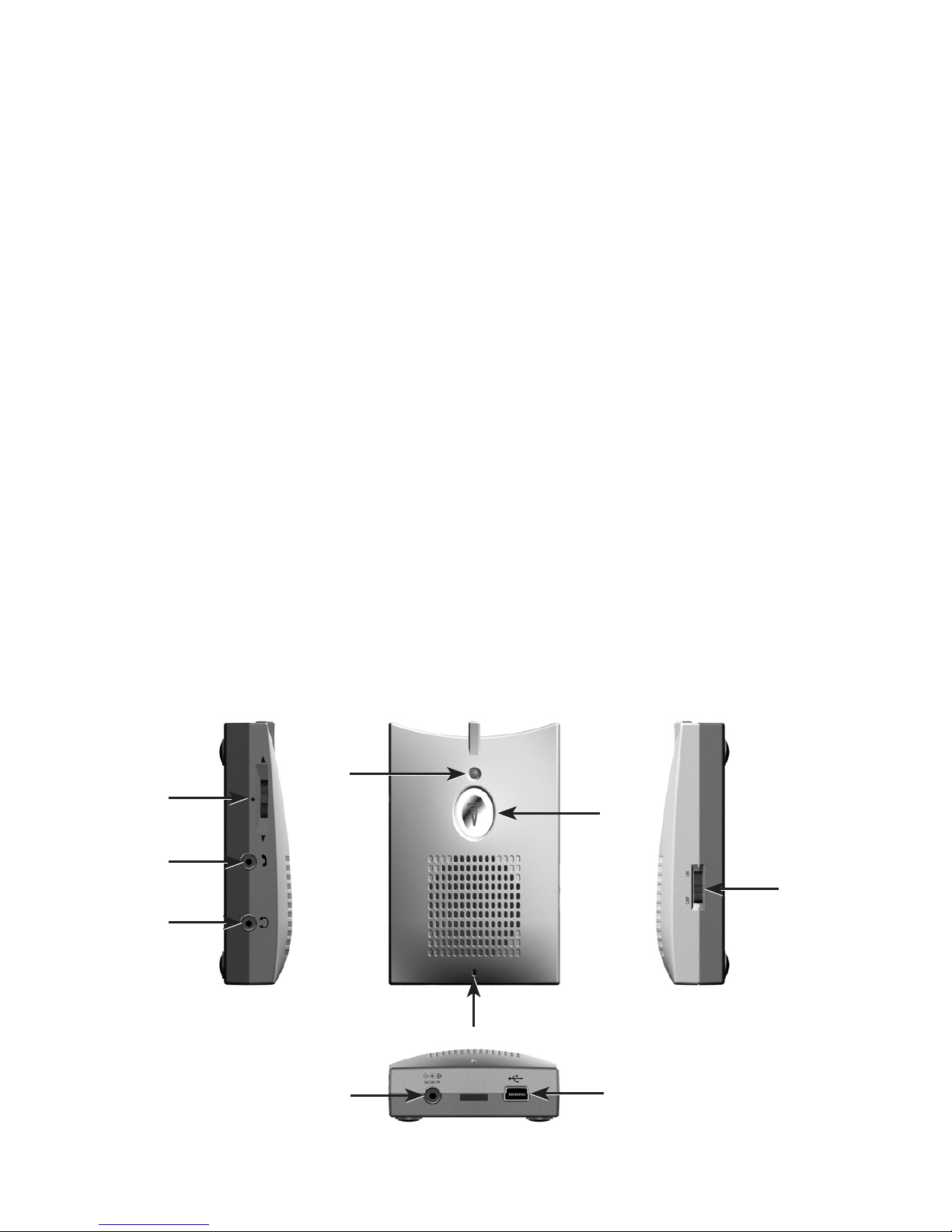
On/Off Switch
Talk button,
white LED
Mini USB-B jack
Charging indicator
Mute/low
battery
indicator
Volume
up/down,
mute switch
Analog
mode jack
Earpiece jack
Power Jack 5.0V DC

3
3. Charging
To charge the MV900, use the included AC adapter or connect to a USB port on
a computer. While the MV900 is charging, the charging indicator will show red.
The indicator will turn green when the MV900 is fully charged.
Note: A bus-powered USB hub cannot supply enough current for charging. We recommend
plugging the MV900 directly into the computer’s USB port or using a self-powered USB hub.
A self-powered USB hub has its own power supply via an AC adapter, while a bus-powered USB
hub draws its power through the USB bus, without an AC adapter.
4. Turning on the MV900
To turn on the MV900, slide the On/Off Switch to the On position. When the
MV900 is powered on, the white LED around the Talk Button will turn on and flash.
5. Basic operations
• Volume up: Press up on the volume switch
• Volume down: Press down on the volume switch
• Mute Microphone: Press in the volume switch (red LED lights up to
indicate that the microphone is muted)
6. Headset mode (Privacy mode)
The MV900 includes an earpiece for private conversations.
Plug in the earpiece to the 2.5mm jack on the side of MV900.
7. Using as a USB Speakerphone
To use the MV900 as a USB speakerphone for conference calls and to chat through
IM and VoIP applications, plug the MV900 into a USB port on the computer
(with the included USB cable). After connecting to the USB port, you can use
the computer’s volume control panel to access volume up, volume down,
and the mute controls. Users can adjust speaker and microphone volume settings
in the Adjust Audio Properties menu under the control panel.
8. Using with Desktop Phones
The MV900 includes analog mode. It is designed to connect the
handset of a desktop phone through an optional adapter
(available on www.mvox.com). This allows a regular landline
telephone to be used as an external speakerphone.

4
9. Using as a Bluetooth Speakerphone with Cell Phones
You will need to first pair the MV900 to your Cell phone before you can use
the MV900 as a Bluetooth speakerphone.
1) Pair with a Bluetooth Cell phone
Note: After MV900 is turned on, the MV900 will voice prompt “Connecting” then try to connect
to the last Cell phone paired. If the previous paired Cell phone cannot be found or MV900 has not
been paired before, the MV900 will voice prompt “Cell phone not available”.
To start, press and hold the mute button until the white LED is lit solid and you
will hear the MV900 beep twice. The MV900 is now in Pairing Mode.
Follow the Bluetooth connection instructions on your Cell phone to pair with the
MV900. When your Cell phone asks for the password enter “1234” as the device
password. If the pairing is successful you will hear the voice prompt “Bluetooth
Paired” from the MV900. You will need to pair your Cell phone once. Please see
your Cell phone User Manual for detailed instructions on Bluetooth Pairing.
2) Connect MV900 to your Cell Phone
You can start your connection with a paired Cell Phone or the MV900. It is
recommended that you activate your connection through the MV900.
Press and release the Talk Button on MV900 and you will hear “Connecting”.
Press in and hold

5
10. Operations in Bluetooth mode
Function
Receiving a call
Rejecting a call
Hang up a call
Transfer call to handset
Transfer call to speakerphone
1) Receive and reject an incoming call
When you have an incoming call you will hear the voice prompt “Incoming Call
(012) 345-6789”. Press and release the Talk Button to receive the incoming call or
press and release the mute button to reject the call.
2) Hang up a call
To terminate a call you will need to press and release the Talk Button while the
call is in progress. When the call has ended you will hear the voice prompt say
“Call Terminated”.
3) Transfer a call from or to Cell Phone
If you need privacy while on call with the MV900 you can transfer your call to
your handset by pressing in on the Volume Switch (mute LED will light up) then
press the Talk Button on the MV900 to transfer the call.
If your Cellphone is a flip phone, make sure to open the phone first before
transferring. If the phone is closed, your call will hang up when you transfer
the call.
To transfer calls from your handset to the MV900, press the Talk Button on
the MV900.
Action
Press and release talk button
Press and release the mute button
Press and release talk button
Press in volume switch (mute LED lights up), then
press talk button to transfer call to the Cell Phone
Press talk button to transfer call to the MV900

6
11. Using the Voice Command Recognition and Voice Keypad (VKP)
To get into the voice command recognition mode, press and release the
Talk Button, wait for the voice prompt “Please Say Command.” Proceed by
saying one of the following commands.
Voice Commands Supported
Command
Home
Work
Voicemail Home
Voicemail Work
Voicemail Cell phone
Last Call
Setup menu
Cell phone name dialing
Dial number
Speed dial One
Speed dial Two
Speed dial Three
Speed dial Four
Speed dial Five
Speed dial Six
Speed dial Seven
Speed dial Eight
Speed dial Nine
Memory One
Memory Two
Memory Three
Memory Four
Memory Five
Memory Six
Memory Seven
Memory Eight
Memory Nine
Note: “Home”, “Work”, “Voicemail Home, Work or Cell Phone”, and “Memory 1 through 9” require
users to set up the number in the setup menu first. Please refer to the setup menu section for
information on how to enter number.
Command Description
Dial Home number stored in memory
Dial Work number stored in memory
Dial Home voicemail stored in memory
Dial Work voicemail stored in memory
Dial Cell phone voicemail stored in memory
Dial last number (Redial)
Enter setup menu
Activate Cell phone voice dialing
Dial by using voice keypad
Dial speed dial one on the Cell phone
Dial speed dial two on the Cell phone
Dial speed dial three on the Cell phone
Dial speed dial four on the Cell phone
Dial speed dial five on the Cell phone
Dial speed dial six on the Cell phone
Dial speed dial seven on the Cell phone
Dial speed dial eight on the Cell phone
Dial speed dial nine on the Cell phone
Dial memory one number stored in memory
Dial memory two number stored in memory
Dial memory three number stored in memory
Dial memory four number stored in memory
Dial memory five number stored in memory
Dial memory six number stored in memory
Dial memory seven number stored in memory
Dial memory eight number stored in memory
Dial memory nine number stored in memory

7
Tips for using the Voice Recognition and Voice Keypad
• Say the command after you have heard the beep
• Say command or the numbers by speaking naturally. Avoid speaking too loud,
too close to the microphone, or speaking too slow.
• Always say “zero” for 0. Do not use “oh”.
• You can press the Talk Button to cancel any commands to start things over.
1) Using Home, Work, Voicemail, Memory
Press and release the Talk Button and say the command you would like to call.
When you use Memory say “Memory X”, X being 1-9.

8
2) Voice Keypad Dialing
You can use the MV900 to dial the phone number. To use the Voice Keypad press
and release the Talk Button wait for the voice prompt and say “Dial Number”,
now say the phone number you would like to dial.
3) Cell Phone Name Dialing
Follow your Cell Phone’s user manual to set up names or phone numbers on your
Cell Phone. Press and release the Talk Button and say “Cell phone Name Dialing”
and now say the name you want to call. You can also press and hold the Talk
Button; you will hear the voice prompt “Cell Phone Name Dialing”.
9
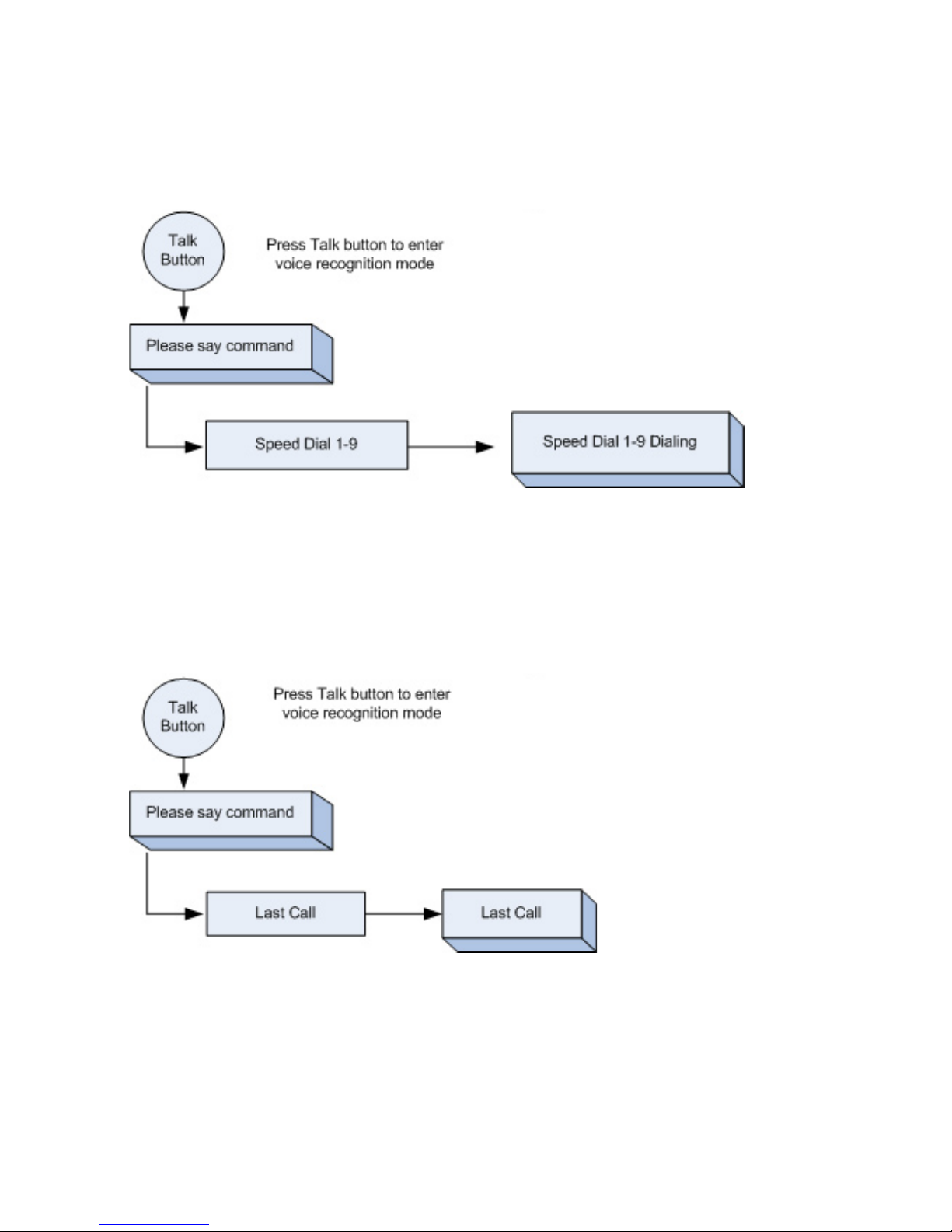
4) Speed Dial
To use Speed Dial press and release the Talk Button say “Speed Dial X”,
X being 1-9.
Note: Speed Dial only works when you have setup Speed Dial on your Cell Phone.
5) Last Call
You can redial the last phone number. Press and release the Talk Button on
the MV900 and say “Last Call”, you will hear the voice prompt say “Last Call”.
Other manuals for MV900
1
Table of contents
Other MVOX electronics Telephone manuals