NABI NABI2-NV7A User manual

nabi 2 User Manual
Updated: 09/26/2012
Contents
01
02
03
04
At a Glance 06
1.1 About nabi 06
1.2 What’s New on Monarch OS 06
1.3 Overview 08
1.4 Home Screen 09
1.5 Touch and Navigation 12
1.6 Sleep Mode 13
1.7 Status Icons 14
Getting Started 16
2.1 What’s in the Box 16
2.2 Charging nabi 16
2.3 nabi™Setup 18
Basics for nabi™Mode 21
3.1 About nabi™Mode 21
3.2 Settings 22
3.3 Connecting to Wi-Fi 23
3.4 Customizing the Home Screen 23
3.5 Using the On-Screen Keyboard 26
3.6 Switching and Adding Kids 27
3.7 Using the Camera 28
3.8 Using Gallery 28
3.9 Playing Music 29
3.10 Preloaded Apps 30
3.11 Switching to Mommy/Daddy Mode 31
Basics for Mommy/Daddy Mode 32
4.1 About Mommy/Daddy Mode 32
4.2 Android 4.0 Basics 32
4.3 Switching Between Modes 35
4.4 Settings 35
4.5 Wi-Fi 36
4.6 Using the Camera 36
4.7 Using the On-Screen Keyboard 37
4.8 Managing nabi™Mode Apps 38
4.9 Using Apps 39

05
06
07
08
09
App Zone 43
5.1 About App Zone 43
5.2 Browsing and Searching 43
5.3 Purchasing and Downloading Apps 44
5.4 Updating Apps 45
5.5 Managing Credit Card Information 45
5.6 Writing Reviews 45
5.7 Managing nabi™Coins 45
Spinlets+ Music 47
6.1 About Spinlets+ Music 47
6.2 Creating and Managing Spinlets+ Music Account 47
6.3 Finding Music 48
6.4 Purchasing Music 48
6.5 Downloading Music 49
6.6 Listening to Music 50
6.7 Creating Playlists 50
6.8 Transferring Music 51
Spinlets+ TV 52
7.1 About Spinlets+ TV 52
7.2 Finding Videos 52
Fooz Kids on nabi 53
8.1 About Fooz Kids 53
8.2 Fooz Kids™University and N-SITE 53
8.3 Fooz Kids™Web, Videos and Crafts 54
8.4 Fooz Kids™Books 54
8.5 Switching Kid Accounts 54
8.6 Parental Dashboard 55
Chore List 57
9.1 About Chore List 57
9.2 Adding Chores 58
9.3 Editing Chores 58
9.4 Managing Chores 58
9.5 Viewing Chore List in nabi™Mode 59
9.6 Purchasing nabi™Coins 59

11
12
13
14
10 Treasure Box 60
10.1 About Treasure Box 60
10.2 Searching and Browsing 60
10.3 About nabi™Coins 61
10.4 Earning nabi™Coins 62
10.5 Redeeming nabi™Coins 62
nabi™Sync 63
11.1 About nabi™Sync 63
11.2 Setting up nabi™Sync 63
11.4 Compatible File Formats 69
11.5 Using My Library 69
11.6 Software Updates 70
nabi™Cloud 71
12.1 About nabi™Cloud 71
12.2 nabi™Cloud Settings 72
12.3 Adding and Deleting Folders 73
12.4 Uploading and Deleting Files 73
12.5 Using Folders on nabi 73
nabi™MD 75
13.1 About nabi™MD 75
13.2 Using nabi™MD75
nabi™MD 76
14.1 Battery and Charging 76
14.2 Wi-Fi 76
14.3 Screen 77
14.4 Speaker and Microphone 78
14.5 Transferring Files 78
14.6 Storage 80
14.7 nabi™Account Management 80
14.8 Resetting nabi 80
14.9 Over the Air Software Updates 82
14.10 Extending Battery Life 82
15
16
17
Connecting to Devices 83
15.1 Connecting to TV 83
15.2 Connecting to Bluetooth Devices 83
Important Safety and Handling Information 84
Fuhu One (1) Year Limited Warranty 88

6
Section
01
01 At a Glance
At a Glance
1.1 About nabi
nabi is the world’s fastest and most powerful seven-inch tablet, made just for kids. As parents ourselves,
we designed nabi and the Monarch OS using “Learn. Play. Grow ... for Life” as our guiding principle to
deliver rich, engaging experiences for your children. This user manual will walk you through all of the
1.2 What’s New on Monarch OS
nabi™Monarch OS has more than 150 new features. Its easy-to-use and intuitive user interface keeps
nabi™years ahead. Key Monarch highlights include:
“This is the coolest app ever! I want it, Mom!”
App Zone presents more than 500 mom-selected, kid-
approved apps and games categorized and filtered by age.
Apps include parental advisory guidance and ratings.
“Check out all my new songs!”
Music to their ears and yours – Spinlets+ Music is the most
comprehensive music solution for kids. It features more than
9,000 children’s albums and 19 million tracks from all genres,
as well as an integrated music player and the ability to sync
with your computer.

7
Section 01 At a Glance
“I can watch all my favorite TV shows?!”
Saturday morning shows are always on. Spinlets+ TV offers
unlimited instant streaming of more than 700 hours of Cookie
Jar shows like “Strawberry Shortcake,” “Paddington Bear,”
“The Busy World of Richard Scary,” “Horseland” and much more.
“I wanna be a Fooz Kid!”
nabi is designed especially for learning. Fooz Kids™University
provides state-standardized, core curriculum in English, Math,
Science and Social Studies for K to 5th grade. You can also
track your child’s development with N-SITE, which provides
a detailed understanding of skills mastered and areas in need
of improvement.
“Wow! I get coins for cleaning my room?! I’m gonna use them
to get that new app!”
Chore List encourages children to be more responsible and
make good choices. You can reward your kids for completing
their chores with nabi™Coins, which they can redeem for apps,
games, music and accessories in Treasure Box.
“Can you save my stuff, Mom?”
Your content on nabi … made easy. Back up and transfer your
nabi™apps, photos, music and videos from your computer to
the cloud and from the cloud to your nabi with nabi™Cloud
and nabi™Sync.

8
Section 01 At a Glance
1.3 Overview
Front View:
1.Charging Indicator: Displays the charging status.
2.Front-Facing Camera: Takes photos and records videos.
3.Touchscreen Display: Enables direct interaction with the tablet.
Back View:
1.Kinabi™Grid: Allows you to fully personalize your nabi using Kinabis.
2.Stereo Speakers: Play audio from songs and other media.

9
Section 01 At a Glance
Angle View (Ports and Buttons)
1.Power/Lock Button: Press down and hold the Power Button for three seconds to turn nabi on or
off. Short press the Power Button to put nabi to sleep or to wake it from sleep mode.
2.Volume Buttons: Press the Volume + Button to increase the sound level of apps, movies, songs and
other media; press the Volume – Button to decrease it.
3.Microphone: Use to speak or to record an audio message.
4.5mm Headset Jack: Use to connect headphones or external speakers.
5.Mini HDMI Port: Plug in a Mini HDMI cable to view photos or videos on an HDTV.
6.Micro USB Port: Use to transfer files to or from a computer with a Micro USB cable.
7.MicroSD Card Slot: Insert a MicroSD card to expand memory or access external content.
8.Power Charger Port: Insert the USB charging cable plug to charge the battery.
1.4 Home Screen
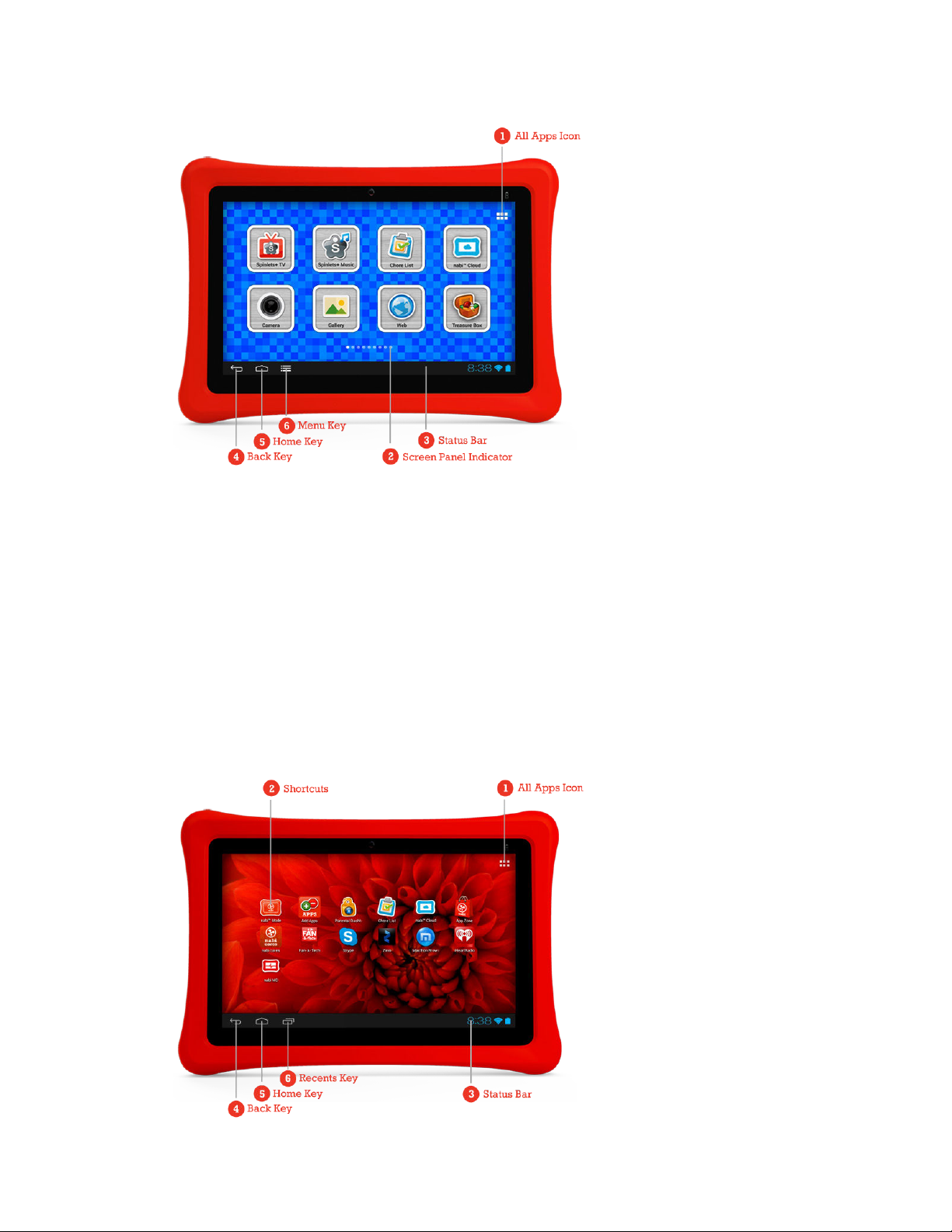
The home screen is where you will find your apps and folders. nabi™Mode and Mommy/Daddy Mode
have different home screens and different options for management and customization. For more
information about nabi™Mode, please visit Section 3. For more information about Mommy/Daddy
Mode, please visit Section 4.
10
Section 01 At a Glance
nabi™Mode Home Screen
1.All Apps Icon: Tap to view all of your applications and widgets on the All Apps screen.
2.Screen Panel Indicator: nabi™Mode comes with nine screen panels; this indicator displays the
position of the current screen within the nine panels.
3.Status Bar: Displays Status Icons that show battery power, time and Wi-Fi. For more information on
Status Icons, please visit Section 1.7.
4.Back Key: Tap to return to the previous screen.
5.Home Key: Tap to return to the home screen.
6.Menu Key: Tap to display the menu for the current screen. Tap to go to Mommy/Daddy Mode.
Mommy/ Daddy Mode Home Screen
Other manuals for NABI2-NV7A
1
This manual suits for next models
1
Table of contents
Other NABI Tablet manuals