Nohau EMUL-IP2K-PC User manual

EMUL–IP2K–PC™
User Guide
Edition 1, July 13, 2001
© 2001 Nohau Corporation. All rights reserved worldwide.

EMUL–IP2K–PC User Guide
Edition 1, July 2001, © Nohau Corporation i
Contents
About This Guide vi
Overview of the EMUL–IP2K–PC Emulator System 1
Hardware 1
Software 1
Installing the EMUL–IP2K–PC/USB–JTAG 3
USB Driver 3
Power Supply 3
Installation Instructions 4
Installing the Seehau Software 7
Installing the Seehau Software From the CD 7
Downloading and Installing the Seehau Software From the Internet 7
Configuring the Seehau Software 9
Selecting to Automatically Start the Seehau Configuration Program 9
Configuring the Communications Interface 10
Connect Tab 10
Hardware Configuration Tab 11
Configuring the Emulator Options From Within Seehau 14
Hdw Config Tab 14
Miscellaneous Setup Tab 17
Starting Seehau 18
Demo Mode 18

ii Preliminary EMUL–IP2K–PC User Guide
Non-Demo Mode 18
Running Program Examples 21
Using the Nohau Project Manager 23
Overview 23
Accessing the Nohau Project Manager 23
Working with Workspaces 23
Adding a New Workspace 23
Opening a Workspace 24
Saving a Workspace 24
Working with Projects 24
Adding a New Project 24
Removing a Project 25
Adding a File to the Project 25
Removing a File from the Project 25
Changing the Workplace Settings 25
Changing the File Settings 26
Building a Project 27
Building a Single Project 27
Building All Projects 27
Forcing a Build of a Single Project 27
Forcing a Build of All Projects 27
Forcing a Build of a Selected File 27

EMUL–IP2K–PC User Guide
Edition 1, July 2001, © Nohau Corporation iii
Product Notes
Warranty Information
The emulator board, trace board, pod board, and emulator cable are sold with a one-year warranty
starting from the date of purchase. Defective components under warranty will either be repaired or re-
placed at Nohau’s discretion.
Pod boards that use a bondout processor are also warranted for one year from the date of purchase ex-
cept for the processor. The bondout processor will be replaced once if Nohau determines that the fail-
ure in the bondout processor was not due to the user’s actions. This replacement limit does not apply to
the rest of the pod board.
Each optional adapter, cable, and extender is sold with a 90-day warranty, except that it may be subject
to repair charges if damage was caused by the user’s actions.
Nohau’s Seehau software is sold with no warranty, but upgrades can be obtained to all customers at the
Nohua Web site: http://www.nohau.com.
Nohau makes no other warranties, express or implied, including, but not limited to the implied warranties
of merchantability and fitness for a particular purpose. In no event will Noahu be
liable for consequential damages. Third-party software sold by Nohau carries the manufacturer’s war-
ranty.
License Key Readme
Important!
The following information is needed for your Seehau software to work correctly with the
IP2K–PC/USB–JTAG emulator:
The EMUL–IP2K–PC/USB–JTAG emulator requires a license file (key) to enable it to work
correctly. The license file (Nohaulic.bin) is contained on the floppy shipped with the Seehau software
CD. Copy this file to the SeehauIP2K subdirectory. The SeehauIP2K subdirectory already contains a
license file place holder (also called Nohaulic.bin). When copying the Nohaulic.bin file from the floppy
disk you will be prompted as to whether you want to replace the license file place holder. Select Yes.

iv Preliminary EMUL–IP2K–PC User Guide
European CE Requirements
Nohau has included the following information in order to comply with European CE requirements.
User Responsibility
The in-circuit debugger application, as well as all other unprotected circuits need special mitigation to
ensure Electromagnetic Compatibility (EMC).
The user has the responsibility to take required measures in the environment to prevent other
activities from disturbances from the debugger application according to the user and installation manual.
If the debugger is used in a harsh environment (field service applications for example), it is the user’s
responsibility to control that other activities cannot be disturbed in such a way that there might be risk
for personal hazard/injuries.
Special Measures for Electromagnetic Emission Requirements
To reduce the disturbances to meet conducted emission requirements it is necessary to place a ground
plane on the table under the pod cable and the connected processor board. The ground plane shall have
a low impedance ground connection to the host computer frame. The insulation sheet between the
ground plane and circuit boards shall not exceed 1mm of thickness.
System Requirements
CAUTION
Like all Windows applications, the Seehau software requires a minimum amount of free operating
system resources. The recommended amount is at least 40%. (This is only a guideline. This per-
centage might vary depending on your PC.) If your resources are dangerously low, Seehau might
become slow, unresponsive or even unstable. If you encounter any of these conditions, check your
free resources. If they are below 40%, reboot and limit the number of concurrently running applica-
tions. If you are unable to free at least 40% of your operating system resources, contact your sys-
The following are minimum system requirements:
•Pentium 200 (Pentium II or faster is recommended)
•Single-Processor System
•Windows 95, 98, NT, 2000, or 2000 ME
•Random Access Memory (RAM)
–For Windows 95/98: 64 MB
–For Windows NT/2000/2000ME: 128 MB
EMUL–IP2K–PC User Guide
Edition 1, July 2001, © Nohau Corporation v
Warnings
To avoid damage to the pod or to your target, do not connect the pod to your target when the
target power is on.
Do not apply power to your system unless you are sure the target adapter is correctly
oriented. Failing to do so can cause damage to your target.
When using the pod with a target, disable all pod resources that are duplicated on the
target. Failure to disable the pod’s resources can damage the pod or the target or both.
When installing a controller into a pod, never press on the chip body. Press only on the carrier
or cover. Pressing on the chip might bend pins and cause short circuits.

vi Preliminary EMUL–IP2K–PC User Guide
About This Guide
The EMUL–IP2K–PC/USB–JTAG is a PC-based debugger for the Ubicom (Scenix) family of
microprocessors. This guide helps you to get started with the basics of setting up, configuring,
and running the Seehau software and debugger.
The EMUL–IP2K-PC User Guide is intended for both novice and advanced users. This guide
introduces the following tasks:
•Installing and configuring the Seehau software
•Installing the pod board
•Starting the pod board and Seehau software
•Shutting down Seehau
•Creating Macros
•Troubleshooting
To download an electronic version of this guide, do the following:
1. Open Nohau’s home page at www.nohau.com.
2. Click Publications/Documents.
3. Click Nohau Manuals.
4. Scroll down to EMUL–IP2K–PC. Then select EMUL–IP2K–PC to download a PDF version of
this guide.

EMUL–IP2K–PC User Guide
Edition 1, July 2001, © Nohau Corporation 1
Overview of the EMUL–IP2K–PC
Emulator System
Hardware
The basic hardware for the EMUL–IP2K debugger system is the EMUL–IP2K–PC/USB–JTAG. At
present, Seehau IP2K supports the IP2022 chip.
Refer to Chapter 2, “Installing the Hardware” for detailed hardware information.
Software
Note
Because there is only one pod selection, the Connect tab in the Emulator Configura-
tion window is informational only. The Hdw Config tab offers options you can
select or clear. However, when you load your program a dynamic change to the
selected items can occur if programmed with these selections.
The debugger is configured and operated by the Seehau IP2K user interface. Seehau is a high-level
language user interface that allows you to perform many useful tasks, for example:
•Loading Flash RAM, running, and stopping programs based on the open source GNUpro C-
compiler and linker platform (not supplied by Nohau Corporation). The GNUPro tools and docu-
mentation for programming the IP2022 processor are available from Red Hat. This special version
of the assembler outputs in ELF format specifically for the Nohau debugger. Contact Nohau Tech-
nical Support if you have questions.
•Modifying and viewing memory contents including general-purpose registers.
•Setting one hardware breakpoint and multiple software breakpoints that can be placed in RAM or
Flash.

Chapter 1. Overview of the EMUL–IP2K–PC Emulator System
2Preliminary EMUL–IP2K–PC User Guide

EMUL–IP2K–PC User Guide
Edition 1, July 2001, © Nohau Corporation 3
Installing the EMUL–IP2K–PC/USB–JTAG
USB Driver
When installing the USB device, you must install the Seehau software first before connecting the Nohau
hardware (Refer to Chapter 3, Installing the Seehau Software.”). This allows the computer to recognize
the proper driver for the hardware. The USB option is not supported by Windows NT.
The USB drivers are loaded when the Seehau software is installed. The driver is located in the root di-
rectory of the installation CD. After installation, the driver is also located in the Seehau IP2K subdirec-
tory on your hard drive (C:\Nohau\SeehauIP2K\). The system software should find and load the USB
driver without your intervention. If your system does not find the driver, it should prompt you for the
path if the software does not find the driver on the CD.
Power Supply
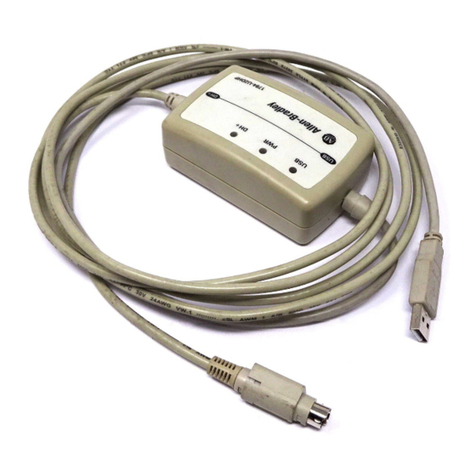
The EMUL–IP2K–PC/USB–JTAG uses power supplied by the USB cable and the target board. The
amount of power used by the ??? from the target board is less than 100 µA. When drawing power from
the taget board, the ??? must draw from a 2.3V to 3.6V range. The power supplied by the target board
drives the signal from the buffer on the ??? through the BERG connector to the target board. The ???
draws power from the target board through Pin 9 (Vdd).
Figure 1. EMUL–IP2K–PC/USB–JTAG
Table of contents