Novell GROUPWISE 7 - USERS User manual
Other Novell Software manuals
Novell
Novell GROUPWISE 7 - SECURITY POLICIES User manual
Novell
Novell DST - READ ME 03-2007 User manual
Novell
Novell ZENWORKS PATCH MANAGEMENT 6.4 SP2 - SERVER User manual
Novell
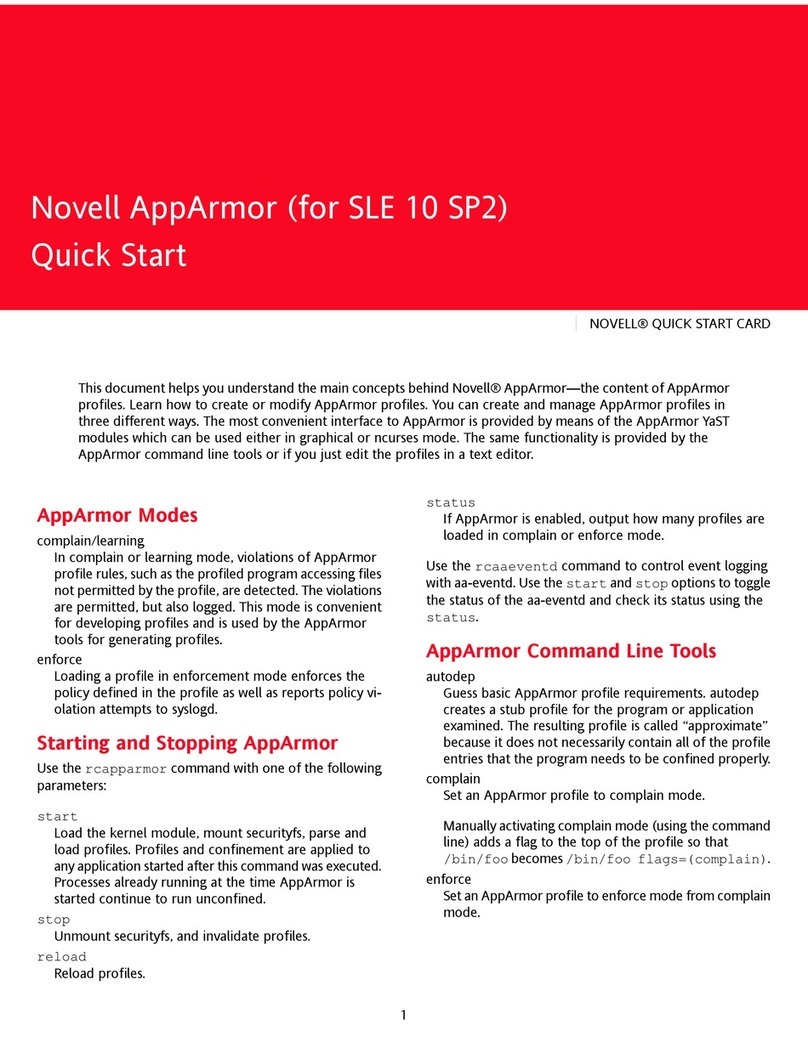
Novell APPARMOR - AND User manual
Novell
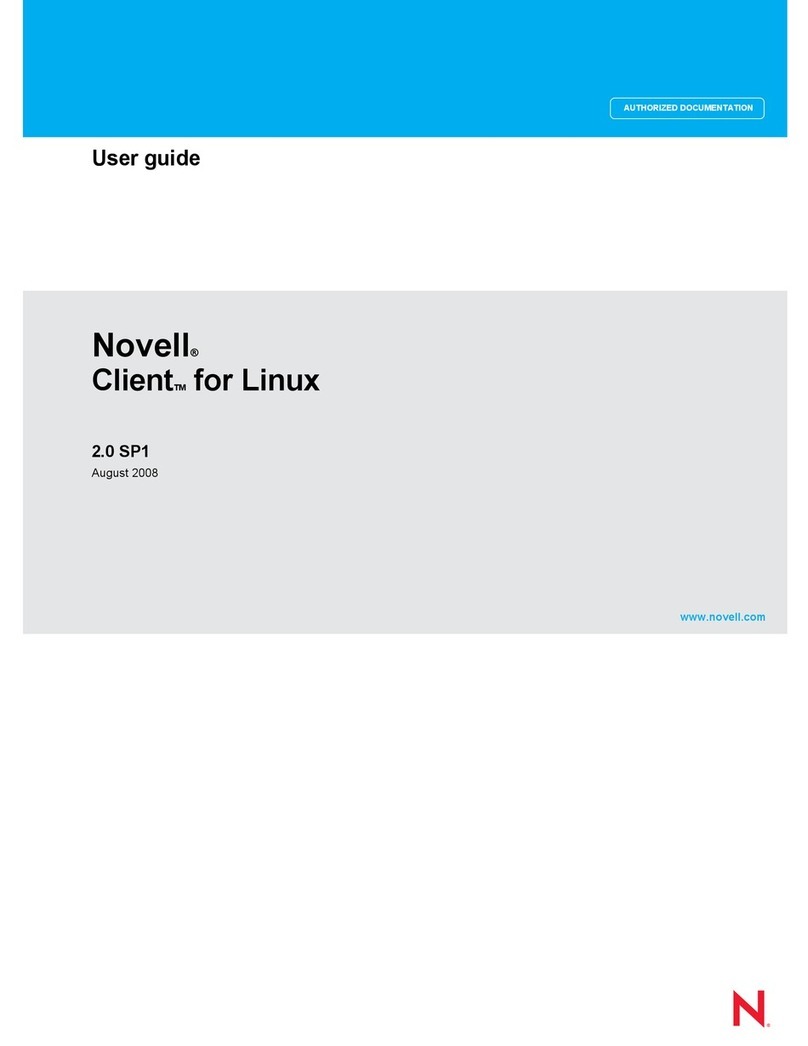
Novell CLIENT FOR LINUX 2.0 SP1 - 08-2008 User manual
Novell
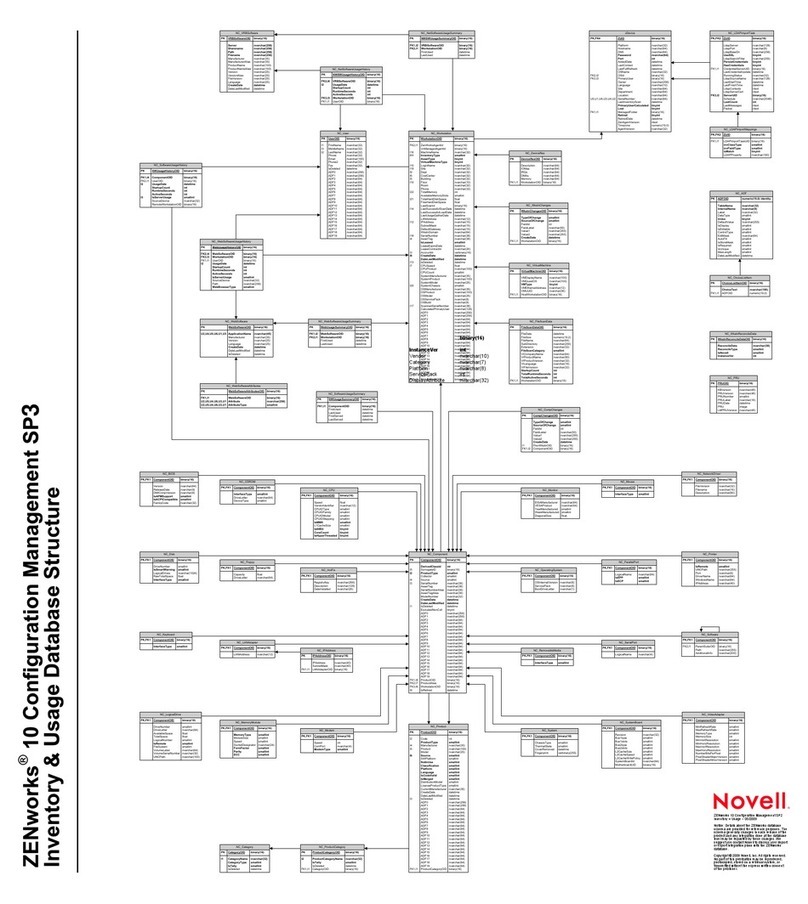
Novell ZENWORKS 10 CONFIGURATION MANAGEMENT SP3 - NETWORK DISCOVERY DATABASE... Quick guide
Novell
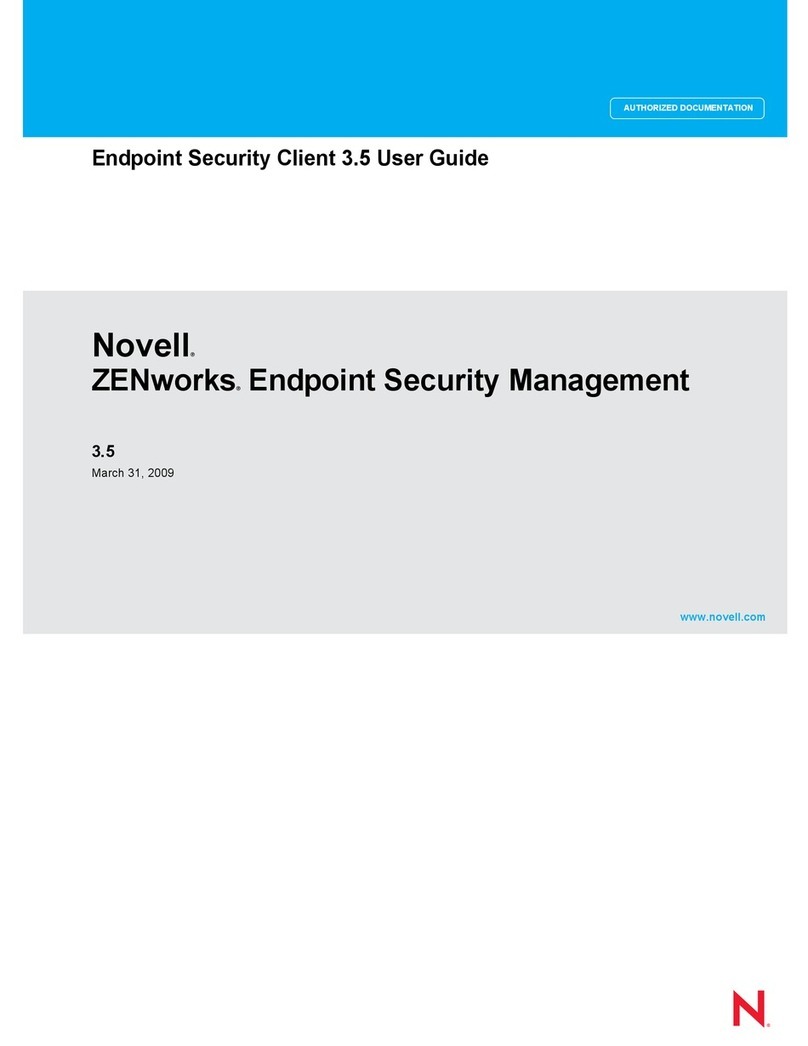
Novell ZENWORKS ENDPOINT SECURITY MANAGEMENT 3.5 User manual
Novell
Novell ZENWORKS APPLICATION VIRTUALIZATION - V8.0.3 INTEGRATION AND STREAMING... User manual
Novell
Novell GROUPWISE 8 - RESOURCES User manual
Novell
Novell ZENWORKS 10 CONFIGURATION MANAGEMENT SP3 - COMMAND LINE UTILITIES REFERENCE 10.3... Programming manual
Novell
Novell IFOLDER 3.7 - SECURITY ADMINISTRATION Instruction Manual
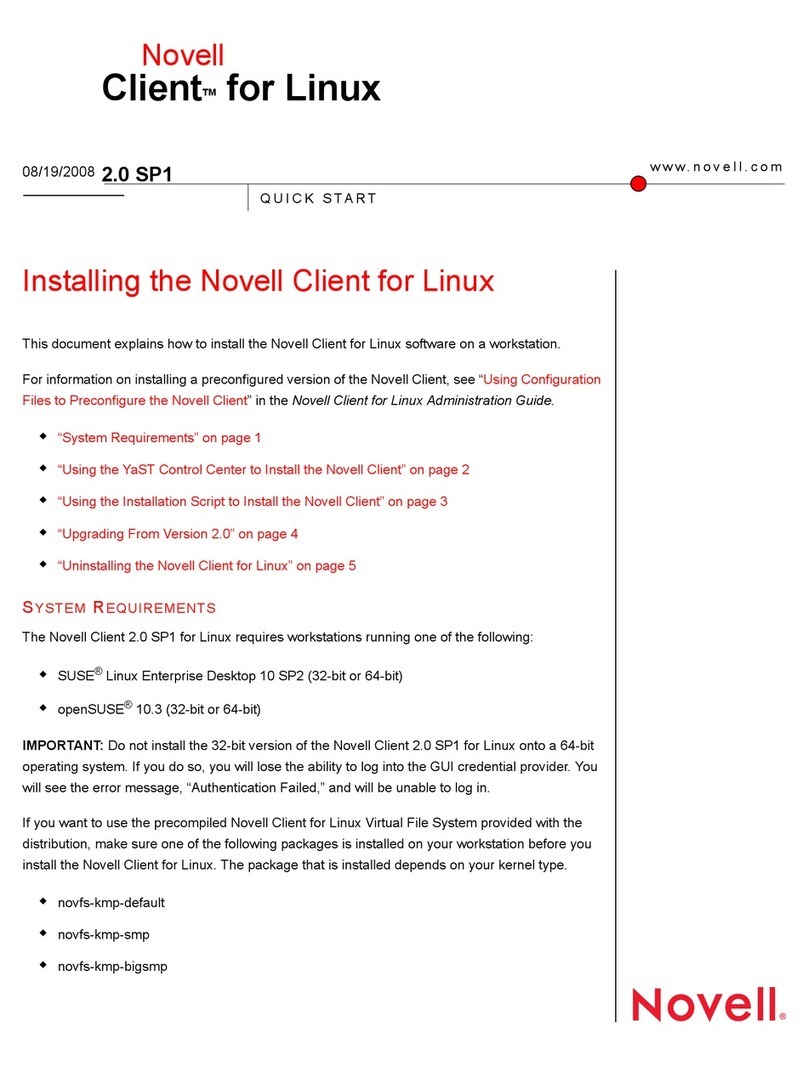
Novell
Novell CLIENT FOR LINUX 2.0 SP1 - ADMINISTRATION User manual

Novell
Novell GROUPWISE 8 - MONITOR User manual
Novell
Novell EDIRECTORY 8.8 - GUIDE User manual
Novell
Novell GROUPWISE 7 - CROSS-PLATFORM User manual
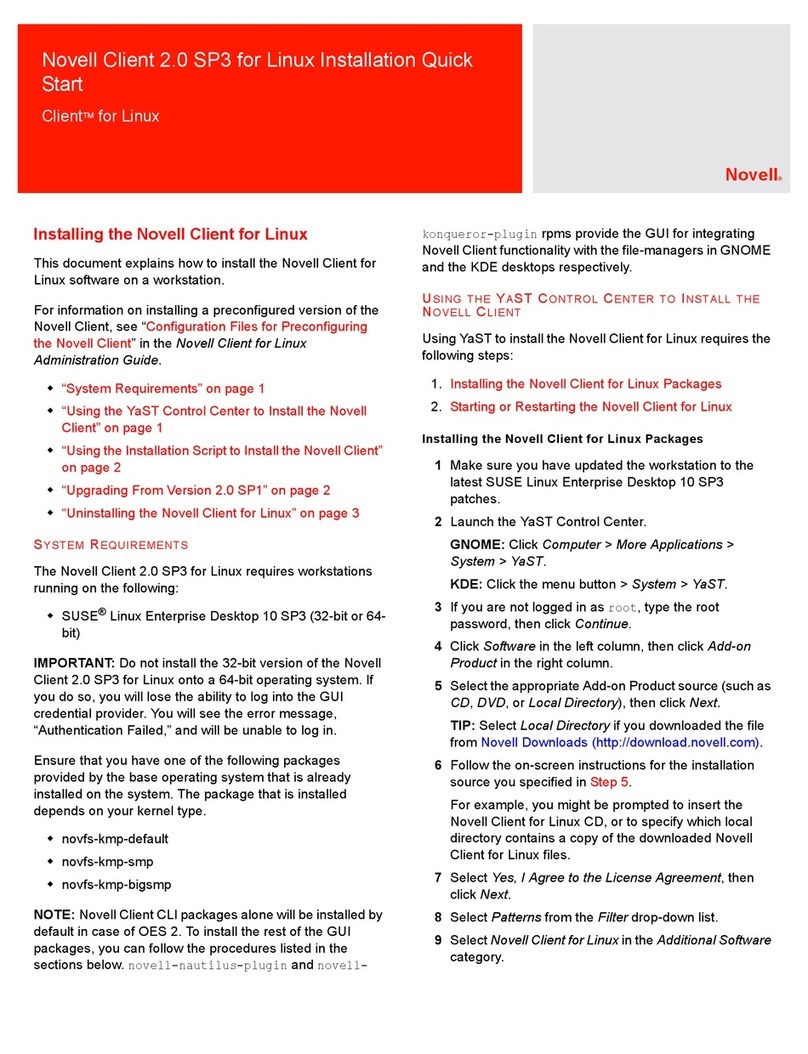
Novell
Novell CLIENT FOR LINUX 2.0 SP3 Instruction Manual
Novell
Novell OPEN ENTERPRISE SERVER 2 SP2 - PLANING AND IMPLEMENTATION GUIDE... User manual

Novell
Novell GROUPWISE 8 - POST OFFICES User manual
Novell
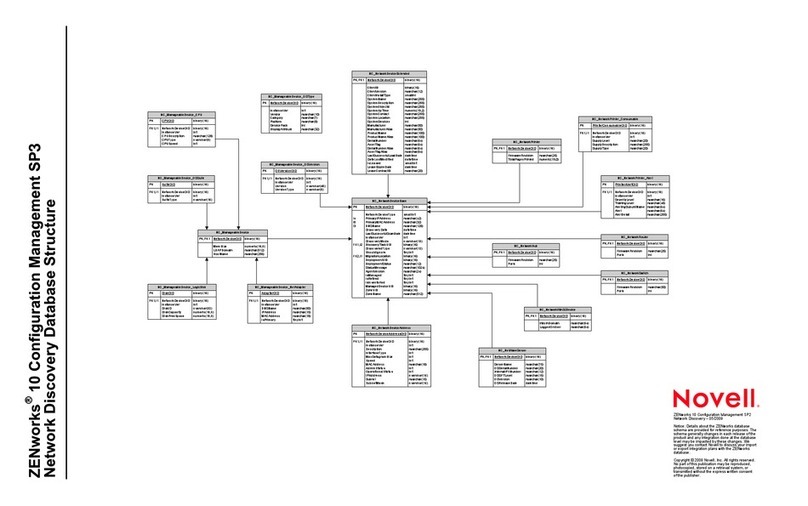
Novell ZENWORKS 10 CONFIGURATION MANAGEMENT SP3 - NETWORK DISCOVERY DATABASE... Quick guide
Novell
Novell OPEN ENTERPRISE SERVER CLUSTER SERVICES 1.8.2 -... User manual