manuals.online logo
Brands
  1. Home
  2. •
  3. Brands
  4. •
  5. Novo Minoru
  6. •
  7. Webcam
  8. •
  9. Novo Minoru Minoru 3D User manual

Novo Minoru Minoru 3D User manual

Popular Webcam manuals by other brands

HP 575739-001 user guide

HP

HP 575739-001 user guide

Digitus DA-70815 user manual

Digitus

Digitus DA-70815 user manual

Logitech C510 user manual

Logitech

Logitech C510 user manual

D-Link DCS-5025L user manual

D-Link

D-Link DCS-5025L user manual

BTC PC160S installation guide

BTC

BTC PC160S installation guide

Logitech C170 Getting started guide

Logitech

Logitech C170 Getting started guide

Real-El FC-225 user manual

Real-El

Real-El FC-225 user manual

Philips SPC715NC Specifications

Philips

Philips SPC715NC Specifications

Trust 12440 user manual

Trust

Trust 12440 user manual

FS FC270S user manual

FS

FS FC270S user manual

MAGINON M-Cam 1 manual

MAGINON

MAGINON M-Cam 1 manual

RoboCam SPARK Quick setup guide

RoboCam

RoboCam SPARK Quick setup guide

Gigaware 25-1176 user guide

Gigaware

Gigaware 25-1176 user guide

birddog EYES P200 user guide

birddog

birddog EYES P200 user guide

Dicota Contact user guide

Dicota

Dicota Contact user guide

Afidus ATL-200 Quick installation guide

Afidus

Afidus ATL-200 Quick installation guide

Adesso CyberTrack V10 user manual

Adesso

Adesso CyberTrack V10 user manual

Logitech C200 quick start guide

Logitech

Logitech C200 quick start guide

manuals.online logo
manuals.online logoBrands
  • About & Mission
  • Contact us
  • Privacy Policy
  • Terms and Conditions

Copyright 2025 Manuals.Online. All Rights Reserved.

Minoru 3D
Webcam
User’s Guide
M i n o r u 3 D W e b c a m U s e r ’ s G u i d e , R e v i s i o n 1 .
2 , F e b r
u a r y
2009
P a e | 2
Contents
Introduction ............................................................................................. 4
Installation .............................................................................................. 4
Hardware Installation ............................................................................... 4
Software Installation ................................................................................ 5
Minoru Settin s ......................................................................................... 6
1 – Setup Wizard... .................................................................................. 7
2 - Mode .............................................................................................. 10
3 - Options ........................................................................................... 10
4 - Select Lan ua e ................................................................................. 11
5 – Minoru Website.................................................................................. 11
6 - About... .......................................................................................... 11
7 – Exit................................................................................................ 11
Recordin application ................................................................................. 12
1 – Restart Minoru .................................................................................. 12
2 – Resolution........................................................................................ 13
3 – Screen mode ..................................................................................... 13
4 – Audio input select .............................................................................. 13
5 – Start/Stop Recordin ........................................................................... 13
6 – Take Snapshot ................................................................................... 13
How to record and playback a 3D video ......................................................... 14
How to take and email a snapshot ............................................................... 16
Usin Minoru with popular messa in applications ............................................... 17
Windows Live Messen er ........................................................................... 17
Skype ................................................................................................. 18
OoVoo ................................................................................................ 19
Recommended software to et the most from Minoru ........................................... 20
Videora ............................................................................................... 20
Windows Movie Maker .............................................................................. 20

M i n o r u 3 D W e b c a m U s e r ’ s G u i d e , R e v i s i o n 1 .
2 , F e b r
u a r y
2009
P a e | 3
Stereoscopic Player................................................................................. 20
Troubleshootin ....................................................................................... 21
Specifications .......................................................................................... 21
CE compliance statement ............................................................................ 22
FCC statement ......................................................................................... 22
Product disposal instructions (European Union) .................................................. 22
M i n o r u 3 D W e b c a m U s e r ’ s G u i d e , R e v i s i o n 1 .
2 , F e b r
u a r y
2009
P a e | 4
Introduction
Meet Minoru, meanin “Reality” in Japanese, the World’s first 3D webcam.
Connect Minoru to your PC and he will come alive, his eyes will li ht up and he will be
lookin at you in 3D.
Your friends and family will now be able to see you in 3D over your favourite messa in
pro ram like Windows Live Messen er, Skype, AOL instant messen er, OoVoo and many
others.
You will also be able to take 3D photos or even shoot 3D videos and upload them to
YouTube.
Installation
Hardware Installation
Carefully unpack Minoru and place on the desk in front of you or perch on the top of your
monitor as shown below. Ideally Minoru should be placed approximately 3 feet (1 metre)
away from you.
Plu Minoru into a high speed USB 2.0 port on your PC. If possible please use one of the
USB ports at the rear of your PC.
Note: Minoru will not work properly when connected to an older type USB 1 1 port!
A pop up should appear above the system tray, ‘New Hardware Found’ or ‘Installin Device
Driver Software’. Wait for this process to complete before installin the Minoru software.
M i n o r u 3 D W e b c a m U s e r ’ s G u i d e , R e v i s i o n 1 .
2 , F e b r
u a r y
2009
P a e | 5
Software Installation
Open your CD ROM drive and place the software CD in the drive. Close the CD ROM drive
and follow the onscreen instructions to complete the installation of the Minoru software.
M i n o r u 3 D W e b c a m U s e r ’ s G u i d e , R e v i s i o n 1 .
2 , F e b r
u a r y
2009
P a e | 6
Minoru Settings
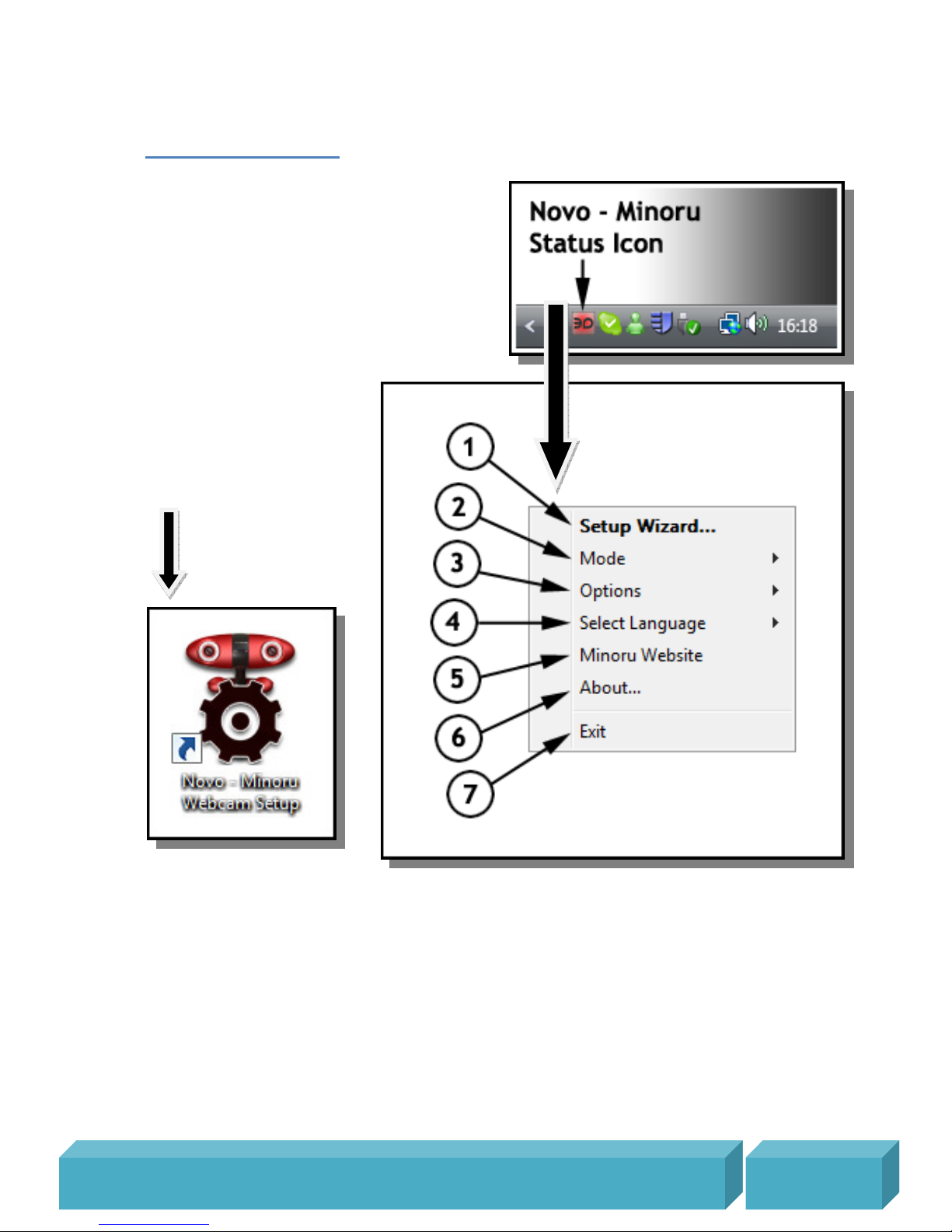
You can access Minoru’s settin s at any time by
ri ht clickin the Minoru status icon in the
system tray. You can access and chan e the
settin s even while Minoru is in the middle of a
video call or durin a video recordin session.
Double clickin the icon will start the Minoru
setup wizard.
If the Minoru status icon does
not appear in the system tray
then you should start ‘Minoru
Webcam Setup’ by double
clickin the desktop shortcut.
M i n o r u 3 D W e b c a m U s e r ’ s G u i d e , R e v i s i o n 1 .
2 , F e b r
u a r y
2009
P a e | 7
1 – Setup Wizard...
Before usin Minoru for the first time you should focus and then line up Minoru’s two eyes.
First place Minoru on the desk or on the top of your monitor at a distance of about 3 feet
(1 metre) from your face. At this sta e you should not wear the 3D lasses.
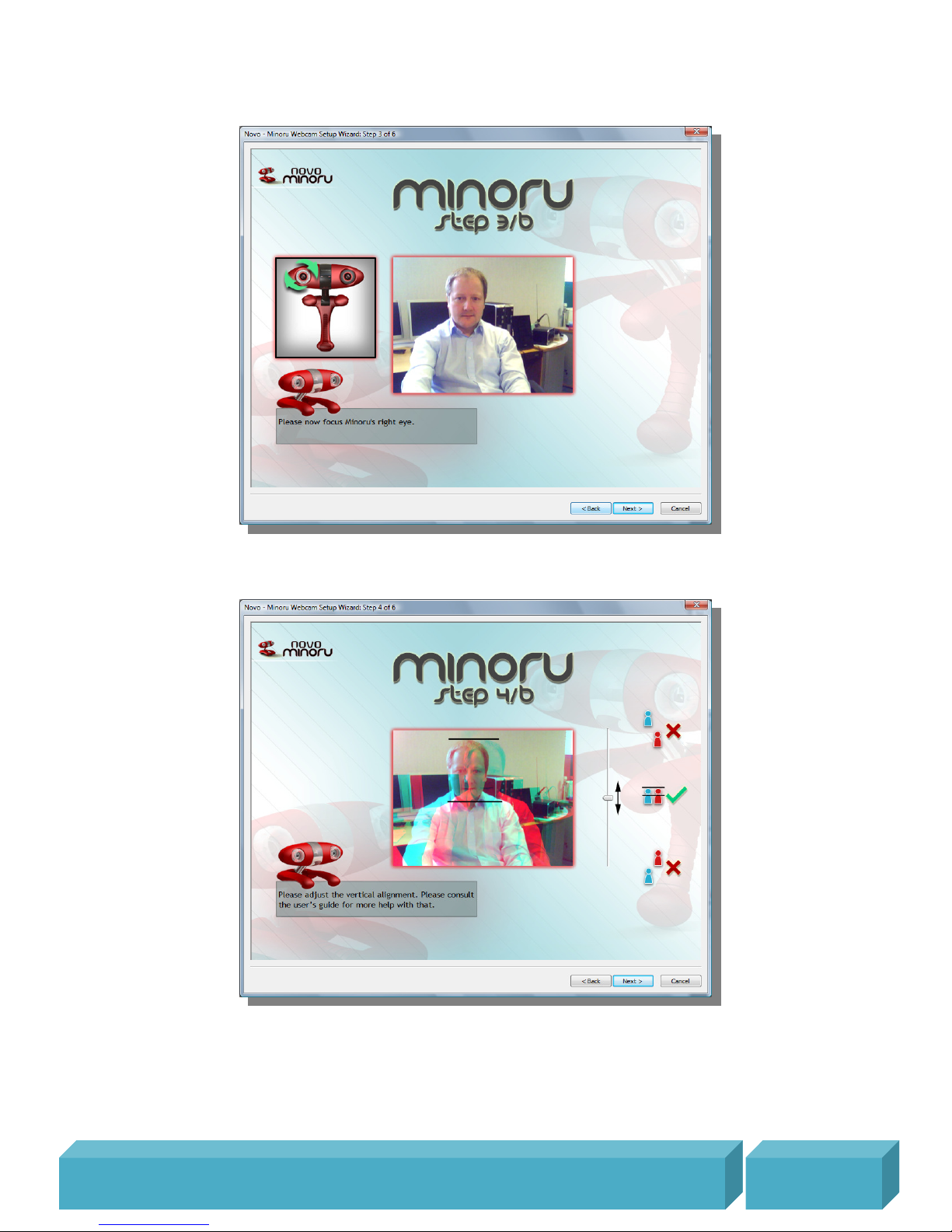
Focus Minoru’s left eye by turnin the lens rin until the ima e of your face appears sharp.
M i n o r u 3 D W e b c a m U s e r ’ s G u i d e , R e v i s i o n 1 .
2 , F e b r
u a r y
2009
P a e | 8
Focus Minoru’s ri ht eye by turnin the lens rin until the ima e of your face appears
sharp.
Vertical ali nment...At this point you should still not wear the 3D lasses. Look at Minoru
and you should see two ima es of your face on the screen, a blue ima e and a red ima e.
Adjust the vertical slider so that the red and blue ima es of your face are at exactly the
same hei ht on the screen. Sometimes it is easiest to look at the top or bottom of your
head or at your eyes in order to ali n the two ima es.
M i n o r u 3 D W e b c a m U s e r ’ s G u i d e , R e v i s i o n 1 .
2 , F e b r
u a r y
2009
P a e | 9
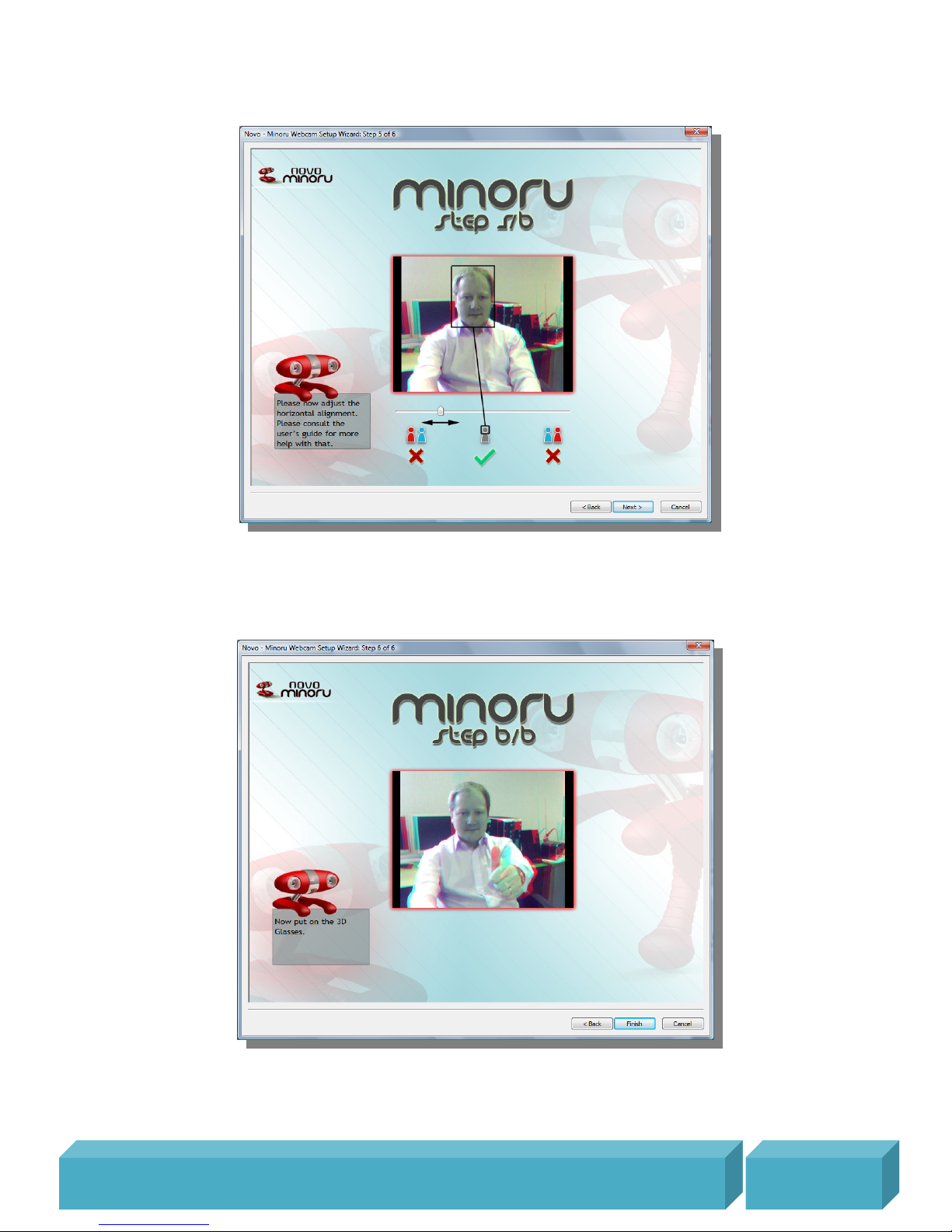
Horizontal ali nment...Still do not wear the 3D lasses, don’t worry you can put them on
very soon. Look at the two ima es of your face on screen and adjust the horizontal slider
so that the two ima es of your face mer e into one. Note that you will still see red and
blue ima es of the objects in front and behind you.
Now put on the 3D lasses for the first time. Spend some time experiencin the 3D effect
for yourself. Stretch your arms out ahead of you and they will appear to come out from
the screen. Put your arms behind your head and they will appear to o into the screen.
M i n o r u 3 D W e b c a m U s e r ’ s G u i d e , R e v i s i o n 1 .
2 , F e b r
u a r y
2009
P a e | 10
2 - Mode
You can select from three different operatin modes for Minoru
3D – The viewer of the 3D video will need to use the 3D lasses to see the 3D effect
Picture in Picture (PiP) – This mode is useful if you want to show some close up detail of
an item while maintainin the view of your face. Hold the item up to Minoru’s left eye and
the detailed ima e will appear in the lar e PiP window.
2D – You can use this mode if the viewer doesn’t have any 3D lasses.
Side by Side – For the real 3D enthusiast! Select from Left/Ri ht (LR) or Ri ht/Left (RL).
You can use these modes to record ‘Side by Side’ pictures. The recorded video can then be
played back usin a stereoscopic player, see ‘Recommended software to et the most
from Minoru’, pa e 20.
The current mode is indicated by the Minoru status icon in the system tray
– Minoru is workin in 3D mode
– Minoru is workin in Picture in Picture (PiP) mode
– Minoru is workin in 2D mode
- Minoru is workin in ‘Side by Side’ mode
– Minoru is not connected to the PC.
Please check that Minoru’s USB plu
is connected to the PC.
3 - Options
Start Minoru when Windows starts. If this is ticked then the Minoru Webcam Setup starts
automatically when Windows starts.