manuals.online logo
Brands
  1. Home
  2. •
  3. Brands
  4. •
  5. Ocean Systems
  6. •
  7. Desktop
  8. •
  9. Ocean Systems dTective User manual

Ocean Systems dTective User manual

Other manuals for dTective

1

This manual suits for next models

1

Other Ocean Systems Desktop manuals

Ocean Systems The Tower User manual

Ocean Systems

Ocean Systems The Tower User manual

Ocean Systems dTective User manual

Ocean Systems

Ocean Systems dTective User manual

Ocean Systems RackMount User manual

Ocean Systems

Ocean Systems RackMount User manual

Popular Desktop manuals by other brands

StarTech.com ARMSTSL manual

StarTech.com

StarTech.com ARMSTSL manual

Dell Inspiron 5720 quick start guide

Dell

Dell Inspiron 5720 quick start guide

GÜDE WERKBANK GW 6/2 XL Translation of the original instructions

GÜDE

GÜDE WERKBANK GW 6/2 XL Translation of the original instructions

Lenovo ThinkCentre M62z Vodič za uporabnika

Lenovo

Lenovo ThinkCentre M62z Vodič za uporabnika

Lenovo ThinkCentre M71z user guide

Lenovo

Lenovo ThinkCentre M71z user guide

Fujitsu ESPRIMO C7xx operating manual

Fujitsu

Fujitsu ESPRIMO C7xx operating manual

Bosch DCU 130 operating instructions

Bosch

Bosch DCU 130 operating instructions

Zotac VR GO quick start guide

Zotac

Zotac VR GO quick start guide

HP 260 G2 DM Product End-of-Life Disassembly Instructions

HP

HP 260 G2 DM Product End-of-Life Disassembly Instructions

Sony VAIO VGC-LS21 Specifications

Sony

Sony VAIO VGC-LS21 Specifications

HP ProOne 400 G1 specification

HP

HP ProOne 400 G1 specification

IBM PS/2 60 Hardware maintenance service

IBM

IBM PS/2 60 Hardware maintenance service

Acer Aspire SA60 Service guide

Acer

Acer Aspire SA60 Service guide

Lenovo ThinkCentre M71z Uživatelská příručka

Lenovo

Lenovo ThinkCentre M71z Uživatelská příručka

IBM Aptiva 2198 reference guide

IBM

IBM Aptiva 2198 reference guide

Sony PCV-LX810 - Vaio Slimtop Computer System reference manual

Sony

Sony PCV-LX810 - Vaio Slimtop Computer System reference manual

Dell Precision U3525 Quick reference guide

Dell

Dell Precision U3525 Quick reference guide

MicroTouch IC-215P-AW2 user guide

MicroTouch

MicroTouch IC-215P-AW2 user guide

manuals.online logo
manuals.online logoBrands
  • About & Mission
  • Contact us
  • Privacy Policy
  • Terms and Conditions

Copyright 2025 Manuals.Online. All Rights Reserved.

1
Connecting Video and Audio to RackMount and Tower dTective
Systems Using Media Composer Adrenaline
Pages 2 - 7: Connecting S-Video Cables
Page 8: S-Video Wiring Diagram
Pages 9 - 13: Connecting Composite Cables
Page 14: Composite Wiring Diagram
Page 15 - 18: Connecting Audio Cables
©2005 Ocean Systems.
This document cannot be reproduced or transmitted by any means without the express written permission of
Ocean Systems.
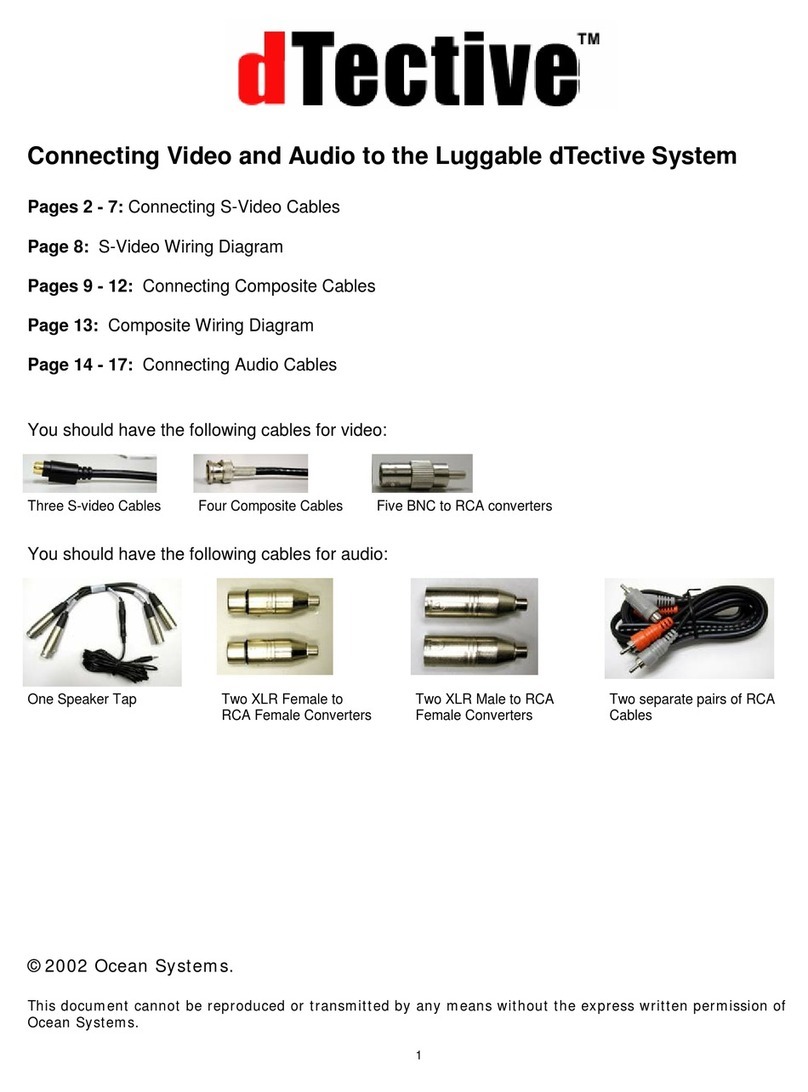
You should have the following cables for video:
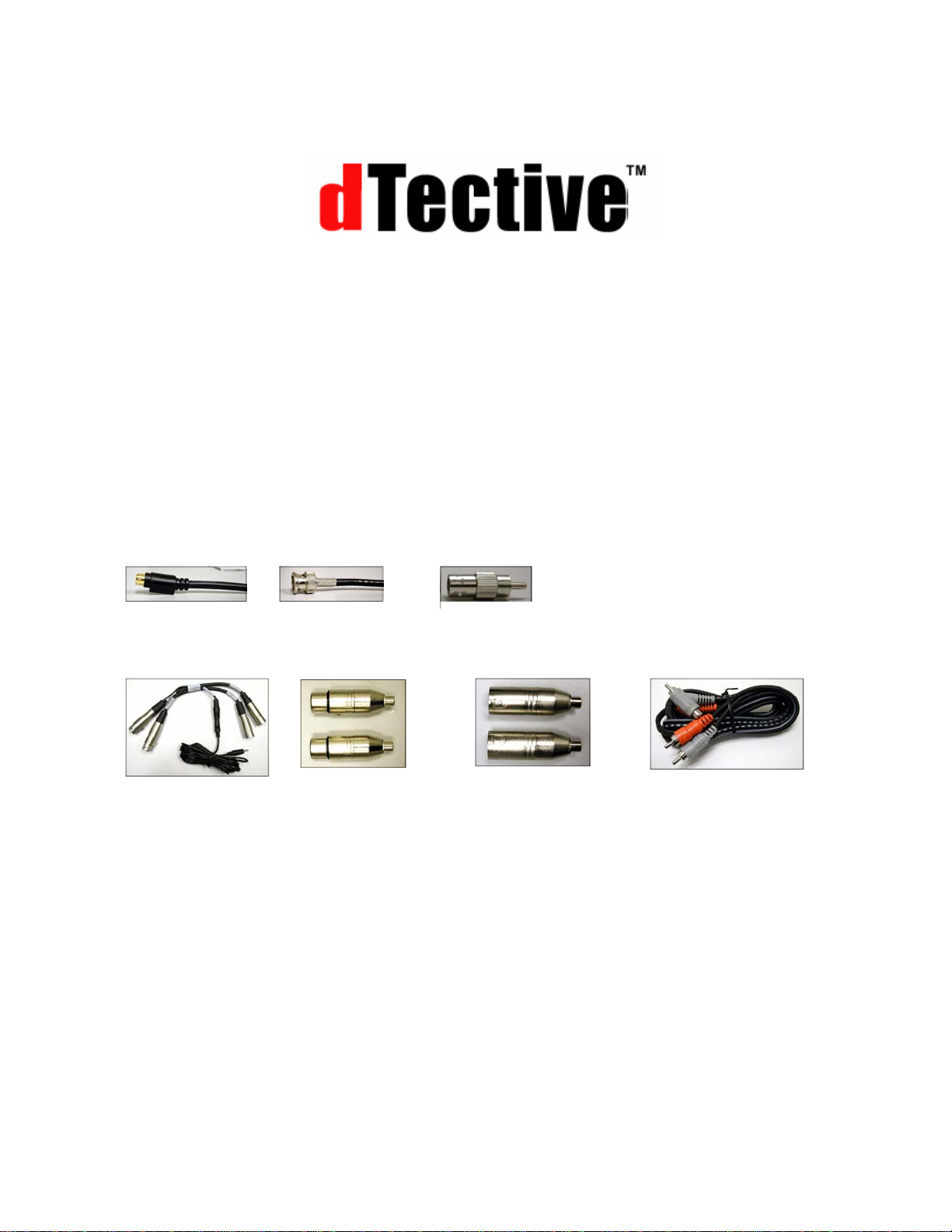
Three S-video Cables Four Composite Cables Five BNC to RCA converters
One Speaker Tap
You should have the following cables for audio:
Two XLR Female to
RCA Female Converters Two XLR Male to RCA
Female Converters Two separate pairs of RCA
Cables
2
Connecting Your Video Cables to the dTective System
Connecting an S-Video Deck to the dTective System
Not sure what type of connections to use? Take a look at the images below:
The image below shows a typical S-Video deck. If your deck has this style of connectors, you
need to follow the instructions for connecting S-VIDEO, as outlined starting on this page.
Use S-Video cables if your deck looks like the image above
The image below shows a typical consumer grade VCR with composite (RCA) style IN and
OUT connectors. If your deck has this style of connectors, you need to follow the instructions
for connecting Composite Cables, as outlined on page 9.
Use composite cables if your deck looks like the image above (see page 8)
What you will need:
Three S-video Cables
One Composite Cable
3
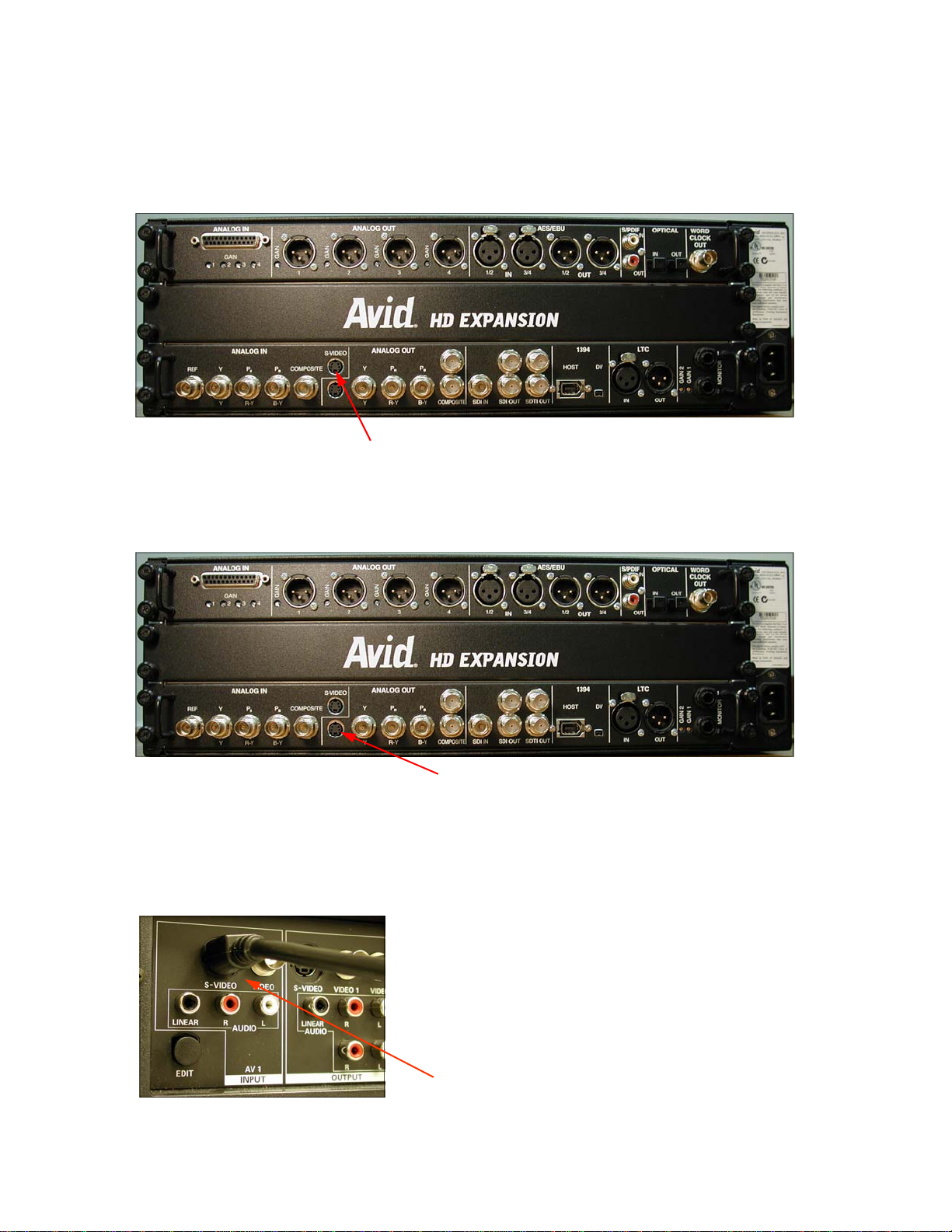
Step 1: Connecting S-Video Cable to S-Video OUT on rear of deck (VCR)
Take one of your three S-Video cables and connect it to the S-Video OUTPUT port on the rear
of your deck as shown below:
Step 2: Recognizing the TBC
The TBC is an external box designed to “lock down” poorly synced video. The image below
shows the external TBC.
External TBC
4
Step 3: Connecting S-Video cable to INPUT on TBC
Take the cable that you just connected to the rear of the deck and connect the other end of it to
the S-Video INPUT on the front of the TBC (out from deck to TBC input).
Step 4: Connecting S-Video cable to OUTPUT on TBC
Take a second S-Video cable and connect it to any of the four S-Video outputs on the rear of
the TBC
Connect S-Video to any of the four outputs
5
Step 5: Connecting S-Video cable to INPUT on the Break Out Box
Take the cable that you just connected from the output of the TBC and connect the other end
to the S-Video INPUT on the rear of the Avid Break Out Box.
Connect S-Video cable from TBC OUT to S-Video IN on BOB
Step 6: Connecting S-Video cable to INPUT on the deck
Take a third S-Video cable and connect it to the S-Video OUT on the rear of the Break Out Box
as shown below:
Connect S-Video cable to S-Video OUT on Break Out Box
Take the other end of the cable running from the S-Video out on the Break Out Box and con-
nect it to the S-Video INPUT on the deck.
Note: On Panasonic AG-1980 decks, it is recommended that you use the inputs on the front to eliminate any feedback
you may encounter when digitizing.
Connect S-Video cable from S-Video OUT on the BOB to S-Video IN on deck

6
Step 7: Connecting your NTSC Monitor (TV)
You need to determine if your television monitor uses a BNC connector or an RCA connector.
Take a look at the images below to determine what you have. You will use either of these type
of connectors, but not both.
BNC Input:
RCA Input:
After determining which type of connector you will be using, connect your composite BNC cable
to any one of the three Composite Outputs on the Break Out Box as shown below:
Connect a composite BNC cable to the composite OUT on the Break Out
7
Connect the other end of the cable from the composite out of the Break Out Box to the Video
IN on your NTSC monitor (TV) as shown below. The images below show connections for both
BNC and RCA. Remember, you will connect either of the two connector styles (BNC or RCA),
but not both.
BNC Input - connects directly to monitor:
RCA Input - requires provided adapter:
If you are using an RCA input, you will need to use the provided BNC to RCA adapter. The
images below show how the adapter attaches:
The adapter will twist and lock into place
Once the adapter has been properly fastened, connect the cable to the Video IN on your TV as
shown below:
8
9
Connecting a Composite VCR to the dTective System
What you will need:
Four Composite Cables
Five BNC to RCA converters
Step 1: Connecting Composite Cable to RCA OUT on rear of VCR
Take one of your four composite cables and connect it to the Video OUT port on the rear of
your VCR.
You will need to use the provided BNC to RCA adapter. The images below show how the
adapter connects:
The adapter will twist and lock into place
Connect the Composite cable (with converter) to Video Out on VCR
10
Step 2: Recognizing the TBC
The TBC is an external box designed to “lock down” poorly synced video. The image below
shows the external TBC.
External TBC
Step 3: Connecting Composite cable to INPUT on TBC
Take the cable that you just connected to the rear of the deck and connect the other end to the
RCA INPUT on the front of the TBC (out from deck to TBC input).
Connect Cable from OUTPUT of VCR to INPUT on TBC: