8
Counting Function
●The counting function is used to count a high volume of identical parts. You can do
this by setting a sample and then either adding to the sample or taking away from
the sample to count the number of objects on the scale
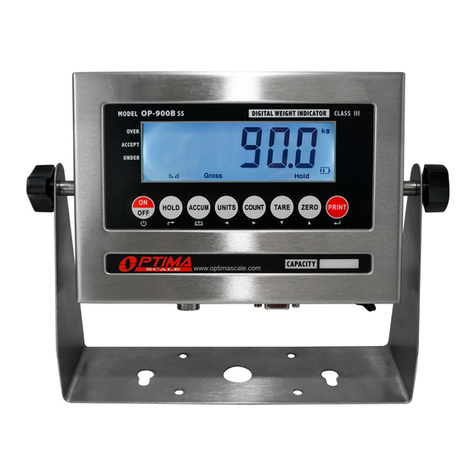
● In weighing mode: press COUNT to enter count mode
●Then press COUNT and SET at the same time to set your sample with the keypad
● (ex. If you are counting pencils, you would add a sample of pencils to the scale, if
you add 50 pencils to the scale you would enter 50 on the keypad.)
●Press #on the keypad to set your sample
●The scale is now ready to start counting, load your product on the scale and the
indicator will show the quantity
● (ex. if you add 450 pencils to your sample of 50, the scale will read 500 pencils)
●To see the weight on the scale press COUNT
●To exit counting mode press the ESC key
● If you want to count a different product hold the COUNT and SET keys together to
enter a new sample
+ 450 pencils
COUNT
SETCOUNT +
Hold
There are 4 different hold functions you can choose from in the C11 parameter
1. Peak Hold: Grabs the highest weight (for materials testing, ie. tension and pulling
force)
●Press the HOLD key then add weight to the scale
●The indicator will show the highest weight it recorded and hold it on the screen until
a higher weight is placed on the scale
2. Manual Hold: Grabs the current weight and holds it so it will not change/uctuate
● While weighing, press HOLD and the indicator will hold the current weight on the
screen until HOLD is pressed again
3. Auto Hold: If the weight on the scale is above 20d (20 x division) and is stable,
the indicator will hold that weight on the screen for 3 seconds then go back to general
weighing
●Pressing the hold key is unnecessary, holding is done automatically when the scale
is stable
4. Average Hold: Used for animal weighing, the indicator will display the average
weight sampled from 3 seconds