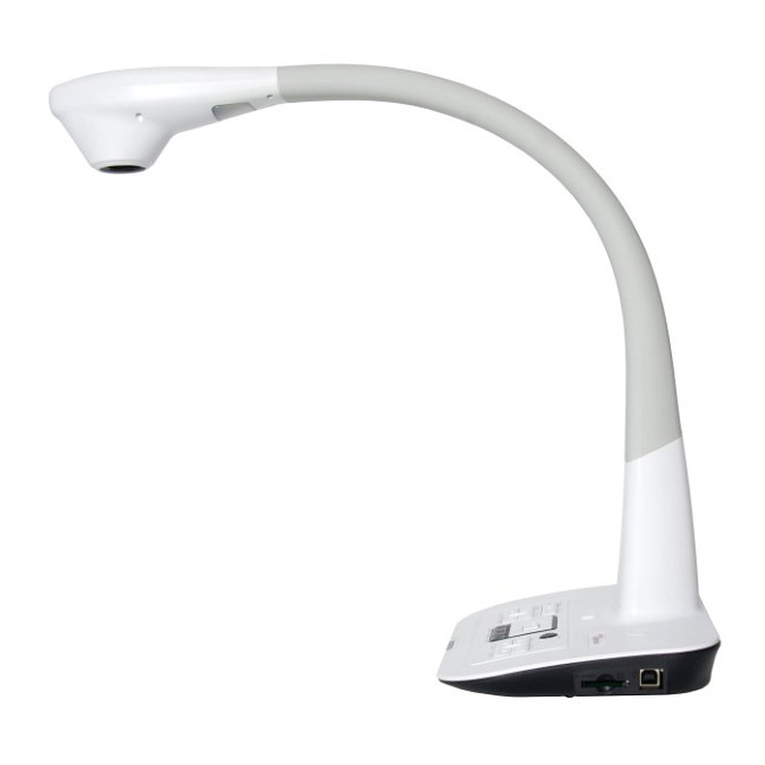
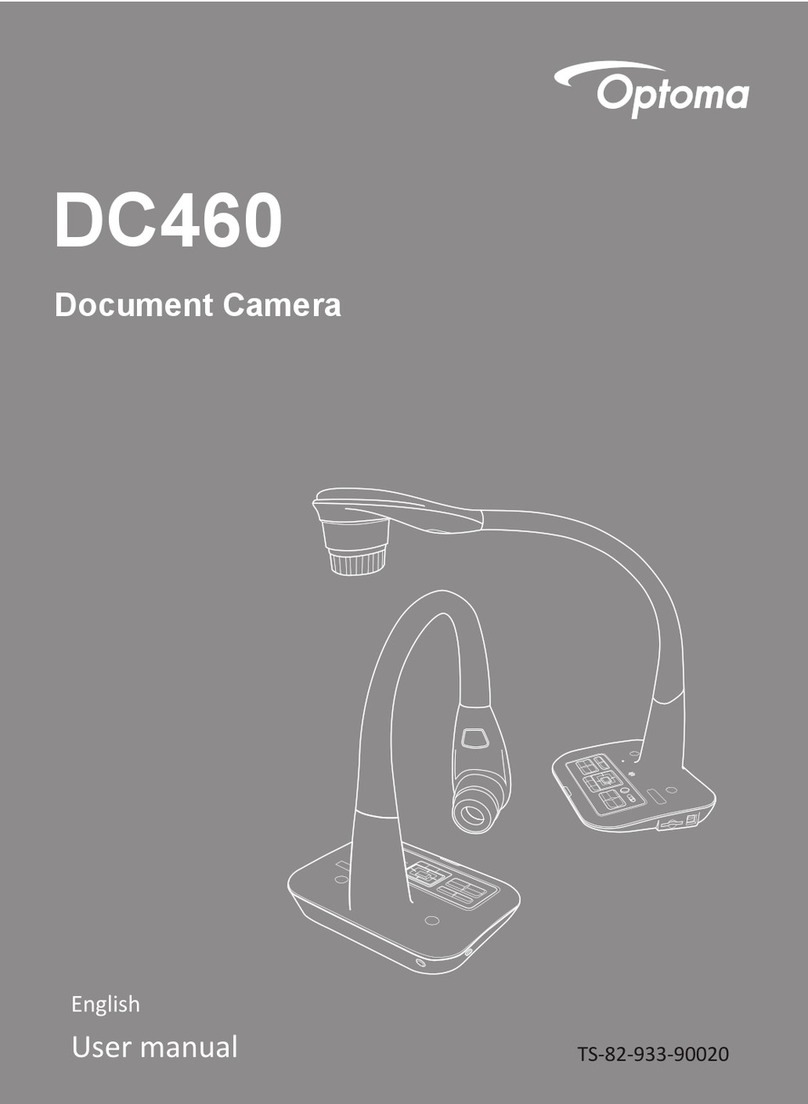
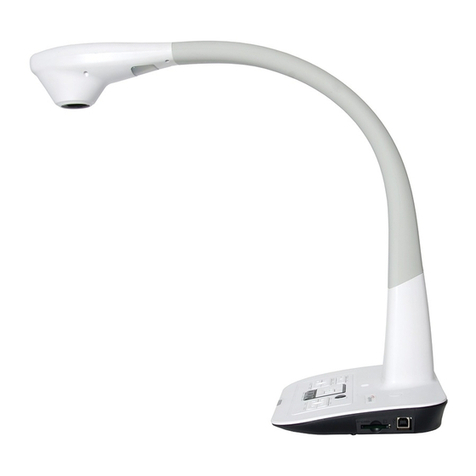
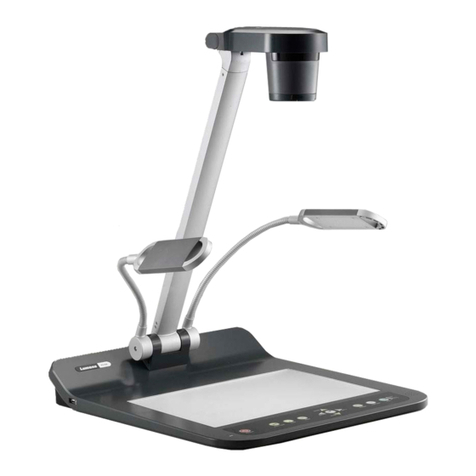
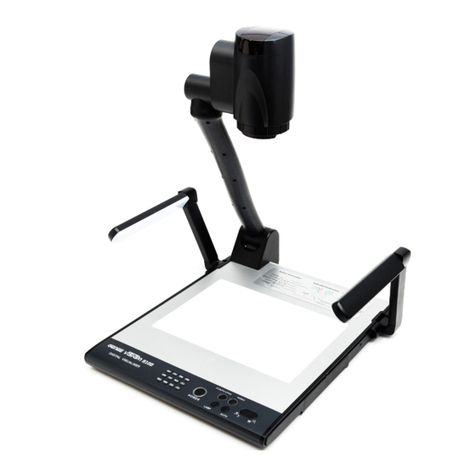
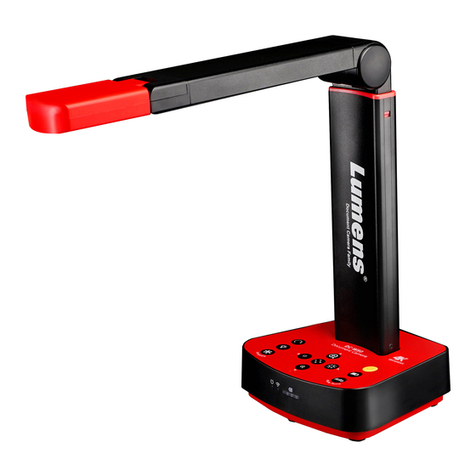
Optoma DC554 User manual

DC554
User Manual
Visualiseur
90°
TS-82-923-90010

•Welcome:
Thanks for purchasing this product. Please read the instructions carefully before using this
product.
•FCCComplianceStatement(ClassA):
This device complies with Part 15 of the FCC Rules. Operation is
subject to the following two conditions: (1) this device may not cause
harmful interference, and (2) this device must accept any interfer-
ence received; including interference that may cause undesired
operation.
•FederalCommunicationsCommission(FCC)Statement:
This Equipment has been tested and found to comply with the limits
for a Class A digital device, pursuant to Part 15 of the FCC rules.
These limits are designed to provide reasonable protection against harmful interference
when the equipment is operated in a commercial environment. This equipment generates,
uses and can radiate radio frequency energy and, if not installed and used in accordance with
the instructions, may cause harmful interference to radio communications. Operation of this
equipment in a residential area is likely to cause harmful interference in which case the user
will be required to correct the interference at his own expense.
•EuropeanCommunityComplianceStatement(ClassA):
This is a class A product. In a domestic environment this product may
cause radio interference in which case the user may be required to take
adequate measures.
The symbol of the crossed out wheeled bin indicates this product should
not be placed in municipal waste. Instead, you need to dispose of the
waste equipment by handing it over to a designated collection point for
the recycling of waste electrical and electronic equipment.

1
Warning
1. Do not look directly at the
LED light source,which may
cause retinal damage.
2. Carry the product by holding the lower part of the main unit in both
hands. Never hold the product by the arm or the camera head only.
3. The camera can be damaged if it hits a desk surface or any hard
object.
4. Never turn the arm in the opposite direction.

2
Preparing the Document Camera
»Knowing the Document Camera Parts
Camera Head
LED Lamp
Speaker
Microphone
Remote Control Signal Receiver
Control Panel
HDMI Input Port
SD Card Slot
VGA Input Port
Anti-theft Slot
Remote Control Signal Receiver
DC 5V Power Socket
USB Port
VGA Output Port
HDMI Output Port
90°

3
»Control Panel
Button Function
Power on/off
Invert image 180°
"Freeze" the current image or
"Pause" the clip while playing
video
Capture a still image
Show or hide Menu
Direction button
Zoom out
Zoom in
One-time auto focus
Button Function
Pass the signal from PC
Show/hide brightness adjustment
bar.
Turn on/off the LED lamp and
adjust the brightness.
Record a video clip
Enter playback mode to display
recorded still images and video
clips
Output switch
HDMI
FREEZE
FLIPLAMP
BRIGHTNESS
RECORDING SNAP AUTO FOCUS
ZOOM
PLAYBACK MENU
POWER
VGA
OUTPUT

4
»Remote Control
Button Function
Brightness hotkey
Power on / off
Freeze current image.
* Pause the clip while playing
videos
Show or hide on-screen icons
To show or hide OSD menu
Playback mode to display
recorded pictures and video clips
Invert image 180°
Select and adjust
Record a video clip
Capture a still image
/ Zoom out / Zoom in
One-shot auto focus
/ Use the level bar to adjust the
focus manually
2X or 4X digital zoom
Highlight function on / off
Mask function on / off
Macro / Normal switch
Infraredremotecontrolcanonlybeusedinproximitytotheunit.
Removethebatterycoverandloadthebatteriesintothebatterycompartmentcor-
rectlyaccordingtothe“+”and“-”symbols.
BesuretousetwoAAAbatteries.Donotusenewandoldbatteriesordifferentbat-
terytypestogether.
Button Function
Adjust highlighted / masked area
size
Set color for highlighted / masked
area
Increase / decrease the sound
volume.
Picture in Picture function on / off
*For displaying a still image as
an insert while displaying another
image.

5
»Setting up
• Camera Head
Roll the lens rotator to rotate image
90°.
90°
• Illumination Lamp
If you are in a dark environment, please turn
the LED lamp on to make better exposure.
1.Press the LED lamp button ( ) on the
base to turn on/off the LED lamp.
2.Adjusting the brightness by pressing the
lamp button ( )

6
»Basic Operation
• Menu options in Preview Mode
Name Icon Option Description
Brightness - Use the Right / Left buttons to make
the image brighter / darker
Effect
Graphic To improve the tint of color-based
subjects such as pictures or gures.
Text
The function is designed especially for
text-based documents to which can
be enhanced white and black subjects
such as characters and lines.
B&W
To output a black & white camera
image.To make the image easier to
view,select this when shooting black &
white documents etc.
Negative To output a negative image.
Sketch To output a sketch image
White Balance
Auto
There are various modes (Auto,
Flurescent, Tungsten and Custom)
for user to choose and t in different
surroundings.
Fluorescent
Tungsten
Custom
Quick Zoom 2X / 4X Set the quick zoom to 2X or 4X.
Marco
Normal Select standard mode for focus
distance from 25cm to innite.
Macro /
Microscope
Select Macro/Microscope mode to
take close-ups or while connecting to
a microscope.
Image Size 0.8M / 2M / 5M / 13M Select the desired still image
resolution.
Video Mode
High Quality
Select the desired video quality.
High Frame Rate

7
Setting
Beep On / Off Enable beep sound on / off
Flicker 50Hz / 60Hz
Set icker frequency to 50Hz or
60Hz. The icker setting is based on
the frequency standard of your local
power supply.
USB Connection
Disk Select “Disk” to enter Mass storage
Mode
PC cam Select “PC Cam“ to enter PC Cam
Mode
Off Disable USB function
HDMI Out 720p / 1080i / 4K Select output resolution
VGA Out XGA/ UXGA/ 720p / WXGA Select output resolution
Language - Allows you select the language used
for OSD
Clock - Set date and time
Format No / Yes
Format the storage medium. Note that
all les stored in the medium will be
gone.
Reset default No / Yes Restore factory defaults. Note that
your current settings will disappear.
• Menu options in Playback Mode
Function Icon Option Description
File Info -
View the le’s title , saved date and
time , size
and the length of recording.
Slide show On / Off Start a slide show with selected
interval time.
Volume - Use the Right / Left buttons to adjust
volume
Delete one Yes / No Delete current le.
Delete all Yes / No Delete all images of the same type
stored in the memory.

8
• Adjusting the brightness
1. Press BRIGHTNESS button on the control panel ( ) or remote
control ( ).
2. Use ( or ) buttons to increase or decrease the brighness level.
• Zoom Function
1. Use the Zoom button ( / ) to zoom in or zoom out the screen.
• Adjusting the focus
• Automatic focus
Press AF button ( ) to do an one-time auto focus.
This function provides a one-shot auto focus.
• Manual focus
Use the manual focus buttons ( / ) on remote control to
netune the focus.
• Anti-glare
Anti-glare sheet is a transparent plastic that is overlaid on top of shiny
object or glossy surface to reduce the glare.
To use, simply place the anti-glare sheet on top of shiny object to
glossy surface such as magazine to reduce light reection.
Table of contents
Languages:
Other Optoma Document Camera manuals