Step 4 –Log in and set up Bluetooth
The first time you login to the software, the system
will prompt you to connect your P1NG Activity
Tracker to your smartphone, tablet or computer.
This is necessary in order for the software to tie
your P1NG to your account so that you, and only
you, can see your data. In order to do so, make
sure Bluetooth is enabled on your smartphone,
tablet or computer.
1- Choose your P1NG device from the list of devices
shown. Usually, there is just one device displayed,
but if you are in an office and many other people
have P1NG devices, you may see others listed.
Yours will have an alphanumeric name.
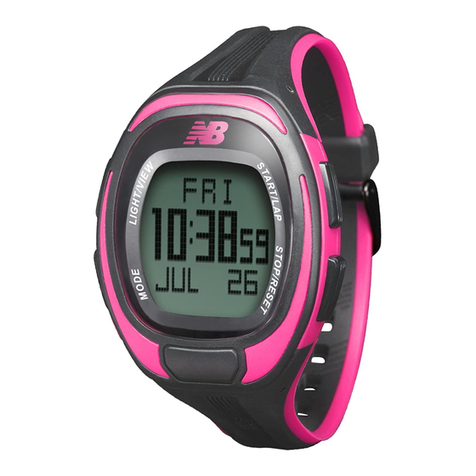
1.1 - If you are unsure which device is yours, press the button on the
P1NG device repeatedly until the default nickname “HELLO” is
Displayed (see P1NG Activity Tracker Display Modes p. 8).
1.2 –Press and hold the button for 5 seconds. The P1NG-ID will be
displayed.
1.3 –You can change the nickname at any time by pressing the icon at the top
of the P1NG app Home screen and choosing “Settings.”
2–After choosing the correct device on your smartphone, tablet or computer, press
“Connect.” The app will link your P1NG to the mobile. Your P1NG will be renamed to the
nickname you chose during the software setup process in Step 3. Your P1NG is now
paired, your account setup, and your account will start reporting immediately!
Note: While your name and email address remain strictly private, P1NG Health Inc. will use general
information such as gender, age and activity levels to populate the section called Insights. Insights
allow users to see how their activity levels compare to other people of their gender and age across
North America.
User Manual
6
Press and hold
the button for 5
seconds