
Palm Phone Link Handbook User manual

Phone Link Handbook

Copyright
© 2003 Palm, Inc. All rights reserved. The Palm logo and HotSync are registered trademarks of Palm, Inc.
The HotSync logo and Palm are trademarks of Palm, Inc. Palm, Inc. uses the Bluetooth trademarks under
express license from Bluetooth SIG, Inc., U.S.A. All other brands are trademarks or registered trademarks
of their respective owners.
Disclaimer and Limitation of Liability
Palm, Inc. assumes no responsibility for any damage or loss resulting from the use of this handbook.
Palm, Inc. assumes no responsibility for any loss or claims by third parties which may arise through the use
of this software. Palm, Inc. assumes no responsibility for any damage or loss caused by deletion of data as
a result of malfunction, dead battery, or repairs. Be sure to make backup copies of all important data on
other media to protect against data loss.
IMPORTANT Please read the End User Software License Agreement with this product before using the
accompanying software program(s). Using any part of the software indicates that you accept the terms of the
End User Software License Agreement.
PN: 407-5226A-IE

iii
Chapter 1: Using Phone Link . . . . . . . . . . . . . . . . . . . . . . . . . . . . . . . . . . . . . . 1
What can you do with a phone connection? . . . . . . . . . . . . . . . . . . . . . . . . . . . . . 1
Handheld system requirements . . . . . . . . . . . . . . . . . . . . . . . . . . . . . . . . . . . . . . . 2
Installing Phone Link . . . . . . . . . . . . . . . . . . . . . . . . . . . . . . . . . . . . . . . . . . . . . . . . 2
Chapter 2: Setting Up a Phone Connection . . . . . . . . . . . . . . . . . . . . . . . . . . 5
Configuring network service settings for your phone . . . . . . . . . . . . . . . . . . . . . 9
Updating phone drivers on your handheld . . . . . . . . . . . . . . . . . . . . . . . . . . . . 12
Chapter 3: Using Phone Connections . . . . . . . . . . . . . . . . . . . . . . . . . . . . . . 13
Appendix A: Frequently Asked Questions . . . . . . . . . . . . . . . . . . . . . . . . . . 15
Phone connection problems . . . . . . . . . . . . . . . . . . . . . . . . . . . . . . . . . . . . . . . . . . 16
Technical support . . . . . . . . . . . . . . . . . . . . . . . . . . . . . . . . . . . . . . . . . . . . . . . . . . 16
Contents

Contents
iv

1
CHAPTER 1
Using Phone Link
Phone Link helps you configure a connection between your handheld and
a compatible mobile phone. You can connect to a compatible mobile phone
using any of the following methods:
■Infrared communication: A wireless link that enables you to connect to an
infrared-enabled mobile phone within 1 meter (approximately 39 inches) of
your handheld. The infrared ports on the two devices must be aligned, and the
path between the two devices must be clear of obstacles. See the electronic
handbook that came with your handheld for more information about your
handheld’s infrared capabilities.
■A serial cable connection: A wire-based link that connects your handheld to a
mobile phone with a physical cable.
■Bluetooth™ technology: This connection option may not be available for all
handhelds. Bluetooth connections require a Bluetooth card which is sold
separately. This card may not be available for all handhelds. For more
information on connecting your handheld and your phone using this
technology, consult your Bluetooth accessory documentation.
Serial cables and mobile phones that are enabled with infrared or Bluetooth
technology are sold separately.
What can you do with a phone connection?
When your handheld is linked to a mobile phone and your mobile phone carrier
supports the required services, you can do the following:
■Access the Internet: Use a high-speed wireless data service (such as GPRS), or
data services and an Internet service provider (ISP) dial-up account, to access
the Internet. To browse the web, you must install a web browser application on
your handheld. This browser may not be included on your handheld. If your
handheld came with a web browser, see that documentation for more
information.
■Check and send e-mail: Use a high-speed wireless data service, or data services
and a dial-up connection, to access your POP3 or IMAP e-mail account. To use
the e-mail features, you must install an e-mail application such as the Palm™
VersaMail™ application on your handheld. See the Palm™ VersaMail™ Personal
E-mail Software Handbook or other e-mail application handbook that came with
your handheld for information.

Chapter 1 Using Phone Link
2
■Exchange SMS messages: Use a GSM mobile phone carrier service to send and
receive short text messages. Both the SMS application and Phone Link will
automatically be installed on your handheld when you install Telephony/SMS.
For more information about SMS, see the SMS Handbook located on the Software
Essentials CD-ROM.
■Dial telephone numbers from your Address Book: Use the Quick Connect and
Tap-to-Connect features with a GSM mobile phone to dial directly from your
Address Book. See the electronic handbook that came with your handheld for
information on Address Book direct dial.
■Use a dial pad on your handheld to dial numbers on your phone: Send telephone
numbers from your handheld to your GSM mobile phone. To use this feature,
you must install the Dialer application on your handheld from the Software
Essentials CD-ROM. This feature may not be available for all handhelds.
■Perform wireless HotSync®operations: Use your mobile phone as a modem, and
synchronize data with your computer from anywhere within your mobile
phone service area. To use this feature, your mobile phone service must include
data services. See the electronic handbook that came with your handheld for
information on wireless HotSync operations.
A GSM mobile phone, GSM network service, data service, high-speed wireless
data service, and an ISP account with a dial-up connection are not included with
your handheld.
Handheld system requirements
To use the Phone Link application, you must meet the following requirements:
■Your handheld must use Palm OS®4.1 or higher
■Your handheld must have at least 68 kilobytes (KB) of available RAM.
■Your handheld must be connected to a compatible mobile phone using the serial
port, the IR (infrared) port, or Bluetooth technology (where available).
Installing Phone Link
To use Phone Link, you must install the software files located on the Software
Essentials CD-ROM.
To install Phone Link (Windows computer):
1. Insert the Software Essentials CD-ROM into your computer’s CD-ROM drive.
2. From the categories listed on the left side of the Install screen, click the
Communications tab, and then click Telephony/SMS.
NOTE This step will automatically include the SMS (Short Message Service)
application, as well as the Phone Link application.

Installing Phone Link
3
3. Click Install Now to send the files to Palm™ Quick Install.
NOTE If Palm Quick Install is not already open, a confirmation dialog box will
appear. In the User drop-down list, select the name that corresponds to your
handheld. Click OK to send the files to Palm Quick Install.
4. Connect your handheld to the cradle/cable and press the HotSync®
button ™.
To install Phone Link (Mac computer):
1. Insert the Software Essentials CD-ROM into your computer’s CD-ROM drive.
2. Double-click the Software Essentials CD, open the Communications folder and
then open the Telephony folder.
3. Select all files except the handbooks, and then double-click.
NOTE This step includes the SMS application, as well as the Phone Link
application.
4. In the User drop-down list, verify that the username corresponds to your
handheld.
NOTE If the username is not correct, reselect the files you selected in step 3
and then click Remove from List. Select the correct name and then begin again
from step 3.
5. Connect your handheld to the cradle/cable and press the HotSync button .

Chapter 1 Using Phone Link
4

5
CHAPTER 2
Setting Up a Phone Connection
To set up a phone connection, you must configure connection information on your
handheld. If you want to connect to the Internet or send and receive e-mail, you
must also configure the network service settings. If both Phone Link and Phone
Link Updater are included on your Software Essentials CD-ROM, these
applications guide you through this process. Alternately, see the electronic
handbook that came with your handheld for information on how to enter or
modify these settings manually.
The instructions in this section assume that you already installed the Palm™
Desktop software that came with your handheld and performed at least one
HotSync®operation.
NOTE For Bluetooth™ technology option only: To configure a phone connection,
you must first turn on Bluetooth communication, and then turn on the Discoverable
setting on your handheld. See the Bluetooth accessory documentation for more
information. This connection option may not be available for all handhelds.
To configure a phone connection on your handheld:
1. Tap the Home icon .
2. Tap the Phone Link icon .
3. Tap the Phone Connection box.
The Connection Setup screen appears.
4. Tap Next.
5. Tap the Manufacturer pick list and select your phone’s manufacturer.
Ta p N e x t

Chapter 2 Setting Up a Phone Connection
6
6. Tap the Model pick list and select your phone model.
If your phone model does not appear on the list, either you need to download
and install a driver for your phone (see “Updating phone drivers on your
handheld” later in this chapter), or your phone is not supported at this time.
7. Tap Next.
8. Tap the Via pick list and select the method you want to use to connect: Infrared,
Cable, or Bluetooth.
The Via pick list options will vary based on the phone model.
9. Tap Next.
10. When the Confirmation dialog box appears, tap Yes.
IMPORTANT If you tap No in the Confirmation dialog box, the link between your
phone and handheld will not work.
11. Tap Done.
The Network Service dialog box appears.
Tap Next
Ta p Ye s
This manual suits for next models
1
Table of contents
Other Palm Software manuals
Palm
Palm Voice Memo User manual
Palm
Palm SmartOffice SmartOffice Mobile User manual
Palm
Palm Treo Pro Manual
Palm
Palm HandPHONE SMS User manual

Palm
Palm BlueChat 2.0 User manual
Palm
Palm SMS User manual

Palm
Palm HotSyne Mail Application User manual

Palm
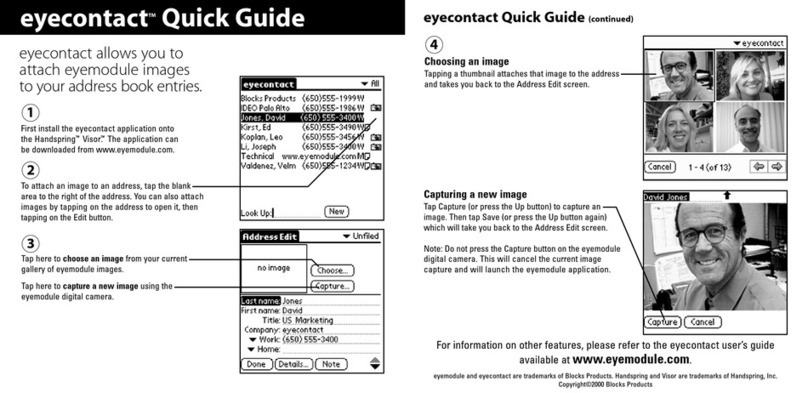
Palm eyecontact User manual

Palm
Palm Web Browser Pro User manual

Palm
Palm Mail User manual
Palm
Palm VersaMail 2.5 User manual
Palm
Palm OS Devices User manual
Palm
Palm Desktop Organizer Instruction sheet
Palm
Palm eyecontact User manual

Palm
Palm BlueBoard 2.0 User manual
Palm
Palm One-touch mail User manual
Palm
Palm Neomar WAP Browser User manual

Palm
Palm MultiMail Deluxe Desktop Link User manual

Palm
Palm Dialer User manual

















