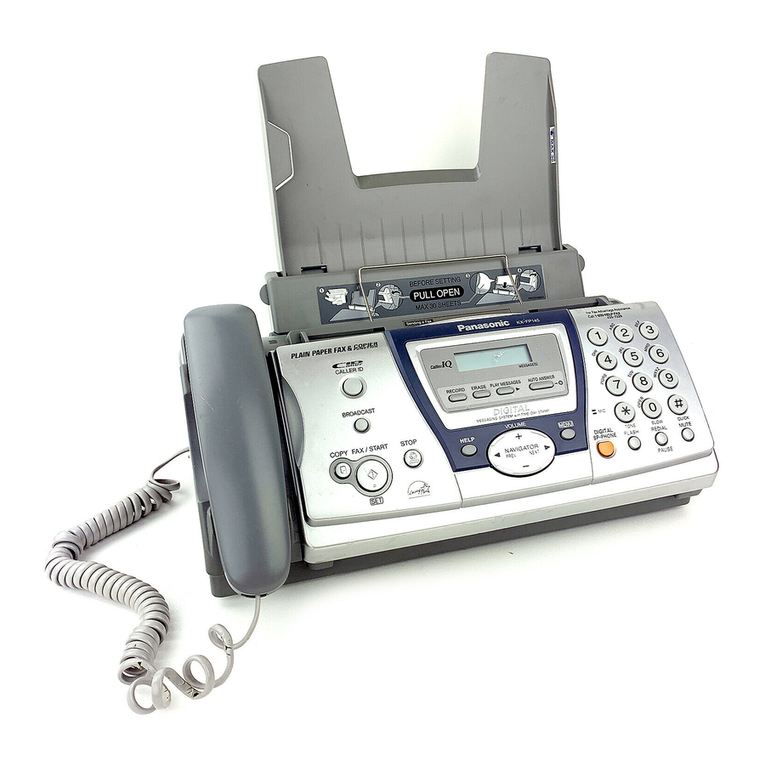
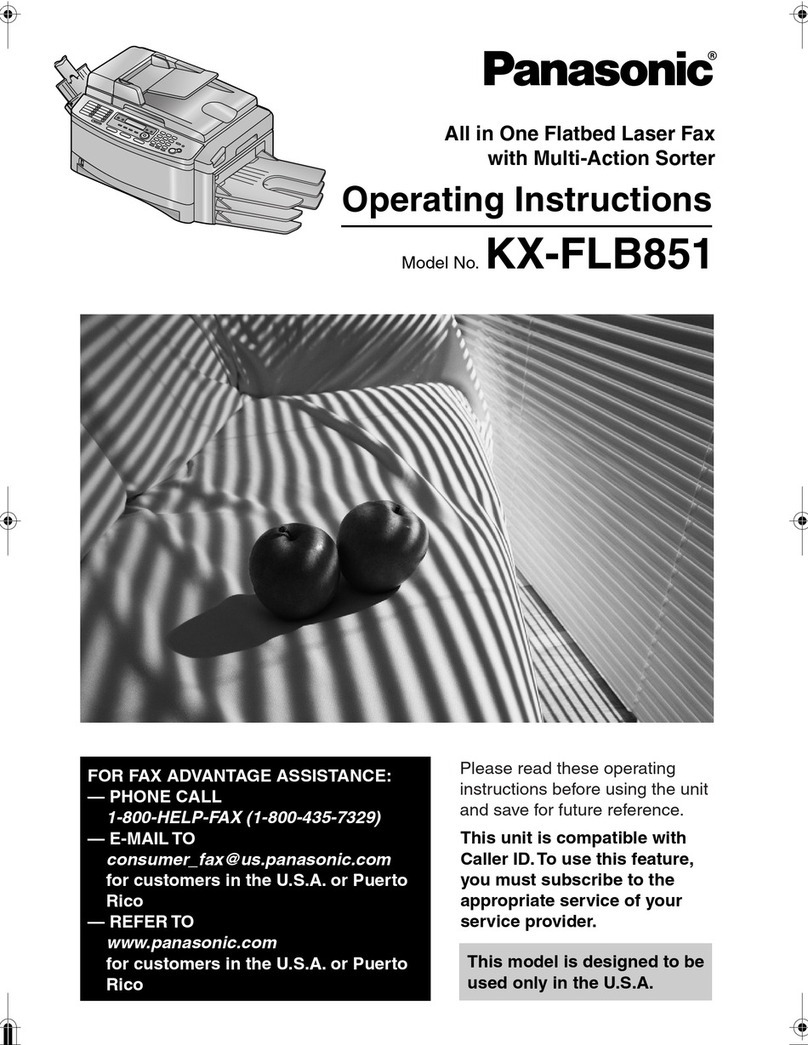
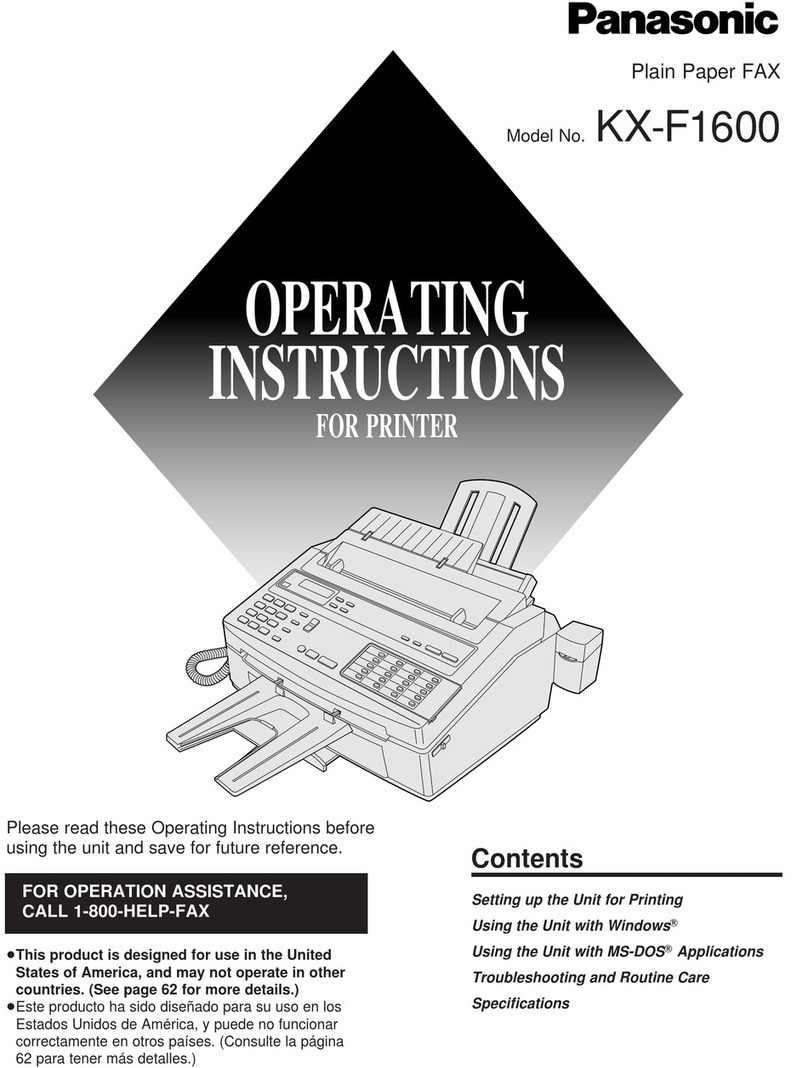
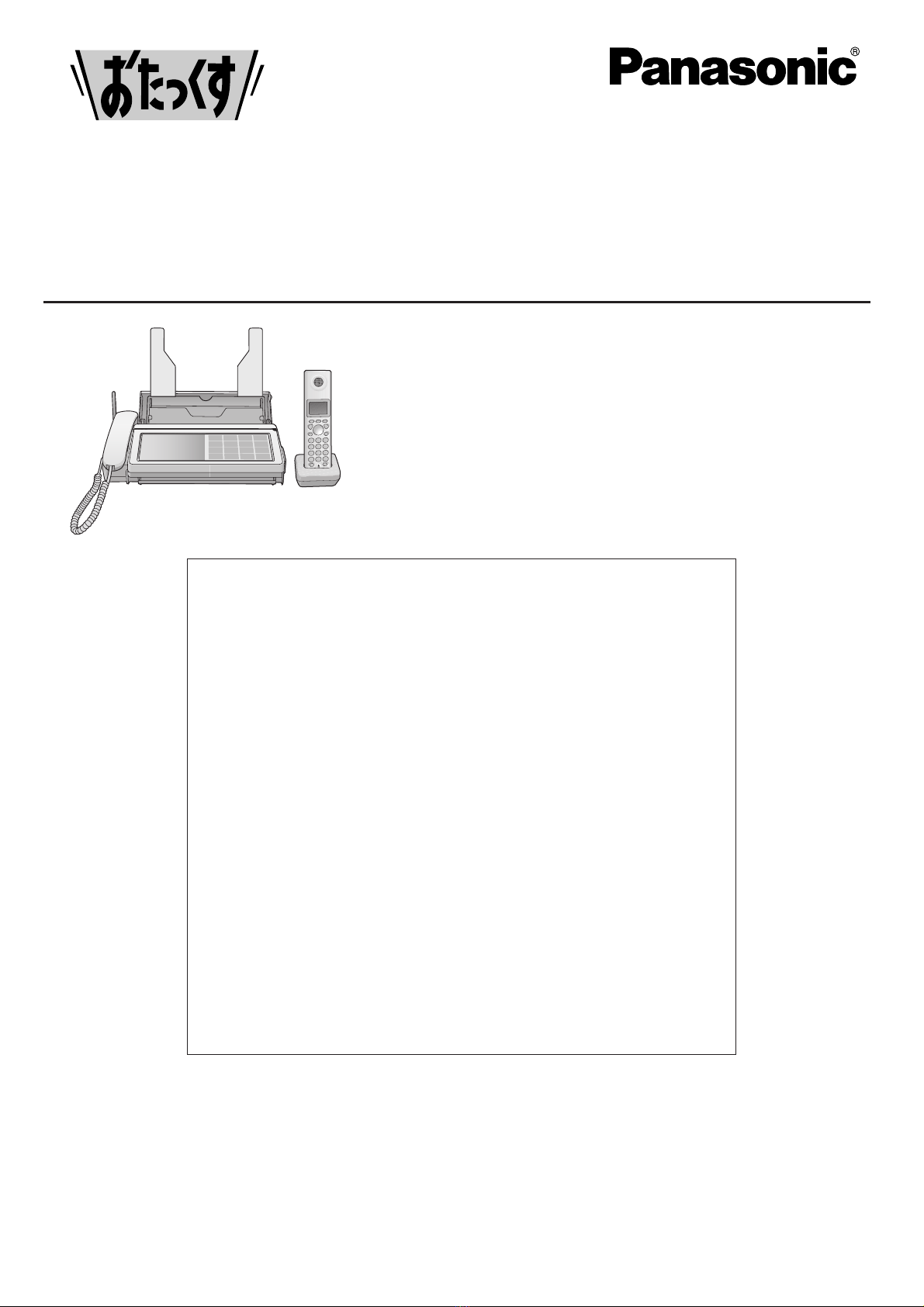
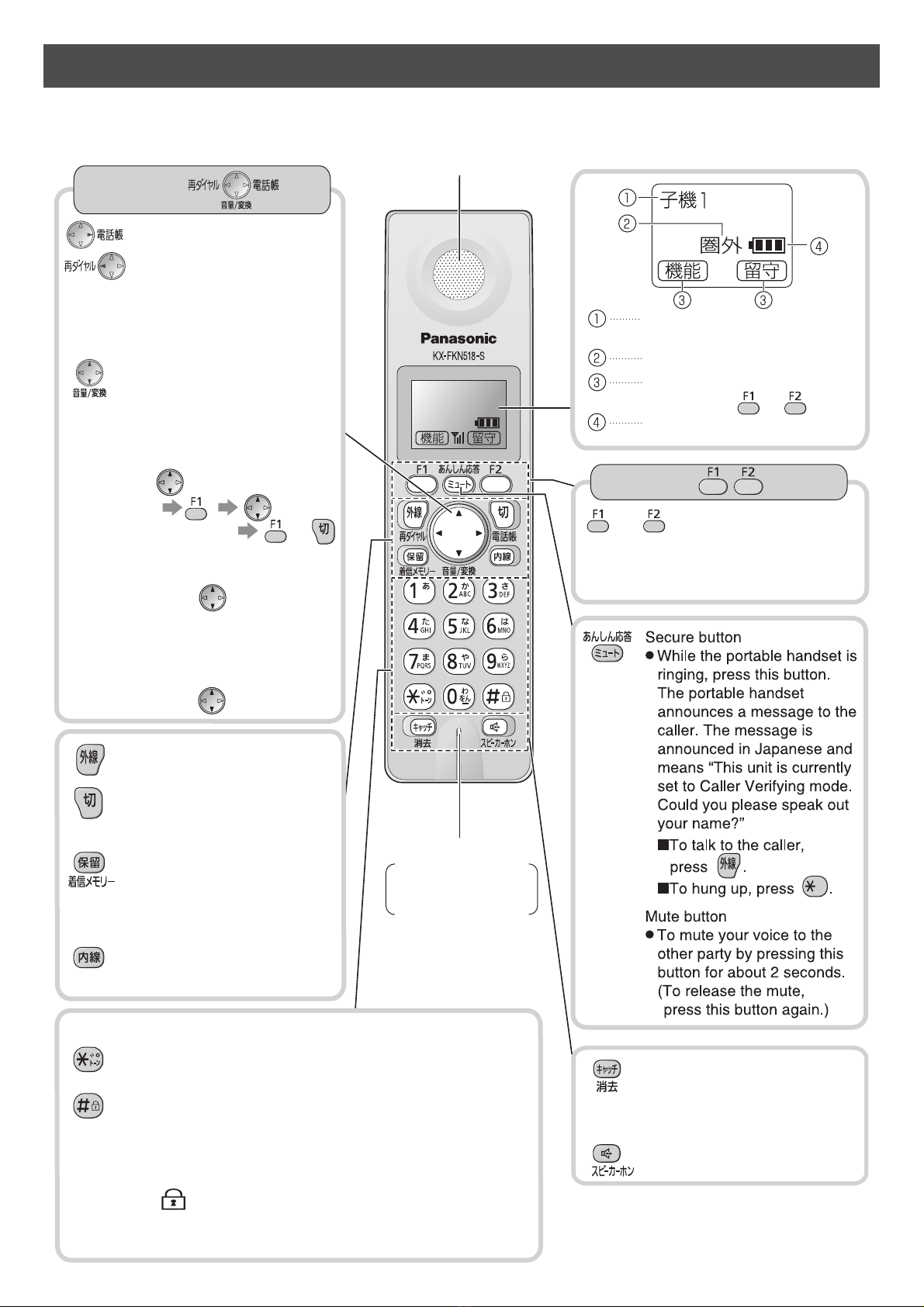
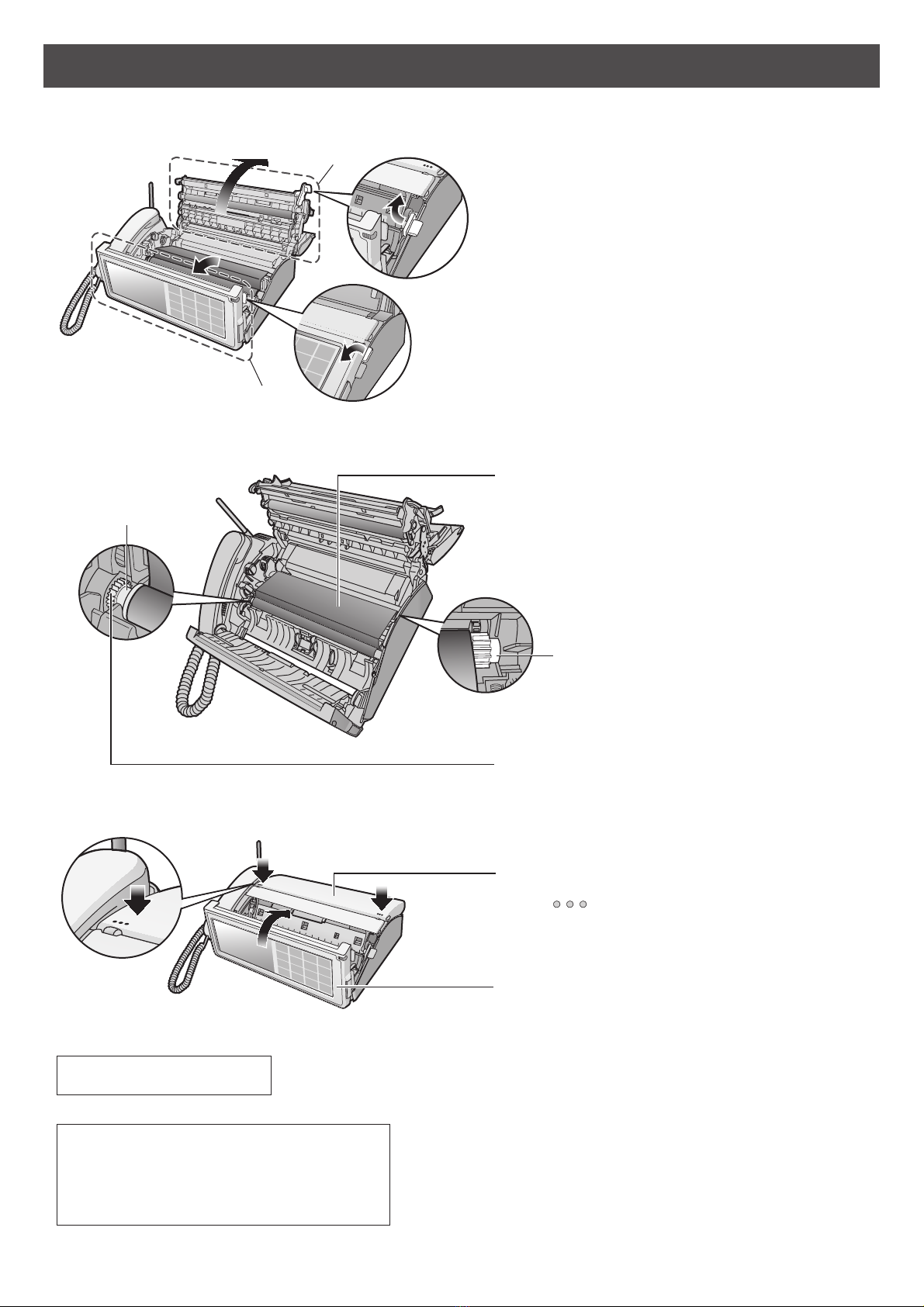
Panasonic KX-PW821DL User manual
Other Panasonic Fax Machine manuals

Panasonic
Panasonic Panafax UF-585 User manual
Panasonic
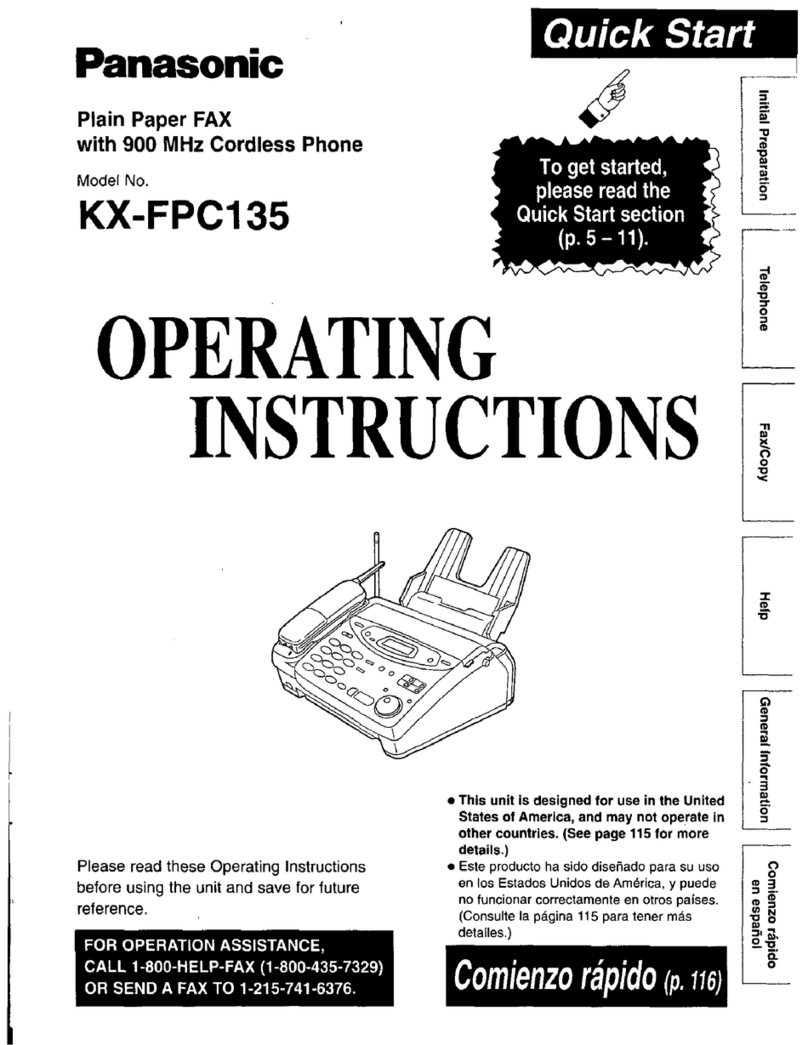
Panasonic KX-FPC135 User manual
Panasonic
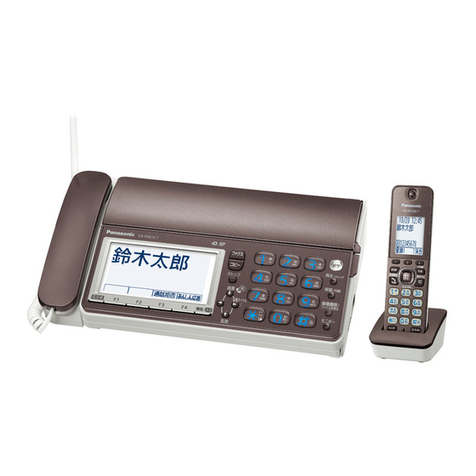
Panasonic KX-PZ618DLE User manual
Panasonic
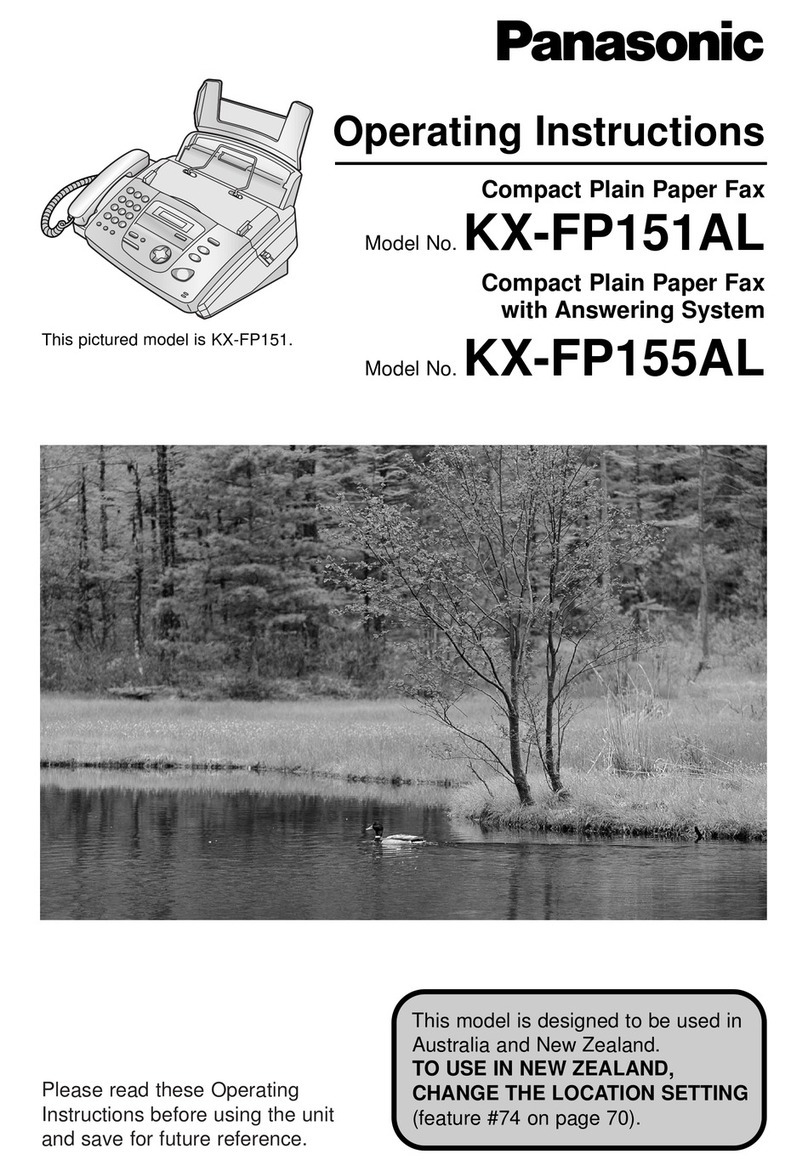
Panasonic KX-FP151AL User manual
Panasonic
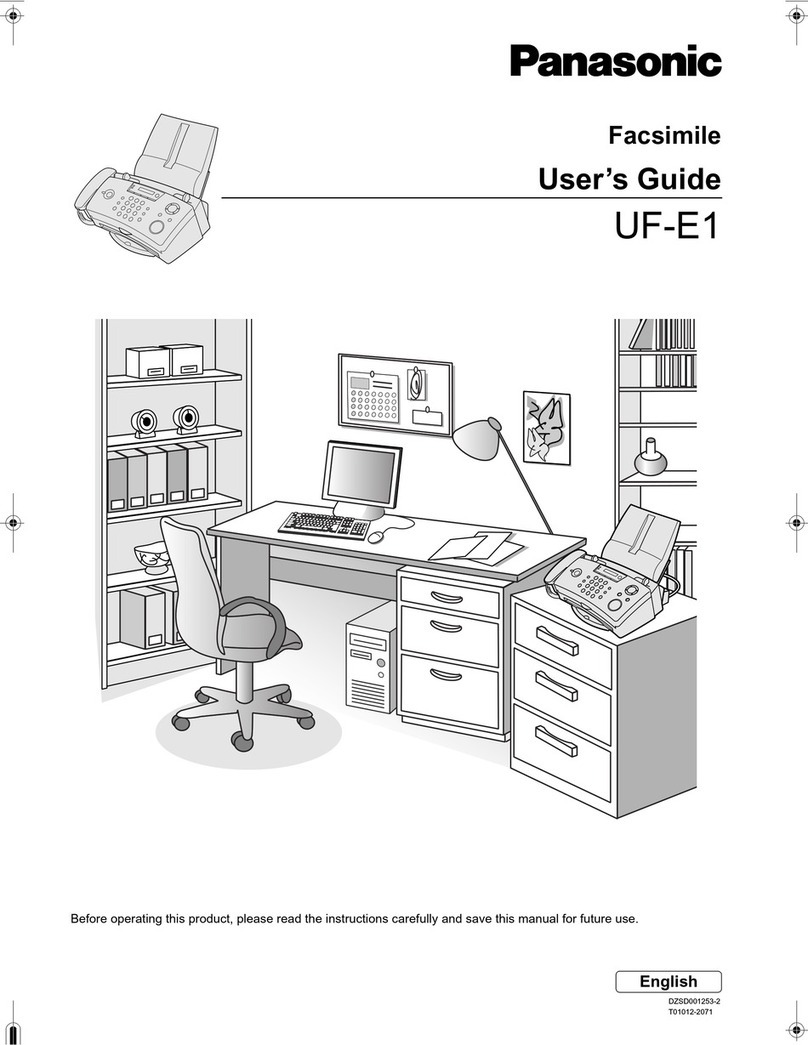
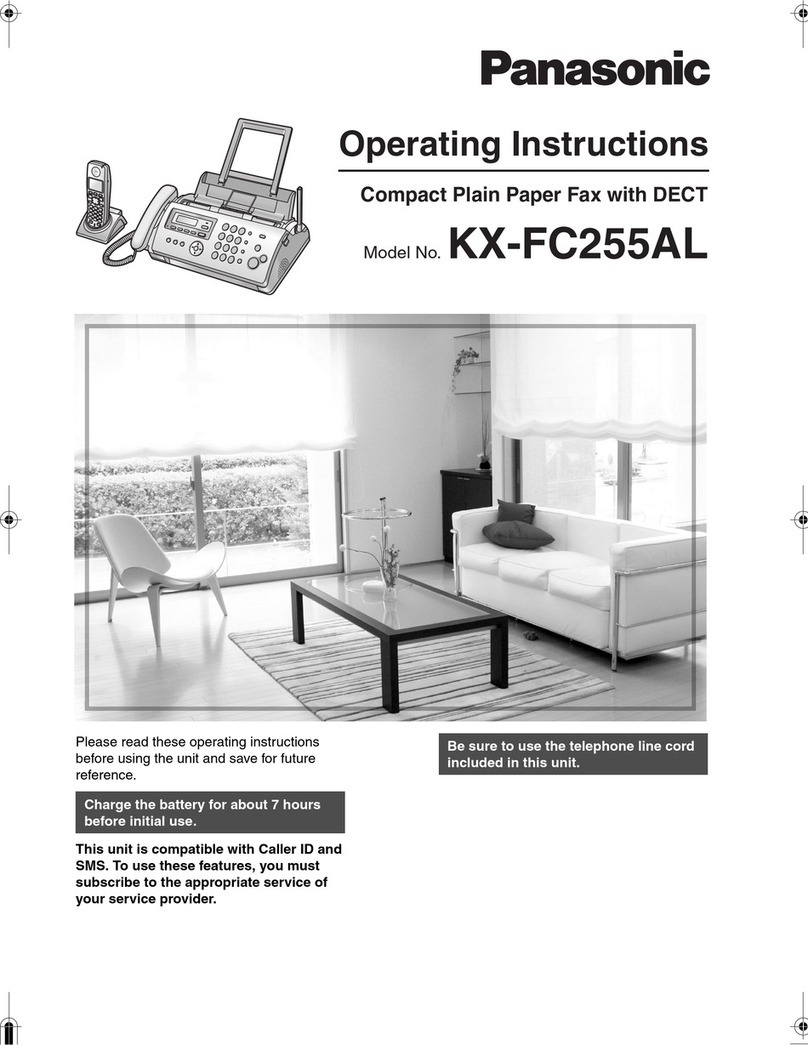
Panasonic UF-E1 User manual
Panasonic
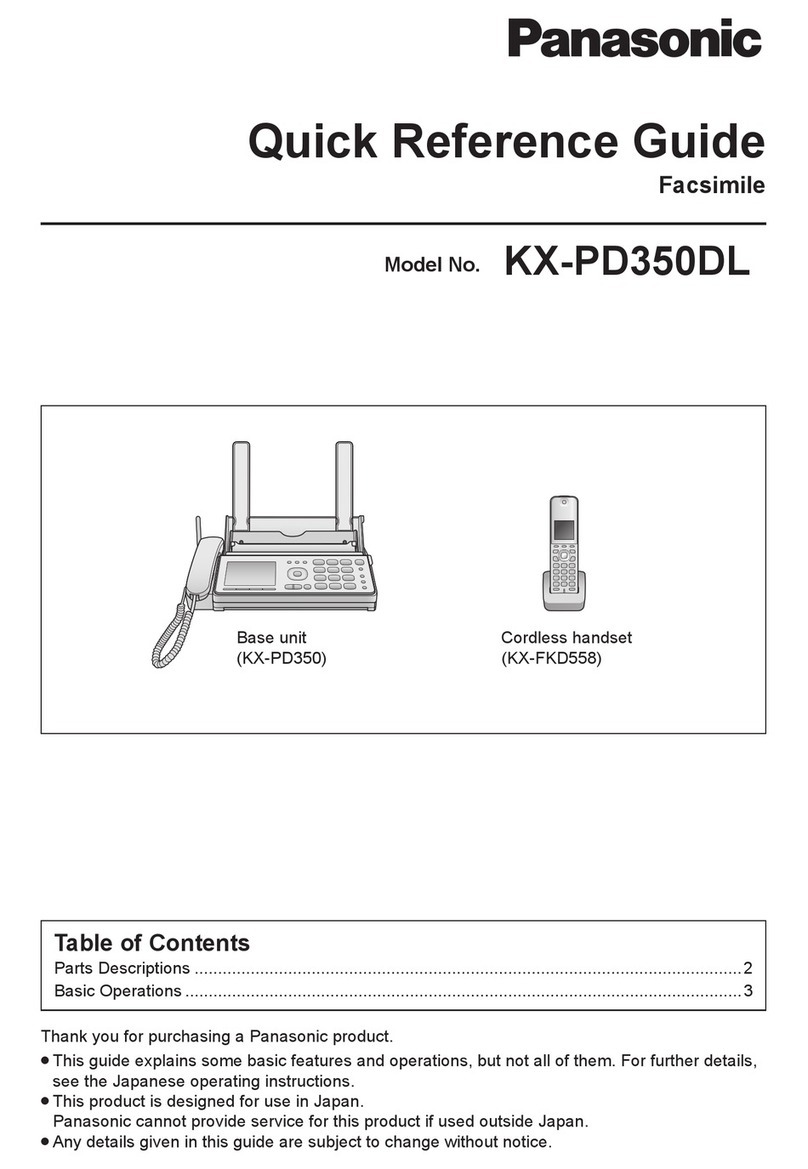
Panasonic KX-FC255AL User manual
Panasonic
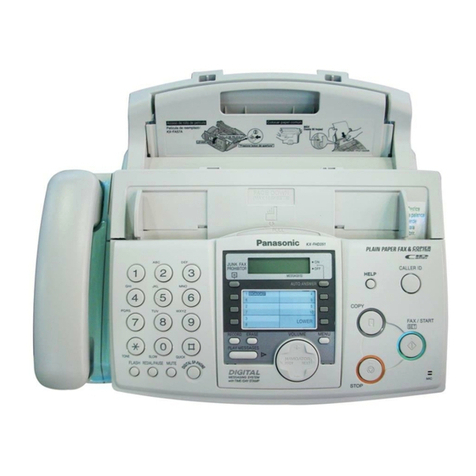
Panasonic KX-PD350DL Service manual

Panasonic
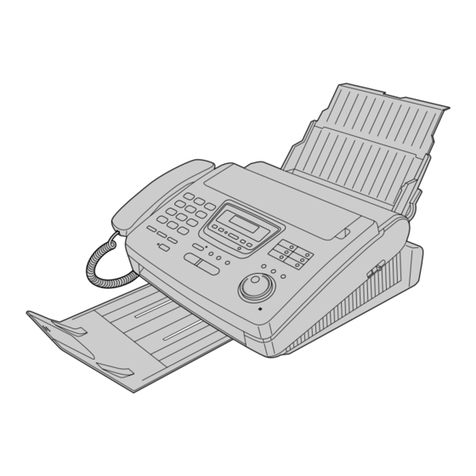
Panasonic Panafax UF-8000 How to use
Panasonic
Panasonic KX-FHD351 User manual
Panasonic
Panasonic KX-FP270 User manual
Panasonic
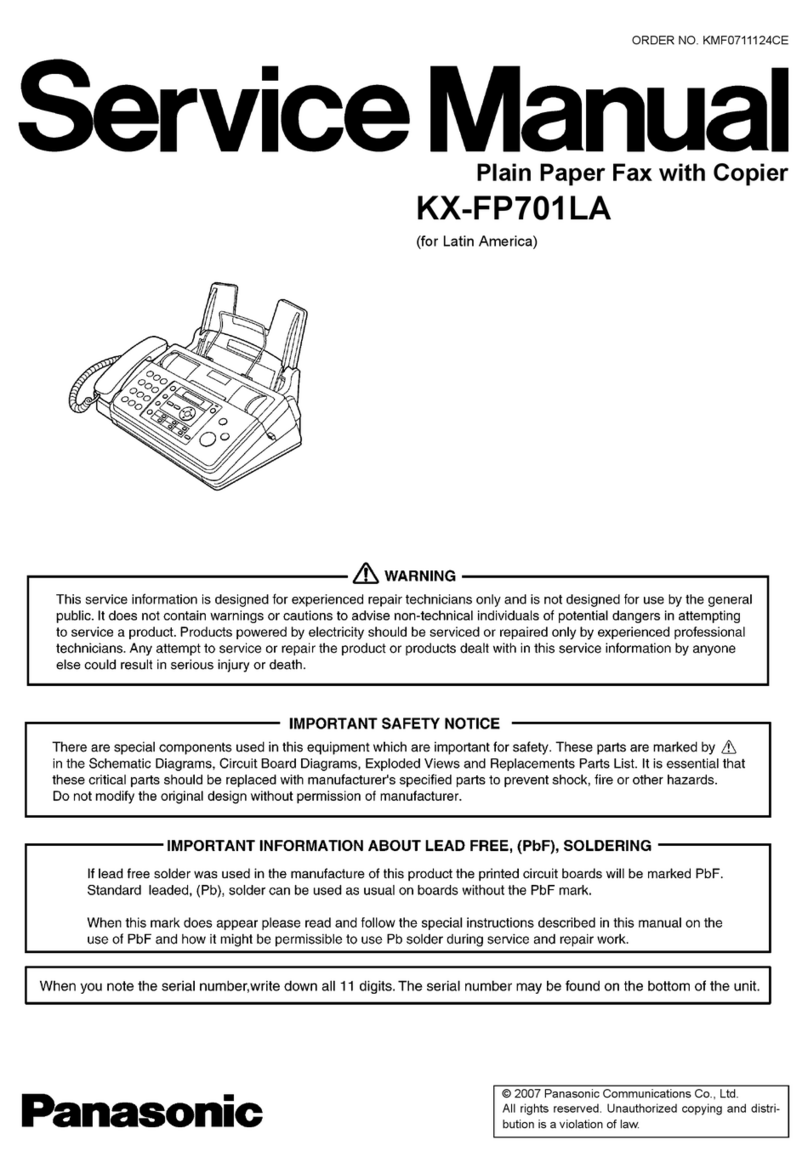
Panasonic KX-FP701LA User manual

Panasonic
Panasonic Panafax UF-150 Operating instructions

Panasonic
Panasonic KX-FLB752CX User manual
Panasonic
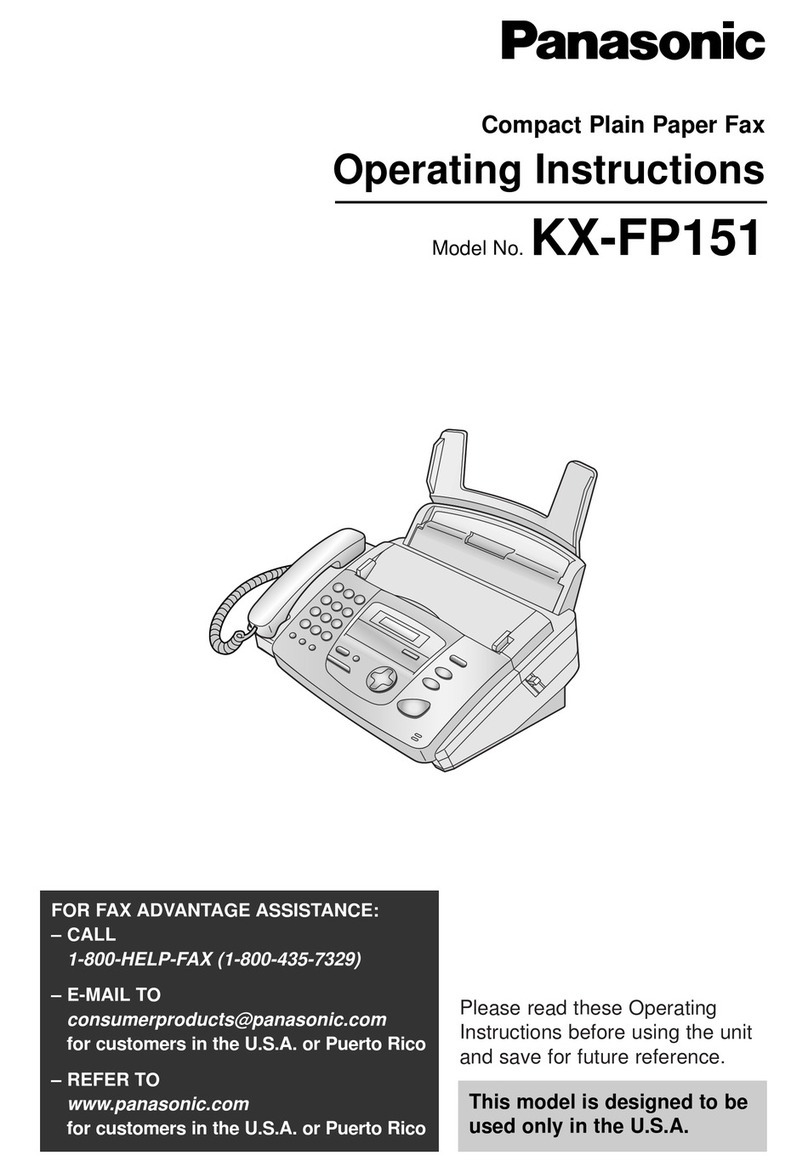
Panasonic KX-FP151 User manual
Panasonic
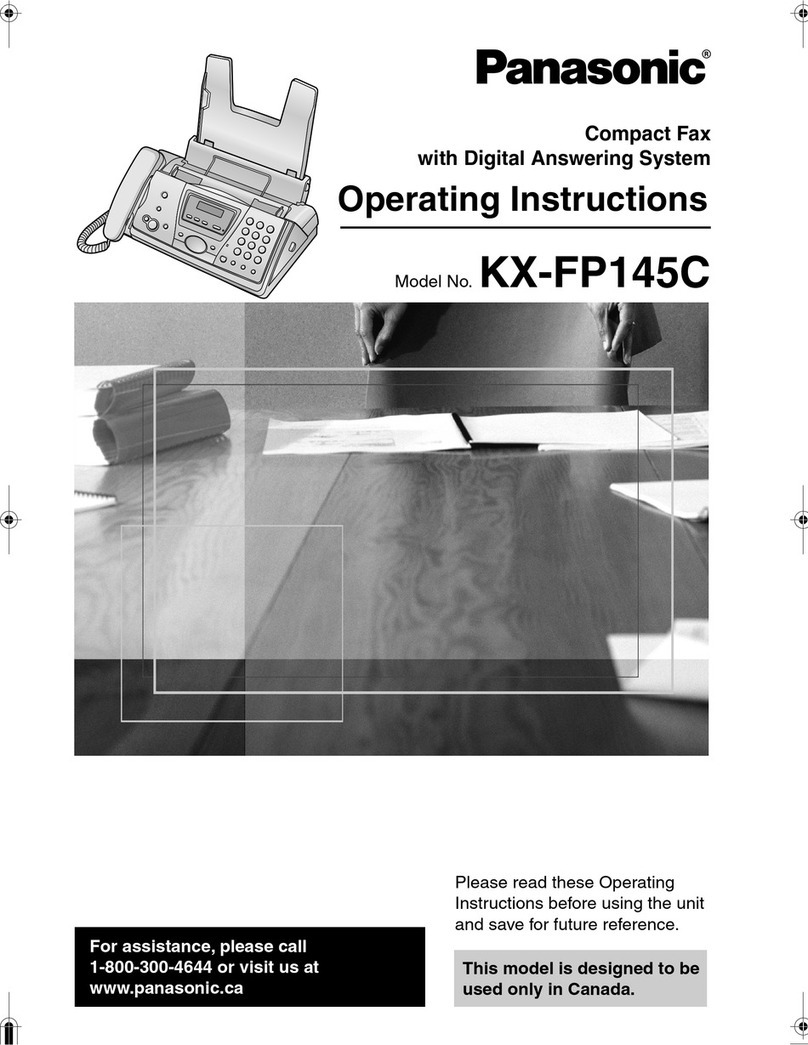
Panasonic KX-FP145C User manual
Panasonic
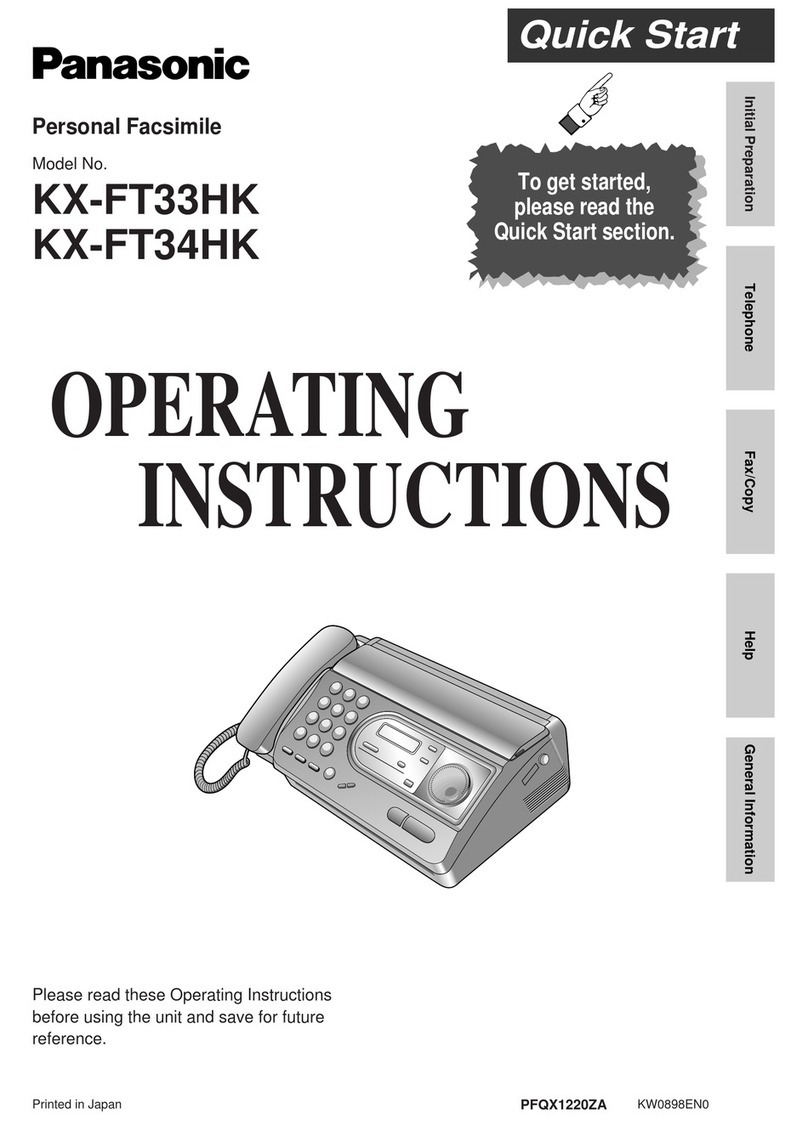
Panasonic KX-FT33HK User manual
Panasonic
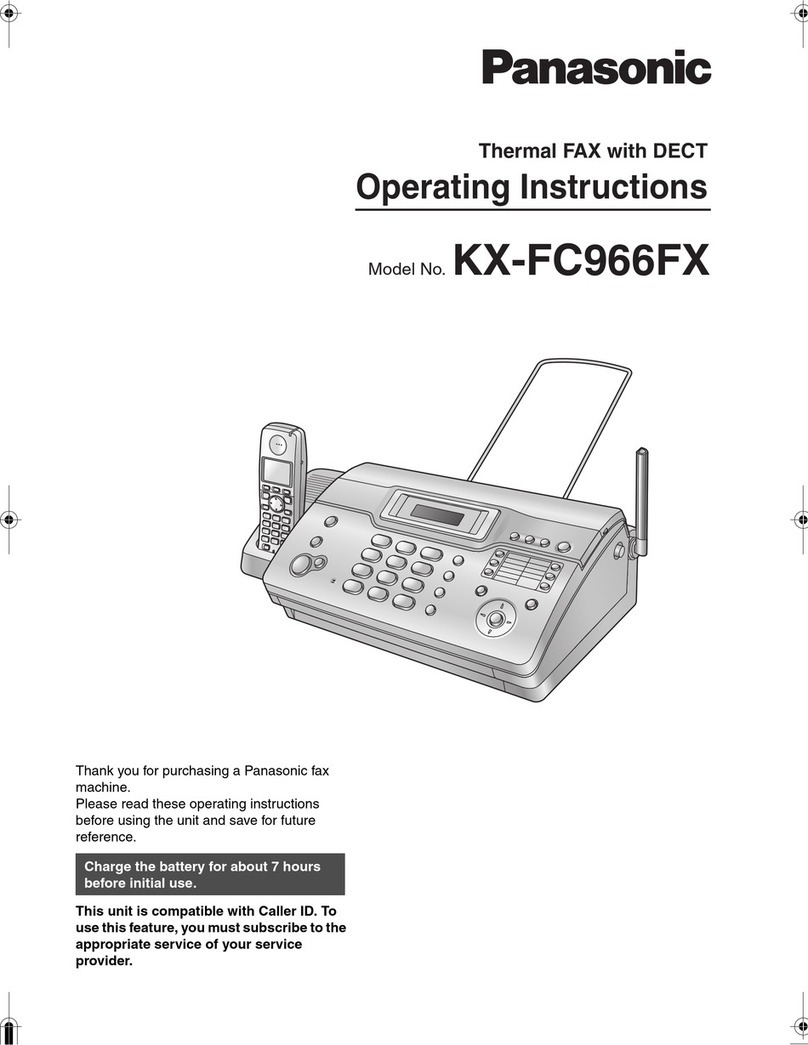
Panasonic KX-FC966FX User manual
Panasonic
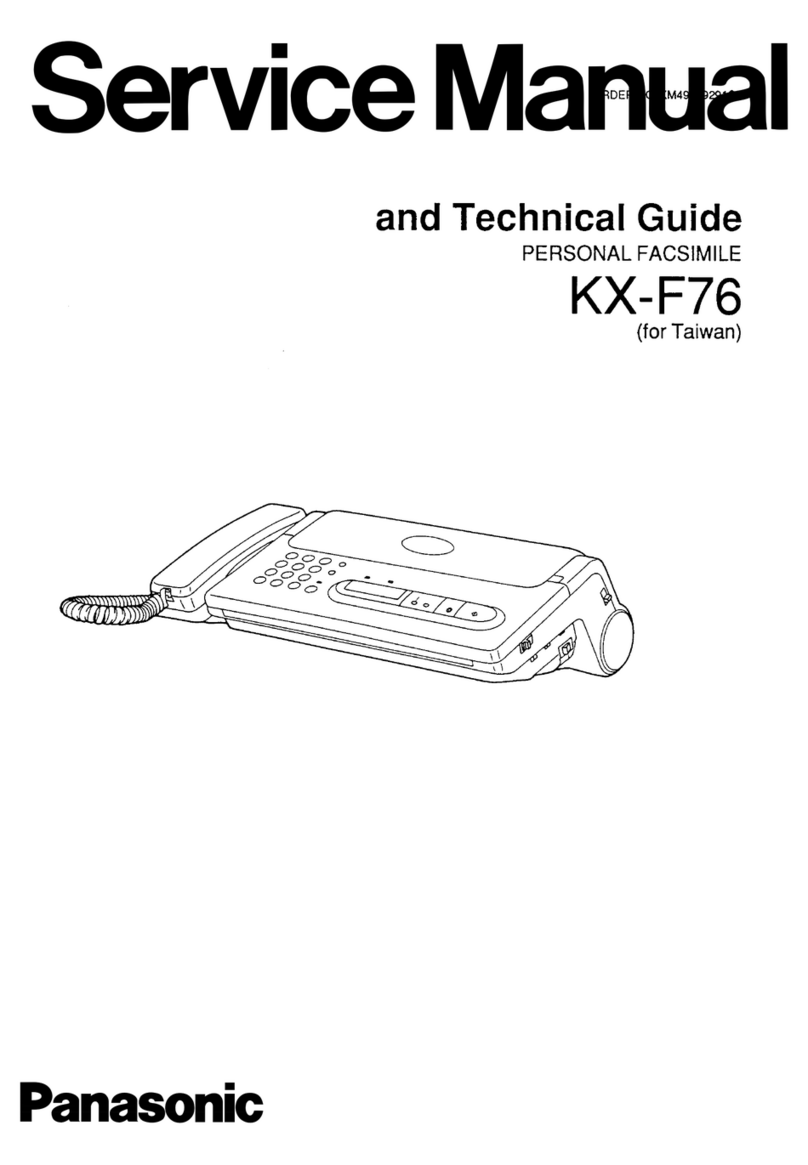
Panasonic KX-F76 User manual
Panasonic
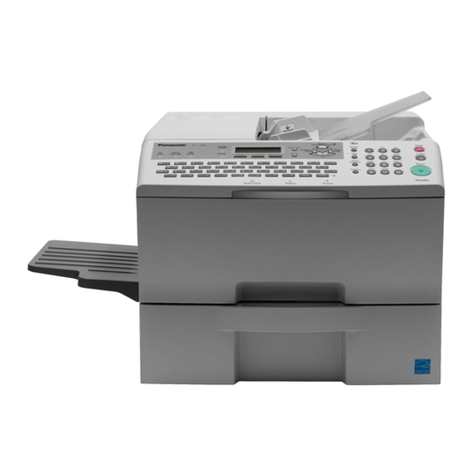
Panasonic UF-8300 User manual
Panasonic
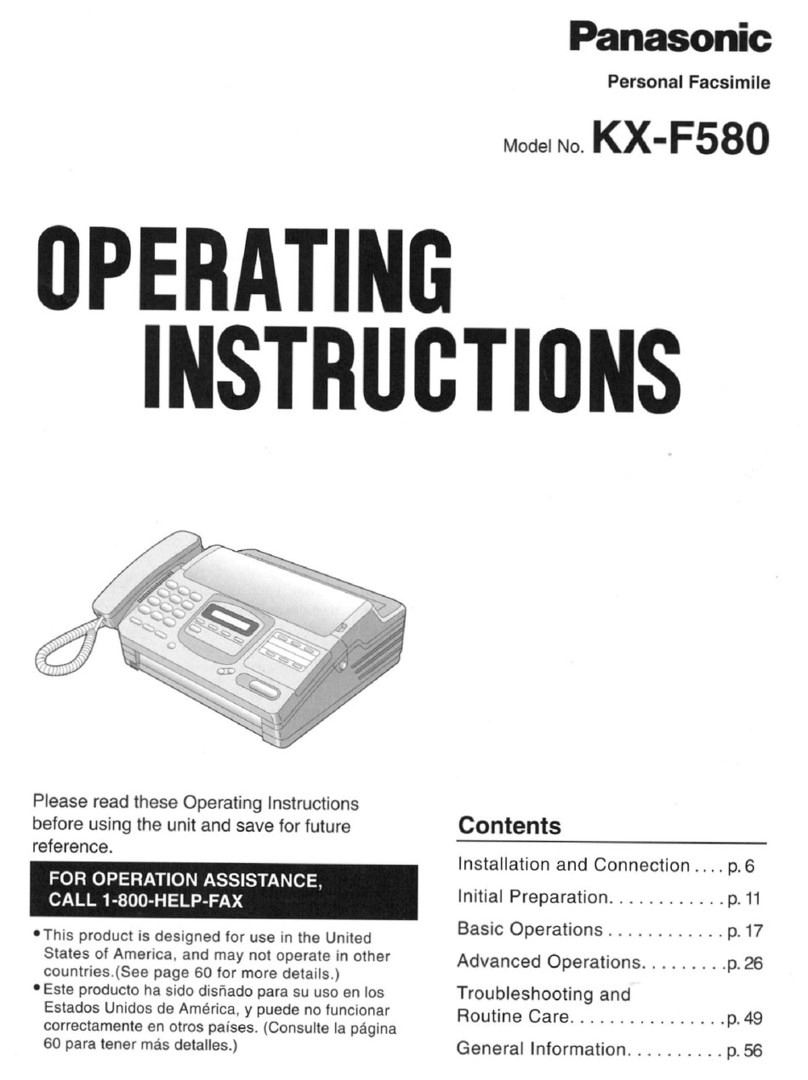
Panasonic KX-F580 User manual