Panasonic CF-R1 Series User manual
Other Panasonic Laptop manuals
Panasonic
Panasonic Toughbook CF-H1ADBBZCM Manual
Panasonic
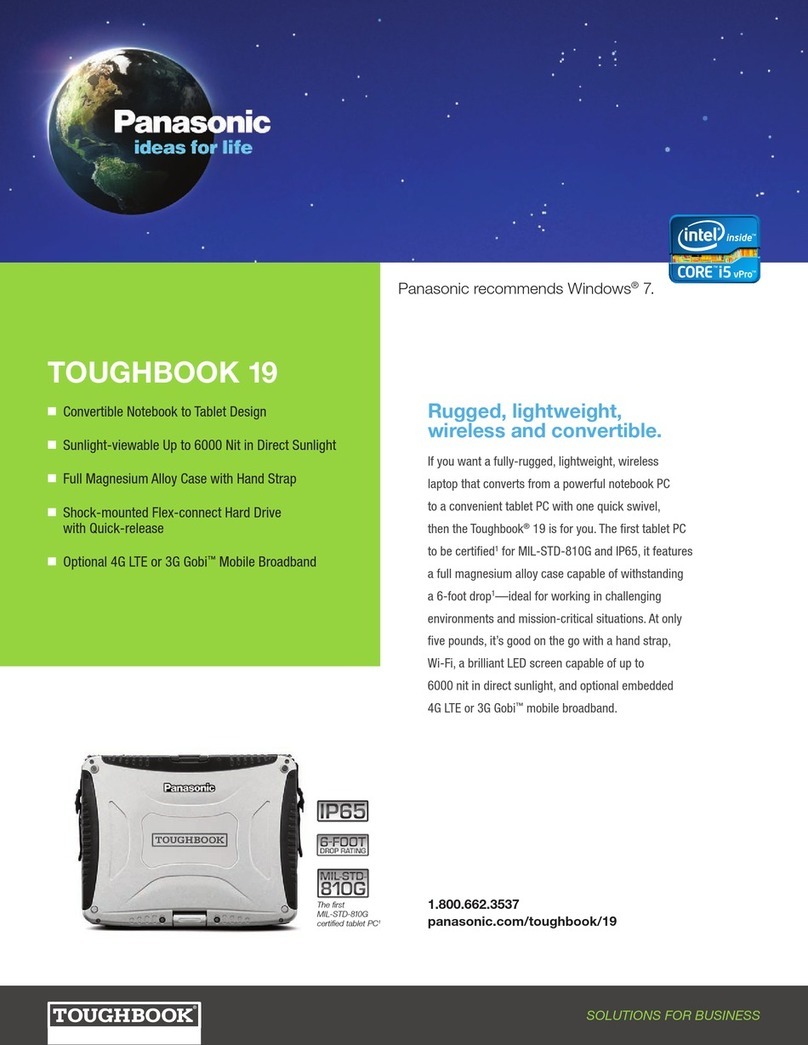
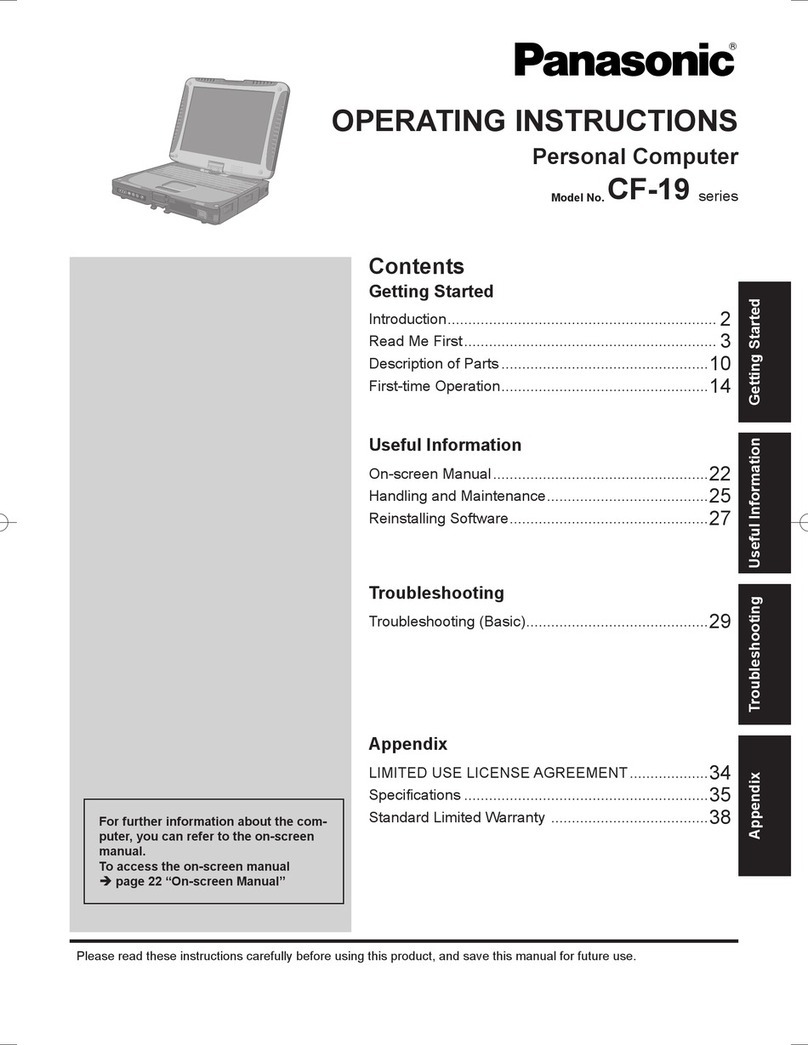
Panasonic CF-19KCRC66M User manual
Panasonic
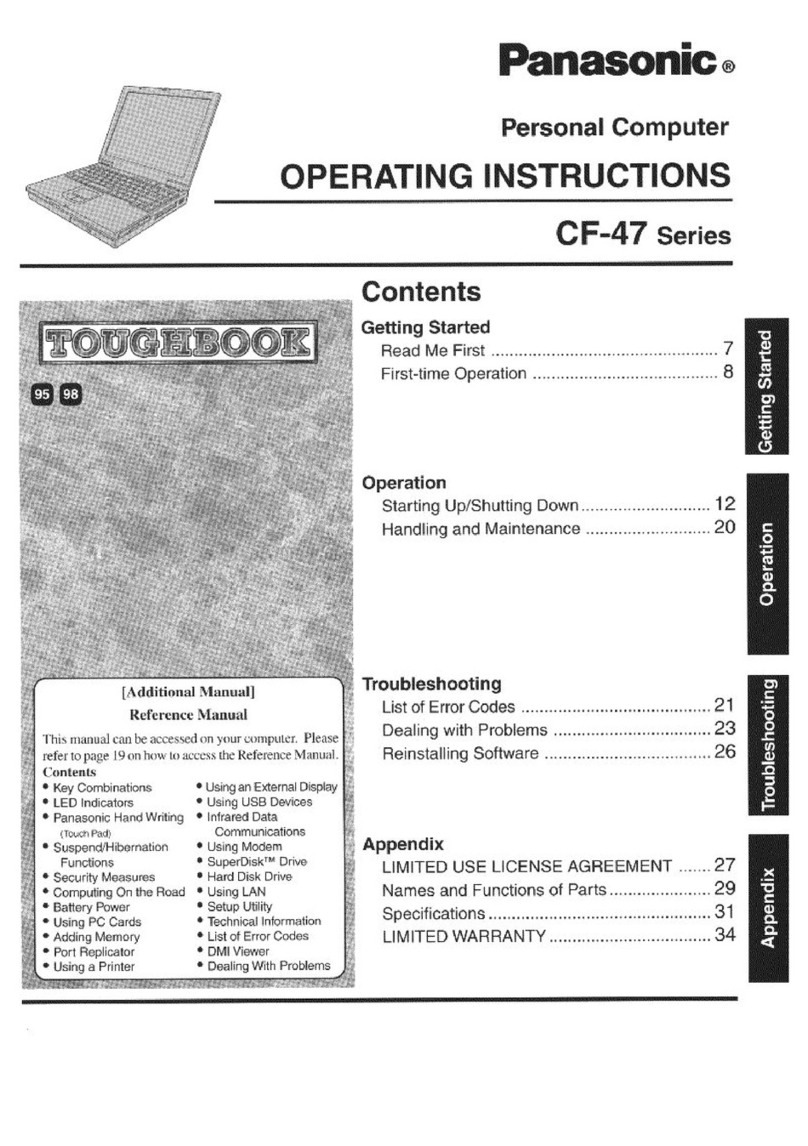
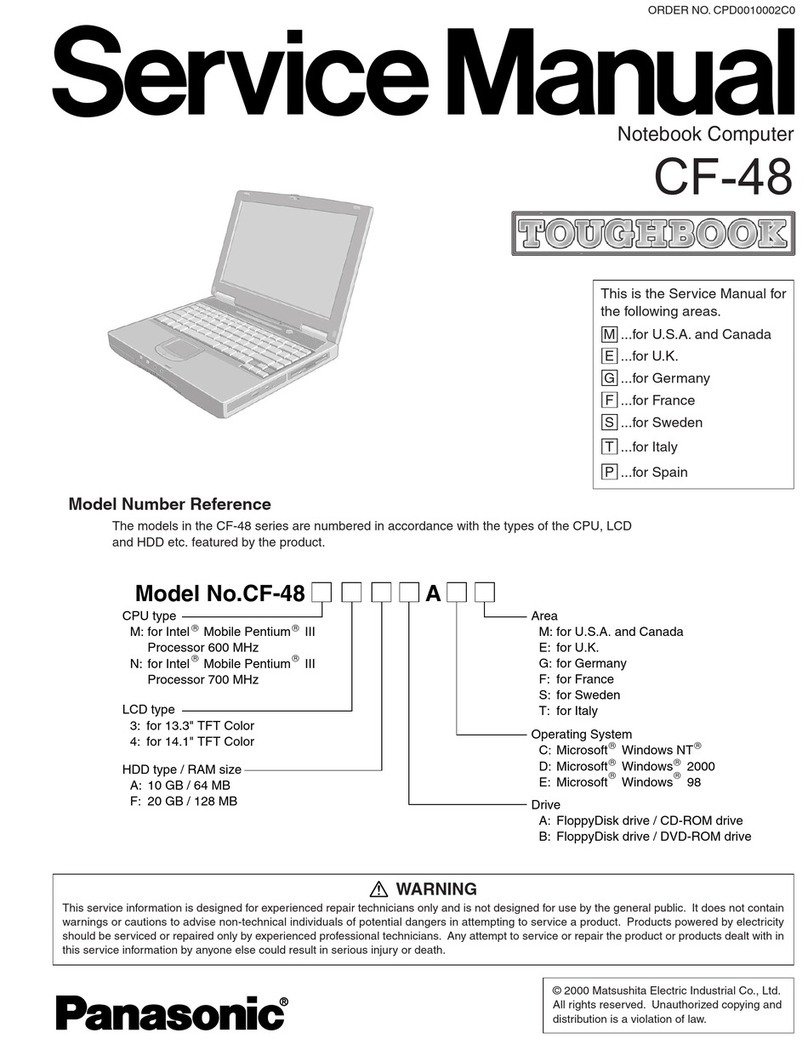
Panasonic Toughbook CF-48 Series User manual

Panasonic
Panasonic The Toughbook 52 User manual
Panasonic
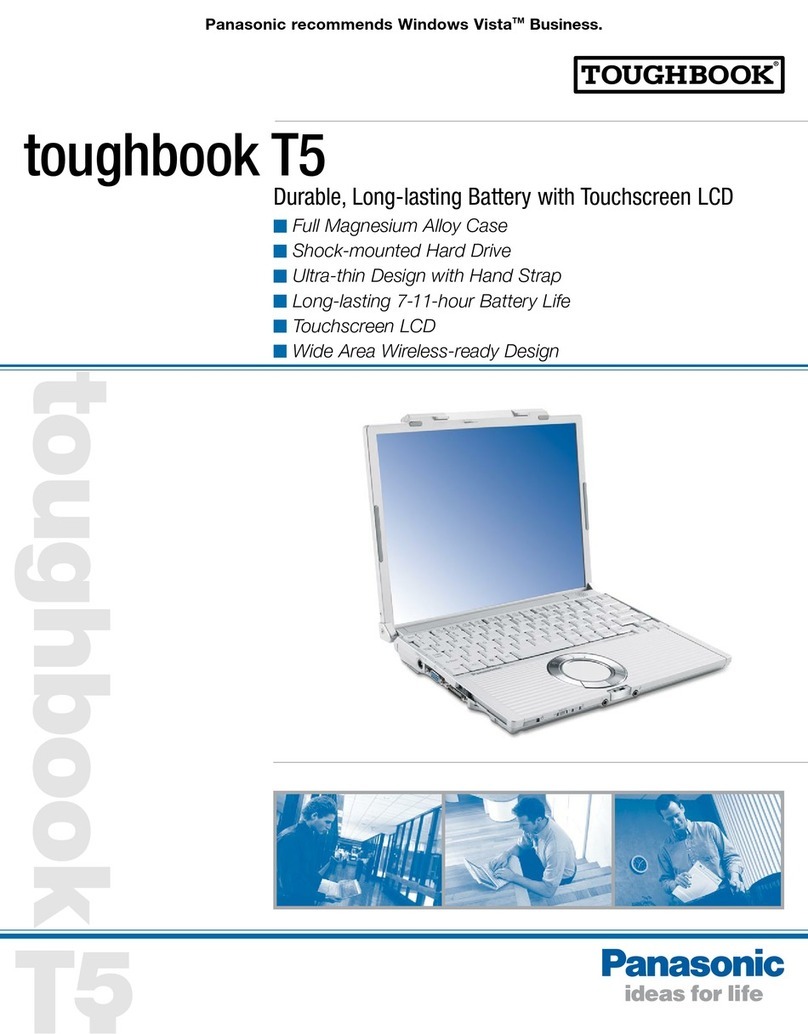
Panasonic CF-T5MWETZBM User manual
Panasonic
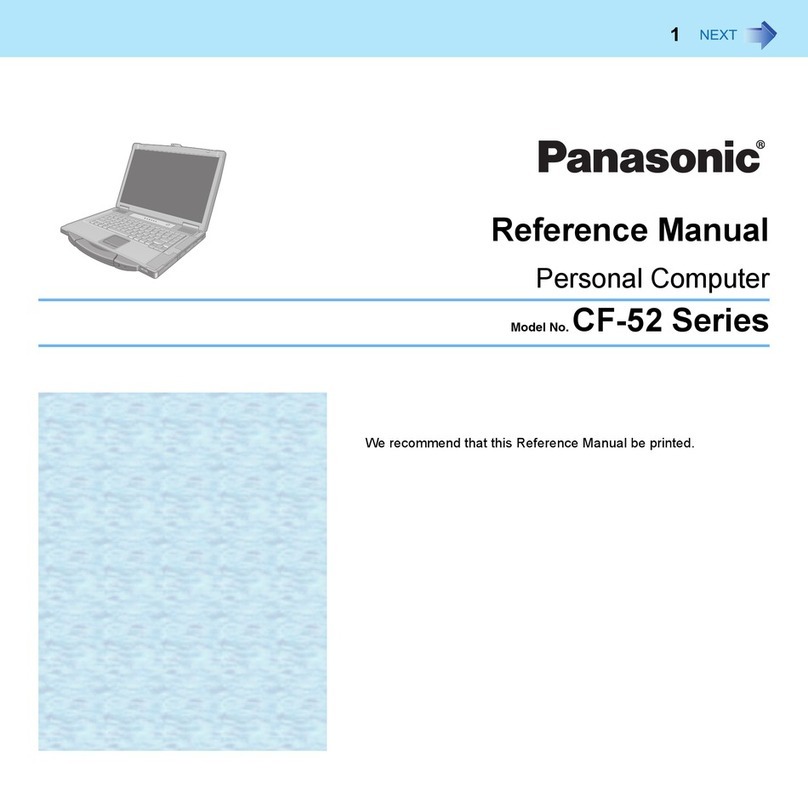
Panasonic Toughbook CF-52GUNBX2B User manual
Panasonic
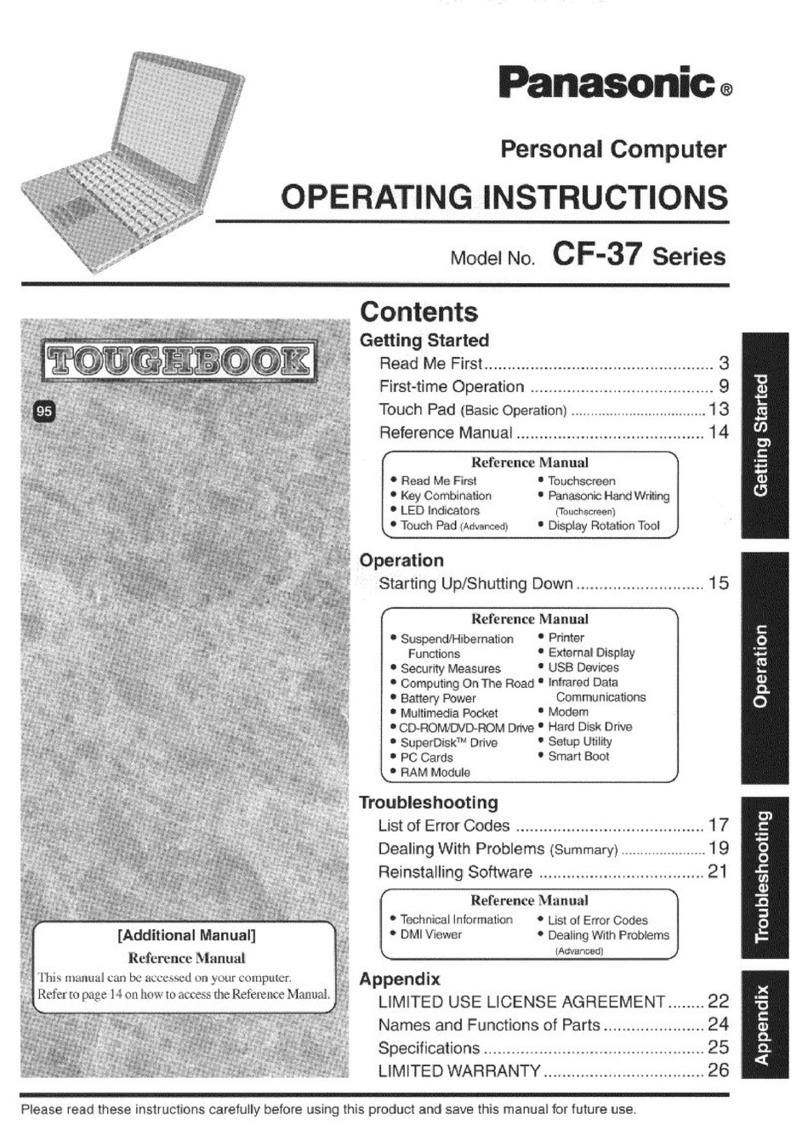
Panasonic Toughbook CF-37LB82BAM User manual
Panasonic
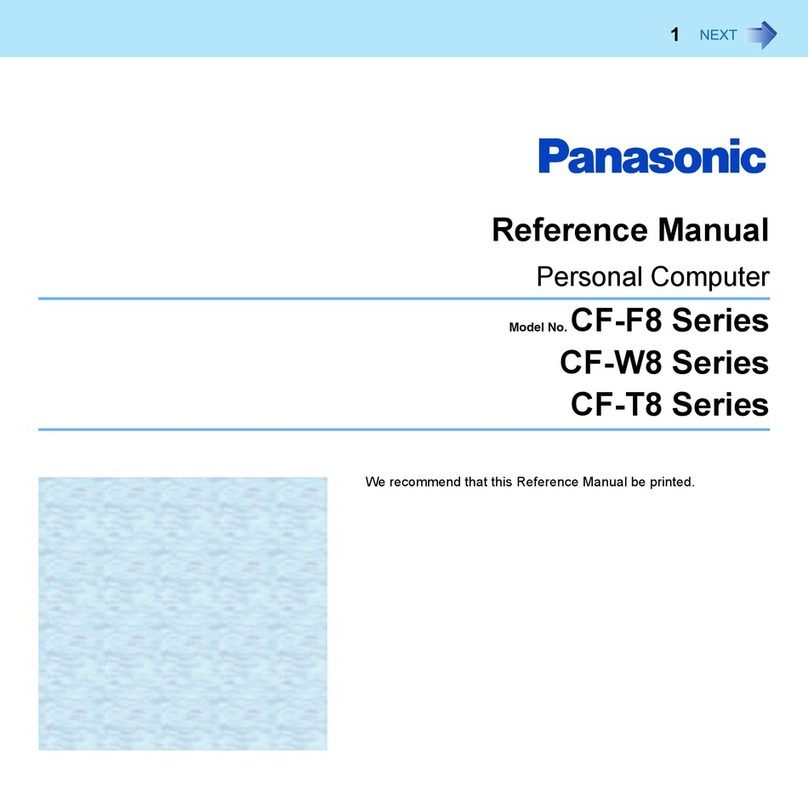
Panasonic Toughbook CF-F8EWAZZJM User manual

Panasonic
Panasonic Toughbook CF-30F3SAXAM User manual
Panasonic
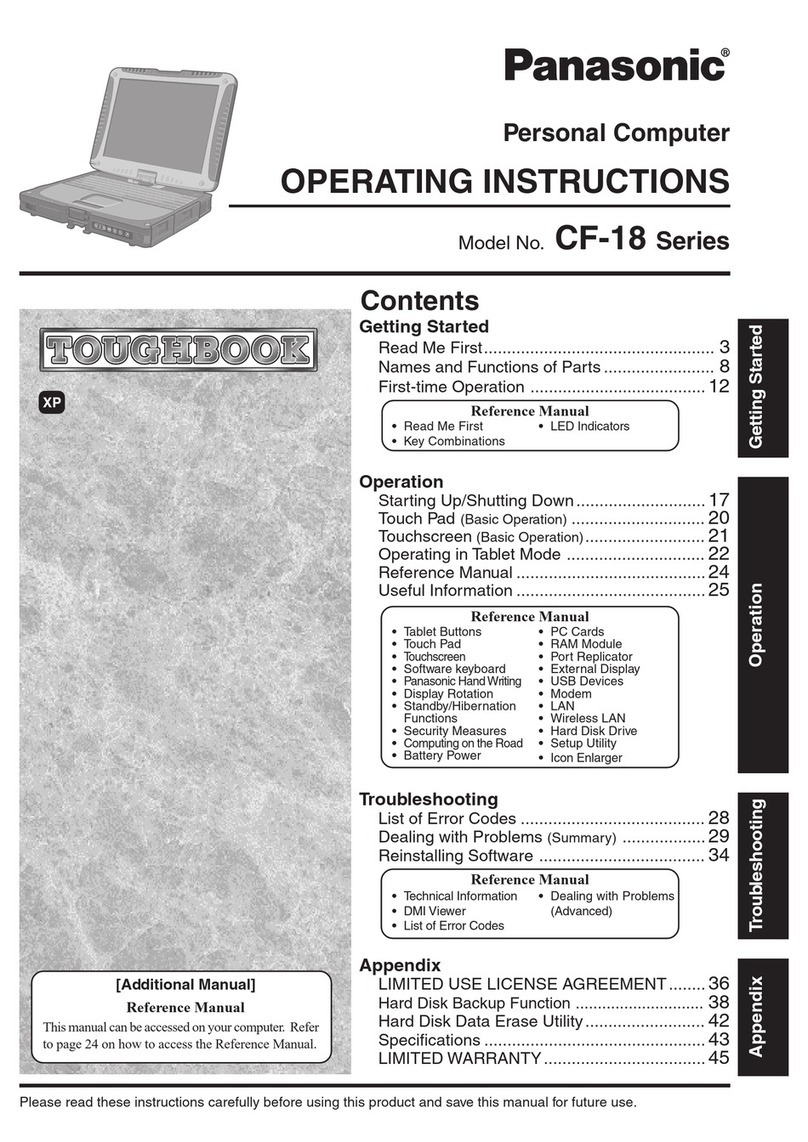
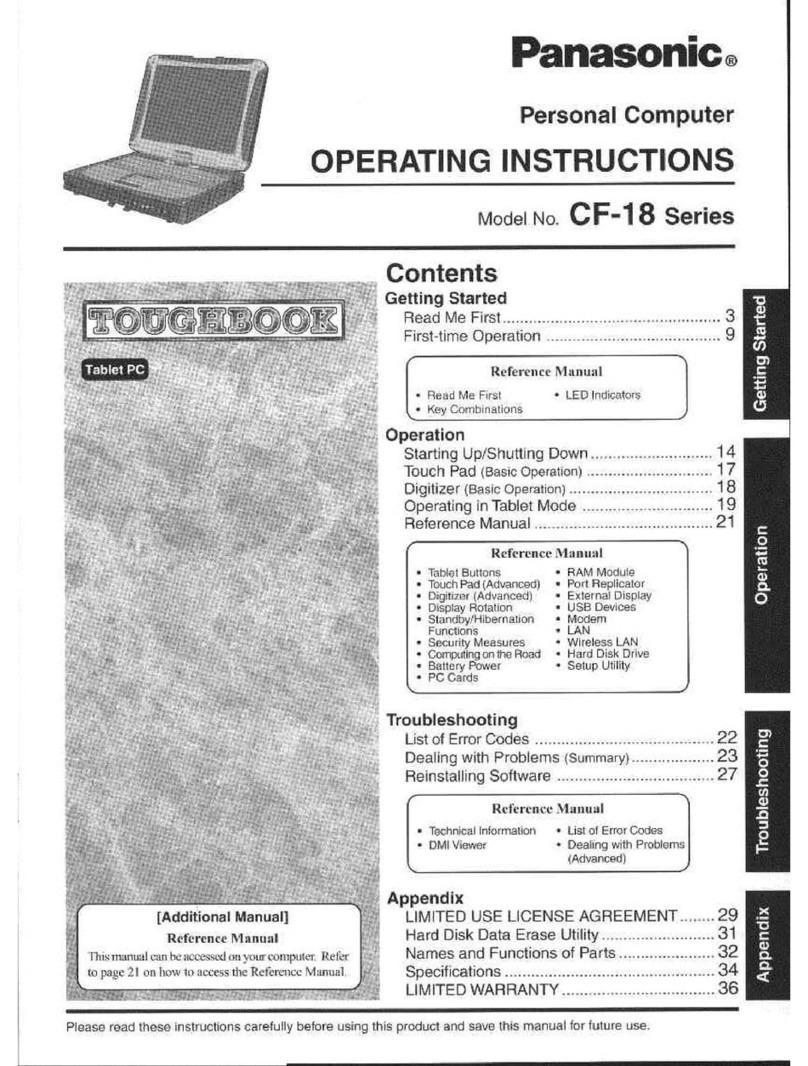
Panasonic Toughbook CF-18BDKZXMM User manual

Panasonic
Panasonic Toughbook CF-18BCAGCMM User manual

Panasonic
Panasonic CF-19 series User manual
Panasonic
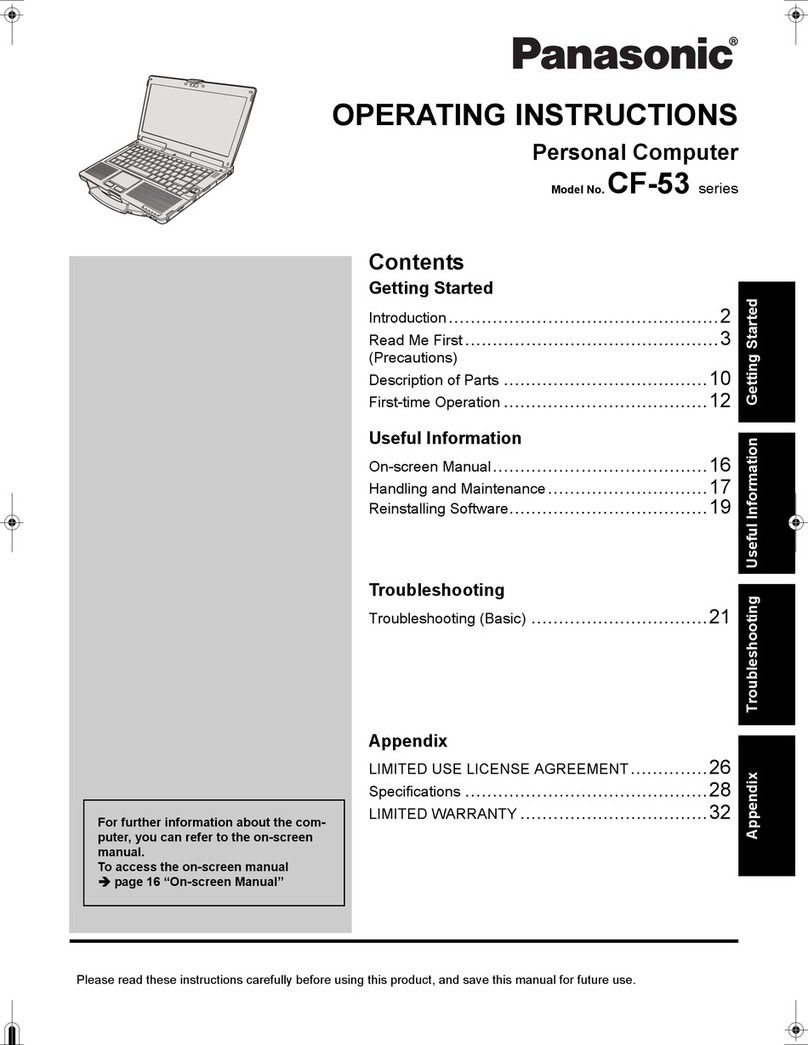
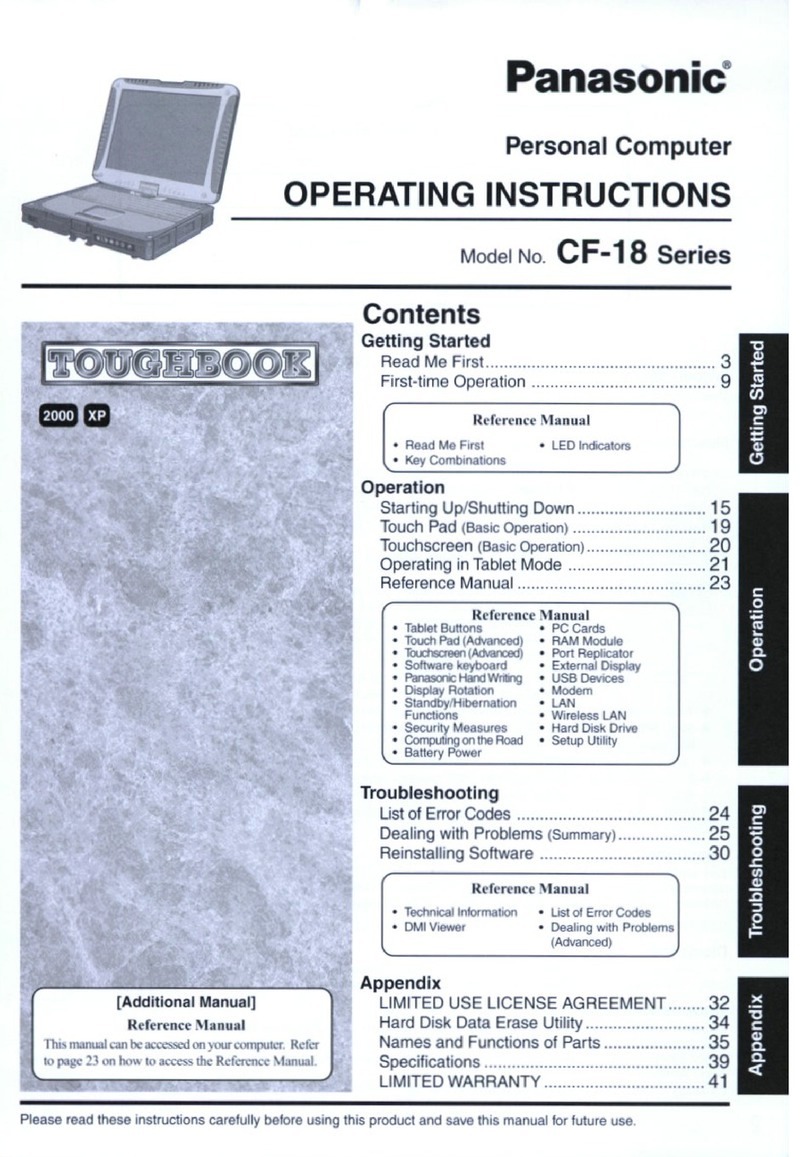
Panasonic Toughbook CF-53AAG711M User manual
Panasonic
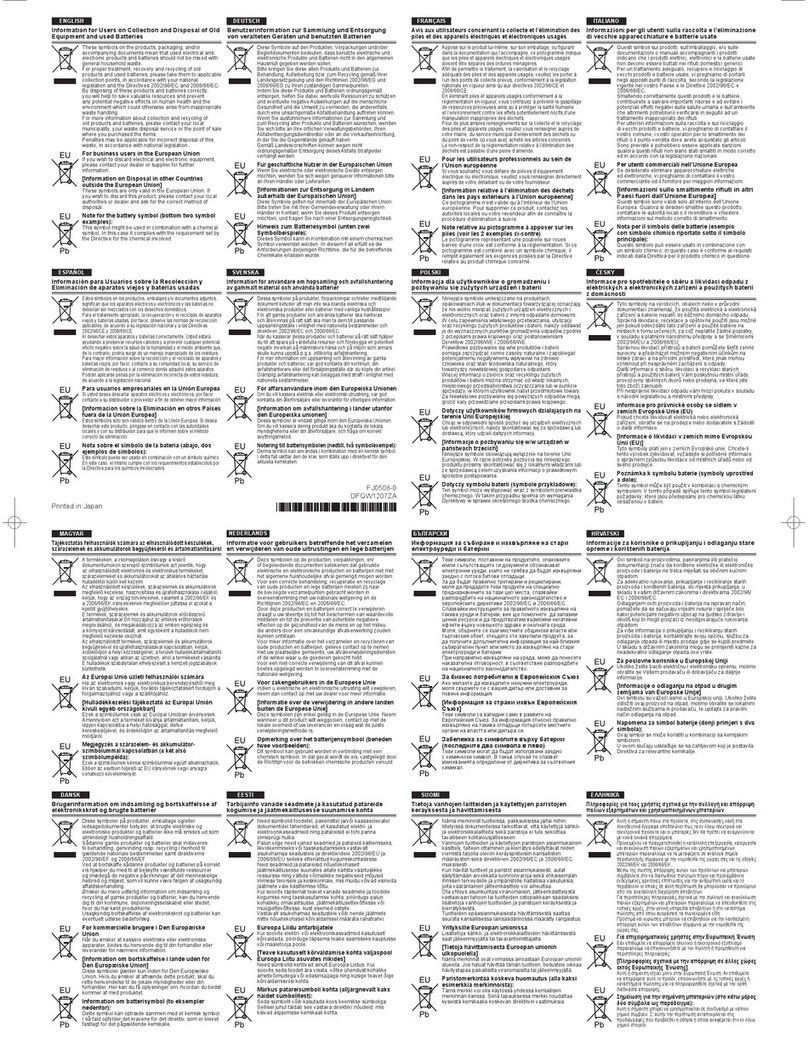
Panasonic Toughbook CF-18BHAZXDM User manual
Panasonic
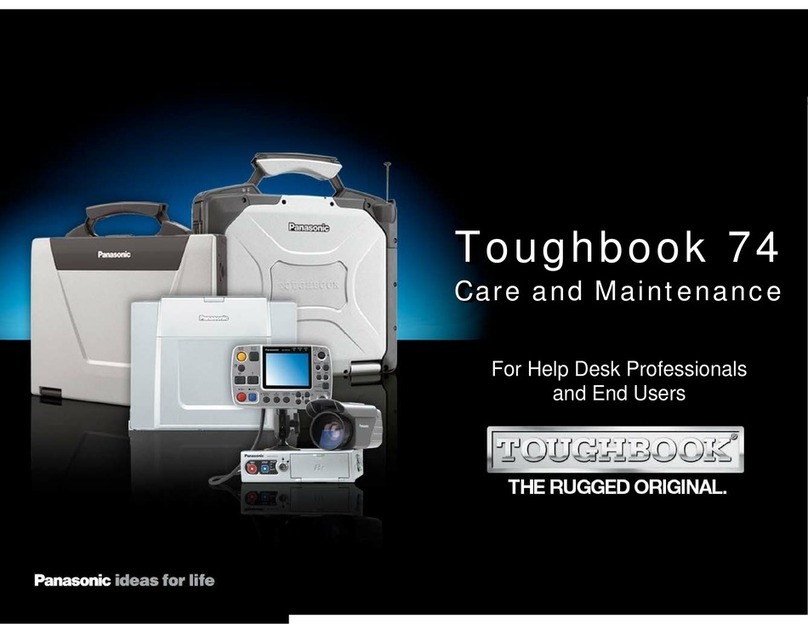
Panasonic Toughbook CF-Y7BWAZZAM Manual
Panasonic
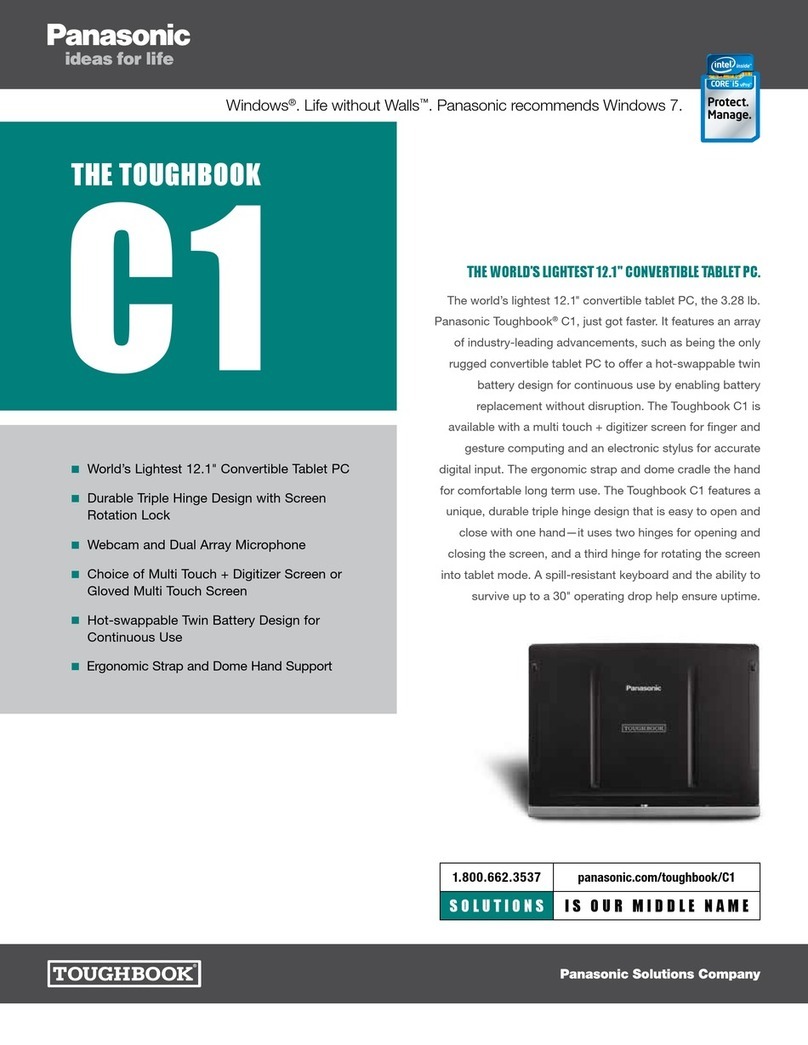
Panasonic CF-74ECBAXBM - Toughbook 74 - Core Duo 2 GHz User manual
Panasonic
Panasonic Toughbook CF-C1ADAAZ6M User manual
Panasonic
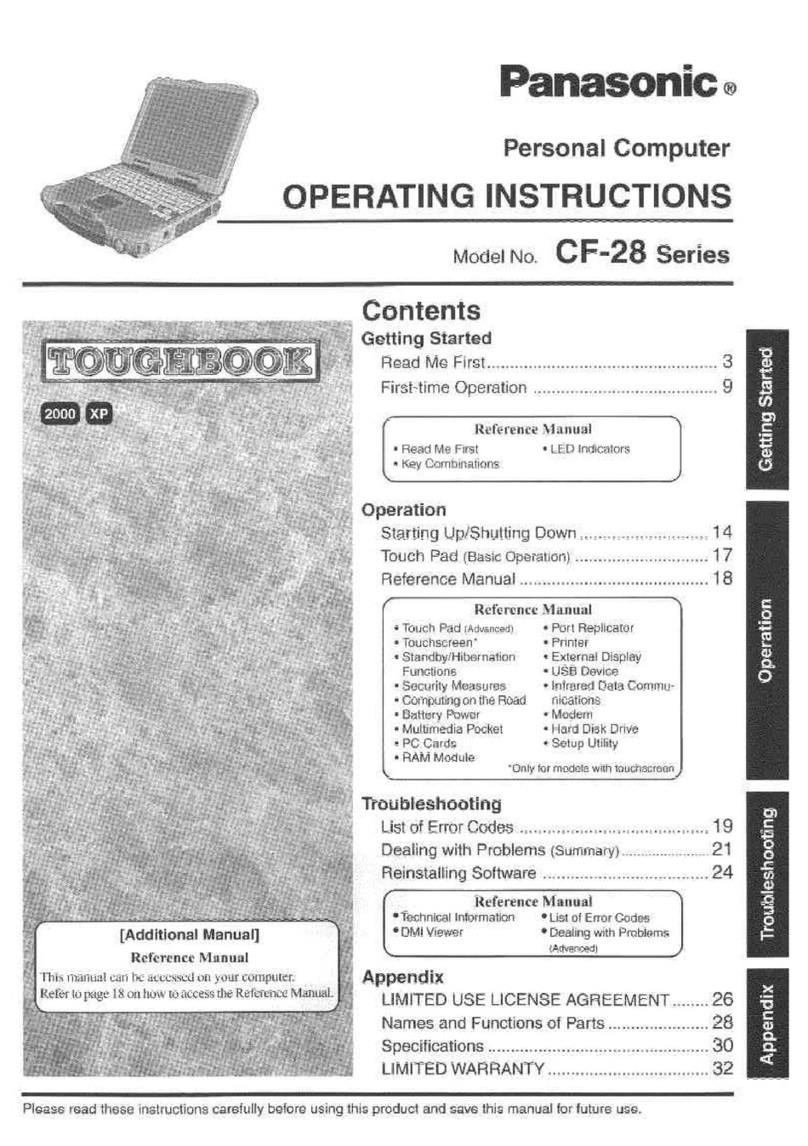
Panasonic Toughbook CF-28PMJAZQM User manual
Panasonic
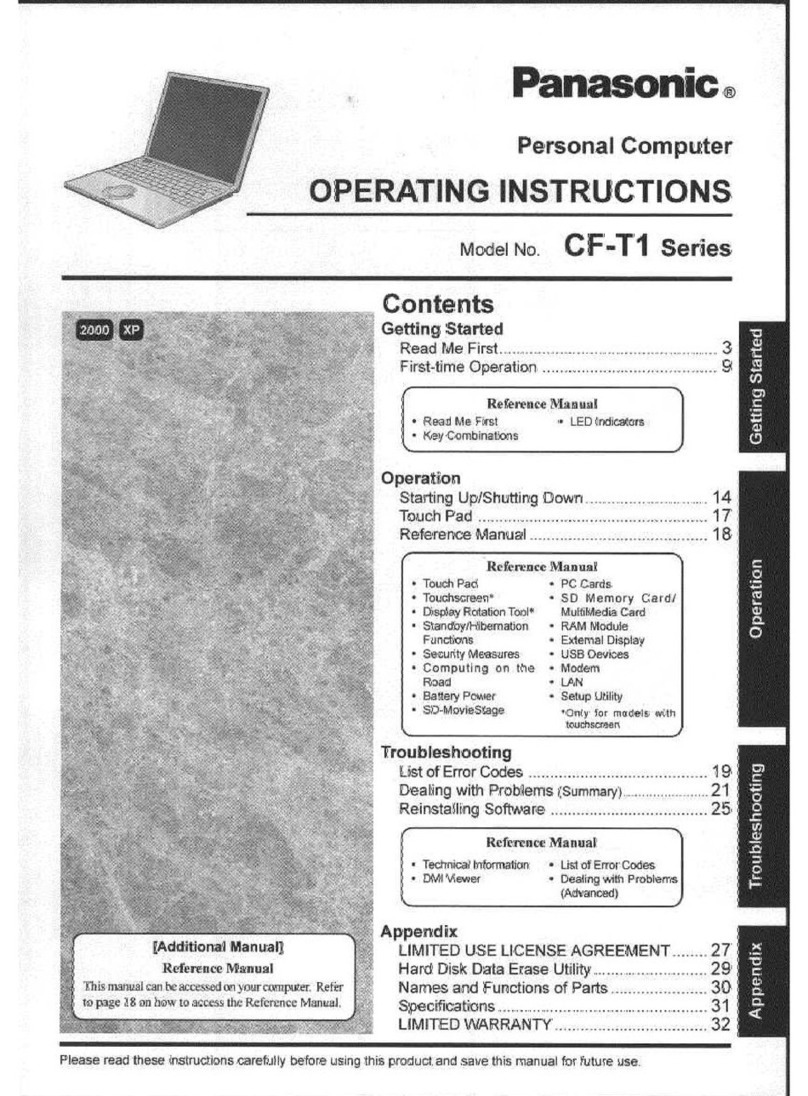
Panasonic Toughbook CF-T1R64ZZKM User manual
Panasonic
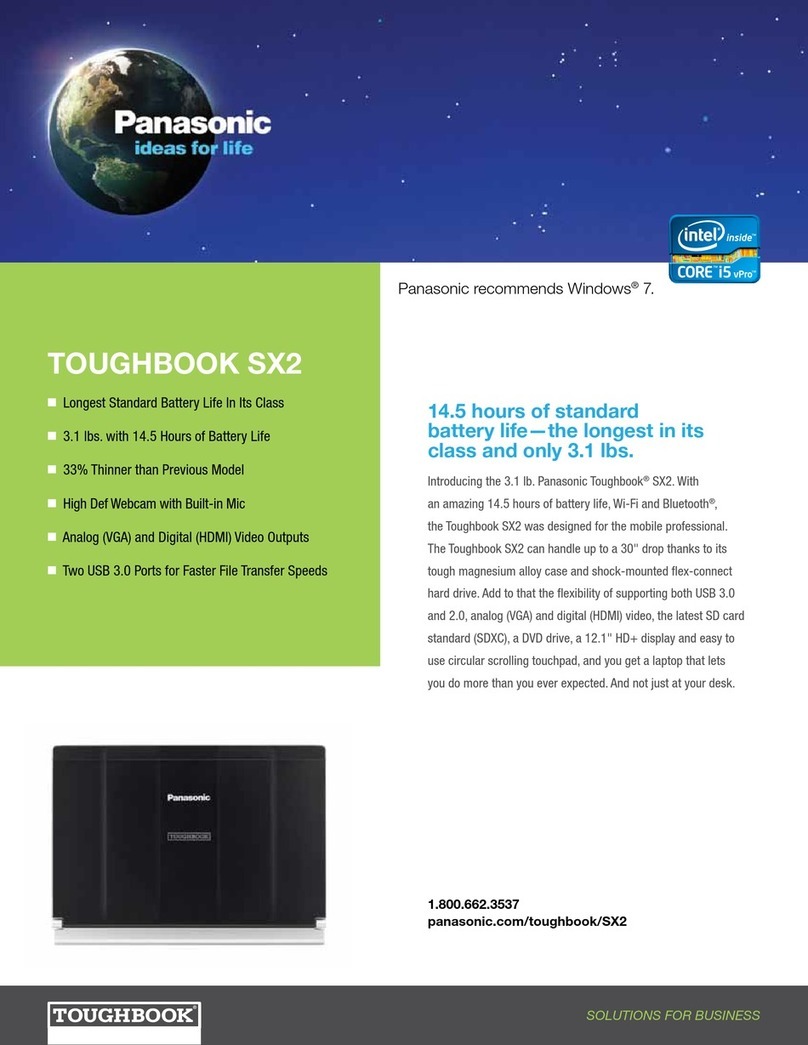
Panasonic Toughbook SX2 User manual