2
Installation Guide
AT-CAP-SP100
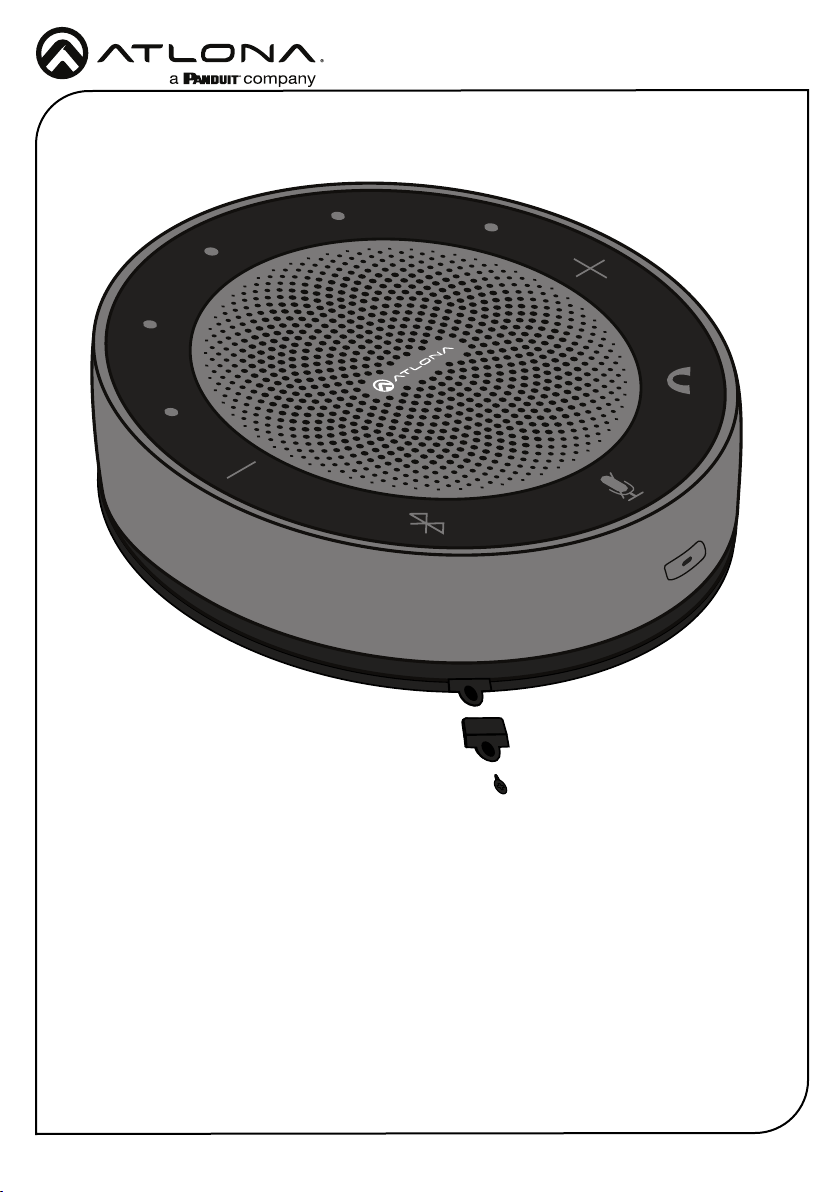
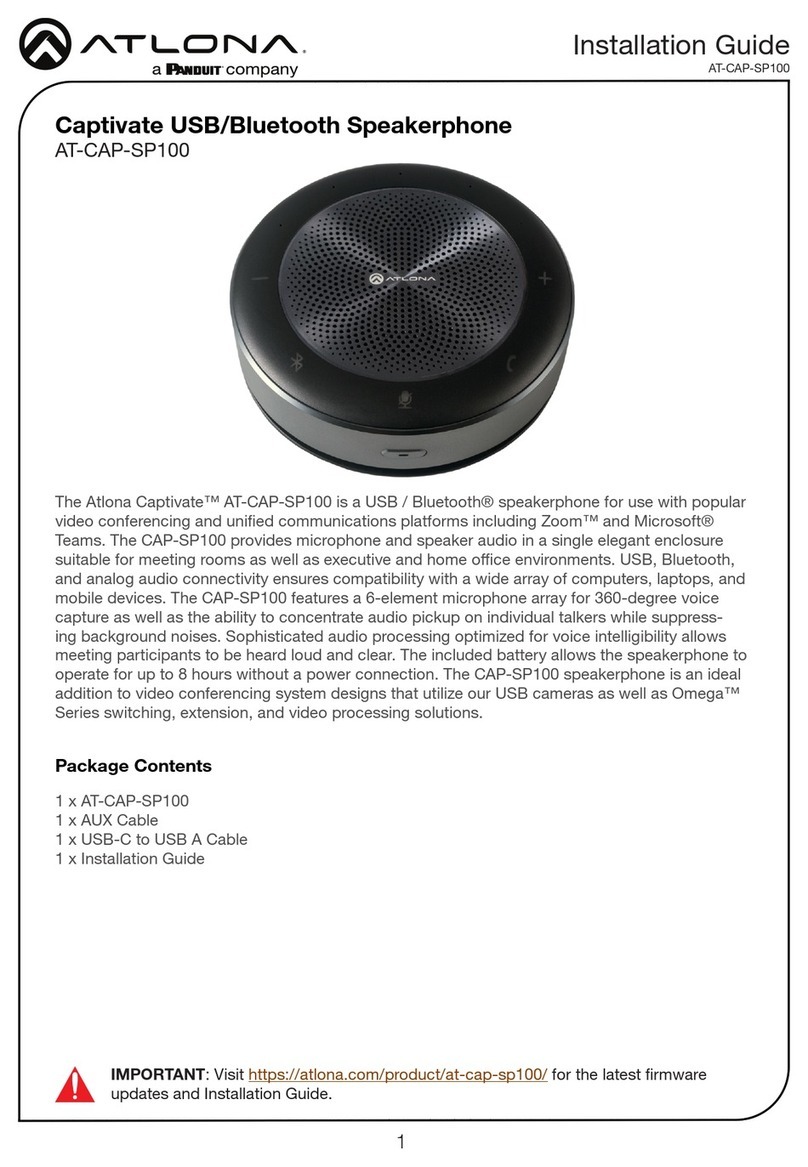
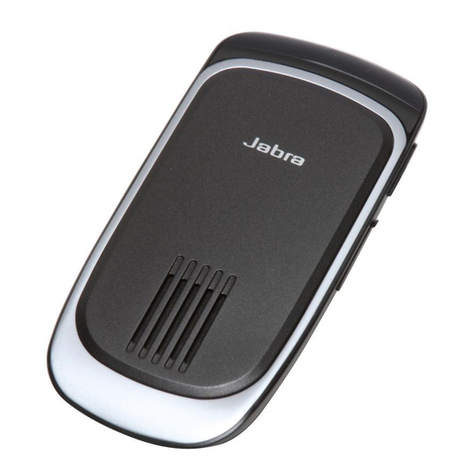
Panel Descriptions
1
4 5 2 678
23
1 Volume / Power Indicators
While the unit is on, the indicators will
display the volume level when the volume
buttons are pressed. Quickly press the
power button to have the LEDs display
the power level. LEDs will display green
for power.
2 Volume Buttons
Use the plus and minus buttons to
increase or decrease the volume level.
3 Answer/Hang up Button
Select this button to accept incoming
calls. When in a call press to hang up the
call.
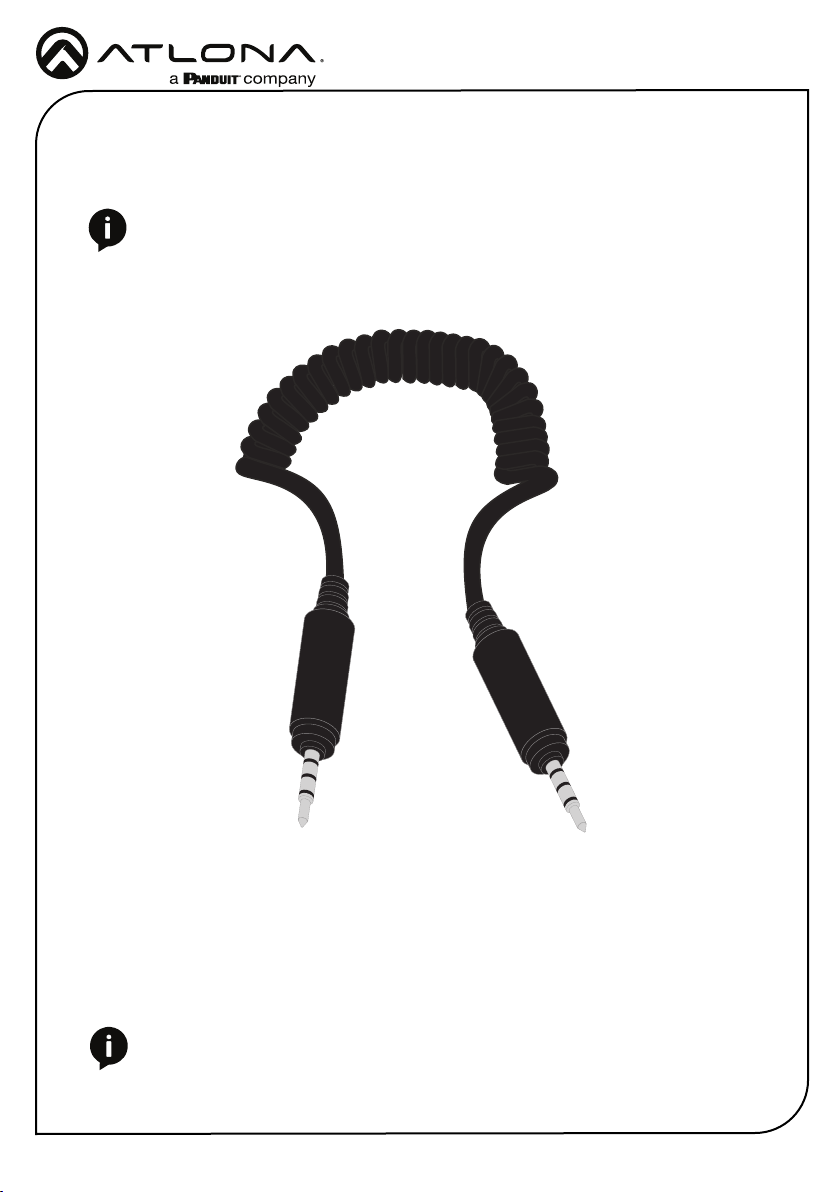
4 Audio In/Out Port
Connect the included AUX cable from this
port to a PC or a second unit for audio
chaining (using AT-CAP-SP100-CBL).
5 5V 2A USB-C Port
Connect the included USB-C to USB A
cable from this port to either a PC or USB
power strip. This port will pass through
audio and also be used for power.
6 Bluetooth Button
Press and hold the button for 2 seconds
to turn Bluetooth on and o. When
Bluetooth is connected (LED will be blue),
hold the button until it is disconnected.
7 MIC Mute/Unmute
Press this button to mute and unmute the
microphone. The LED will turn red when
muted.
8 Power Button
Press and hold the button to turn the unit
on and o. The unit will beep when turning
on or o. This button can also be quickly
pressed to display the power level.
NOTE: Some apps or devices may
require the button to be held for up to
5 seconds to hang up.