Installation Guide
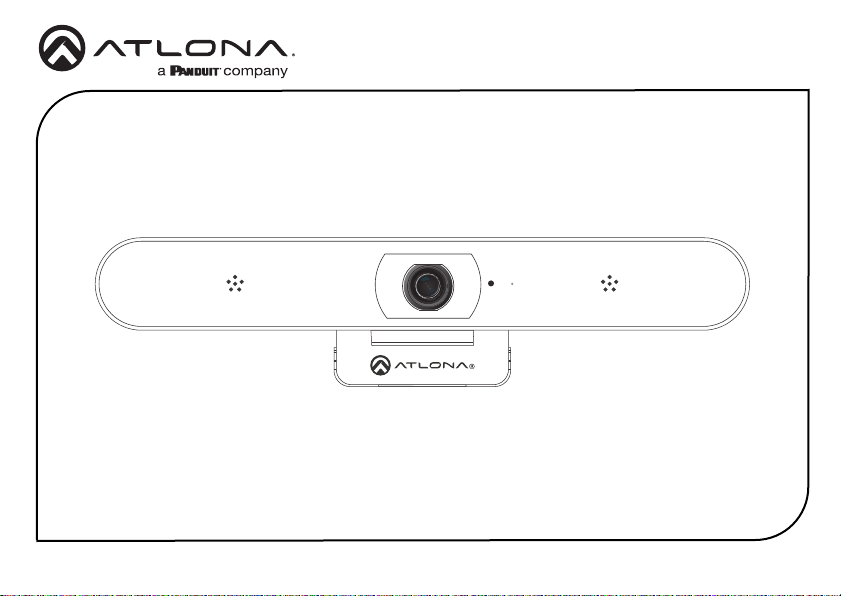
AT-CAP-FC110
5
1 2 3
F2F1
A
FOCUS
1
3
6
8
9
4
2
5
7
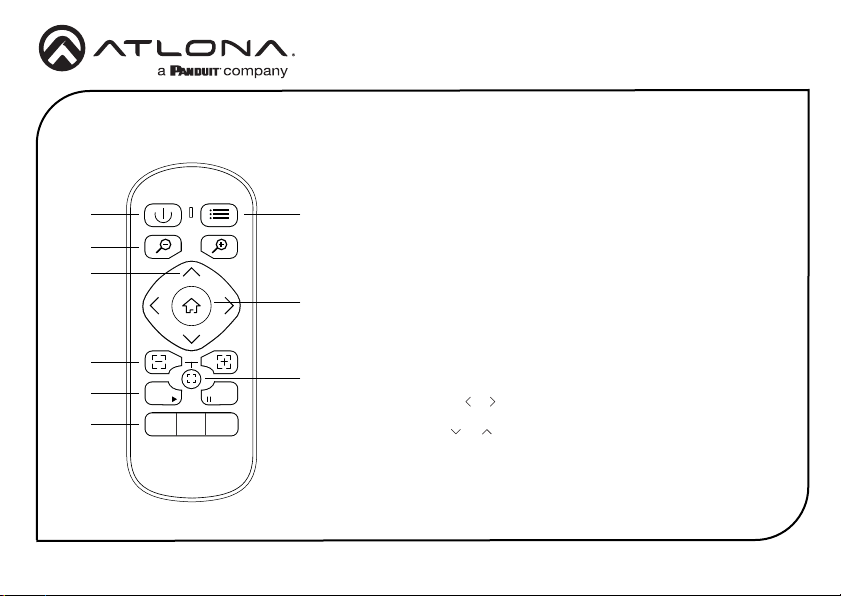
1 Power
Press this button to turn on or
turn o the camera.
2 Menu
Press this button to display,
exit, or return to a previous
sub-menu. Refer to the User
Manual for more information.
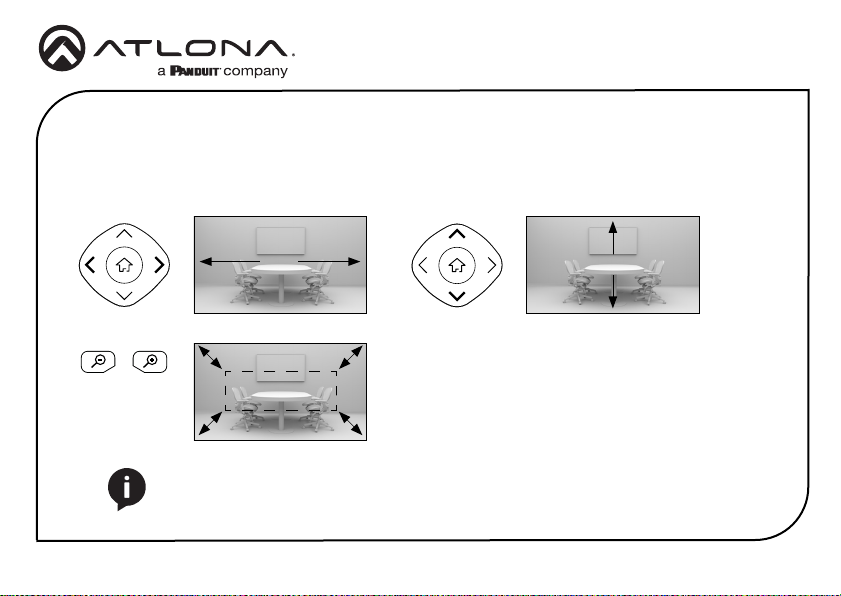
3 Zoom
Press these buttons to zoom
in or zoom out of the current
viewing area.
4 Direction
When the OSD displayed,
press these buttons to move
and select the desired option.
If the OSD is not displayed,
pressing the or buttons to
pan the camera left or right.
Press the or buttons to
adjust the tilt of the camera
up or down.
5 HOME
When the OSD is displayed,
press this button to conrm
the current selection.
If the OSD is not displayed,
pressing this button will
return the viewing area to
the default position (all zoom
and panning functions are
returned to normal).
6 Focus
These buttons are reserved
for future use.
7 Autofocus
This button is reserved for
future use.
8 Auto Framing
Press F1 to enable auto-
framing. This function will
keep the user’s face centered
in the screen. Press F2 to
disable auto-framing.
9 Presets
Press these buttons to set or
call a preset.
IR Remote Control