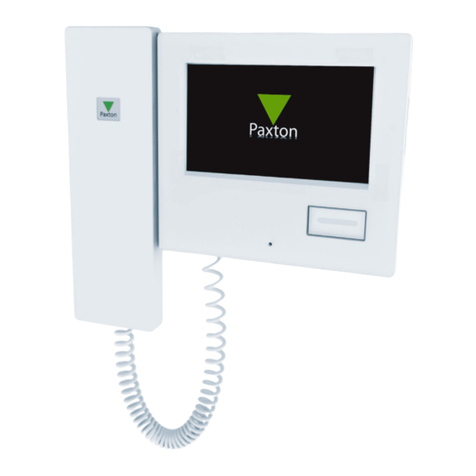
APN-1145-ZA
Entry
Operation - Viewing a camera
• Select the camera (if more than one)
• Select 'View video' mode
If more than one panel is installed, this screen will
display. Use the up and down arrows to select the
required camera and touch 'Accept'.
Each camera may have the 'View video' option
enabled/disabled. The audio and open door
functions may also be enabled/disabled by the
panel.
• Viewing with the camera
Where this function is permitted, the 'View video'
option will display. This allows the camera to be
used for an external view at any time.
Touch the screen to display the default menu.
Touch the 'View video' option.
The camera view will display on the monitor.
Touch the 'Hang up' option to terminate the session.
At the end of the permitted viewing time a 'Continue
to view' option will display. At this point a timer must
be reset or viewing will be ended.
See AN1135 if you wish to setup a secondary
camera.
• Unlock the door
Pressing the 'open door' button will unlock the
door and cause the button to ash green.
If the door has a contact switch, the door icon
will show the actual position of the door. If not,
a padlock icon will display the condition of the
lock.