2 | P a g e
Support Line: 0714 224 098/ 020 232 4766
Prepared by: Pergamon limited
CONNECTING TIMS MACHINE TO WIFI NETWORK
a. CONNECTING TO MOBILE/PHONE HOTSPOT
•Go to mobile Hotspot setting and note down the Wi-Fi name
and password (change the name to a simple name e.g., Wi-Fi
name: Technical and Password:123456789).
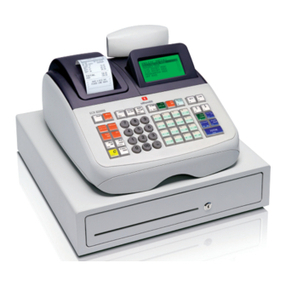
•Go to TIMS machine (Mercury 181/130W/133)
•Power on and go to mode 1/Registration mode
•Press button and Wait for the device to show F,
Started.
•Go to mobile phone or Laptop.
•Go to Wi-Fi list and connect to Wi-Fi broadcasted as
(KRAMW0090009234)
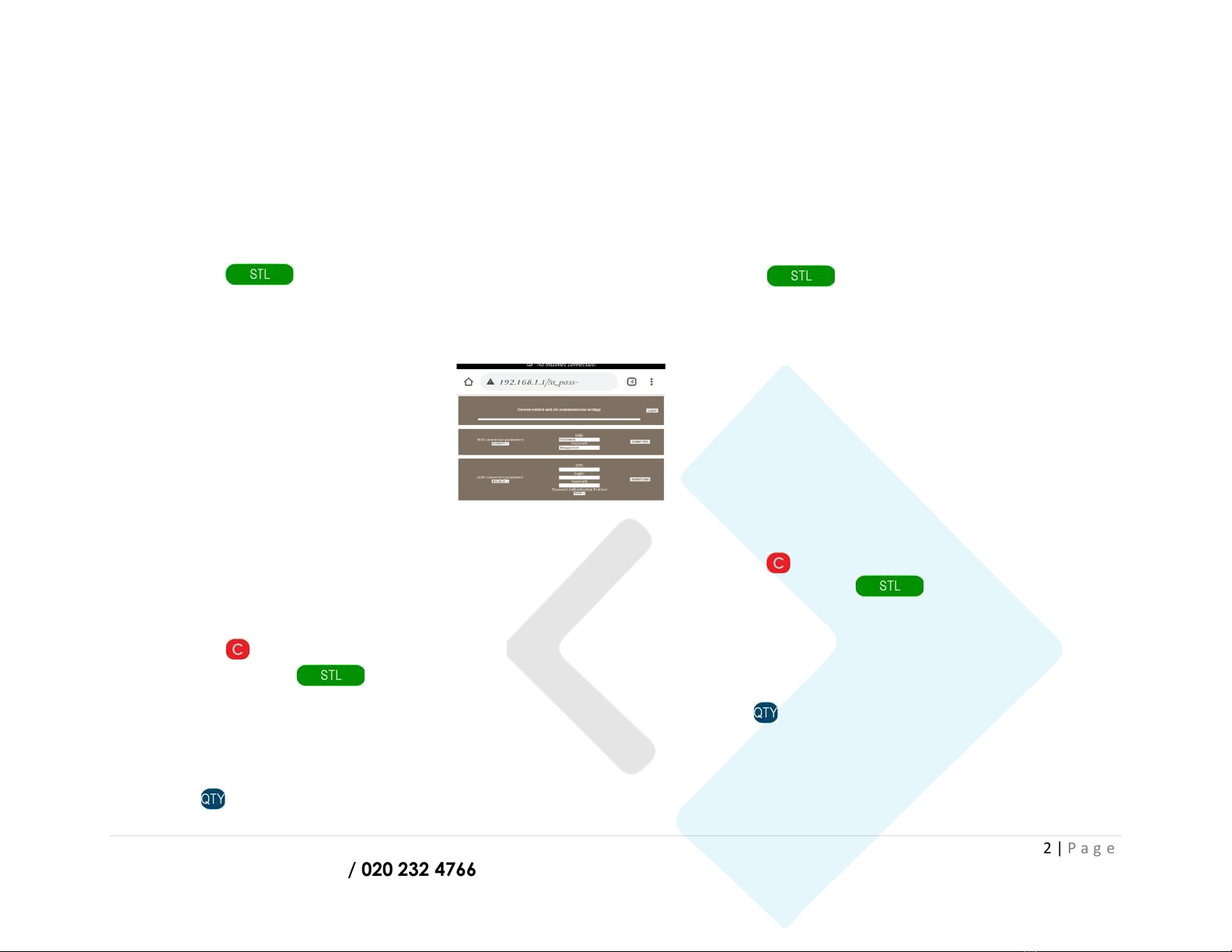
•Go to your browser e.g., Chrome,
Mozilla, or Firefox
•Enter default IP address 192.168.1.1
on your Browser and search
•Enable Wi-Fi connection
parameters
•Key intheSSID (WIFI name) and the
password for the Wi-Fi noted down in the first step.
•Submit WIFI and log out
•Go to your Hotspot setting and turn on Hotspot and turn on
mobile data.
•Go back to your TIMS device.
•Press button on the machine.
•Press 1then Button to make a connection
test.
oWhen you get connection test: Fault! Recheck
you Wi-Fi name and password
oWhen you get connection test: ok (well done Wi-
Fi set up successfully done)
•Press to print a status report.
b. CONNECTING TO WIFI FROM ROUTER
•Get Wi-Fi name and Password from your IT Technician
note down the Wi-Fi name and password (e.g., Wi-Fi name:
Technical and Password:123456789).
•Go to TIMS machine (Mercury 181/130W/133)
•Power on and go to mode 1/Registration mode
•Press button and Wait for the device to show
F, Started.
•Go to mobile phone or Laptop.
•Go to Wi-Fi list and connect to Wi-Fi broadcasted as
(KRAMW0090009234)
•Go to your browser e.g., Chrome, Mozilla, or Firefox
•Enter default IP address 192.168.1.1 on your Browser and
search
•Enable Wi-Fi connection parameters
•Key in the SSID (WIFI name) and the password for the
Wi-Fi noted down in the first step.
•Submit WIFI and log out
•Go back to your TIMS device.
•Press button on the machine.
•Press 1then Button to make a
connection test.
oIf you get connection test: Fault! Recheck your Wi-
Fi name and password repeat the setup process.
oIf you get connection test: ok (well-done Wi-Fi set
up successfully done).
•Press to print a status report.