manuals.online logo
Brands
  1. Home
  2. •
  3. Brands
  4. •
  5. Planet Audio
  6. •
  7. Car Receiver
  8. •
  9. Planet Audio P9689 User manual

Planet Audio P9689 User manual

Other manuals for P9689

1

Other Planet Audio Car Receiver manuals

Planet Audio P385UA User manual

Planet Audio

Planet Audio P385UA User manual

Planet Audio P9690B User manual

Planet Audio

Planet Audio P9690B User manual

Planet Audio P9630B User manual

Planet Audio

Planet Audio P9630B User manual

Planet Audio PCD2485 User manual

Planet Audio

Planet Audio PCD2485 User manual

Planet Audio P11.2ES User manual

Planet Audio

Planet Audio P11.2ES User manual

Planet Audio PI9758B User manual

Planet Audio

Planet Audio PI9758B User manual

Planet Audio P590V User manual

Planet Audio

Planet Audio P590V User manual

Planet Audio P9725B User manual

Planet Audio

Planet Audio P9725B User manual

Planet Audio P100CPA User manual

Planet Audio

Planet Audio P100CPA User manual

Planet Audio PI9759B User manual

Planet Audio

Planet Audio PI9759B User manual

Planet Audio P9640B User manual

Planet Audio

Planet Audio P9640B User manual

Planet Audio PI9764B User manual

Planet Audio

Planet Audio PI9764B User manual

Planet Audio Red Line P5200T User manual

Planet Audio

Planet Audio Red Line P5200T User manual

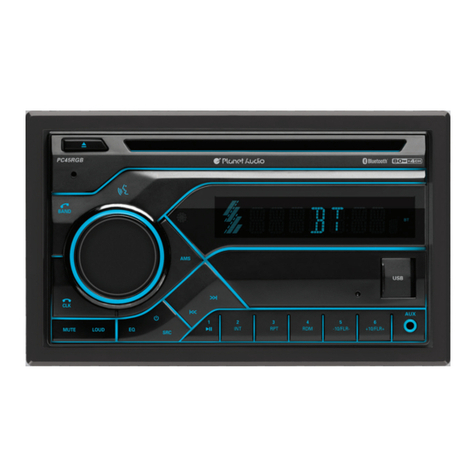
Planet Audio PC45RGB User manual

Planet Audio

Planet Audio PC45RGB User manual

Planet Audio P90CPA User manual

Planet Audio

Planet Audio P90CPA User manual

Planet Audio PI9764B User manual

Planet Audio

Planet Audio PI9764B User manual

Planet Audio P9686 User manual

Planet Audio

Planet Audio P9686 User manual

Planet Audio P9740 User manual

Planet Audio

Planet Audio P9740 User manual

Planet Audio PI9756 User manual

Planet Audio

Planet Audio PI9756 User manual

Planet Audio P9689 User manual

Planet Audio

Planet Audio P9689 User manual

Planet Audio P9685B User manual

Planet Audio

Planet Audio P9685B User manual

Planet Audio PNV9620I User manual

Planet Audio

Planet Audio PNV9620I User manual

Planet Audio P390UAB User manual

Planet Audio

Planet Audio P390UAB User manual

Planet Audio P9615BI User manual

Planet Audio

Planet Audio P9615BI User manual

Popular Car Receiver manuals by other brands

Linear Series LS5050 Operation and installation manual

Linear Series

Linear Series LS5050 Operation and installation manual

Kenwood KRC-160 instruction manual

Kenwood

Kenwood KRC-160 instruction manual

Sony XR-CA430X Service manual

Sony

Sony XR-CA430X Service manual

T+A Elektroakustik K1 CD-RECEIVER operating instructions

T+A Elektroakustik

T+A Elektroakustik K1 CD-RECEIVER operating instructions

SoundMax SM-CDM1052 instruction manual

SoundMax

SoundMax SM-CDM1052 instruction manual

Xtrons HD107HD user manual

Xtrons

Xtrons HD107HD user manual

Mopar RB3 manual

Mopar

Mopar RB3 manual

Clarion ADDZEST DMZ615 owner's manual

Clarion

Clarion ADDZEST DMZ615 owner's manual

Sony XAV-601BT Specifications

Sony

Sony XAV-601BT Specifications

PIE GM12-POD/S Operation manual

PIE

PIE GM12-POD/S Operation manual

Hyundai H-910H instruction manual

Hyundai

Hyundai H-910H instruction manual

Sony XR-C6100 Service manual

Sony

Sony XR-C6100 Service manual

Sony CDX-L600X - Fm/am Compact Disc Player Installation/connections

Sony

Sony CDX-L600X - Fm/am Compact Disc Player Installation/connections

Motorola VWA63 Service manual

Motorola

Motorola VWA63 Service manual

Sound Storm STM93R user manual

Sound Storm

Sound Storm STM93R user manual

Nextar D3201 instruction manual

Nextar

Nextar D3201 instruction manual

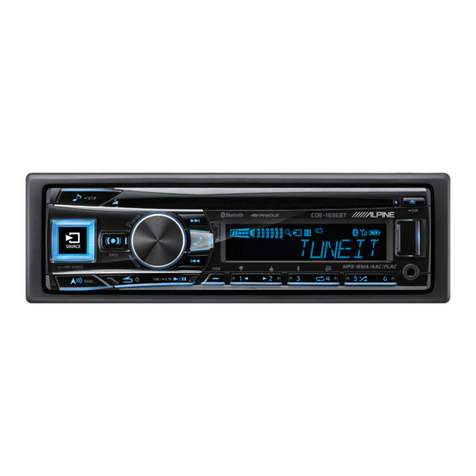
Alpine CDE-163BT owner's manual

Alpine

Alpine CDE-163BT owner's manual

Kenwood KDC-X303 quick start guide

Kenwood

Kenwood KDC-X303 quick start guide

manuals.online logo
manuals.online logoBrands
  • About & Mission
  • Contact us
  • Privacy Policy
  • Terms and Conditions

Copyright 2025 Manuals.Online. All Rights Reserved.

4
10 R - 02 1011
P9689
3.2
AUX Input
4
4
To ensure safety while driving
and to comply with laws,
drivers should not watch video or
operate the video device while driving.
Keep the volume level Iow enough to aware of
the road and traffic conditions.
Do not expose the product to water or
excessive moisture. This could cause electrical
shorts, fire or other damage.
Parking in direct sunlight can produce very
high temperatures inside your vehicle. Give the
interior a chance to cool down before starting
playback.
This product is designed to operate with a 12
volt DC, negative ground battery system (the
regular system in a North American car).
Avoid inserting any foreign objects into the slot
of this player. Failure to follow this may cause
malfunction or permanent damage due to the
precise mechanism of this unit.
E - 1
In some countries, it's unlawful to operate a
vehicle while video is displayed in the
driver's viewing area. Please always switch
the unit's display to "Font Type Display"
mode by pressing the DISP button while
driving.
For safety reason, the driver should only
enjoy / watch the video while the car is in
parking mode.
USE OF CONTROLS OR ADJUSTMENTS OR
PERFORMANCE OR PROCEDURES OTHER
THAN THOSE SPECIFIED HEREIN MAY
RESULT IN HAZARDOUS RADIATION
EXPOSURE.
DO NOT OPEN COVERS AND DO NOT
REPAIR BY YOURSELF PLEASE REFER
SERVICING TO A QUALIFIED
TECHNICIAN.
In order to avoid any accident, the driver
must not watch video while driving. This unit
is designed to not allow watching moving
video while driving. Park your car in a safe
place and engage the ‘PARKING BRAKE
WIRE' before watching moving video.
WARNINGS
When Driving
When Car Washing
When Parked
Use the Proper Power Supply
Protect the Disc Mechanism
CAUTION
CAUTION
THIS MOBILE MULTIMEDIA PLAYER IS A
CLASS I LASER PRODUCT. THIS UNIT USES
A VISIBLE/INVISIBLE LASER BEAM WHICH
COULD CAUSE HAZARDOUS RADIATION IF
EXPOSED DIRECTLY. BE SURE TO
OPERATE THE MOBILE MULTIMEDIA
PLAYER CORRECTLY AS INSTRUCTED.
CAUTION
NOTE:
1. TO REDUCE THE RISK OF FIRE OR
ELECTRIC SHOCK, DO NOT EXPOSE
THIS EQUIPMENT TO RAIN OR
MOISTURE.
2. TO REDUCE THE RISK OF FIRE OR
ELECTRIC SHOCK, AND ANNOYING
INTERFERENCE, USE ONLY THE
RECOMMENDED ACCESSORIES.
3. THIS DEVICE IS INTENDED FOR
CONTINUOUS OPERATION.

DISC AND FORMAT SUPPORTS
Wipe the disc surface
from the
Label side
Up
Do not bend
Never touch
the under side
of a disc
Note on Region Code
Disc Maintenance
Note of MP3 and WMA:
Noted of MPEG4
Audio Format
Video Format
Unsupported Discs
8 cm Disc
CDV, CDI, CDG,
LD
E - 2
NOTE
center to the edge.
This unit can play various video/audio format
which stored into Disc/USB or SD card on
Media Player.
The following chart helps you to check if a
disc is supported by this unit, as well as what
functions are available for a given disc type.
Supported decoding MPEG-4 video defined by
ISO 14496-2 Standard:
1. Simple Profile (SP) and
2. Advance Simple Profile (ASP)
Supported file format: MP4 and .M4a (audio
only)
Support Maximum 2000 files
Maximum 30 characters display
Supported Sampling frequencies; 32kHz,
44.1kHz, 48kHz.
Supported Bit-Rates: 64-256 kbps variable bit
rate
Playback IMAGE JPEG, DVD Video, MPEG4 .
On CD-ROM or Multimedia - ROM or USB or
Memory Card.
Before playing, wipe the disc using a clean
cloth, working from the center hole towards the
outside edge.
Never use benzene, thinners, cleaning fluids or
anti-static liquids or any other solvent.
A disc may become somewhat scratched
(although not enough to make it unusable)
depending on you handle it and conditions
in the usage environment. Note these
scratches are not an indication of any
problem with the player.
Digital Versatile Discs (MultiMedias)
Disc format
Video CDs (VCDs)
DigitalVersatileDiscsRecordable
(MultiMedia+/-R)
DigitalVersatileDiscsRewritable
(MultiMedia+/-RW)
Compact Discs (CDs)
CD Recordable (CD-R)
CD Rewritable (CD-RW)
MultiMedia RAM
Playback CD-DA and MP3 or WMA digital
music file on CD-ROM or MultiMedia-
USB or
ROM or
Memory Card.
MultiMedia players and
Have their own
Can playthe disc of al ALL regioncode numbers.
MultiMedia Video discs
Region Code numbers. This unit
l
E - 3
INSTALLATION
The following illustration shows a typical installation. If you have any questions or require
information regarding installation kits, consult your customer car audio dealer or a company
suppling kits.
If you are not sure how to install this unit correctly, have it installed by a qualified technician.
3
4
182mm
53mm
1
21
2
3
123
Trim Plate
Screw
Dashboard
Sleeve
Bend the appropriate tabs
to hold the sleeve firmly
in place.
Trim
Plate
Control
Panel
To attach the front panel back to the unit
chassis, firstly join the right guide block
hole to the right cylinder (Step ), then
join the left guide block hole and the left
cylinder
(Step ).
Step 1
Step 2
1
2
When you stand the unit, be careful
not to damage the fuse on the rear.
Sleeve
Disassembly
tool
Before removing the unit, release the rear section.
Removing the unit
When using the optional stay When installing the unit without
using the sleeve
Step
1
Step
2
1. Press the Panel Release Button.
2. After flipping down the front panel, push rightwards
( ), then draw the left of the panel ( ).
.
Step
1
To remove the front panel:
Step
2
Trim Plate Insert the two disassembly tools, then pull
them as illuatrated so that the unit can be
removed.
Disassembly
tools
Release
30°
Dashboard
Nut
Stay(option)
Screw(4x12mm)
Washer
Screw
Sleeve
Install the unit at an angle
of less than 30°.
Screw
Screw
Bracket
Installation using the screw holes on the sides of the unit.
Fastening the unit to the factory radio mounting bracket.
E - 4
CONNECTING THE SYSTEM
About Parking Wire
In order to avoid any accident, the driver must
not watch video while driving. This unit is
designed to not allow watching moving video
while driving. Park your car in a safe place and
engage the parking brake before watching
moving video.
CAUTION
NOTE
The Video Blocking system under Parking
Brake NOT ENGAGED only control this
unit's display, This system will not affect the
Video Output thru the rear RCA Video
Output.
TIPS
Be sure to connect Parking Brake connection
lead. ( please see more details on “ Wiring
Diagram.”)
NOTE
If watch moving video from Disc or AV In
source but Parking Brake is NOT
PROPERLY CONNECTED, the video signal
will be blocked by the system and the below
display will be show on TFT:
Tips
Be sure to connect Reverse wire properly.
(please see more details on “ Wiring
Diagram.”)
If user connected a back up camera system
to this unit, when the vehicle is in reverse
Gear (Back Up mode), the front in-dash TFT
display will automatically switch to Back Up
Camera Video signal regardless whatever
mode is currently displayed on the front in-
dash TFT.
About The Reverse Wire For
Back Up Camera System
E - 5
CONNECTING THE SYSTEM
ISO CONNECTO
SOCKET
SUBWOOFER
(See Figure 1)
R-CH
RED
WHITE
L-CH
BLACK
FRONT LINE OUT
YELLOW
YELLOW
BLUE
RED
WHITE
VIDEO OUT
VIDEO IN
FEMALE WITH MALE TERMINAL
ISO CONNECTOR 4PIN+8PIN
ISO CONNECTOR WIRING CHART
Figure 1
CONNECTOR A
CONNECTOR B
REAR
L
R
ISO MALE CONNECTOR
RED
WHITE
REAR LINE OUT
RCA TO RCA CABLE
(NOT INCLUDED)
PARKING
BRAKE ( )
2.5m extension wire
Connect to Parking Brake.
Ground
Brake
Switch
VIOLET/WHITE
REVERSE(+)
OVERRIDE
WIRE
Wiring Diagram
AUDIO IN (RIGHT)
AUDIO IN (LEFT)
AUDIO IN L
VIDEO OUT
AUDIO IN R
VIDEO IN
YELLOW
WIRE COLOR
VIOLET/BLACK
GREY/BLACK
GREEN/BLACK
WHITE/BLACK
VIOLET
WHITE
GREY
B1
B5
B4
B3
B2
B8
GREEN
B7
B6
A5
A4
PIN
BLACK
A8
RED
A7
BLUE/WHITE
LEFT FRONT SPEAKER (-)
LEFT REAR SPEAKER (+)
LEFT REAR SPEAKER (-)
RIGHT REAR SPEAKER (+)
RIGHT FRONT SPEAKER (+)
LEFT FRONT SPEAKER (+)
RIGHT FRONT SPEAKER (-)
RIGHT REAR SPEAKER (-)
FUNCTION/LABEL
REMOTE AMP WIRE(+)
CONSTANT POWER(+)
ACCESSORY POWER(+)
GROUND(-)
1
2
3
4
5
6
7
8
4
5 7
8
A
B
LIGHT GREEN
ANTENNA
JACK
E - 6
THE FUNCTIONS OF MAIN UNIT
SRC
AUX
IN
MUTE
BAND
/
MENU
SUB-W
INFO
LIST
EQ
FUNC
XBS
1
87
10 9 11 17
5
6
16
2
1415 12
13
No. Item Decriptions
(RELEASE)
ENCODER
VOLUME
FUNC
(FUNCTION)
XBS
BAND
SUB-W
MENU
INFO
1
2
3
4
Press this button to open the control panel.
Rotate the Encoder Volume Knob to increase and decrease the
volume. ( The Maximum volume level is “46”.)
Press this button to enter into the Function mode.
Hold & press this button to turn On/Off the Bass booster function.
Press and hold this button to turn On/Off the subwoofer function.
Under Tuner mode, short press this button to change between
BAND FM1, FM2, FM3, AM1(MW1) (or AM2 (MM2) if available).
Under Media playback mode, short press this button to Pause/
Resume Play the music.
5
Press this button to access into the SystemMenu mode.
Under DVD playback mode, press repeatedly to view play
information: Title--->Chapter--->Play time
/
34
P9689
ESC
DIM
E - 7
THE FUNCTIONS OF MAIN UNIT
CLOCK
MUTE
LIST
TUNE UP/DOWN
FILE UP/DOWN
FAST BACKWARD
/ FORWARD
SOURCE
EJECT
DISC SLOT
RESET
SD CARD
SLOT
ESC
DIM
POWER
EQ
6
7
8
9
10
12
13
14
15
16
17
11
Press this button to view the Clock, press this button again
to return to previous mode.
Short press this button to turn Mute or restore volume.
Under tuner mode,press this button to stored
station.
Show The List of
Under tuner mode, press and hold this button momentarily to
enter into the Auto Seek/ Manual Seek mode.
Under media playback mode, press these buttons to skip a
chapter / track / scene / file.
Under media playback mode, press and hold momentarily to
fast forward / backward the Disc.
Press this button to select different source playback mode:
TUNER / DISC / USB / SD CARD / BT AUDIO / AUX-IN
Press this button to eject the Disc.
Insert the disc into CD slot.The CD will begin to play.
User can reset the unit to its default setting. Press this button
by using a ball-point .pen or sharp object
This unit can support playback MP3/WMA/JPEG/MPEG4/
DIVX format which are stored on the SD Card.
This unit can support playback MP3/WMA/JPEG/MPEG4/
DIVX format which are stored on the USB memory stick.
This unit is allowed to connect with external Audio system
such like MP3 Player or hand phone. User can connect the
external Audio system thru the Aux-In jack on front panel.
Press this button to quick return previous menu or mode.
Hold & press this button to adjust the TFT dimmer High or Low.
Under the Media playback mode, press this button to list the
searching of Tracks or Files on the Media playback mode.
Under the DVD/MP4 mode, press this button to list the
searching of DVD Root Menu or Files on the playback mode.
Under the VCD mode, press this button to turn On/Off the
PCB function.
Press this button or any other button on the front panel
(except Release button) to turn the unit on. Hold & press this
button again to turn the unit off.
Hold & press this button to select the Preset Equalizer setting.
USB SLOT
AUX-IN JACK
E - 8
THE FUNCTIONS OF REMOTE CONTROL
No. Button Item Decriptions
1POWER ON
OFF
MUTE
SETTING
HOME
VOLUME +
VOLUME -
EQ
Press this button to turn the Mute On / Off.
Press this button to turn On / Off the unit.
Press this button enter into the Setting mode.
Press this button to enter into the HOME menu.
Press this button to increase the volume.
Press this button to decrease the volume.
Press this button to enter into the preset Equalizer setting
mode.
Under the tuner mode, press this button to access the
Manual Seek mode.
Under the media playback mode, press this button to
skip to previous / chapter. Press and hold these buttons
to play fast forward.
Under the tuner mode, press this button to access the
Manual Seek mode.
Under the media playback mode, press this button to
skip to next track / chapter. Press and hold these button
to play fast backward.
2
3
4
5
7
8
9
6
EQ
EQ
VOLUME
SUB
TITLE
SETTING
14
18
19
7
5
6
1
20
3
XBS
OK
BAND
DIMMER
LIST FUNC
FUNCTION
DVD
TITLE
DVD
MENU
DVD
AUDIO
2
21
4
9
10
12
13
11
8
16
17
15