Updated February 21, 2022
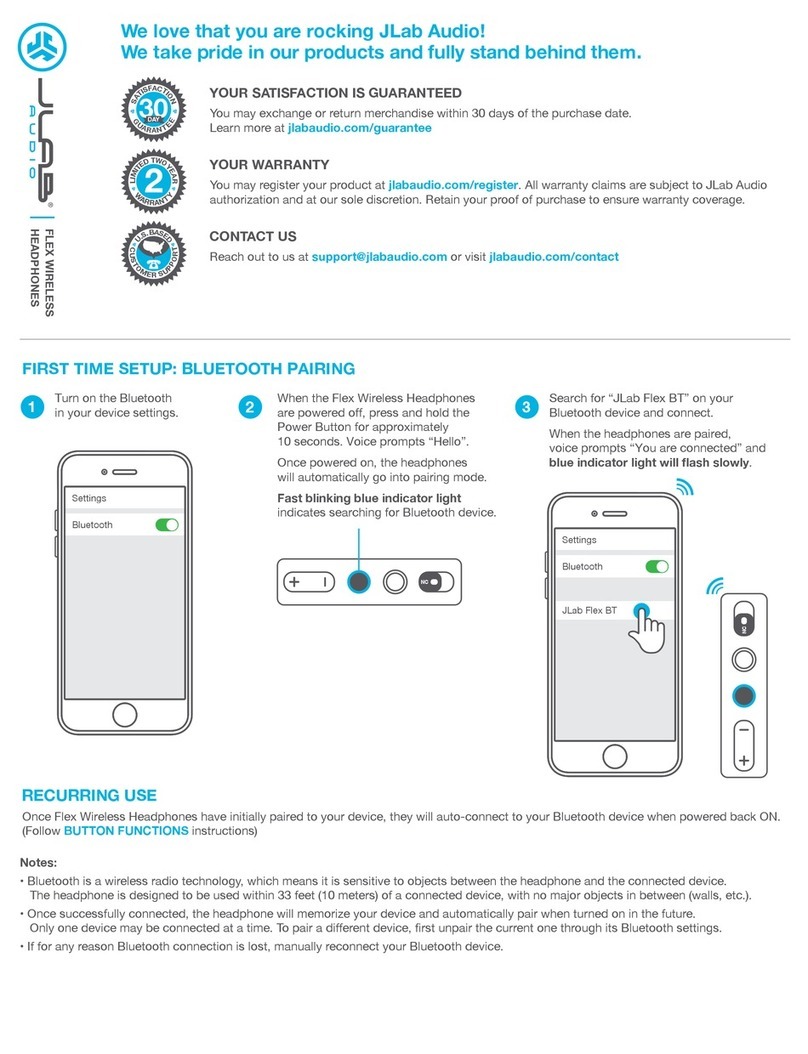
• Select “My POGS Wireless Headphones” or “POGS Gecko” from the list of
detected devices.
• Pairing is now complete and your POGS headphones will be linked to your
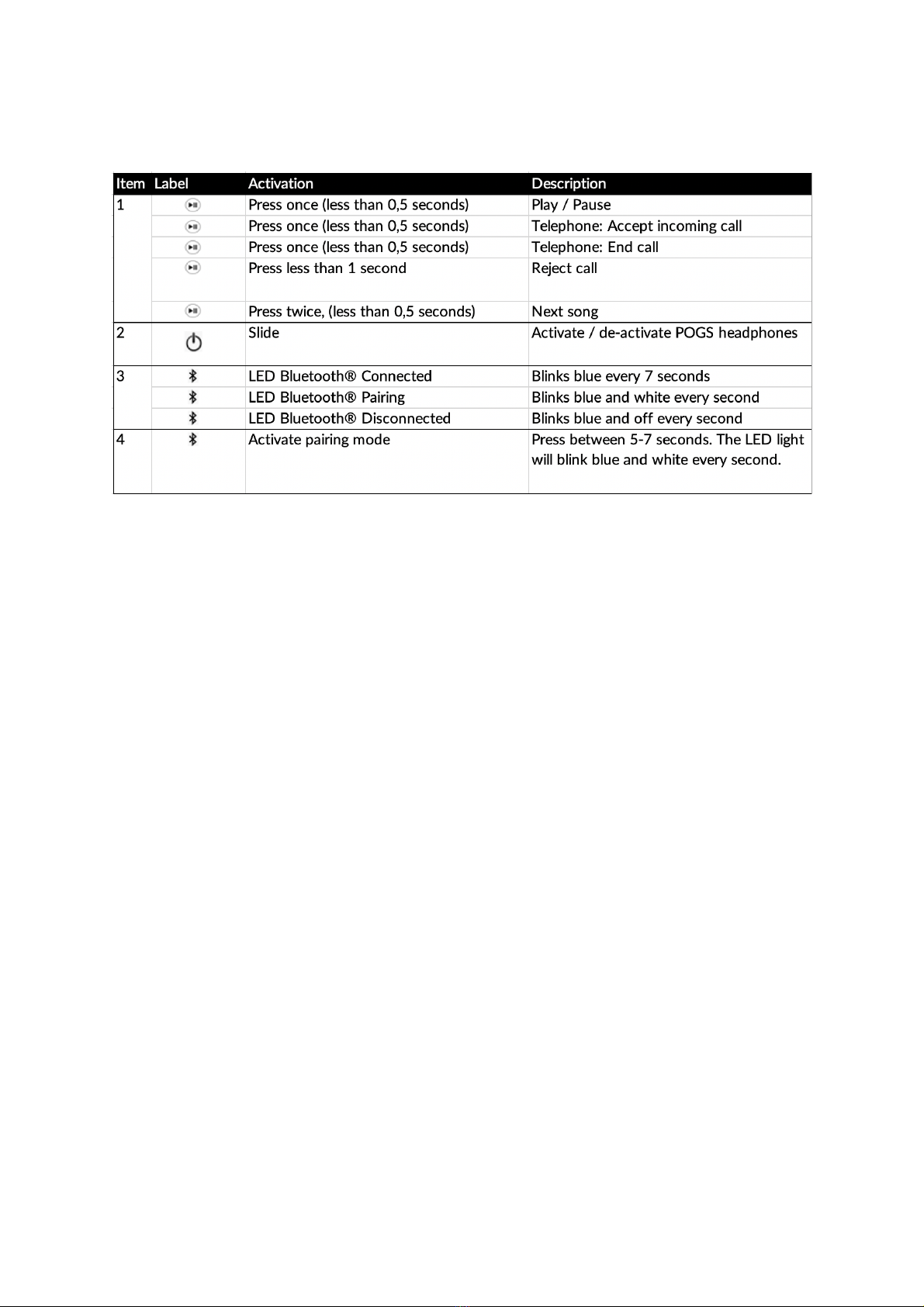
smartphone. The LED light will illuminate in blue every 7 seconds, in 1 second
intervals, which means your POGS are connected.
To end your Bluetooth® connection, either turn off the Bluetooth® function on your
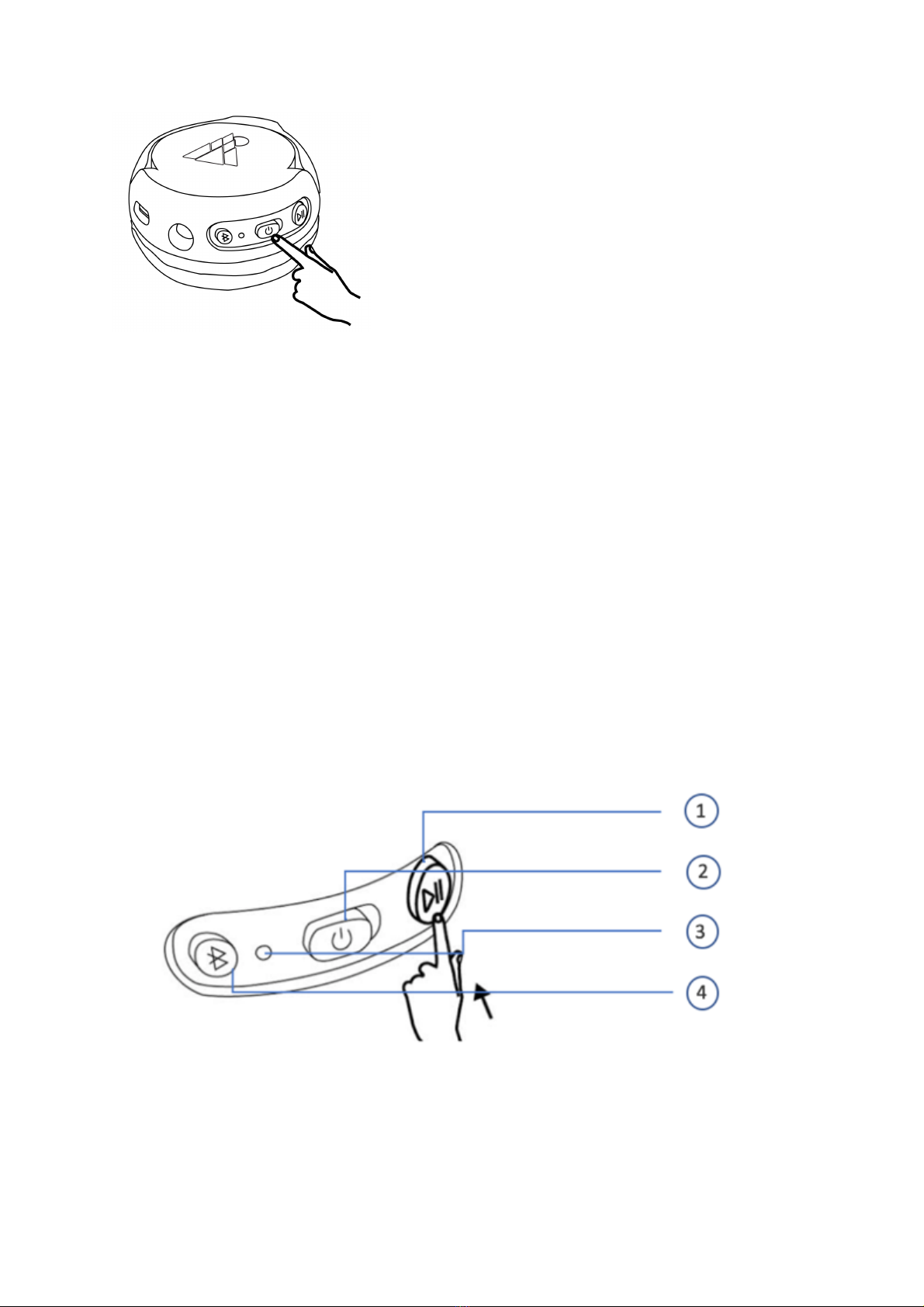
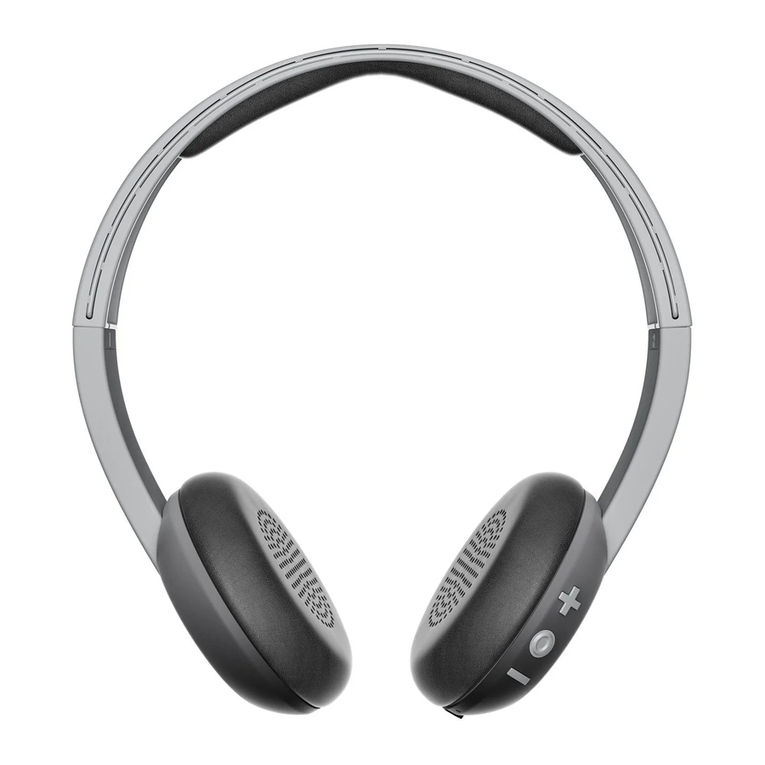
smartphone, or slide the power off button (# 2) on your headphones.
Reconnecting to a paired device
If your POGS Bluetooth® has already been connected with your smartphone or
another device, your POGS headphones will automatically reconnect to the device
when Bluetooth® is switched on.
Connection via QuickSafe cable
As an alternative to Bluetooth®, you can also connect your POGS wireless to the
round headphone jack of your smartphone using the QuickSafe cable. This cable is
included in the box and has round connectors.
The cable connection has priority over Bluetooth®. This means that if both
connections are established, the music transmitted via cable will be played back.
Select the cable connection if you do not wish or are not allowed to use the
Bluetooth® function, or if the battery is empty.
Please note: Bluetooth® on your POGS does not have to be turned on when using
the cable.
Share music with POGLink
You can share your content, like music, with another POGS headphones.
1. Connect the triangular POGLink cable to the triangular plug hole in the left
speaker.
2. Connect the other end of the POGLink cable to another POGS headphones.
Making phone calls with Bluetooth®
If your POGS ‘The Gecko’ wireless headphones are connected to your smartphone
using the Bluetooth®, you can make phone calls. Music playback will be interrupted
in the event of an incoming call and a ring tone will sound instead.
The following functions are available:
• Accept an incoming call. Briefly (<0.5 seconds) push the play/pause button.
• Reject an incoming call. Push and hold (3 seconds) the play/pause button.