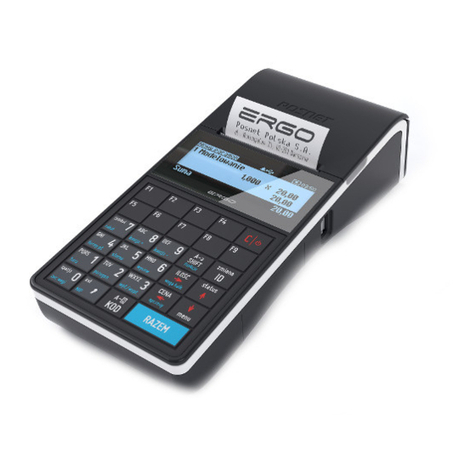
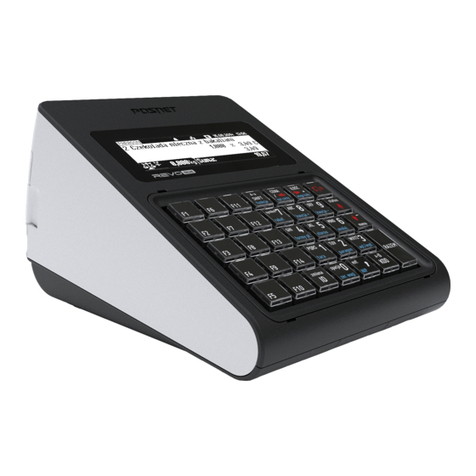
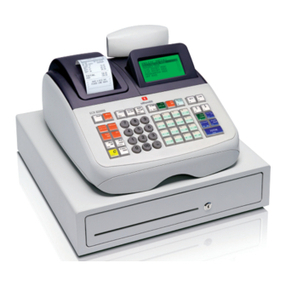
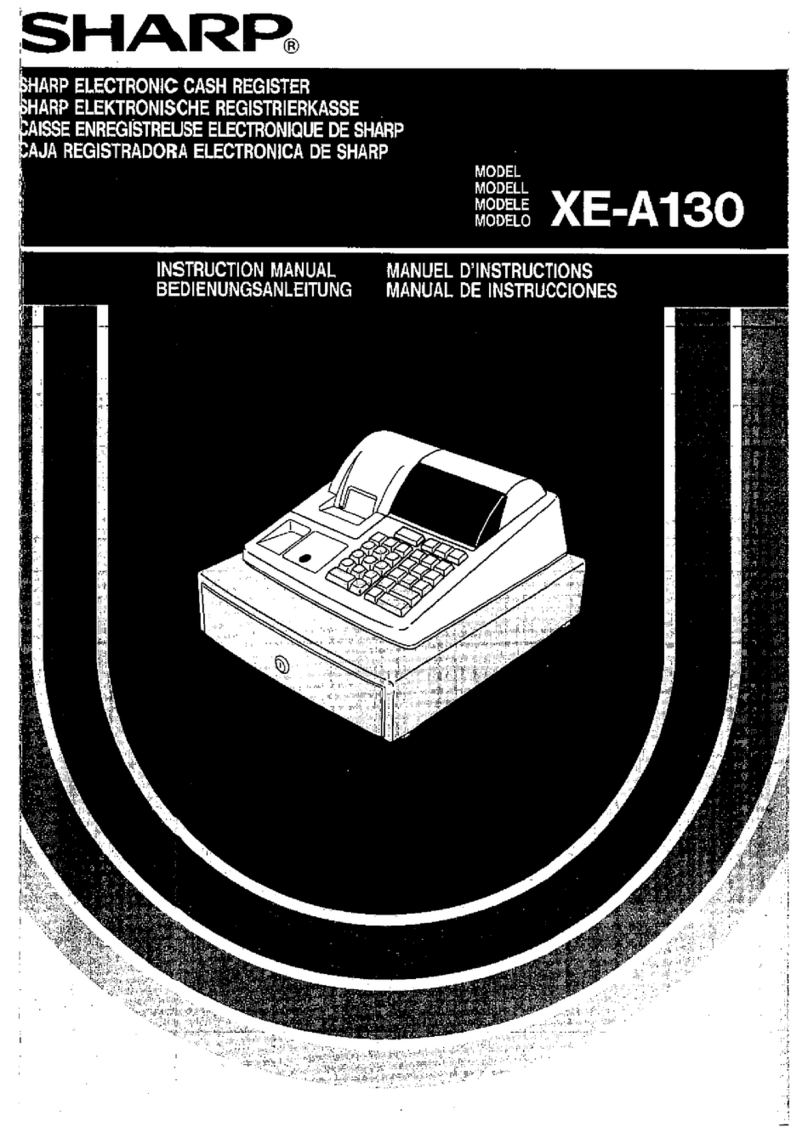
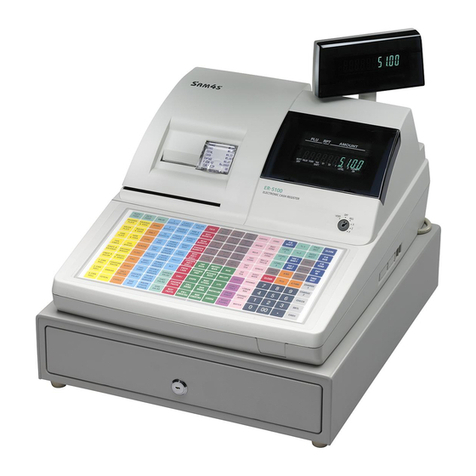
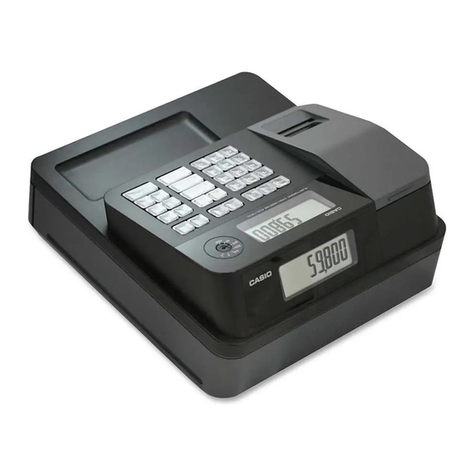
Posnet Bingo
Online register
Power
supply CD Service
Record
Paper roll Quick OnLine Guarantee
certificate
Package content
Ports
The Posnet Bingo Online register is equipped in:
power ports,
USB – communication with computer, online service,
bar code scanner, USB network card (online service).
Drawers,
COM 1, 2, 3 – bar code scanner, communication with
computer.
Ethernet – computer communication, online service.
Exchanging paper
Open the lid.
2 Place the paper roll in a chamber.
Paper rolls should be placed in a register so that
the unwound piece was placed beyond a stalk.
Close the lid.
Starting/Shutting down the device
Press [C]. The register will initiate.
With the register operating press and hold [C] for about 3
seconds - it will shut down.
Logging in
Upon launching the device, the logging window will be
displayed. Using [UP] / [DOWN] arrows select a user account
that you want to log on and press [RAZEM]. Next, enter your
password using the keypad and press [RAZEM].
Selling 1 piece of commodity with a programmed
Enter the sale mode.
Using [UP] / [DOWN] buttons select the PLU number
and confirm [RAZEM].
2
Press the [RAZEM] key twice to end a transaction.
Selling goods quoting price and quantity
Enter the sale mode.
2 Using the keypad enter the commodity quantity and
accept with [ILOŚĆ] key.
3 Using the keypad enter the commodity price and
accept with [CENA] key.
4 Using the keypad enter the PLU code and accept with
[PLU].
Press the [RAZEM] key twice to end a transaction.
Choosing the discount/mark up from a data base
Enter the sale mode.
2 Press the [MENU] key twice using [UP] / [DOWN]
arrows, chose the item "2 Rabaty z bazy” and confirm
with [RAZEM].
3 Using the [UP] / [DOWN] arrows choose a
discount/mark up and confirm with [RAZEM].
4 Using the keypad enter the PLU code and accept with
[PLU].
Press the [TOTAL] key twice to end a transaction.
Chosing the discount/mark up manually per an
Enter the sale mode.
2
Press the [MENU] key twice using [UP] / [DOWN]
arrows, chose the item "3 Rabaty z ręki” and confirm
with [RAZEM]. Next, in the same way chose the type
of discount/mark up.
3 Using the keypad enter the amount of discount/mark
up and accept with [RAZEM].
4 Using the keypad enter the PLU code and accept with
[PLU].
Press the [RAZEM] key twice to end a transaction.
Commodities programming
Log in as "Kierownik”.
2
Using the keys [UP] / [DOWN] chose a item
"2 Kierownik” and confirm with [RAZEM]. Next, using
the same keys select “2 Programowanie baz”
"1 Towary”.
3 Using [UP] / [DOWN] buttons select the PLU number
and confirm [RAZEM].
4 Using the keypad enter the commodity name and
accept with [RAZEM].
5 Using [UP] / [DOWN] buttons select the rate (A,…,G)
and confirm [RAZEM].
6 Using the keypad enter the commodity price and
accept with [RAZEM]. 0.00 open price.
7 Enter using a keyboard or scan a code and confirm
with [RAZEM].
Successive parameters specify using keys: [UP]
/ [DOWN] and confirm choices with [RAZEM].
8 Chose the package number. 0 - the package won't be
assigned.
9 Chose the PLU form: 0 – 1; 1 – 0.1; 2 – 0.01;
3 – 0.001.
10 Discount/markup for PLU: 1. “Tak” (Yes); 2. “Nie”
(No).
11 Chose the discount/markup number 0 -
discount/markup won't be assigned.
Fixed price: 1. “Nie” (No); 2. “Tak” (Yes).
Chose a group number.
14 Chose the unit of measure number. 0 - the unit won't
be assigned.
Confirm the "Zapisz” position with [RAZEM].