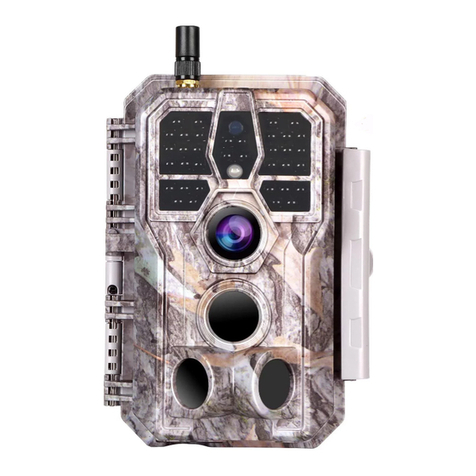
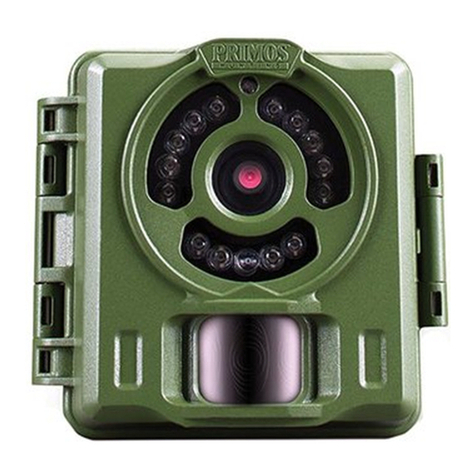
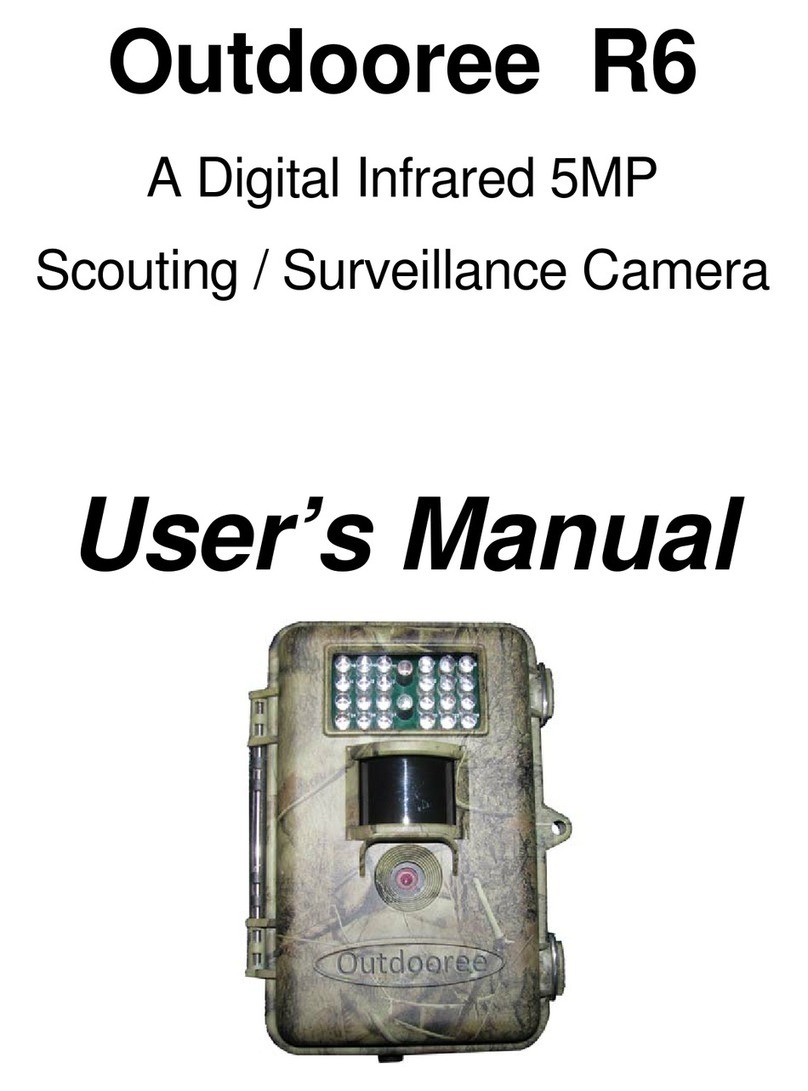
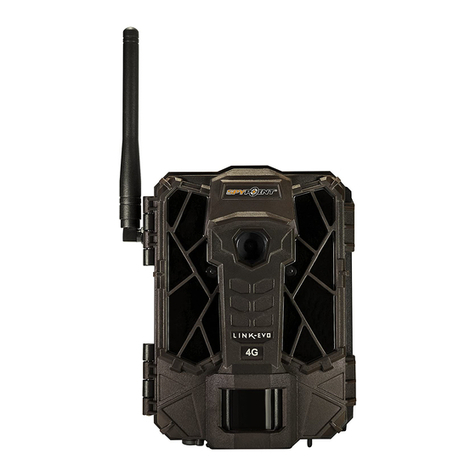
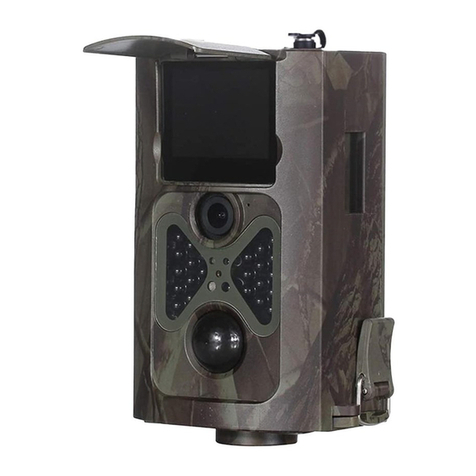
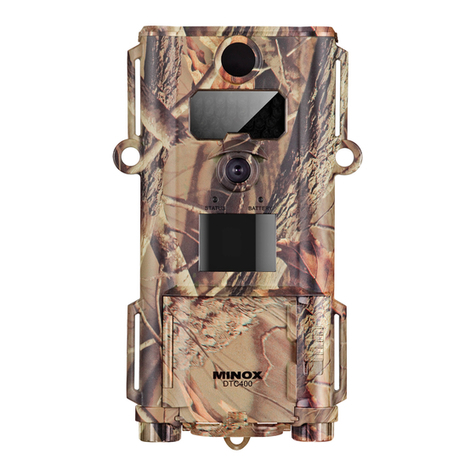
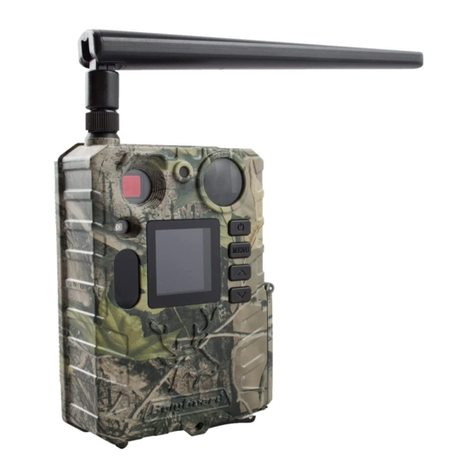
1. IN THE BOX
1x Trail Camera, 1x 32GBSD Memory Card, 4xAA Alkaline Batteries, 1x
Mounting Strap, 1x Base of Stand Set, 1x USB Cable,
1x Instruction Manual
Note: (Memory card has been inserted into the card slot)
2. IMPORTANT NOTE
Require four (4) 1.5V AA Alkaline or Lithium batteries. We recom-
mend using Energizer AA Lithium batteries in this camera to maxi-
mize battery life.
Do not mix old and new batteries.
Do not mix battery types.
Rechargeable AA batteries are NOT recommended as they may pro-
duce lower voltage, which can cause operational issues.
Remove batteries when the camera is NOT in use.
Require a regular SD memory card (maximum capacity of 128GB,
Class 6 or above). We recommend using SanDisk 32GB SDHC/Class
10 memory cards in the camera for optimal cost-performance.
Before use, please remove the protective films on the front of the
camera to ensure the best performance.
3. INTRODUCTION
3.1. ABOUT THE CAMERA
The Punvoe JDL201 trail camera is a new generation of digital
scouting camera. It can be triggered by any movement of game in a
location, detected by a highly sensitive Passive Infra-Red (PIR)
motion sensor. The camera then takes high quality pictures , with
still photos up to 24MP, and records 1080P 30fps video clips with
audio.
The Camera features the innovative and ultra-clear Sony imaging
technology. It incorporates new software innovations such as
smart illumination technology, blur reduction technology, auto
noise reduction, and dynamic exposure technology. These
advancements deliver high-resolution image quality, multi-zone
detection, pre-activated technology, and fast boot time, resulting
in a 0.2s fast trigger speed and 0.5s recovery time.
In a stand-by (surveillance) state, the camera consumes very little
power, less than 0.1mA. With 4 AA 1.5V batteries, it can provide up
to 6 months of standby operation time.
Main features:
• High-quality pictures (up to 24MP still photos) or full HD video clips
with audio. The camera is equipped with a Sony Starlight sensor, a
premium F1.6 aperture lens, and an exclusive imaging optimization
algorithm, enabling clear photos or videos even in low-light or dark
environments.
• Clear night vision with a flash range of 75ft. The camera is
equipped with 22 high-performance infrared no-glow 850nm LEDs
that function as a flash (invisible to human eyes).
• Easy to use/program with well-designed operation buttons and a
built-in 2.0-inch LCD color screen, making it convenient to review
pictures and videos.
• Two working modes: Motion detection and Time lapse. Fast trigger
time of approximately 0.2-0.6 seconds and fast recovery time of less
than 0.5 seconds. Long trigger distance of up to 75ft.
• Info strip on each capture includes Date, Time, Temperature &
Moon Phase.
• Time lapse feature and password protection.
• Built for any climate: IP66 waterproof design for outdoor use and
resistant to rain and snow. Operating temperature range: -22 ° F to
+158°F.
• Supports SD/SDHC/SDXC memory cards, with a maximum capaci-
ty of 128GB.
• Extremely long in-field battery life of up to 6 months in a stand-by
state with 4 AA 1.5V batteries.
3.2. APPLICATIONS
The camera can be used as follows:
• For hunting: Capture animals' tracks or behavior in their natural
habitat.
• For wildlife observation and research: Capture pictures and videos
of wild animals.
• As a sports camera: Suitable for activities such as riding, driving,
camping, or exploring.
• As a motion-triggered security camera: Ideal for home, farm,
office, and community surveillance.
• Suitable for both indoor and outdoor surveillance where evidence
of intrusion is required.
4. PARTS AND CONTROLS
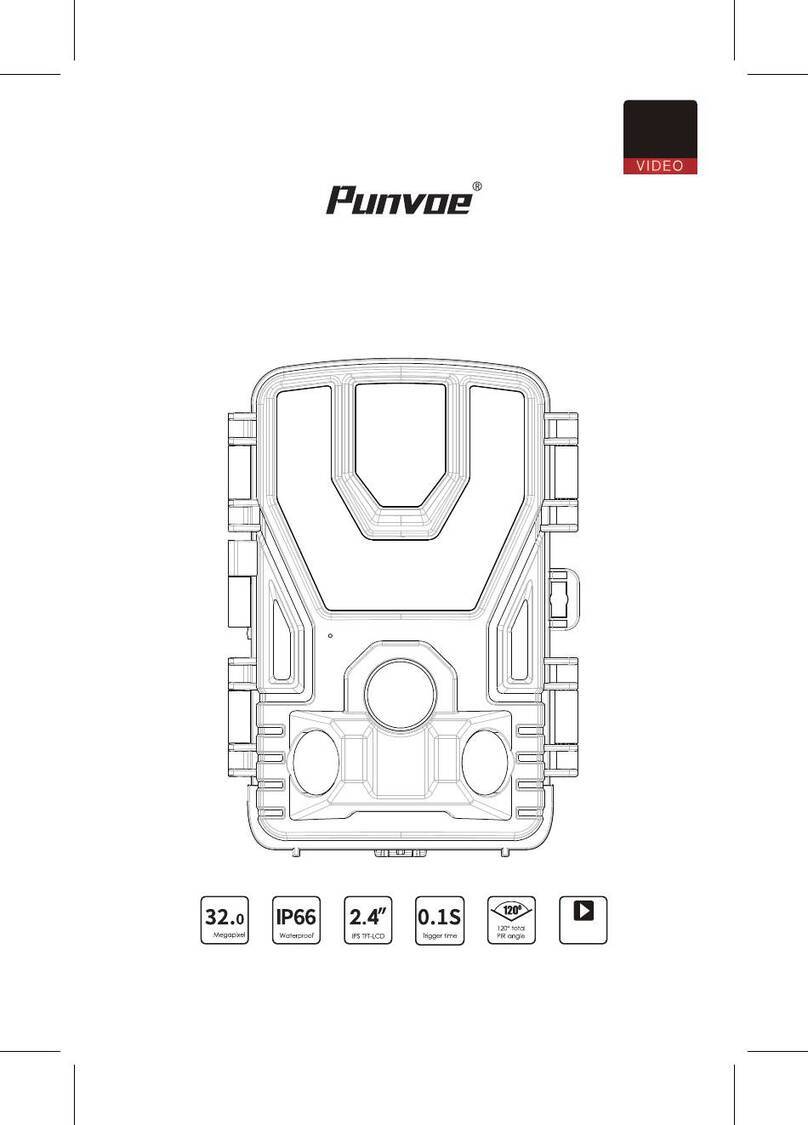
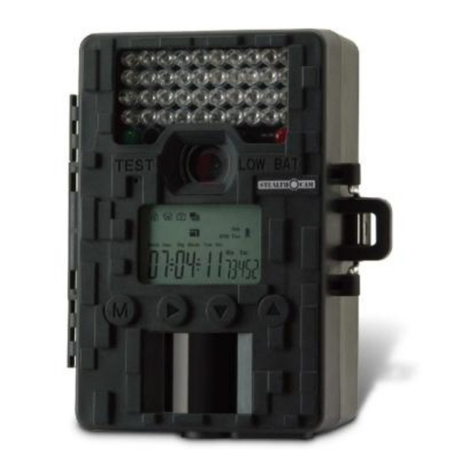
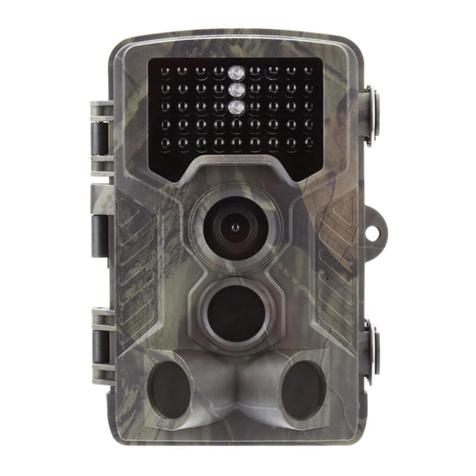
The camera is equipped with 22pcs built-in high efficiency infrared
LEDs, LED Indicators, Lens, PIR Sensors, Lock Holes in front view
(Figure 1).
The camera provides the following connections for external devic-
es: USB port and SD card slot etc. (Figure 2).
The camera has 2 strap holes on the back. The strap can be put
through the strap holes and fastened securely around the tree
trunk by pulling the end of the strap firmly (Figure 3).
A 3-way power switch is used to select the main operating modes:
OFF, ON, and SETUP (Figure 5).
A control key interface with six keys is primarily used in SETUP
mode to select operational functions and parameters. As shown in
Figure.5, the keys can also perform a second function (shortcut
operations in SETUP mode) in addition to their main function.
5. INSTALLING THE BATTERIES AND SD CARD
Before you begin learning how to use your camera, you will first
need to install a set of batteries and insert an SD card.
Although that may only take you a minute, there are some import-
ant notes about both batteries and SD cards you should be aware
of, so please take the time to read the following directions and cau-
tions:
5.1. LOADING BATTERIES
After opening the cover of the battery compartment, you will see
that the camera has four battery slots (Figure 6). A full four batteries
must be installed for the camera to operate. Be sure to insert each
battery with correct polarity (negative or "flat" end against the long
spring of each battery slot).
The camera takes 1.5V AA Lithium or Alkaline batteries. We
recommend using 1.5V Lithium AA batteries (Energizer brand) to
get maximum batteries lifetime. NiMH Rechargeable can also be
used, but they might have a shorter life span due to their reduced
efficiency over time and at low temperature, and would not work
for night video recording.
On SETUP mode when battery power level gets low, the message
"Low Battery" will show on the screen, please replace the batteries.
NOTE: If the battery charge drops to 1/3, the Night Vision function
will automatically turn off. You can check the remaining power in
the bottom right corner of the screen. Please be aware that during
nighttime operation, the camera utilizes built-in IR LEDs, resulting
in higher power consumption compared to daytime use. Therefore,
it is recommended using 1.5V AA lithium batteries, specifically 4
Energizer brand batteries, as they last two to three times longer
than regular batteries.
5.2. INSERTING THE SD CARD
Insert the SD card (with the camera's power switch in the OFF posi-
tion) before beginning to operate the camera. Don't insert or
remove the SD card when the power switch is in the ON or SETUP
position. The camera uses a regular memory card to save photos
(in . jpg format) and/or videos (in .AVI format). SD and SDHC (High
Capacity)/SDXC cards up to a maximum 128GBcapacity is support-
ed (Figure 7).+
The following describes how to insert and remove the SD card:
• Insert the SD card into the card slot with its label side upwards. A
"click" sound indicates that the card is installed successfully. If the
wrong side of the card is facing up, you will not be able to insert it
without force, there is only one correct way to insert cards. If the SD
card is not installed correctly, the device will not display an SD card
icon on the screen in SETUP mode. Formatting Memory card by
using the camera's "Format" parameter in the menu settings before
using it for the first time is recommended, especially when a card
has been used in other devices.
• To take out the SD card, just gently push in the card (do not try to
pull it out without pushing in first). The card is released from the
slot and ready to be removed when you hear the click. Be sure the
camera's power is switched OFF before inserting or removing SD
cards or batteries.
6. USING THE CAMERA
Once you have prepared your camera by properly installing batter-
ies and an SD card, you can simply take it outside, strap it to a tree
(or not, depending on your application scenario), switch it on, and
leave. This way, you may capture some great photos that precisely
match your expectations. However, we highly recommend spend-
ing some additional time indoors with this manual and your camera
to familiarize yourself with the functions of the 3-way switch and
control keys. Understanding these features will enhance your
camera usage.
At the very least, we suggest setting the date and time so that they
can be imprinted (or not, as per your preference) on your photos as
they are taken. It would also be beneficial to learn how to switch the
camera to shoot video clips instead of still photos, if desired. Addi-
tionally, reading some tips on how to mount the camera on a tree
can provide valuable insights.
7. THE OFF, ON, AND SETUP MODES
The camera has three basic operational modes:
• OFF mode: Power switch in the OFF position.
• ON mode: Power switch in the ON position.
• SETUP mode: Power switch in the SETUP position (screen is on).
7.1. OFF MODE
The OFF mode is the "safe" mode when any actions must be taken,
e.g., replacing the SD card or batteries, or transporting the device.
And of course, when you are storing or not using the camera, you
will switch it to OFF. Please note that in the OFF mode the camera
consumes little power. It's a good idea to take the batteries out of
the battery compartment if the camera will not be used for a long
time.
7.2. ON MODE
Anytime after the batteries and SD card have been inserted, you
can switch on the camera. When the power switch is moved to the
middle position, the camera will enter into the ON (Surveillance)
mode. The camera will countdown 5-second delay and then be
ready to capture images.Once in the ON mode, no manual controls
are needed or possible (the control keys have no effect). The
camera will take photos or videos automatically (according to its
current parameter settings).
You can either move the power switch directly from OFF to ON
mode, or stop at the SETUP position first to change one or more
settings, then move the switch to ON after you have finished doing
so.
7.3. SETUP MODE
In the SETUP mode you can check and change the settings of the
camera with the help of its built-in screen. These settings, found in
the menu by pressing MENU key, let you change the photo or video
resolution, interval between photos, switch the time imprint on,
etc. (See more in Section 8 ADVANCED SETTINGS).
Moving the power switch to the SETUP position will turn on the
screen display, and you will see an information screen that shows
how many images can be taken, the battery level, camera or video
mode, etc.
Attention please: In SETUP mode, the camera will automatically
Turn off the screen if there is no operation (key pressing) within 2
minutes.
In the SETUP mode, you can connect the camera to a computer's
USB port to download your images.
Shortcut Keys/Functions
As mentioned earlier in "Parts & Controls", the keypads have
secondary, "shortcut" functions when the camera is switched to
SETUP mode:
• Press the OK key to quickly set the camera to shoot video clips.
• Press the UP/Down key to quickly set the camera to take still
photos.
• Press the SHOT key to manually trigger the shutter. This is useful
for testing the camera.
• Switch it to the SETUP which is the middle, and press the PLAY
button to play back photos and videos, not in the off or on. Press
the DOWN or UP button to move through the photos. Finally press
the OK key to exit the playback.
8. ADVANCED SETTINGS
The trail camera comes with preset manufacturer settings. You can
change the settings to meet your requirements. Please make sure
that the camera is in the SETUP mode. Once the camera screen is
on, press MENU key to enter/exit the menu. Press the UP/DOWN key
to change the setting, and press the OK key to confirm the change.
Always remember to press the OK to save the change. Otherwise
you will lose your new setting.
Parameter
Photo or
Video
Photo
resolution
Photo
series
Video
resolution
Settings
(Bold=default)
Photo
Video
Photo+Video
Smart Best
Photo
24MP
16MP
8MP
5MP
01, 02, 03,
Smart Best
Photo
1080P
720P
Description
Select whether still photos or video
clips are taken.
Select desired resolution for still
photos from 2 to 24megapixels. Higher
resolution produces better quality
photos, but creates larger files that take
more of the SD card capacity. Larger
files require longer time to write to the
SD card, which will slightly slow the
shutter speed.
Select the number of photos taken in
sequence per trigger in Camera mode.
Select video resolution (pixels per
frame). Higher resolution produces
better quality videos, but creates larger
files that take more of the SD cardca-
pacity.
Video
Length
Audio
recording
Shot lag
Sensitivity
motion
sensors
5seconds,
Optional from
3s to 10m
On
Off
1 minutes,
optional from
5s to 60m
High
Middle
Low
Videos are in AVI format that can be
played back on most video players(
VLC/Irfanview etc.).
Note: Night videos are limited to a
maximum of 30 seconds to conserve
the batteries. If set video length higher
than 30 seconds, e.g. 60 seconds, the
max recording length at night keeps 30
seconds.
Selecting On will record video with
sound.
Select the shortest length of time that
the camera will wait until it responds to
any subsequent triggers from the PIR
sensor after a game is first detected.
During the selected interval, the
camera will not take pictures/videos.
This prevents the SD card from filling
up with too many redundant images.
Note: this option is invalid if Mode is set
as "Time Lapse"
The"High" level will make the camera
more sensitive to infrared (heat) and
more easily triggered by motion, the
"Low" level makes it less sensitive to
heat and motion. The"Middle" is for
average or moderate conditions.
Commonly, the"High" level is suitable
when the ambient temperature is
warm and little interference (interfer-
Timelapse
Date/Time
On
Off
optional
from 1s to
24h
Y/M/D
hh:mm
ence such as windy), and the "Low"
level is helpful in cold weather.
Note: this option is invalid if Mode is set
as "Time Lapse"
When the "Time Lapse" feature is
enabled, the camera will automatically
take photos/videos according to the
set interval (1 Min ~ 24 Hours can be
set) regardless of whether the motion
sensor has detected any game.
For example, after setting the interval
time to 1H, and the camera will take a
photo or record a video every hour
(confirm whether to take a photo or
record video based on your work
mode), the camera will take 24 photos
within 24H.
This is helpful when observing
cold-blooded animals like snakes, or
the process of flowering etc.
Note: Too small interval set in the Time
Lapse Settings will enable to take more
pictures, but can consume more
battery power then reduce battery life
accordingly
Note: this mode will disable motion
detection.
M ‒ Mont
D ‒ Day
Y ‒ Year
hh ‒ Hour
mm ‒ Minute
Press the MENU button to access the
menu options. Use the navigation
buttons to select the "Time & Date"
option and press the OK button to
enter the settings. Adjust the time and
date according to the local time. To
modify a specific value, use the
UP/DOWN buttons to navigate to the
desired field and press the OK button
to select it.
Use the LEFT/RIGHT buttons to modify
the value of the selected field. For
example, for the hour or month, you
can increase or decrease the value.
After making the necessary modifica-
tions, press the OK button to confirm
and save the changes. To set the time
format, follow these additional steps:
In the "Time & Date" settings, find the
option for time format (12 or 24-hour
format). Use the OK button to select
the desired time format.
If the 12-hour format is selected, the
captured images and videos will
display AM and PM watermarks.
For example, in the 24-hour format, the
time and date would be displayed as
"March 8, 2023, 15:46:29", while in the
12-hour format, it would be displayed
as "March 8, 2023, 3:46:29 PM".
Date
Format
Time
Format
Serial NO
Photo
Stamp
Target
recording
time
Password
D/M/Y
M/D/Y
Y/M/D
12h
24h
On
Off
Time&date
Date
Off
On
Off
On
Off
Select date format which will be shown
on the screen and each capture.
Select time format which will be shown
on the screen and each capture.
12h - AM/PM
Select On to assign a 4-character long
in the form of Capital A-Z, 0-9 to record
the location in the photos (e.g. A123 for
Yellow Stone Park). This helps
multi-camera users identify the
location when reviewing the photos
Select On to show date, time, tempera-
ture, moon phase on each capture.
Select On if you only want the camera
to work within a specified time period
every day. For instance, if the starting
time is set at 18:35 and the ending time
at 8:25, the camera will function from
18:35 the current day to 8:25 the next
day. Outside the time period the
camera will not be triggered or take
photos/videos.
Set up a 4-digit password to protect
your camera from unauthorized users.
If the code is lost, turn the power
switch to "OFF" at first. Then press
"MENU" button and "PLAY" button at
the same time (Don't let go of your
Format
memory
Card
Reset
Settings
Version
After-sales
Yes
No
Yes
No
Defined
fingers) and turn the power switch to
"SETUP". Password will be cleared
automatically when the camera starts.
All files will be deleted after formatting
the SD card. Highly recommend you
format the SD card if it has been used
previously in other devices.
Caution: make sure wanted files on the
SD card have been backed up first!
Selecting Yes will return all your
previous settings back to the manufac-
turer default.
Display the version of the camera.
support@Punvoe.com