QAT RS3 User instructions

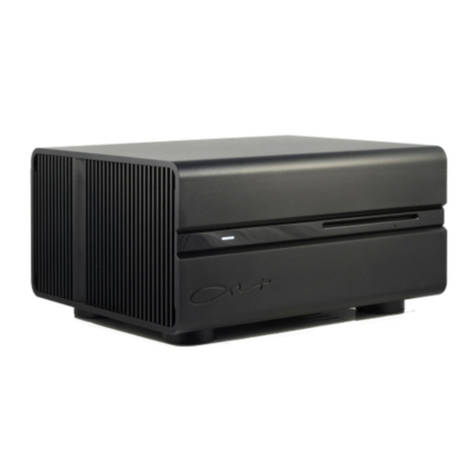
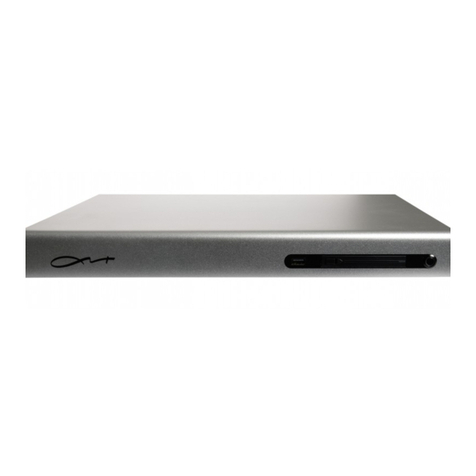
QAT MUSIC SERVER
QAT RS3 Connection Settings
QAT Audio Technology Ltd.
2 F, Red Tower, North Creek Park,
Lize West Street, Wangjing, Chaoyang District,
Beijng China. Zip: 100102
+86 10 8429 4566
English Version

APP DOWNLOAD
Please visit our website www.qat-audio.com to download the app for Android directly.
For iOS Devices, you can find the link to the Apple Store on our website for both
iPhone and iPad devices, or you can search “QAT” on the Apple Store.
Getting started
1. Operate by Central Control Software
Connect RS232 plug from the Central Control Equipment to the RS3 rear panel, then operate
RS3 by Central Control Software.
About QAT’s interface protocol please contact QAT Service Team.
Email: service@qat-audio.com
Step 1. Open the settings menu on your device (iPad / Android Pad), select WLAN settings,
and then connect to your Music Server’s SSID.
Step 2. Enter the initial password “qatqatqat”. Wait until it’s connected, then return to the
home screen and tap the QAT app.
Wait about 10 seconds you should now be connected to your Music Server and can change the
password of your SSID to a secure password of your liking, which can be done easily with the
QAT remote control app.
2 .AP Mode Connection
Insert USB Wireless Adapter to any rear panel USB port of the Music Server, which allows
using our QAT app on the iPad or on Android devices to control the Music Server.
WLAN
Home 1
Home 2
QAT-XXX-XXXX
QAT RS3 Connection Settings Page 1
Please make sure you've downloaded the latest version of our "QAT" remote control app and
also that the Music Server is switched on.

3. Cable Mode connection
Insert a Ethernet cable to RJ45 port on rear panel of RS3. Make sure this cable from a
proper working wireless router.
For example: This router’s SSID is Home 1
Step 1. Open the settings menu on your device (iPad / Android Pad), select WLAN settings,
and then connect to your router’s SSID.
Step 2. Enter the Home 1’s password. Wait until it’s connected, then return to the home screen
and tap the QAT app.
Wait 10 seconds you should now be connected to your Music Server.
WLAN
Home 1
Home 2
* VERY IMPROTANT : Please visit http://www.qat-audio.com/download-video.html
to watch more videos about connection ways.
QAT RS3 Connection Settings Page 2

QAT Audio Technology Ltd.
2 F, Red Tower, North Creek Park, Lize West Street, Wangjing, Chaoyang District, Beijng China
Zip:100102·+86 10 8429 4566·[email protected]
Other manuals for RS3
2
Table of contents
Other QAT Server manuals