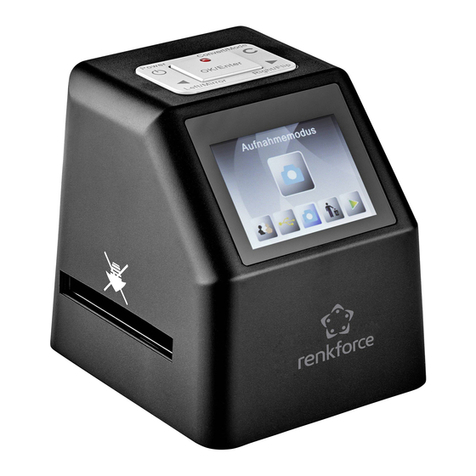
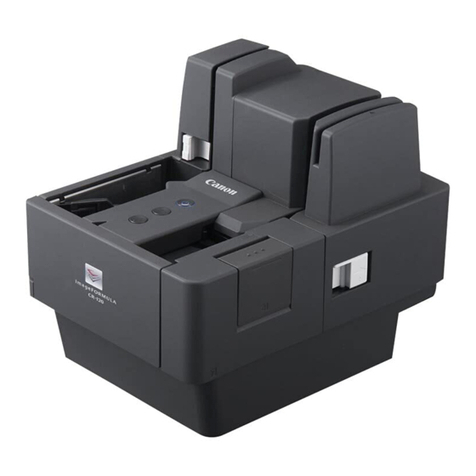
Racing Electronics RE1000 User manual

INDEX
1. GENERAL....................................................................................................................1
2. Know your scanner.......................................................................................................1
3. LCD Full Display ..........................................................................................................2
4. OPERATION ................................................................................................................3
4.1 Power on/Power off................................................................................................3
4.2 Volume Alignment...................................................................................................3
4.3 CAR channel Select...............................................................................................3
4.4 Key-lock .................................................................................................................3
4.5 CAR channel Scanning function.............................................................................3
4.6 CAR Scan List Setting............................................................................................4
4.7 Set squelch level....................................................................................................4
4.8 Set battery saving ..................................................................................................4
4.9 Set To [MRN] Station..............................................................................................4
4.10 Set radio’s channel spacing .................................................................................5
4.11 LCD Back light......................................................................................................5
4.12 Reset....................................................................................................................5
5. CAR CHANNEL SETTING...........................................................................................5
5.1 Frequecy setting.....................................................................................................5
5.2Channel name setting .............................................................................................5
5.3 PL/DPL setting .......................................................................................................6
5.4 LOCK OUT setting .................................................................................................6
6. Programming................................................................................................................6
7. Clone............................................................................................................................6

1
1. GENERAL
Frequency range: 400 - 480 MHz
Number of Channels: 200 channels
Channel Spacing: 12.5k
Battery: AAA batteries * 3PCS
Data inputting to scanner: PC programmer, Clone
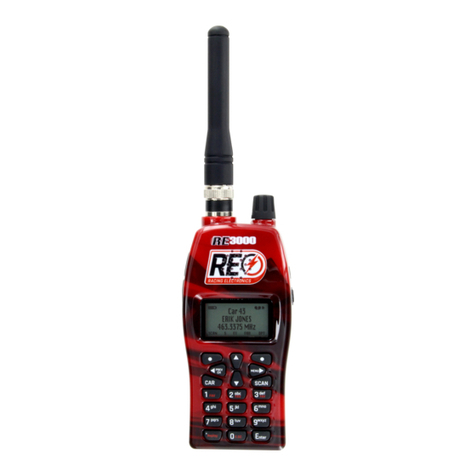
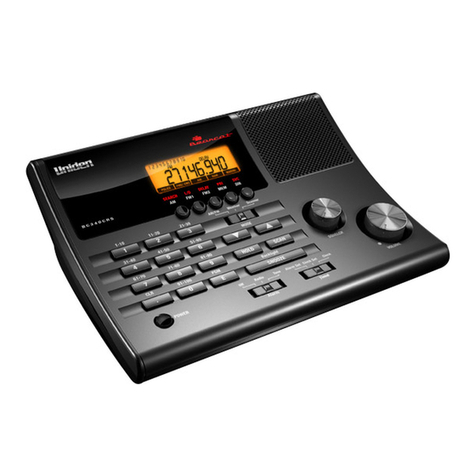
2. Know your scanner.
*0 Enter
9wxyz
8
7tuv
pqrs
4ghi 5jkl 6mno
def
3
2abc
1
1) POWER & VOLUME SWITCH
2) Car Key
3) UP Key
4) Down Key
5) Scan Key
6) Function Key
7) SQ key
8) Earphone Jack
9) Programming Jack
10) Microphone
11) Antenna
12) Battery Door
13) Battery Lock
14) Belt Clip

2
3. LCD Full Display
1. ---Operating channel, volume level indicator
2. --- Receiving signal strength indicator.
3. CAR ---- CAR channel indicator
4. ---Signal indicator
5. --- “Key Lock” function indicator.
6. Sc ---- Scan List & scan function indicator
7. ----Narrow band indicator
8. --- Wide band indicator.
9. --- Battery capacity indicator.

3
4. OPERATION
4.1 Power on/Power off
Turn “Power” knob clockwise to turn on the radio. Turn it with anti-clockwise to turn off the radio.
The “click” sound to indicate the power 0n/Off. The LCD will indicate “RE 1000 RENTAL (see Figure
(1), could be changed by PC program).
(1)
4.2 Volume Alignment
Press & hold “SQ” button, set the SQ off & speaker has the background noise on, tune the volume
knob clockwise to increase speaker level. Tune the volume knob anti-clockwise to decrease
speaker level.
FCC Caution:
Any Changes or modifications not expressly approved by the party responsible for compliance
could void the user’s authority to operate the equipment.
This device complies with part 15 of the FCC Rules. Operation is subject to the following two
conditions: (1) This device may not cause harmful interference, and (2) this device must accept any
interference received, including interference that may cause undesired operation.
4.3 CAR channel Select
Press “Digit” + “Enter” buttons to the desired CAR channel, (1~ 200 car channels), Press “ “or
“ “ button to choose the previous or next CAR channel. ---Press and hold “F” button can check
frequency (see LCD indicator Figure (2)). LCD shows the driver name of the car channel if it has
been programmed. When pressing the “ “or “ “button, radio will skip the car channel that is
not programmed. Typing the CAR channel number, the frequency will flash, then press “Enter” to
store this setting. Pressing “F” + “CAR” , users could set PL/DPL for each CAR channel.
(2)
4.4 Key-lock
Press and hold the “F” button, then press “ ” button to the Key-lock function on, press again to
quit this function. When key lock is on, the icon “ ” will on, it will disable all the buttons except
“F” , “ “ & “SQ”.(See LCD indicator in Figure (3) )
(3)
4.5 CAR channel Scanning function

4
At CAR channel mode, press “SCAN” button to scan the “CAR Scan List”, press “ “ or
“ “ button to choose the scan channel fequence increasing or decreasing. Press “SCAN“ button
again will stop the scan function, and will go back to the channel before scanning. But if signal
received during the scanning, pressing “SCAN” button, radio will stop at this channel. (See LCD
indicator in Figure (4-1))
The scan frequency shows & icon [Sc] flashes during scanning, it will stop if signal received. When
signal disappears, it will hold two seconds then continue the scan function.(See LCD indicator in
Figure (4-2) )
(4-1) (4-2)
4.6 CAR Scan List Setting
Press “ “ or “ “ button to choose the desired CAR channel , press “F” + “SCAN” buttons to
add into or delete from the scan list. The LCD “Sc” icon turns on when this CAR channel is set into
Scan List. (See LCD indicator in Figure (5-1) & (5-2) )
(5-1) (5-2)
4.7 Set squelch level
Press “F”+”2” buttons to the SQ level setting mode. Press “ “or “ ” button to choose level 1~3
(Level 1 has the highest sensitivity), press “Enter” button to store the setting & go back to previous
channel. The default setting is level 1 which is programmed by program software(See LCD indicator
in Figure( 6) )
Note: During this setting, “SCAN”, digit buttons will be disabled, and error tone will be heard when
pressed.
(6)
4.8 Set battery saving
Set by PC programmer. The cycle of battery saving are as below: Level 1 is 100ms on & off, Level 2
is 100ms on & 200ms off, Level 3 is 100ms on & 300ms off, level 0 is on all of time.
4.9 Set To [MRN] Station
Press “F” +” MRN “ buttons to [MRN station], Press “F”+” MRN“ buttons again will go back to
previous channel,The MRN frequency could be changed by PC programmer. This channel has to
be program by program software only, the LCD indicate [PRN/MRN] in this mode.(See LCD
indicator in Figure (7) )

5
Note: At the “MRN” mode, press “SCAN” button, it will go to car channel scanning.
(7)
4.10 Set radio’s channel spacing
Could be set by PC programer. The icon is 12.5KHz channel spacing. The icon is 25KHz
channel spacing.
4.11 LCD Back light
Press “F”+ “ ” to turn on the back light, Press “F“ + “ “ button again to turn off .
4.12 Reset
Press & hold “F”+”SQ” buttons & turn on the power switch. The reset function are including CAR
channel, name, tone squelch, 450MHz regular frequency, battery saving.LCD full display during
reset on.
5. CAR CHANNEL SETTING
Press “F”+”CAR” to enter in the setting menu.There are four settings in the setting menu:
CAR channel frequency, CAR channel name, PL/DPL , LOCK OUT.
5.1 Frequecy setting
Type the frequency by keyboard, then press enter to store the setting and go to next setting. The
[CAR] icon will be flashing & indicate the CAR number/ [operating frequency] during the frequency
setting,(see LCD indicator in Figure (8-1))
Note: If typed frequency is out of the frenquency range, it will go back to the previous frenquency. If
the typed frequency is wrong in step, it will go to the right frequency automatically. For example,
when channel spacing is set to 12.5Khz, key in [450.0125] will be accepted, key in [450.0010] won’t
be accepted and will go to [450.0000] automatically.
(8-1)
5.2Channel name setting
Type the channel name, then press “ Enter” button to store the setting and go to the next setting.
When typing the channel name, press “ Sc” button to store the typed letter and go to the next letter,
and press” CAR” button to delete the typed letter. It will indicate the CAR number & driver name
during this [Driver Name] setting mode (each digit be flashing before edit).( See LCD indicator in
Figure (8-2))
Note: The name length could be 12 letters. And name letters are all in capital.

6
(8-2)
5.3 PL/DPL setting
Press “ “or “ ” button to choose 51 PL tone or 104 DPL codes.Press “Enter” to store the
settting and go to the LOCK OUT setting. The LCD will shows the PL tone or DPL code.(See LCD
indicator in Figure (8-3)&(8-4) )
(8-3) (8-4)
5.4 LOCK OUT setting
press “ “ “ , “ to choos ON /OFF,When CAR CAHNNEL is set to LOCK OUT ON, press
“ ” or using scan function , the LOCK OUT channel would be skipped.(LCD indicator in Figure
(8- 5)& (8- 6) )
(8-5) (8-6)
Note: During all these settings, press” F” +” CAR” button to store the settings and exit the
setting memu. After each setting, if no button pressed within 10 seconds, it will quit the
setting & go back to the channel before setting.
6. Programming
Connect the radio to PC through program cable, then you can go to the programming mode. The
LCD show [PROGRAM] indicator when pragramming the data.(See LCD indicator in Figure (9) )
(9)
7. Clone
(1) Press “F”+”1” buttons to the clone mode.
(2) Connect the clone cable between two radios through 2.5φstero jack.
(3) Once using the Clone, pressing” Enter” button, the radio will enter into the Master mode and

7
send the data to another radio, and the other one will be like programming. Press”Enter” again,
radio will perform the clone function again.Or press “F” button, it will quit the cloning mode.
(4) During this mode, the master’s LCD will show [CLONING] indicator, and the programming radio
will show [PROGRAM]. After data cloned, the master’s LCD will show[CLONE], and the
programming radio will show [PROGRAM SUCCEED] or [PROGRAM FAIED] then go back to
normal mode.
FCC Caution:
Any Changes or modifications not expressly approved by the party responsible for compliancecould
void the user’s authority to operate the equipment.
This device complies with part 15 of the FCC Rules. Operation is subject to the following twoconditions:
(1) This device may not cause harmful interference, and
(2) This device must accept anyinterference received, including interference that may cause undesired
operation.
Table of contents
Other Racing Electronics Scanner manuals