-DSX2-v2.0-0A-E 255-60-0002-00-RoHS
5. At the admin > prompt, enter config and at the next
prompt enter network.
6. At the admin > config > network > prompt, enter
interface if lan1 ipauto none ip <ip
address> mask <mask> gw <gateway ip
address>
To use DHCP, enter interface if lan1 ipauto
dhcp
7. Give the device a name to help identify it.
Enter "name devicename <DSX2 name>".
Up to 32 characters are supported for the name. Spaces
and special characters not supported.
8. At the admin > config > network prompt, enter
quit to get into upper menu admin > config, then
enter time.
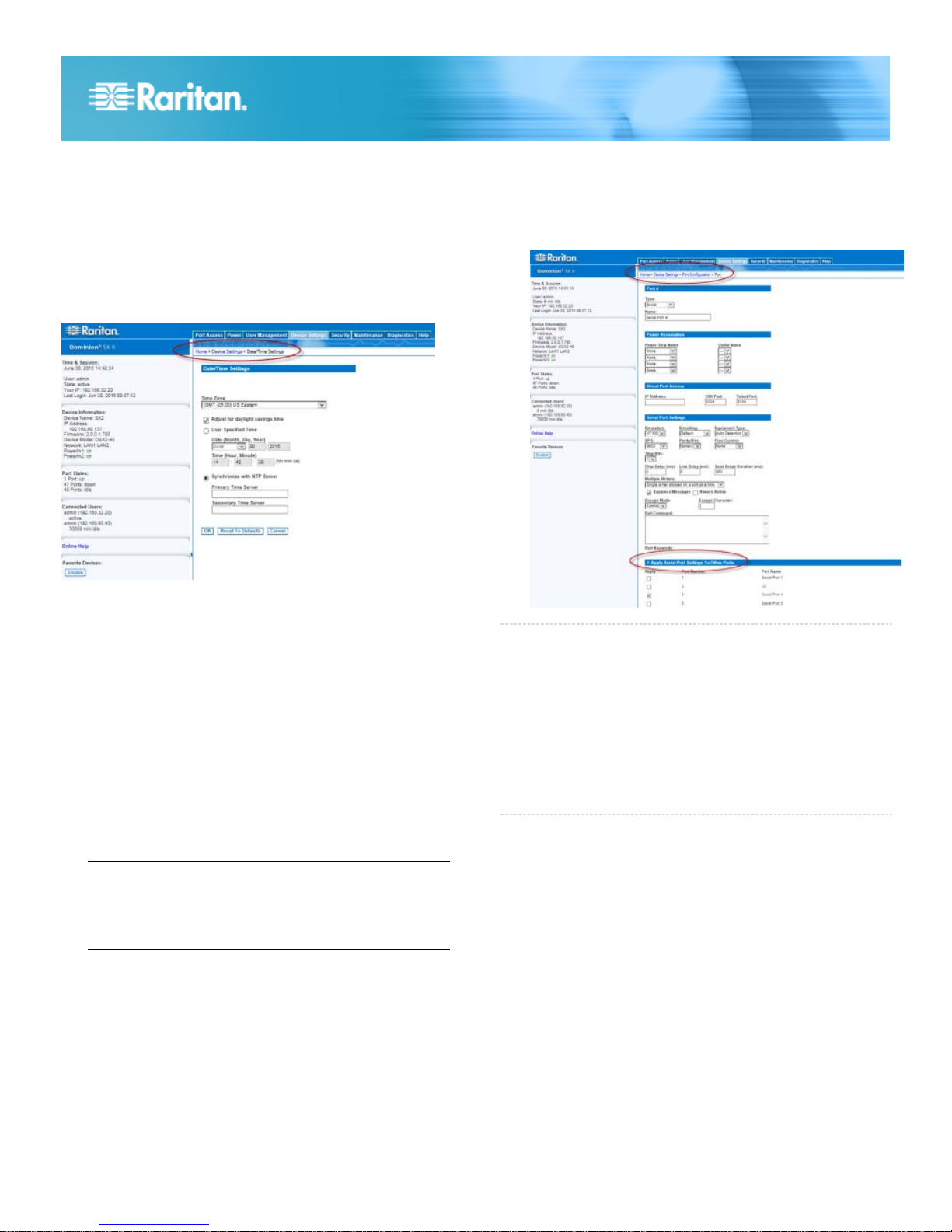
9. At the admin > config > time > prompt, set the
date and time on the SX II.
Enter timezonelist and find the number code that
corresponds to your time zone.
Enter clock tz <timezone code> date <date
string> time <time string>
where <timezone code> is the time zone code,
<time string> is the current time in "HH:MM:SS"
format and <date string> is the current date in
"YYYY-MM-DD" format (quotes included, uses 24-hour
time).
Example: clock tz 9 date "2015-08-15" time
"09:22:33"
10.Enter top to return to the top level prompt.
11.Next, enter config and then enter ports at the next
prompt.
You can now configure each server port that has a target
device connected to it.
12.Enter config port then hit ?to see the port parameters.
For example:
config port 1 name cisco1700 bps 9600
parity odd flowcontrol none emulation
vt100
You can also use port ranges or the wildcard asterisk *,
such as config port * bps 115200
This configures all ports for a communications speed of
115200 bps.
Or
config port 3-7 bps 115200
This configures ports 3 through 7 for 115200 bps.
Or
config port 1,2,7-9 bps 115200
This configures ports 1, 2, 7 through 9 for 115200 bps.
Repeat this step for each port with a device connected to
it.
13.When done, enter top to return to the top level prompt.
To configure the SX II using a web browser:
The first time you configure SX II, if you are connecting from
the LAN port on laptop to the LAN1 port on SX II using a
crossover cable, do the following -
1. Use cross-over cable to connect your laptop from its LAN
port to the LAN1 port on SX II.
2. Set the laptop's LAN port's Static IP to 192.168.0.191
and its Network Mask to 255.255.255.0.
3. Open a browser and enter this URL: http://192.168.0.192
4. When the Login window appears, enter the default
username admin and password raritan. Use all lowercase
letters.
5. You are prompted to change the default password. Do so
now, and be sure to remember this password for future
login.
6. Select Device > Network Settings.
7. You can give the device a name to help identify it. Up to
64 characters are allowed, but special characters and
spaces are not supported.
8. In the Network Basic Settings panel, select an IP
configuration method.
By default, SX II is set to None, so it uses a static IP
address.