Reel HD SLAYER User manual

HD SLAYER
OWNERS MANUAL

Join the ever growing Reel Camera’s community and share
your footage at reelcameras.com/community
Share hints, tips, and skills, at the Reel Camera’s
community base at www.reelcameras.com/blog
capture it :share it :relive it
REELCAMERAS.COM

THE BASICS
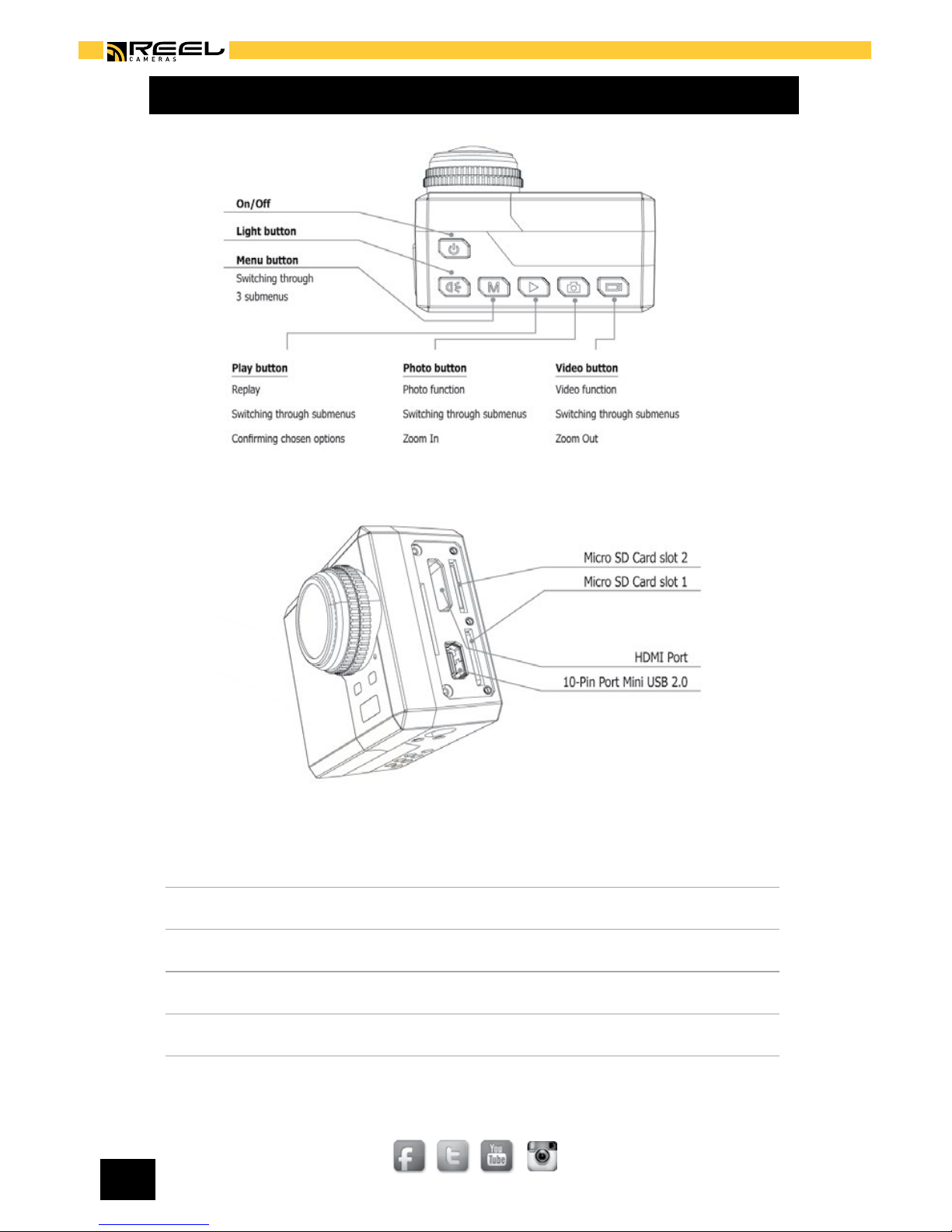
Picture of the HD Slayer highlights functions / buttons
PREPARING YOUR HD SLAYER
Mounts and accessories included
The HD slayer battery
Memory Cards
Accessing and using the menu
System settings
Screen Icons
RECORDING WITH YOUR HD SLAYER
Video recording / formating
Zoom
Photo recording
Waterproof housing and underwater use
RELIVING HD SLAYER FOOTAGE
View / playback video and photos
Copy / transfer video files (MS Windows / MAC)
Delete video and photo files
UPDATING YOUR HD SLAYER
Firmware updates
Exchanging the lens
FAQ AND CUSTOMER SUPPORT
TECHNICAL DATA
IMPORTANT WARNING MESSAGES AND SAFETY ADVICE
1
1
2
2
3
4
5
6
7
8
9
9
10-11
12
13
13
14
14 & 16
15
15
15
17-18
19
20
TABLE OF CONTENTS
capture it : share it : relive it
REELCAMERAS.COM
©2013 REEL CAMERAS
[1]
THE BASICS
Turn camera on / off: Press and hold [on button] for 3 seconds until
LCD screen comes on
Start / stop recording: Press [video button]
Capture photo: Press [camera button]
Access playback: Press [play button}
Access camera menu: Press and hold [M button] for 3 seconds
Turn LED light on / off: Press [light button]

©2013 REEL CAMERAS
[2]
capture it : share it : relive it
Go really professional and utilize a huge variety of mounts and accessories
available at www.reelcameras.com
MOUNTS AND ACCESSORIES INCLUDED
Your HD slayer comes with mounts and accessories that enable you to
immediately start recording like a pro.
Handlebar mount:
Helmet mount:
Sticky mounts:
PREPARING YOUR HD SLAYER
#RC301
RAM SUCTION CUP
#RC302
RAM HANDLE BAR
#RC303
RAM ROLL

REELCAMERAS.COM
©2013 REEL CAMERAS
[3]
The HD Slayer comes with a recyclable Li-Po battery. The battery is
designed to fit tightly inside the HD slayer.
The battery level is displayed in the top right corner of the screen. When
the battery is empty the camera will power off. If you are recording the
camera will save the current clip before powering off.
CHARGING THE BATTERY
The HD Slayer comes with a partially charged battery. To charge the
battery:
1. Use the USB charger to connect the camera to a computer or power
source.
2. The status LED light will turn red to indicate the camera is charging.
3. The status LED light will turn green once the camera is fully charged
From empty it requires three hours of charging to get a full battery.
While charging, you can use all the camera’s features and record video or
take photos.
REPLACING THE BATTERY
1. Remove the battery cover by using the switch
on the side of the camera
2. Pull out the battery and replace
THE HD SLAYER BATTERY
©2013 REEL CAMERAS
[4]
capture it : share it : relive it
The HD Slayer uses micro SD cards to store data. It is compatible with
both microSD and microSDHC cards with a capacity of 2GB, 4GB, 8GB,
16GB, and 32GB.
The HD Slayer is compatible with all speed class ratings, however we
recommend using a micro SD card with a speed class rating of 10 or
higher to ensure all the data is accurately captured. We recommend
branded SD cards.
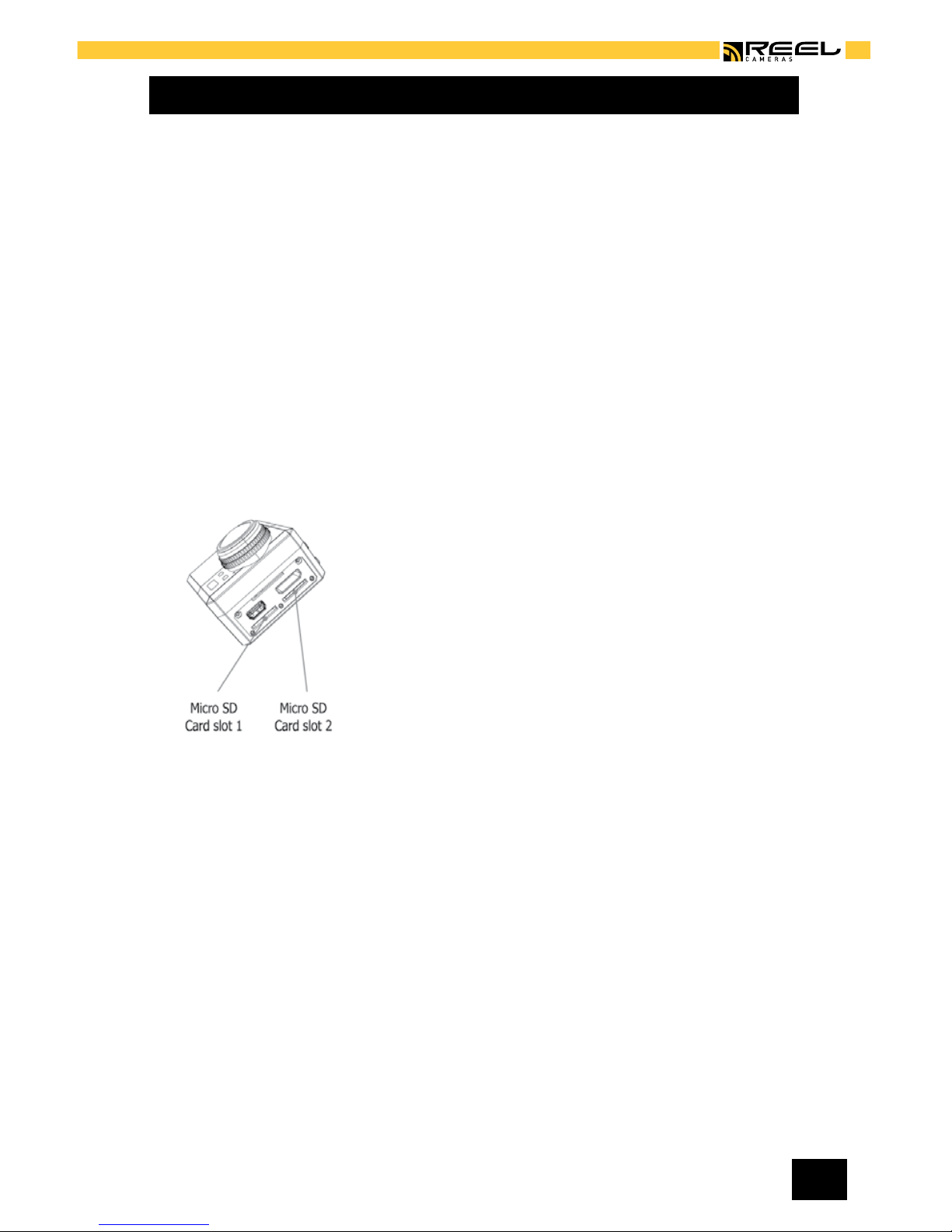
One of the features of the HD Slayer is its dual micro SD slots. With two
32GB micro SD slots you have the potential of a 64GB capacity when
recording. Your HD Slayer will automatically switch to the 2nd card when
the 1st card is full.
INSERTING A MEMORY CARD
1. Lift the soft plastic cover on the side of the
camera
2. Insert micro SD or MicroSDHC into either
port with label facing the back of the camera.
The card will click into place when inserted.
3. Inserted memory cards will be displayed with
the card icons 1 and 2 at the bottom of the
LCD screen. The red screen icon indicates no card is correctly inserted.
The white card screen icon indicates a card correctly inserted.
4. A flashing card icon indicates which card is currently being used by the
HD Slayer for recording.
REMOVING A MEMORY CARD
Removing the memory card while the HD slayer is recording can result in
loss of data. To remove, press fingernail against the edge of the memory
card and it will come out far enough to be fully removed.
MEMORY CARDS
REELCAMERAS.COM
©2013 REEL CAMERAS
[5]
To access the menu settings press and hold the [M button] for three
seconds.
The menu is divided into three different tabs, indicated at the top of the
screen (photo, video, and system settings).
By pressing the [M button] you can switch between the different tabs.
To exit the menu, press and hold the [M button] for three seconds.
When looking at the screen in the menu mode:
Press [ESC] to scroll between tabs
Press [directional arrows] to scroll between menu items
Press [double arrow] to select individual menu item
Press [directional arrows] to change item settings
Press and hold [ESC] to go back one step and to exit menu
To access the system settings first press and hold [M button] for 2
seconds to access menu mode. Press [M button] twice more to access
system settings.
Language: English, French, German, Spanish, Italian, Dutch,
Norwegian, Russian
Date / Time: Date and time can be manually changed
Auto Screen Off: Sets the screen to automatically switch off to save
battery: Off, 30, 60 or 120 Sec after last button is
pressed.
ACCESSING AND USING THE MENU
SYSTEM SETTINGS

©2013 REEL CAMERAS
[6]
capture it : share it : relive it
SYSTEM SETTINGS (CONT.)
Auto Screen Power Off: Sets the camera to automatically switch off: Off,
60 Sec., 120 Sec. or 300 Sec. after last
button pressed.
Motion detection: Sets the camera to detect motion and assists
with camera focusing:Off, low, medium or high
Image rotation: Flips the image for recording with the camera
upside down: Regular or Rotation 180
Image mirror: Reverses the image as if looking in a mirror:
Regular or mirror
Light Frequency: When filming indoors ensure light frequency is
set correctly: 60Hz for North and Central
Americas, 50Hz for rest of the world.
Video System: NTSC or PAL
OSD: Displays icons ON or OFF
LED Indication: Switches front LED ON or OFF.
Format Card: Formats the card in SLOT 1 or SLOT 2. All
recorded data will be deleted.
Default Settings: Restores the camera to its original factory
settings
Firmware Update: Update firmware when camera is connected to a
computer and the update file is available

REELCAMERAS.COM
©2013 REEL CAMERAS
[7]
Through a sequence of icons you can immediately check the current
status of your HD slayer. Across the top of the screen information on
battery life and current recording is displayed. Along the bottom of
the screen information about SD card use, time, storage capacity, and
recording settings are displayed.
SCREEN ICONS
ZOOM
The HD Slayer has a built in 4 x zoom that enables you to get closer to
the action.
To zoom in press and hold the [camera button]
for three seconds. You can zoom in either before
or during recording.
To zoom out press and hold the [video button] for
three seconds. You can zoom out either before or
during recording.
Note: that the zoom mode is not available when the video is set to 1080p
or in PAL mode.
Table of contents