•What if Alexa is not responding? !
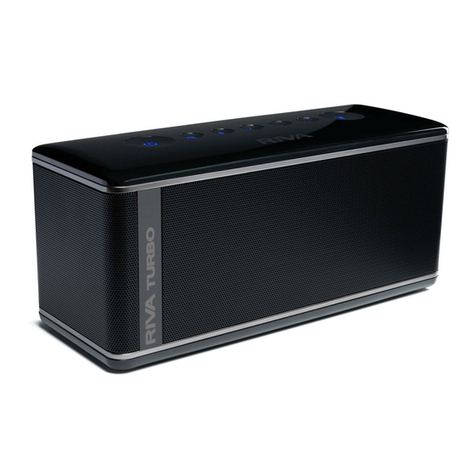
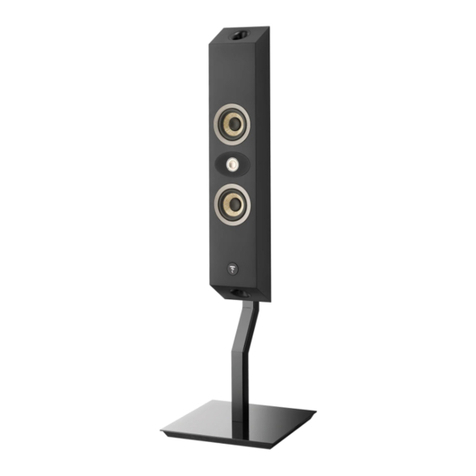
1. Make sure the RIVA logo on the front of the Concert is not RED.
If RED, you are in the Privacy Mode. Tap the button on the
top of the speaker to deactivate this. The RIVA logo will no
longer be RED. If this does not resolve the issue, continue to
the next step.!
2. Say “Alexa” to the Concert speaker. If the RIVA logo pulses
WHITE, the speaker has lost its connection to your Amazon
account. !
•Open the RIVA Voice app and check to see that you
“Speaker is ready for commands” under the speaker name.
•Press the small gear icon next to the speaker name to go to
the settings page.
•In the Alexa settings section, tap on the Amazon Login. It will
take you to a page where you can tap on the “Logout”
button in the upper right corner.
•Once logged out, you’ll see an Amazon login button on the
lower right corner, which you can press to re-login to your
account. If this does not resolve your issue, continue to the
next step.!
3. Follow the previous step to logout of your Amazon account
through the RIVA Voice app.
•Do not log back in.
•Close your RIVA Voice app and open the Amazon Alexa app.
•Navigate to the list of devices registered to your account.
Once there, you’ll need to de-register the Concert speaker
from your account.
•Go back and open your RIVA Voice app and log back into
your Amazon account through the RIVA Voice app.
•If this does not resolve your issue, contact RIVA Customer
Support here or at 844-438-7482.