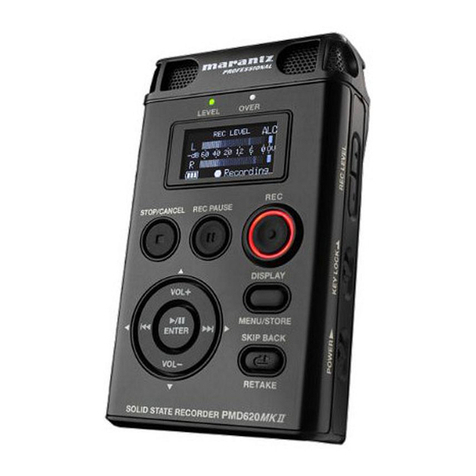
PRODUCT MANUAL Mi9 Mini Voice Recorder : SB-VR9100
Page 9
www.SafetyBasement.com Phone: 877-345-2336 Fax: 888-236-2524
SET THE DATE AND TIME
You’ll rst want to set the Date and Time for your Mi9. Remember, your Date and Time
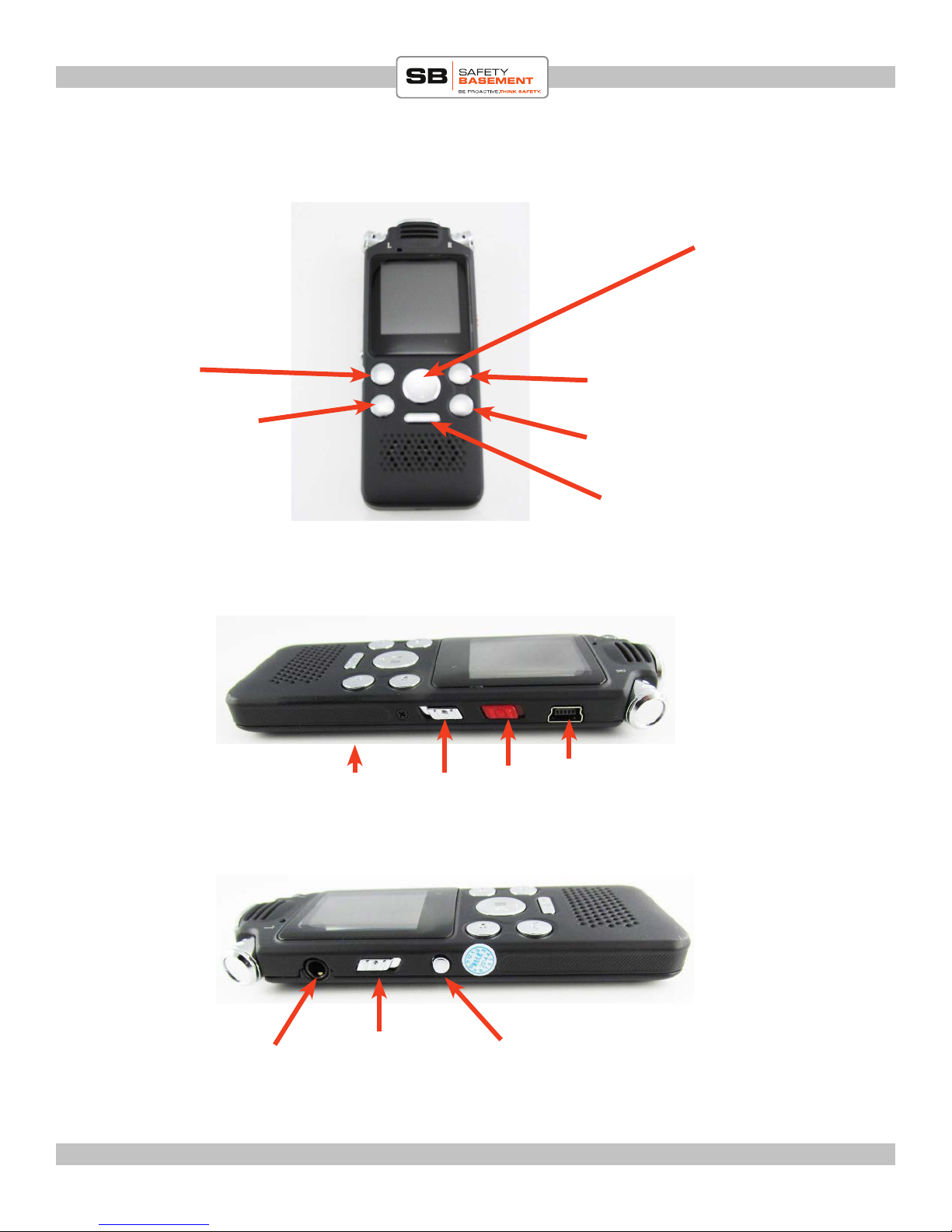
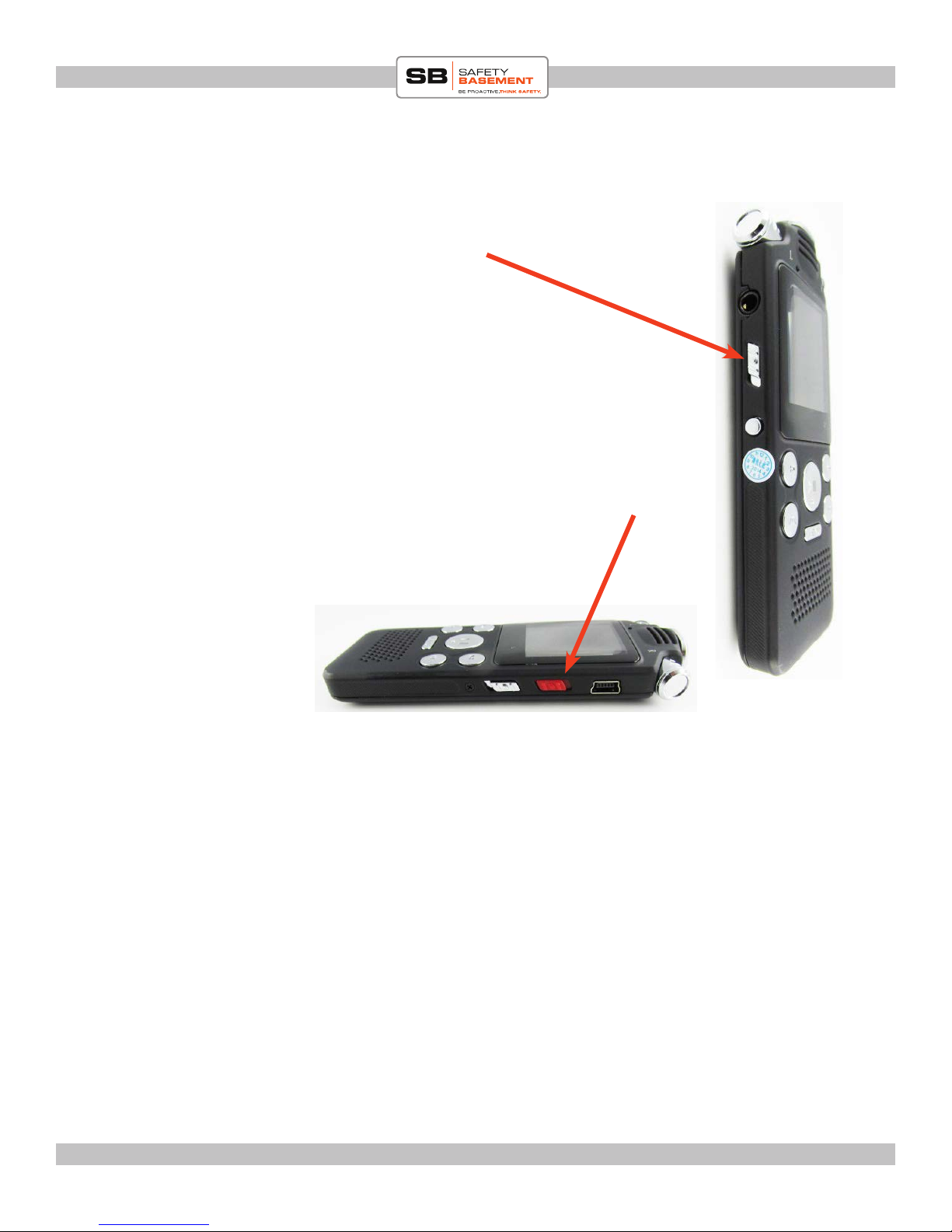
will RESET when you turn OFF the Main Power Switch. So aer you turn the main switch
to ON, dont turn it o unless you are done using the device for a while, otherwise just
charge it when it runs out of juice. Remember it turns itself o aer being idle for a while
and you turn it back on by pressing and holding the PLAY button. Dont turn the main
switch OFF.
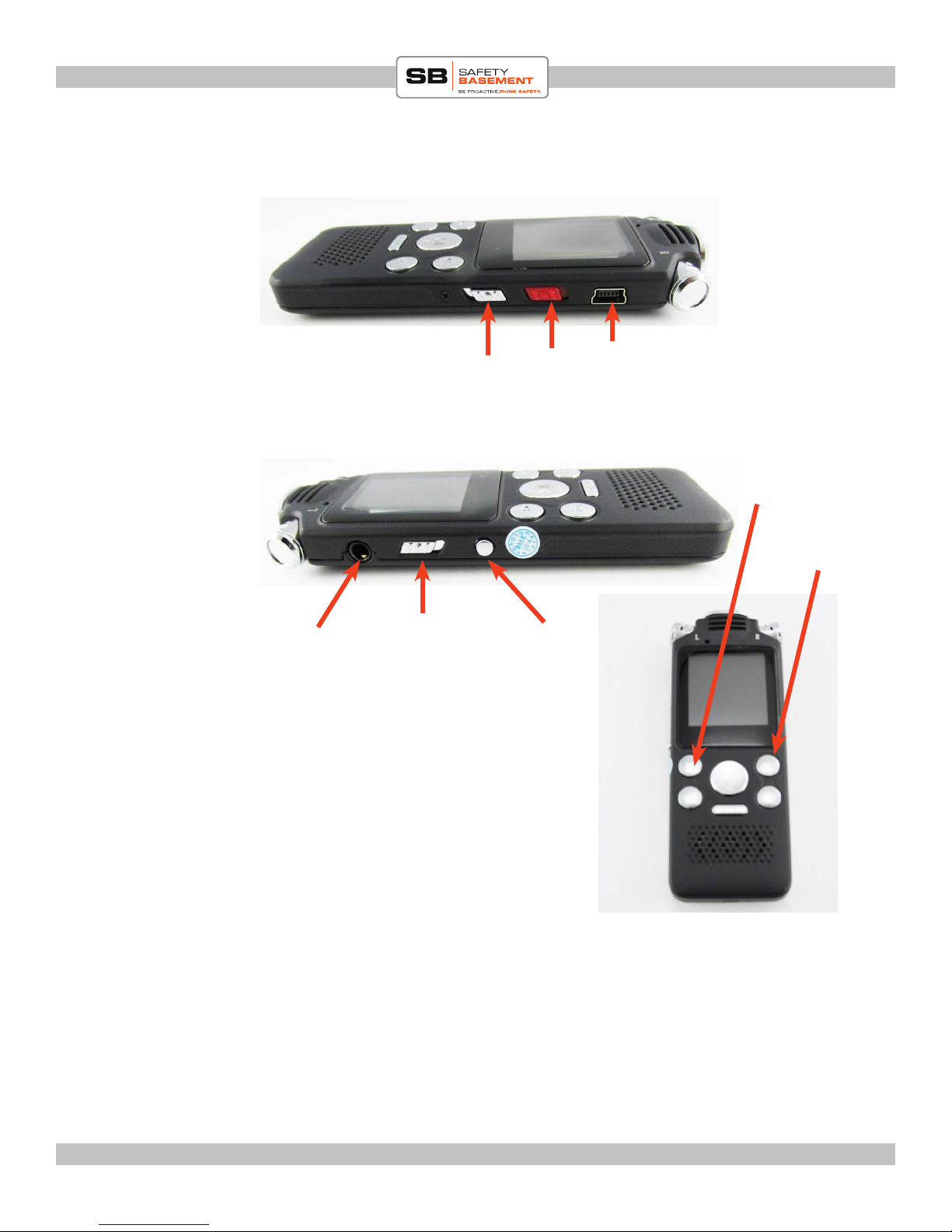
Button presses are shown in RED.
Default screen is at RECORDINGS. But if you are not there just use the NEXT or
PREVIOUS buttons to move between modes. For this page move to the SET mode:
1. PLAY to get to SET mode options.
2. NEXT/PREV to choose DATE AND TIME.
3. PLAY to enter the DAte and Time settings.
4. PLAY to enter SET TIME option.
5. PREV/NEXT to change hour.
6. MENU to move to Minutes.
7. PREV/NEXT to change minutes.
8. PLAY to return to SET TIME option
9. NEXT to move to DATE SETTING.
10. PLAY to Conrm and go to sub options for date settings
11. PLAY to select date format
12. NEXT to choose MM DD YYYY (or whatever format you want)
13. PLAY
14. NEXT to go to SET DATE
15. 15. PLAY to select SET DATE
16. PREV/NEXT to change numbers then MENU to move to next set of numbers
17. aer changing date corectly press PLAY to return to SET TIME
18. Press MENU to go back out of menu options
19. You are done changing time and date
Your Date and Time is now set.
REMEMBER:
1. At any point while you are setting up your recorder, use the MENU button to go back one level.
2. If your recorder turns o HOLD the PLAY button to turn it back on.
3. Aer you have done your settings, dont turn it o using switch on side. Either let it turn o by
itself or press and hold the PLAY button to turn it o. is way you wont lose your settings. Turn-
ing unit o via ON/OFF switch will also make you lose all your custom settings and you will have
to reset!