manuals.online logo
Brands
  1. Home
  2. •
  3. Brands
  4. •
  5. Samsung
  6. •
  7. All In One Printer
  8. •
  9. Samsung Inkjet SF-430 User manual

Samsung Inkjet SF-430 User manual

Other manuals for Inkjet SF-430

3

Other Samsung All In One Printer manuals

Samsung CLX-3305FN User manual

Samsung

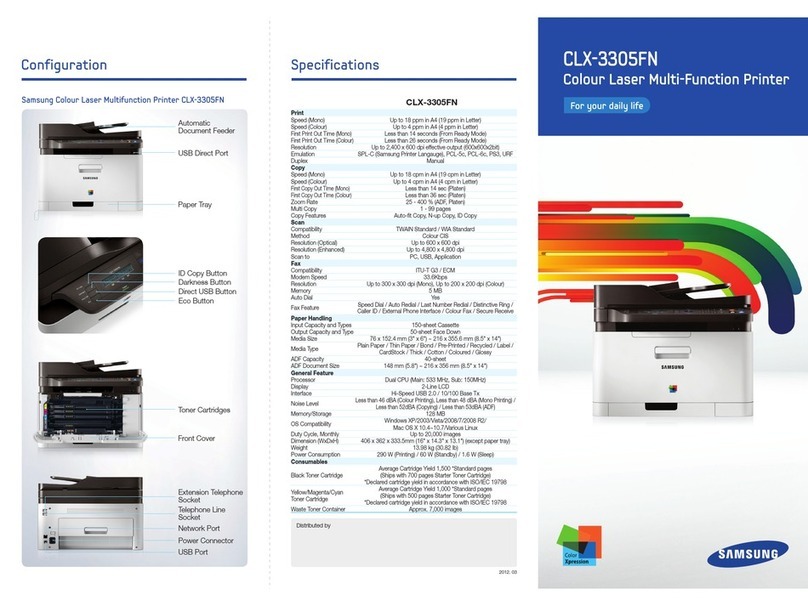
Samsung CLX-3305FN User manual

Samsung SCX 4826FN - Laser Multi-Function Printer User manual

Samsung

Samsung SCX 4826FN - Laser Multi-Function Printer User manual

Samsung SF-755P - B/W Laser - All-in-One User manual

Samsung

Samsung SF-755P - B/W Laser - All-in-One User manual

Samsung CLX-3300 User manual

Samsung

Samsung CLX-3300 User manual

Samsung SCX-5639FR User manual

Samsung

Samsung SCX-5639FR User manual

Samsung M337 User manual

Samsung

Samsung M337 User manual

Samsung Xpress C46 series User manual

Samsung

Samsung Xpress C46 series User manual

Samsung CLX-3185 User manual

Samsung

Samsung CLX-3185 User manual

Samsung SCX-4650N User manual

Samsung

Samsung SCX-4650N User manual

Samsung SCX-4705ND User manual

Samsung

Samsung SCX-4705ND User manual

Samsung CLX-6200ND User manual

Samsung

Samsung CLX-6200ND User manual
Samsung CLX-6200 SERIES User manual

Samsung

Samsung CLX-6200 SERIES User manual

Samsung SCX-5935NX Series User guide

Samsung

Samsung SCX-5935NX Series User guide

Samsung scx-4100 series User guide

Samsung

Samsung scx-4100 series User guide

Samsung CLX-6220FX User manual

Samsung

Samsung CLX-6220FX User manual

Samsung SCX 6320F - B/W Laser - All-in-One User manual

Samsung

Samsung SCX 6320F - B/W Laser - All-in-One User manual

Samsung SCX-5330N User manual

Samsung

Samsung SCX-5330N User manual

Samsung SCX 6322DN - B/W Laser - All-in-One User guide

Samsung

Samsung SCX 6322DN - B/W Laser - All-in-One User guide

Samsung SCX-6545N Series User manual
Samsung

Samsung SCX-6545N Series User manual
Samsung SCX-6320F User manual

Samsung

Samsung SCX-6320F User manual

Samsung SCX-6322DN/XAZ User manual

Samsung

Samsung SCX-6322DN/XAZ User manual

Samsung SL-M2625D User manual

Samsung

Samsung SL-M2625D User manual

Samsung SF SF-560 User manual

Samsung

Samsung SF SF-560 User manual

Samsung SCX-6545N Series User manual

Samsung

Samsung SCX-6545N Series User manual

Popular All In One Printer manuals by other brands

Brother MFC-J220 Basic user's guide

Brother

Brother MFC-J220 Basic user's guide

Brother MFC-8510DN Basic user's guide

Brother

Brother MFC-8510DN Basic user's guide

Ricoh Aficio FX200 Service training

Ricoh

Ricoh Aficio FX200 Service training

Olivetti d-Copia 16W Operation manual

Olivetti

Olivetti d-Copia 16W Operation manual

Konica Minolta bizhub C3850FS user guide

Konica Minolta

Konica Minolta bizhub C3850FS user guide

Konica Minolta bizhub 758 manual

Konica Minolta

Konica Minolta bizhub 758 manual

Lexmark MX310 Series Service manual

Lexmark

Lexmark MX310 Series Service manual

Ricoh Aficio 3224C operating instructions

Ricoh

Ricoh Aficio 3224C operating instructions

Sagem MF 3625 user manual

Sagem

Sagem MF 3625 user manual

Epson Epson Stylus NX530 quick guide

Epson

Epson Epson Stylus NX530 quick guide

Brother MFC9800 - MFC 9800 B/W Laser owner's manual

Brother

Brother MFC9800 - MFC 9800 B/W Laser owner's manual

Konica Minolta 7033 instruction manual

Konica Minolta

Konica Minolta 7033 instruction manual

Ricoh Aficio MP 161F operating instructions

Ricoh

Ricoh Aficio MP 161F operating instructions

Epson WorkForce WF-2510 Basic guide

Epson

Epson WorkForce WF-2510 Basic guide

Epson Stylus Scan 2000 Product information guide

Epson

Epson Stylus Scan 2000 Product information guide

Epson PictureMate Snap PM 240 Start here

Epson

Epson PictureMate Snap PM 240 Start here

Brother MFC-J430w user guide

Brother

Brother MFC-J430w user guide

Konica Minolta BIZHUB 558 Quick reference guide

Konica Minolta

Konica Minolta BIZHUB 558 Quick reference guide

manuals.online logo
manuals.online logoBrands
  • About & Mission
  • Contact us
  • Privacy Policy
  • Terms and Conditions

Copyright 2025 Manuals.Online. All Rights Reserved.

P/N: JB68-00677A Rev. 2.00
Home
Visit us at:
www.samsungelectronics.com/mfp
SF-430
Important Precautions and Safety Information
When using this product, these basic safety precautions should always be followed
to reduce risk of fire, electric shock, and injury to persons:
1
Read and understand all instructions.
2
Use common sense whenever operating electrical appliances.
3
Follow all warnings and instructions marked on the product and in the literature
accompanying the product.
4
f an operating instruction appears to conflict with safety information, heed the
safety information. You may have misunderstood the operating instruction. f
you cannot resolve the conflict, contact your sales or service representative for
assistance.
5
Unplug the product from the AC wall socket and/or telephone jack before
cleaning. Do not use liquid or aerosol cleaners. Use only a damp cloth for
cleaning.
6
Do not place the product on an unstable cart, stand, or table. t may fall,
causing serious damage.
7
Your product should never be placed on, near, or over a radiator, heater, air
conditioner, or ventilation duct.
8
Do not allow anything to rest on the power. Do not locate your product where
the cords will be abused by persons walking on them.
9
Do not overload wall outlets and extension cords. This can diminish
performance, and may result in the risk of fire or electric shock.
10
Do not allow pets to chew on the AC power, telephone, or PC interface cords.
11
Never push objects of any kind into the product through case or cabinet
openings. They may touch dangerous voltage points, creating a risk of fire or
shock. Never spill liquid of any kind onto or into the product.
12
Your product may have a heavy cover for optimal pressure on the document for
the best scanning and/or faxing (usually the flatbed-type product). n this case,
replace the cover after placing document on the scan glass, by holding and
moving it down slowly until it seats on its location.
13
To reduce the risk of electric shock, do not disassemble the product. Take it to a
qualified service technician when repair work is required. Opening or removing
covers may expose you to dangerous voltages or other risks. ncorrect
reassembly could cause electric shock when the unit is subsequently used.
14
Unplug the product from the telephone jack, PC and AC wall outlet, and refer
servicing to qualified service personnel under the following conditions:
• When any part of the power cord, plug, or connecting cable is damaged or
frayed.
• f liquid has been spilled into the product.
• f the product has been exposed to rain or water.
• f the product does not operate properly after instructions have been followed.
• f the product has been dropped, or the cabinet appears damaged.
• f the product exhibits a sudden and distinct change in performance.
15
Adjust only those controls covered by the operating instructions. mproper
adjustment of other controls may result in damage, and may require extensive
work by a qualified service technician to restore the product to normal
operation.
16
Avoid using this product during a lightning storm. There may be a remote risk of
electric shock from lightning. f possible, unplug the AC power and telephone
cord for the duration of the lightning storm.
17
SAVE THESE NSTRUCT ONS.
iii
C
ONTENTS
S
ET P
.............................................. 1.1
Setting p Your Product ....................... 1.2
Choosing a Location............................................ 1.2
Unpacking ......................................................... 1.2
Contents ........................................................... 1.3
Control Locations and Functions............................ 1.4
Front Panel Button Functions................................ 1.6
Setting Up Your product ...................................... 1.8
Loading Paper .................................................. 1.11
nstalling the Print Cartridges............................. 1.13
Installing Software ............................. 1.19
About Samsung Software .................................. 1.19
System Requirements ....................................... 1.20
nstalling Samsung Software.............................. 1.21
Configuring the Fax Gate and nternet Gates........ 1.25
Uninstalling Samsung Software .......................... 1.29
Basic System Setup............................. 1.34
Setting Date and Time ...................................... 1.34
Setting Fax Number and Name........................... 1.37
Changing the Display Language.......................... 1.40
Setting the Discard Size .................................... 1.40
Setting Sounds................................................. 1.41
Setting Dialling Mode ........................................ 1.42
Setting the P N Code......................................... 1.43
Setting the Handset Mode.................................. 1.44
Setting Paper and nk Save Modes...................... 1.45
C
ONTENTS
1
iv
C
ONTENTS
P
RINT
.............................................. 2.1
Paper Selection .................................................. 2.2
Loading Speciality Paper...................................... 2.4
Printing a Document ........................................... 2.6
Printer Settings .................................................. 2.8
Using the Printer Control Program....................... 2.18
C
OPY
................................................ 3.1
Setting Paper Size and Type................................. 3.2
Copying a Document........................................... 3.4
Setting Copy Options .......................................... 3.5
Changing Default Settings ................................... 3.9
S
CAN
................................................ 4.1
Scanning Basics ................................................. 4.2
Starting Scan from the Front Panel ....................... 4.2
The Scanning Process with TWA N-enabled Software 4.6
F
AX
.................................................. 5.1
Sending a Fax ....................................... 5.2
Preparing Documents for Faxing ........................... 5.2
Adjusting Document Settings ............................... 5.3
Loading Document.............................................. 5.6
Sending a Fax Automatically ................................ 5.7
Sending a Fax Using Manual Dial .......................... 5.7
Sending a Fax After Talking ................................. 5.8
Cancelling a Fax ................................................. 5.8
Confirming Transmission ..................................... 5.9
Automatic Redial ................................................ 5.9
Redialling ........................................................ 5.10
Voice Request .................................................. 5.11
Using the Toll Save Transmission........................ 5.12
3
4
5
2
v
C
ONTENTS
Receiving a Fax................................... 5.14
About Reception Modes ..................................... 5.14
Loading Paper for Receiving Faxes ...................... 5.15
Receiving Automatically in FAX Mode................... 5.16
Receiving in AUTO Mode .................................... 5.16
Receiving Automatically in ANS/FAX Mode............ 5.17
Receiving Manually in TEL Mode.......................... 5.18
Receiving Manually Using an Extension Telephone. 5.18
Receiving Using DRPD Feature............................ 5.19
Receiving in Colour ........................................... 5.19
Receiving Fax in Memory ................................... 5.19
Forwarding Received Faxes ................................ 5.20
Automatic Dialling .............................. 5.22
One-Touch Dialling ........................................... 5.22
Speed Dialling.................................................. 5.23
Group Dialling .................................................. 5.25
Searching for a Number in the Memory................ 5.27
Advanced Faxing................................. 5.28
Broadcasting.................................................... 5.28
Delayed Fax..................................................... 5.29
Priority Fax ...................................................... 5.31
Polling............................................................. 5.32
Adding Documents To a Scheduled Operation ....... 5.34
Cancelling a Scheduled Operation ....................... 5.35
Additional Feature .............................. 5.36
Printing Reports ............................................... 5.36
Fax Setup Options ............................................ 5.38
Using the Fax Settings Utility ............................. 5.44
vi
C
ONTENTS
M
AINTENANCE
.................................... 6.1
Maintaining Print Cartridges ................................. 6.2
Viewing nk Levels.............................................. 6.3
Cleaning the Print Cartridges................................ 6.3
Replacing the Print Cartridges ............................ 6.10
Aligning the Print Cartridges............................... 6.16
Clearing Memory .............................................. 6.19
Adjusting Shading ............................................ 6.20
Setting the Product to be Checked by Phone ........ 6.20
Cleaning the Document Scanner ......................... 6.21
T
RO BLESHOOTING
............................. 7.1
Clearing Jams .................................................... 7.2
LCD Error Messages ............................................ 7.6
Fixing Problems.................................................. 7.9
A
PPENDIX
......................................... 8.1
Printer Specification ............................................ 8.2
Scanner and Copier Specification .......................... 8.2
Fax Specification ................................................ 8.3
General Specification .......................................... 8.4
Paper Specification ............................................. 8.5
I
NDEX
7
8
6
Thank you for purchasing the Samsung SF-430 nkJet all in
one. This multifunctional product provides printing, copying
and scanning functions!
This chapter provides step-by-step instructions on setting up
the product, and installing the software.
The chapter includes:
•Setting p Your Product
•Installing Software
•Basic System Setup
S
ET P
1
1.2
S
ETUP
Setting Up Your
Product
Choosing a Location
To help guarantee trouble-free operation of your product,
place it on a flat, stable surface near your workstation. Leave
enough space to allow for easy paper loading, paper out and
opening the top cover.
Do not place your product:
• n direct sunlight.
• Near heat sources or air conditioners.
• n dusty or dirty environments.
npacking
Unpack your product from the packing box, and check if
anything is missing or damaged. Remove the shipping tapes
from the front, back, and sides of the product.
1.3
S
ETUP
1
Contents
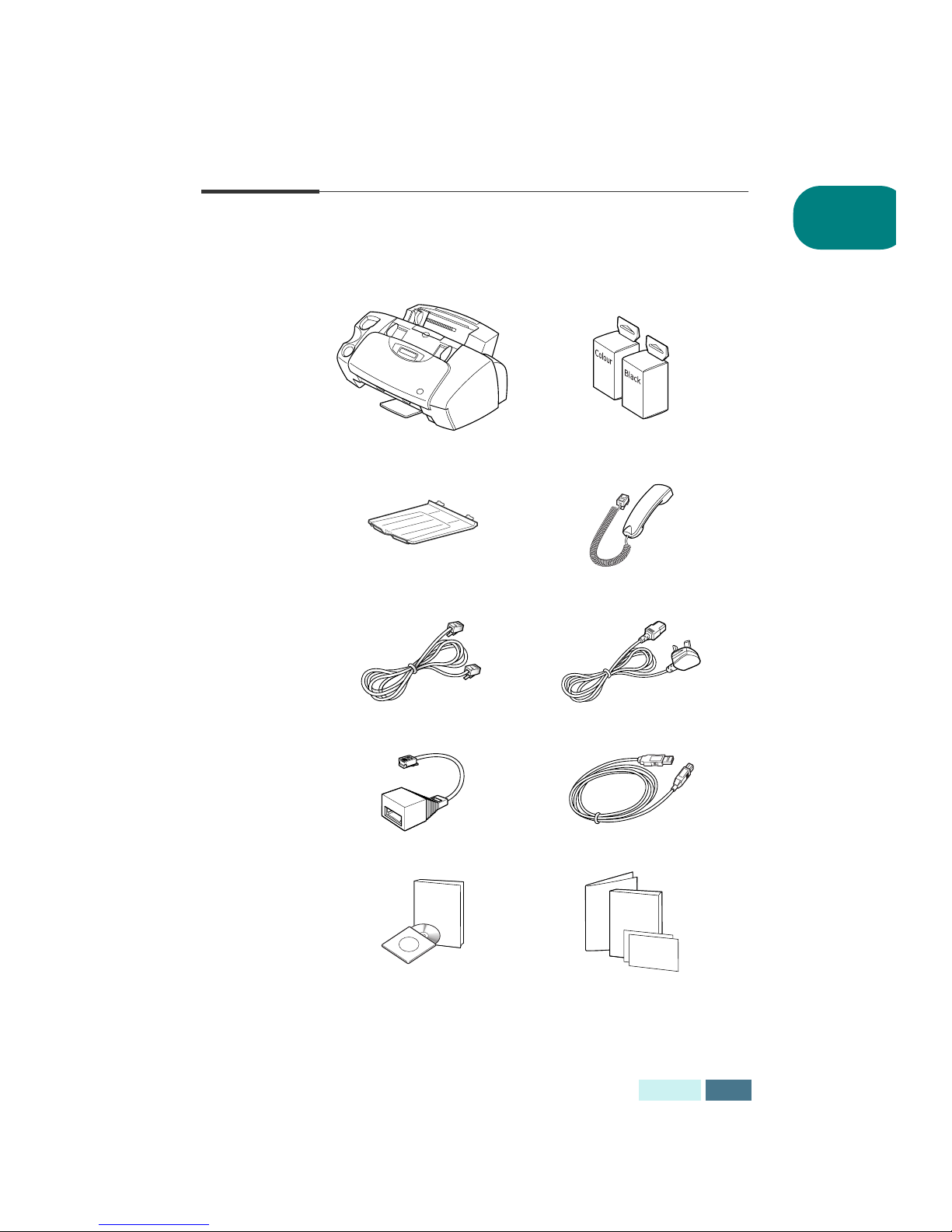
Here is what is supplied with your product.
SF-430 Colour and Black ink cartridges
Document output support Handset
Telephone line cord
a
Power cord
a
a.The shape of the cord plug may differ depending on your country.
TAM lead SB cable
Software CD-ROM,
ser’s Guides
SmarThru ser’s Guides,
Warranty cards, Quick Install Guide
Samsung SF-430
User's Guide
Samsung SmarThru