logo
Brands
  1. Home
  2. •
  3. Brands
  4. •
  5. Samsung
  6. •
  7. Monitor
  8. •
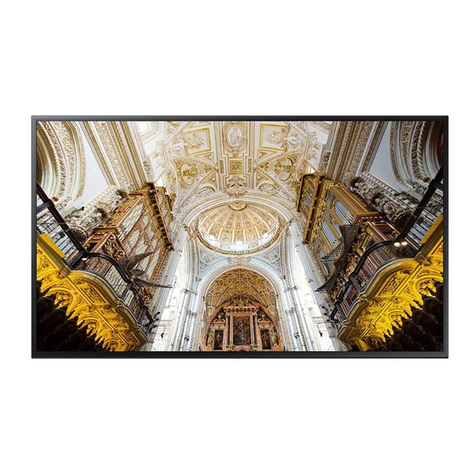
  9. Samsung QM43N User manual

Samsung QM43N User manual

This manual suits for next models

4

Other Samsung Monitor manuals

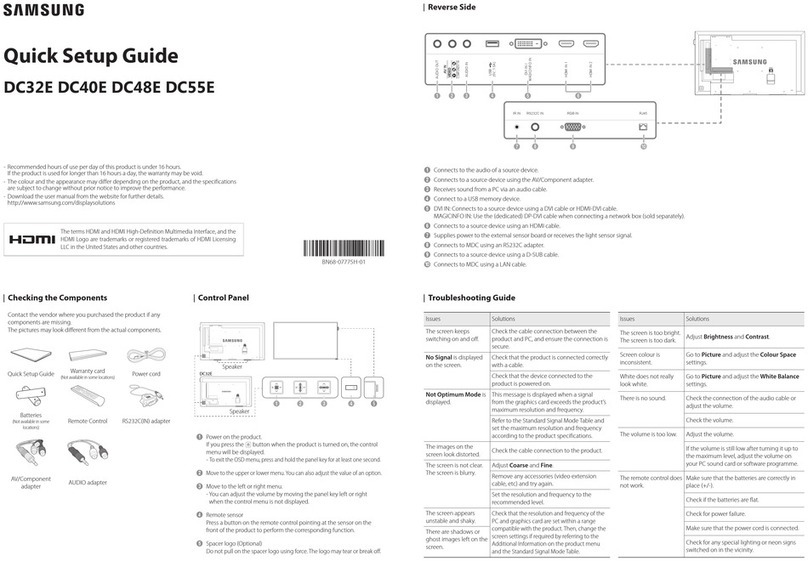
Samsung S24A400UJE User manual

Samsung

Samsung S24A400UJE User manual

Samsung OH46F User manual

Samsung

Samsung OH46F User manual

Samsung SyncMaster 933SN User manual

Samsung

Samsung SyncMaster 933SN User manual

Samsung SyncMaster 961GW User manual

Samsung

Samsung SyncMaster 961GW User manual

Samsung 953BW - SyncMaster - 19" LCD Monitor User manual

Samsung

Samsung 953BW - SyncMaster - 19" LCD Monitor User manual

Samsung HPT5054 - 50" Plasma TV User manual

Samsung

Samsung HPT5054 - 50" Plasma TV User manual

Samsung SyncMaster B2330H User manual

Samsung

Samsung SyncMaster B2330H User manual

Samsung HPN5039 - 50" Plasma TV User manual

Samsung

Samsung HPN5039 - 50" Plasma TV User manual

Samsung T19C301 Series User manual

Samsung

Samsung T19C301 Series User manual

Samsung PM32F User manual

Samsung

Samsung PM32F User manual

Samsung 245T - SyncMaster - 24" LCD Monitor User manual

Samsung

Samsung 245T - SyncMaster - 24" LCD Monitor User manual

Samsung S27CG55 Series User manual

Samsung

Samsung S27CG55 Series User manual

Samsung F27T70 User manual

Samsung

Samsung F27T70 User manual

Samsung 204B - SyncMaster - 20.1" LCD Monitor Quick start guide

Samsung

Samsung 204B - SyncMaster - 20.1" LCD Monitor Quick start guide

Samsung SyncMaster P50FN User manual

Samsung

Samsung SyncMaster P50FN User manual

Samsung LE26A41B User manual

Samsung

Samsung LE26A41B User manual

Samsung PM55F User manual

Samsung

Samsung PM55F User manual

Samsung 955B - SyncMaster 955 B User manual

Samsung

Samsung 955B - SyncMaster 955 B User manual

Samsung DH40D User manual

Samsung

Samsung DH40D User manual

Samsung SyncMaster 3 series User manual

Samsung

Samsung SyncMaster 3 series User manual

Samsung 400MX - SyncMaster - 40" LCD Flat Panel... User manual

Samsung

Samsung 400MX - SyncMaster - 40" LCD Flat Panel... User manual

Samsung SyncMaster 713BM PLUS User manual

Samsung

Samsung SyncMaster 713BM PLUS User manual

Samsung 204B - SyncMaster - 20.1" LCD Monitor Quick start guide

Samsung

Samsung 204B - SyncMaster - 20.1" LCD Monitor Quick start guide

Samsung SPS4243 User manual

Samsung

Samsung SPS4243 User manual

Popular Monitor manuals by other brands

Linear Acoustic LQ-1000 user guide

Linear Acoustic

Linear Acoustic LQ-1000 user guide

AOC I2579V user manual

AOC

AOC I2579V user manual

ViewSonic VX1945WM - ViewDock - 19" LCD Monitor null

ViewSonic

ViewSonic VX1945WM - ViewDock - 19" LCD Monitor null

ViewSonic VA705M null

ViewSonic

ViewSonic VA705M null

BenQ FP757 null

BenQ

BenQ FP757 null

ViewSonic VA703MB - 17" LCD Monitor null

ViewSonic

ViewSonic VA703MB - 17" LCD Monitor null

Gateway FPD1520 user guide

Gateway

Gateway FPD1520 user guide

Furuno Mu 120c Operator's manual

Furuno

Furuno Mu 120c Operator's manual

Asus VB171D - 17" LCD Monitor Service manual

Asus

Asus VB171D - 17" LCD Monitor Service manual

Dell S2230MX Setting up

Dell

Dell S2230MX Setting up

Philips 107C64 user manual

Philips

Philips 107C64 user manual

Dell S2409WFP user guide

Dell

Dell S2409WFP user guide

EverFocus EN-7517E instruction manual

EverFocus

EverFocus EN-7517E instruction manual

Panasonic TH152UX1 - 152" PLASMA TV Service manual

Panasonic

Panasonic TH152UX1 - 152" PLASMA TV Service manual

Dell Precision 7680 Connection guide

Dell

Dell Precision 7680 Connection guide

LG 50PM1M -  - 50" Plasma Panel Service manual

LG

LG 50PM1M - - 50" Plasma Panel Service manual

Bosch DDU 9 manual

Bosch

Bosch DDU 9 manual

Acer A231HL user manual

Acer

Acer A231HL user manual

https://manuals.online logo
https://manuals.online logoBrands
  • About & Mission
  • Contact us
  • Privacy Policy
  • Terms and Conditions

Copyright 2025 Manuals.Online. All Rights Reserved.

Quick Setup Guide
QM43N QM49N QM55N QM65N QM75N
*The colour and the appearance may differ depending on the product, and the content in
the manual is subject to change without prior notice to improve the performance.
*Download the user manual from the website for further details.
http://www.samsung.com/displaysolutions
BN68-09134E-00
1 Connect to a USB memory device.
*The USB ports on the product accept a maximum constant
current of 1.0A. If the maximum value is exceeded, USB ports
may not work.
2 Connects to MDC using a LAN cable. (10/100 Mbps)
3 Connects to MDC using an RS232C adapter.
4 DVI: Connects to a source device using a DVI cable or HDMI-DVI
cable.
MAGICINFO IN: To use MagicInfo, make sure to connect the
DP-DVI cable.
5 Connects to a source device using a HDMI cable or HDMI-DVI
cable.
6 Connects to a source device using a HDMI cable or HDMI-DVI
cable.
Connects to another product using a HDMI cable.
7 Connects to a PC using a DP cable.
8 Connects to another product using a HDMI cable.
9 Connect to a USB memory device.
*The USB ports on the product accept a maximum constant
current of 0.5A. If the maximum value is exceeded, USB ports
may not work.
0 Receives sound from a source device via an audio cable.
! Outputs sound to an audio device via an audio cable.
@ Connects to an external IR cable that receives signals from the
remote control.
# Connects to MDC using an RS232C adapter.
Issues Solutions
The screen keeps
switching on and off.
Check that the cable between the product
and the PC is connected correctly.
No Signal is
displayed on the
screen.
Check that the product is connected
correctly with a cable.
Check that the device connected to the
product is powered on.
Depending on the type of external device,
the screen may not display properly. In this
case, connect it with the HDMI Hot Plug
function turned On.
Not Optimum Mode
is displayed.
This message is displayed when a
signal from the graphics card exceeds
the product’s maximum resolution and
frequency.
Refer to the Standard Signal Mode Table
and set the maximum resolution and
frequency according to the product
specifications.
The images on
the screen look
distorted.
Check the cable connection to the product.
The screen appears
unstable and shaky. Check that the resolution and frequency of
the PC and graphics card are set within a
range compatible with the product. Then,
change the screen settings if required by
referring to ‘Preset Timing Modes’.
There are shadows or
ghost images left on
the screen.
Issues Solutions
There is no image
on the screen and
the power indicator
blinks every 0.5 to 1
second.
The product is in power-saving mode.
Press any key on the keyboard or move the
mouse to return to the previous screen.
The remote control
does not work.
Make sure that the batteries are correctly
in place (+/-).
Check if the batteries are flat.
Check for power failure.
Make sure that the power cord is
connected.
Check for any special lighting or neon signs
switched on in the vicinity.
A beeping sound is
heard when my PC is
booting.
If a beeping sound is heard when your PC is
booting, have your PC serviced.
When I try to change
the PC resolution, a
message The defined
resolution is not
supported. appears.
The message The defined resolution
is not supported. appears if the input
source resolution exceeds the maximum
resolution of the display.
To resolve the issue, change the PC
resolution to a resolution supported on the
display.
Checking the Components Parts
Ports
Troubleshooting Guide
Contact the vendorwhere you purchased the product if any
components are missing.
The pictures may look different from the actual components.
1 Remote sensor
Press a button on the remote control pointing at the sensor on
the front of the product to perform the corresponding function.
*Using other display devices in the same space as the remote
control of this product can cause the other display devices to
be inadvertently controlled.
2 Power indicator
3 Power button
Turns the product on or off.
Quick Setup Guide
Warranty card
(Not available in
some locations)
MagicInfo Software
DVD
Power cord
Batteries (AAA X 2)
(Not available in
some locations)
Remote Control
RS232C(IN) adapter
HOLDER-CABLE
(Supported models:
QM65N, QM75N)
Holder-Ring X 4
1
2
3
8
7
0 !
#@
4
5
6
9
1
32
Speaker
The terms HDMI and HDMI High-Definition Multimedia Interface,
and the HDMI Logo are trademarks or registered trademarks of
HDMI Licensing LLC in the United States and other countries.
BN68-09134E-00_QSG_QMN_INDIA_ENG.indd 1 2018-05-28 오후 8:01:37

Model Name QM43N QM49N QM55N
Panel
Size 107.9 cm 123.2 cm 138.7 cm

Display area
941.184 mm (H) x 529.416 mm (V) 1073.78 mm (H) x 604.0 mm (V) 1209.6 mm (H) x 680.4 mm (V)
Model Name QM65N QM75N
Panel
Size 163.9 cm 189.3 cm
Display area
1428.48 mm (H) x 803.52 mm (V) 1650.24 mm (H) x 928.26 mm (V)
Power Supply AC100-240V~ 50/60Hz
Refer to the label at the back of the product as the standard voltage can vary in different countries.
Environmental
considerations
Operating Temperature: 0 °C – 40 °C (32 °F – 104 °F)
Humidity: 10% – 80%, non-condensing
Storage Temperature: -20 °C – 45 °C (-4 °F – 113 °F)
Humidity: 5% – 95%, non-condensing
*This is a class A product. In a domestic environment this product may cause radio interference in which case the user may be required to
take adequate measures.
*For detailed device specifications, visit the Samsung Electronics website.
*The PVC Free (except for accessory cables) logo is the self-declared trademark of Samsung.
- Accessory cables: signal cables and power cords
Warning! Important Safety Instructions
If you have any questions or comments relating to Samsung products, please contact the SAMSUNG customer care centre.
Tel. 1800 40 SAMSUNG (1800 40 7267864) (Toll-Free)
www.samsung.com/in/support
Contact SAMSUNG WORLD WIDE
Please read the appropriate section that corresponds to the marking on your Samsung product before attempting to install the product.
CAUTION
RISK OF ELECTRIC SHOCK DO NOT OPEN
CAUTION: TO REDUCE THE RISK OF ELECTRIC SHOCK, DO NOT
REMOVE COVER (OR BACK). THERE ARE NO USER SERVICEABLE
PARTS INSIDE. REFER ALL SERVICING TO QUALIFIED PERSONNEL.
This symbol indicates that high voltage is present
inside. It is dangerous to make any kind of contact with
any internal part of this product.
This symbol indicates that this product has
included important literature concerning
operation and maintenance.
This product is RoHS compliant.
This marking on the product, accessories or literature indicates that the product and its electronic accessories (e.g. charger,
headset, USB cable) should not be disposed of with other household waste at the end of their working life. To prevent
possible harm to the environment or human health from uncontrolled waste disposal, please separate these items from
other types of waste and recycle them responsibly to promote the sustainable reuse of material resources.
For more information on safe disposal and recycling visit ourwebsite www.samsung.com/in or contact our Helpline numbers
- 1800 40 SAMSUNG(1800 40 7267864) (Toll-Free)
ꞏIf your equipment uses an AC adapter:
‐Only use the AC adapter with your product by
Samsung.
‐Do not use the power cord with other products.
ꞏDo not install this equipment in a confined space such as a case or
similar.
ꞏThe slots and openings in the cabinet and in the back or bottom
are provided for necessary ventilation. The slots and openings
must never be blocked or covered.
ꞏThe product should be located away from heat sources such as
radiators, heat registers, or other products that produce heat.
ꞏDo not place a water containing vessel (vases etc.) on this
apparatus, as this can result in a risk of fire or electric shock.
(Apparatus shall not be exposed to dripping or splashing)
ꞏThe apparatus must be connected to an earthed MAINS socket-
outlet (Class l Equipment only). Or Use only a properly grounded
plug and receptacle (Class l Equipment only).
ꞏTo disconnect the apparatus from the mains, the plug must be
pulled out from the mains socket, therefore the mains plug shall
be readily operable.
ꞏAs long as this unit is connected to the AC wall outlet, it is not
disconnected from the AC power source even if you turn off this
unit by POWER.
Connecting to a PC
DP IN
HDMI IN
HDMI IN
HDMI IN
DVI/HDMI AUDIO IN
DVI/MAGICINFO IN
DVI/HDMI AUDIO IN
AUDIO OUT
DP IN
HDMI IN
HDMI IN
HDMI IN
DVI/HDMI AUDIO IN
DVI/MAGICINFO IN
DVI/HDMI AUDIO IN
AUDIO OUT
DP IN
HDMI IN
HDMI IN
HDMI IN
DVI/HDMI AUDIO IN
DVI/MAGICINFO IN
DVI/HDMI AUDIO IN
AUDIO OUT
DP IN
HDMI IN
HDMI IN
HDMI IN
DVI/HDMI AUDIO IN
DVI/MAGICINFO IN
DVI/HDMI AUDIO IN
AUDIO OUT
DP IN
HDMI IN
HDMI IN
HDMI IN
DVI/HDMI AUDIO IN
DVI/MAGICINFO IN
DVI/HDMI AUDIO IN
AUDIO OUT
DP IN
HDMI IN
HDMI IN
HDMI IN
DVI/HDMI AUDIO IN
DVI/MAGICINFO IN
DVI/HDMI AUDIO IN
AUDIO OUT
Connecting to MDC
For details on how to use the MDC programme, refer to Help after
installing the programme.
The MDC programme is available on the website.
RS232C IN
RJ45
HUB
RS232C OUT
RJ45
RS232C IN
RS232C OUT
RS232C IN
RJ45
HUB
RS232C OUT
RJ45
RS232C IN
RS232C OUT
RS232C IN
RJ45
HUB
RS232C OUT
RJ45
RS232C IN
RS232C OUT
Connecting to a Video Device
DP IN
HDMI IN
HDMI IN
HDMI IN
DVI/HDMI AUDIO IN
DVI/MAGICINFO IN
DVI/HDMI AUDIO IN
AUDIO OUT
DP IN
HDMI IN
HDMI IN
HDMI IN
DVI/HDMI AUDIO IN
DVI/MAGICINFO IN
DVI/HDMI AUDIO IN
AUDIO OUT
DP IN
HDMI IN
HDMI IN
HDMI IN
DVI/HDMI AUDIO IN
DVI/MAGICINFO IN
DVI/HDMI AUDIO IN
AUDIO OUT
Connecting the LAN Cable
Use Cat7(*STP Type) cable for the connection. (10/100 Mbps)
*Shielded Twist Pair
DP IN
HDMI IN
HDMI IN
HDMI IN
DVI/HDMI/AUDIO IN
DVI/MAGICINFO IN
DVI/HDMI/AUDIO IN
AUDIO OUT
RJ45
Connecting to an Audio System
DP IN
HDMI IN
HDMI IN
HDMI IN
DVI/HDMI AUDIO IN
DVI/MAGICINFO IN
DVI/HDMI AUDIO IN
AUDIO OUT
Connecting and Using a Source Device
Specifications
BN68-09134E-00_QSG_QMN_INDIA_ENG.indd 2 2018-05-28 오후 8:01:40