Scoobe3D 3D Scanner User manual

Scoobe3D GmbH
3D as easy as 2D
User Manual - 3D Scanner
Content
Package contents 1
Device layout 1
Turning the device on and off 3
Charging the battery 4
Battery charging tips and precautions 5
Temperature range for usage 5
Adjust the volume on the device 6
Memory card (SD card) 6
Controlling the touchscreen 9
Connectivity 10
App usage - Scoobe3D App 11

3D as easy as 2D
Package contents
● Device
● USB-C Cable
● Ejection pin for SD Card slot
● User safety information
● User manual
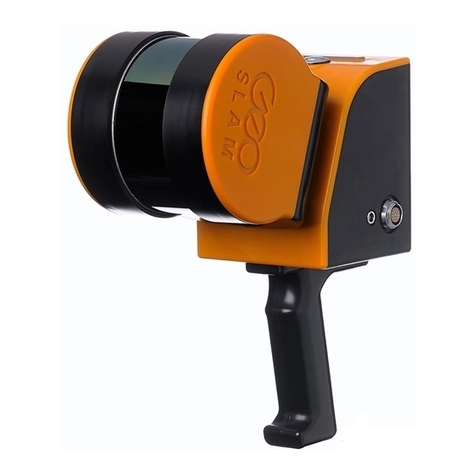
Device layout
1

3D as easy as 2D
2
IF Card Port

3D as easy as 2D
Turning the device on and off
1. Press and hold the power button for a few seconds to turn on the
device.
2. When you turn your device for the first time or after performing a
data reset, follow the onscreen instructions to set up your device.
3. If the device doesn’t turn on, you might need to charge the battery.
4. To turn off the device, press and hold the power button.
3

3D as easy as 2D
Charging the battery
1. Connect the device to a power outlet using the included USB-C
cable and USB power adapter.
2. Plug the USB power adapter into an electric socket
3. After fully charging, disconnect the device from the charger. First
unplug the charger from the device and then unplug it from the
electric socket.
NOTE The actual charging time may vary depending on the status of
your device and the charging conditions. The charging time may also
differ when you charge the device in very cold or very hot conditions.
4

3D as easy as 2D
Battery charging tips and precautions
1. When the battery power is low, the battery icon appears empty.
2. If the battery is completely discharged, the device cannot be
turned on immediately when the charger is connected. Allow a
depleted battery to charge for a few minutes before turning on the
device.
3. The device may be used while it is charging, but it may take a
longer time to charge.
4. Your device is powered by a rechargeable battery. A charger (USB
type-C cable) is included with the device for charging the battery
from a power outlet.
NOTE It is advisable to only use the USB cable that is provided by
Scoobe3D. Scoobe3D batteries are designed for your device to
maximize battery life. Using other batteries, USB cable and charger that
are not provided by Scoobe3D may cause damage to the battery.
5. While charging, the device and the charger may become hot and
stop charging. This usually does not affect the device’s lifespan or
performance and is in the device’s normal range of operation.
TIP Disconnect USB cable from device and wait for the device to cool
down. For more information about the device's battery please refer to the
important safety guide.
Temperature range for usage
To avoid damage and loss of calibration, the device should be stored
and used in the ambient temperature range from +5°C to +40°C.
5

3D as easy as 2D
Adjust the volume on the device
When using the device, use the buttons on the side of the device to
adjust the audio volume.
WARNING: For information about avoiding hearing loss, see Important
safety information for Scoobe3D 3D scanner.
Memory card (SD card)
Your device’s memory card capacity may vary depending on which
memory card is inserted. Some memory cards may not be compatible
with your device depending on the memory card manufacturer and type.
1. Some memory cards may not be fully compatible with the device.
Using an incompatible card may damage the device or the
memory card and may corrupt the data stored in it.
6

3D as easy as 2D
2. Be very careful when inserting the memory card. Using too much
force may damage the memory card itself, the SD card tray as well
as the electronics inside the device. Therefore, use caution when
inserting the memory card.
3. Frequent writing and erasing of data shortens the lifespan of
memory cards.
Installing a memory card
1. Insert the ejection pin into the hole on the tray to loosen the tray.
7

3D as easy as 2D
NOTE Ensure that the ejection pin is perpendicular to the hole.
Otherwise, the device may be damaged.
2. Pull out the tray gently from the tray slot and place a memory card
on the tray with the gold-colored contacts facing downwards.
Gently press the memory card into the tray to secure it.
3. Insert the tray back into the tray slot.
NOTE Do not insert the tray into the device while the tray is wet. It will
damage the device. Make sure the tray is dry.
Make sure the tray is fully inserted inside the tray slot, to prevent dust or
liquid from entering
Removing a memory card
1. Insert an ejection pin into the hole on the tray to loosen the tray.
8

3D as easy as 2D
2. Gently pull out the tray from the tray slot.
3. Remove the memory card.
4. Insert the tray back into the tray slot.
NOTE Do not remove the memory card while or during the device is
transferring or accessing information. Doing so may cause data loss or
corruption or damage the device or the memory card itself. Scoobe3D is
not responsible for losses that result from the misuse of damaged
memory cards, including the loss of data.
Controlling the touchscreen
● Do not allow the touchscreen to come into contact with other
electrical devices. Electrostatic discharges can cause touchscreen
to malfunction.
● To avoid damaging the touchscreen, do not tap it with anything
sharp or apply excessive pressure to it with your fingertips.
● The device may not recognize touch inputs close to the edges of
the screen, which are outside the touch input area.
● Leaving the touchscreen idle for extended periods may result in
afterimages (screen burn-in) or ghosting. Turn off the touchscreen
when you do not use the device.
● It is recommended to use fingers when you use the touchscreen.
9
Table of contents