SeaLevel COMM+16.PCI User manual
Other SeaLevel I/O System manuals

SeaLevel
SeaLevel COMM+8.cPCI User manual

SeaLevel
SeaLevel DUOCOM 3088 User manual

SeaLevel
SeaLevel DIO-32.PCI User manual

SeaLevel
SeaLevel ISO-COMM User manual

SeaLevel
SeaLevel eI/O Series User manual

SeaLevel
SeaLevel COMM+850.LPCI User manual

SeaLevel
SeaLevel 8203 User manual
SeaLevel
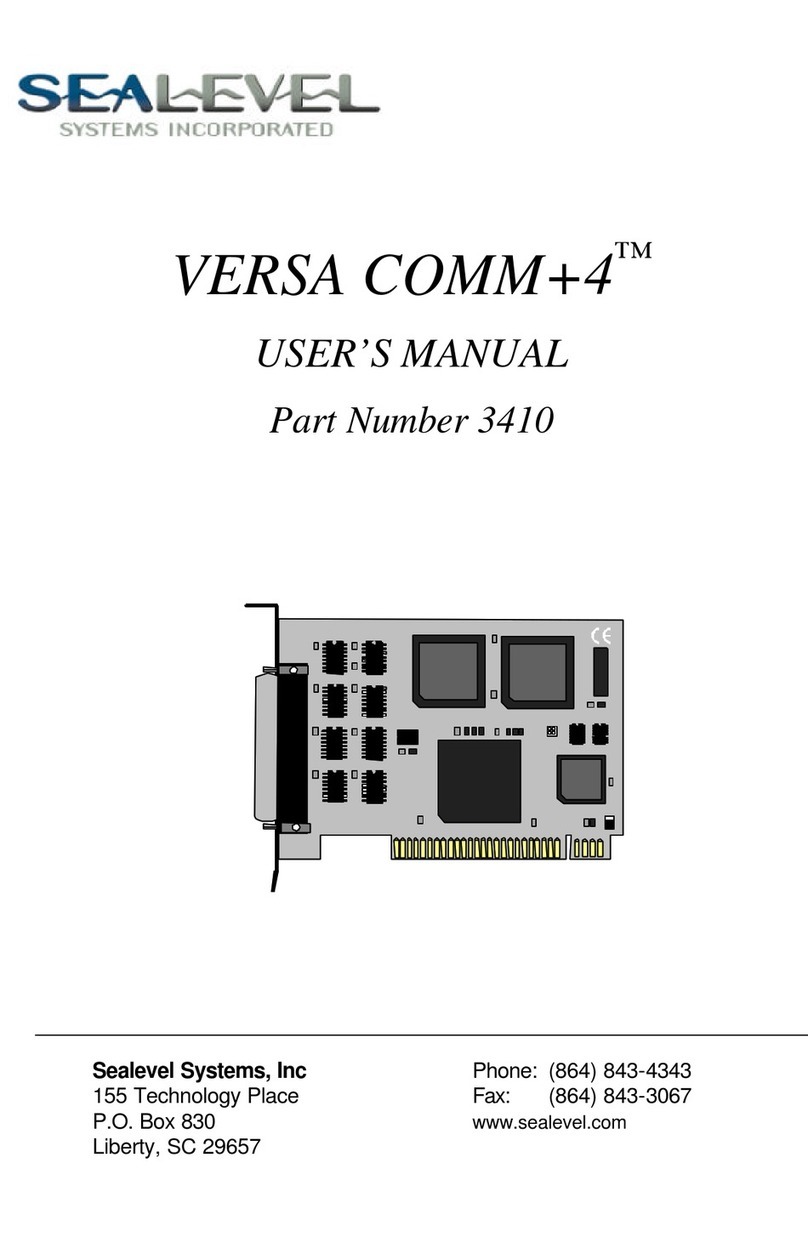
SeaLevel VERSA COMM +4 User manual

SeaLevel
SeaLevel eI/O 110E User manual

SeaLevel
SeaLevel SeaLINK PLC-16 User manual

SeaLevel
SeaLevel ISO-16.PCI User manual

SeaLevel
SeaLevel ISO-16.PCI User manual

SeaLevel
SeaLevel PIO-96.PCI User manual

SeaLevel
SeaLevel SeaLINK DIO-16 User manual

SeaLevel
SeaLevel PIO-48 User manual

SeaLevel
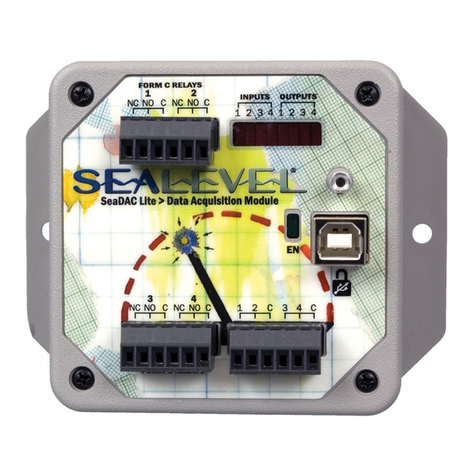
SeaLevel SeaDAC Lite Series User manual

SeaLevel
SeaLevel SeaI/O-580E User manual

SeaLevel
SeaLevel ACB-III User manual

SeaLevel
SeaLevel COMM+4 3064 User manual

SeaLevel
SeaLevel SeaLINK User manual