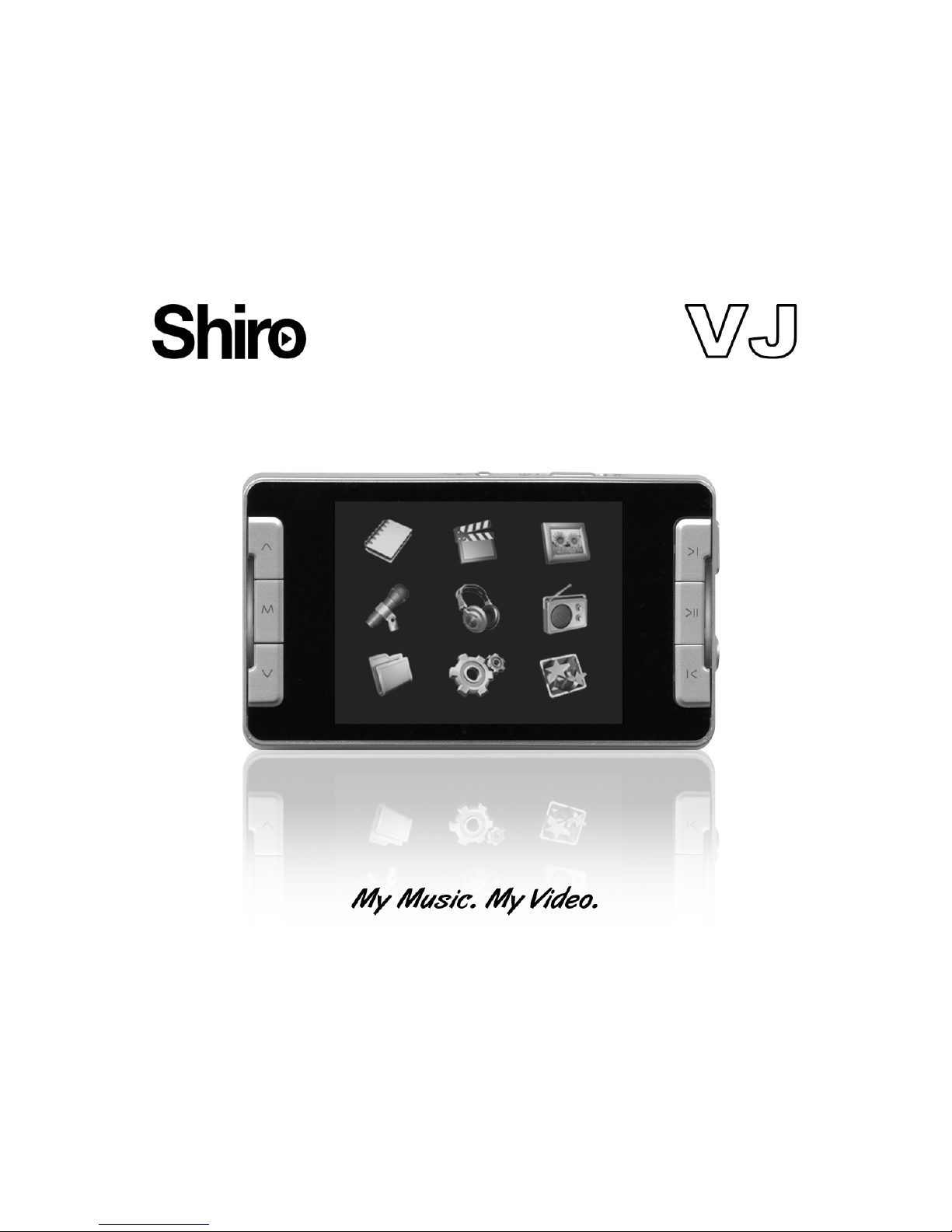
Shiro VJ User manual
User Guide V1.0

1
Contents
Notice ............................................................................................................2
Minimum System Requirements.....................................................................2
Operation Keypads.........................................................................................3
Packing includes ............................................................................................3
Connecting Player to Computer......................................................................4
Power On & Off ..............................................................................................4
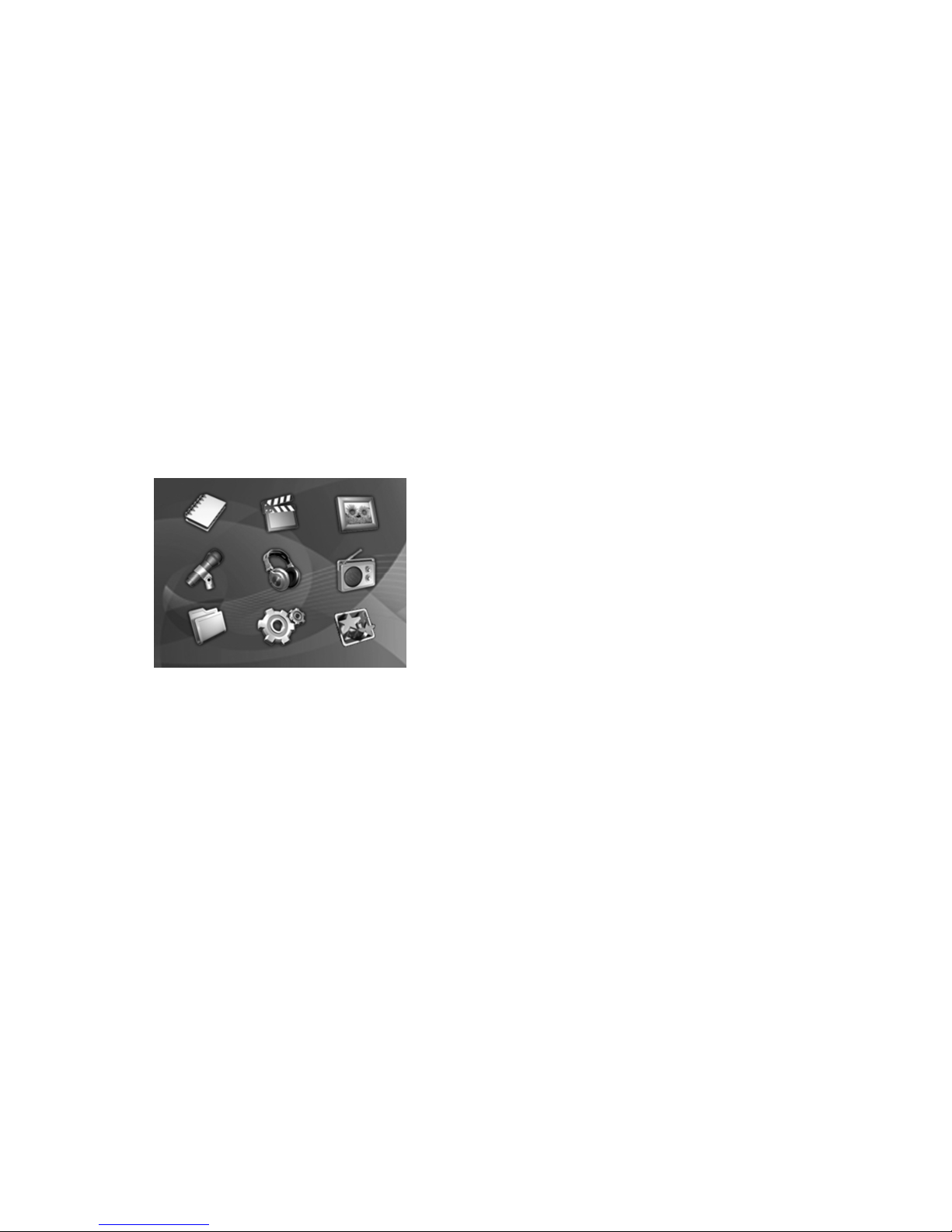
Menu Icons ....................................................................................................4
Menu Functions..............................................................................................5
Basic Operation of the Player.........................................................................5
Video .............................................................................................................8
FM Tuner........................................................................................................8
Photos ...........................................................................................................9
Ebook........................................................................................................... 10
Record ......................................................................................................... 11
Browse......................................................................................................... 12
Settings ....................................................................................................... 12
Extras .......................................................................................................... 14
Firmware Upgrade ....................................................................................... 15
Troubleshooting Guide ................................................................................. 15
Technical Specifications............................................................................... 16

2
Notice
1. Do not disconnect the player when it is being formatted or uploading/
downloading data.
2. This product needs to be charged for at least 3 hours before usage. Connect the
player to the PC to start charging. Once player is full charged, the battery logo
will display “Fully Charged”.
3. The diagrams are for illustration purpose only, the actual screen maybe different
from here.
4. The contents of this manual are subjected to changes without prior notices due
to product improvement.
Minimum System Requirements
Operating System:
Windows® ME/2000/XP/Vista
Macintosh™ OS 10.x
Hardware:
20MB Hard Disk Space
32MB RAM Memory
USB port

3
Ear
p
hone Jack
1
2
3
4
5
4
6
7
6
8
9
10
11
Operation Keypads
Packing includes
MP4 Player
Earphone
MediaCoder
USB Cable
User Manual
1. Reset button
2. Mic
3. MicroSD Slot
4. Vol Up/Down button
5. Menu Button
6. Forward/Backward button
7. Play/Pause Button
8. MicroUSB
9. Earphone Jack
10. A-B/
11. Power ON/OFF & Lock Button
4
Connecting Player to Computer
Connect the USB port of the player to the computer using the
USB cable provided
Power On & Off
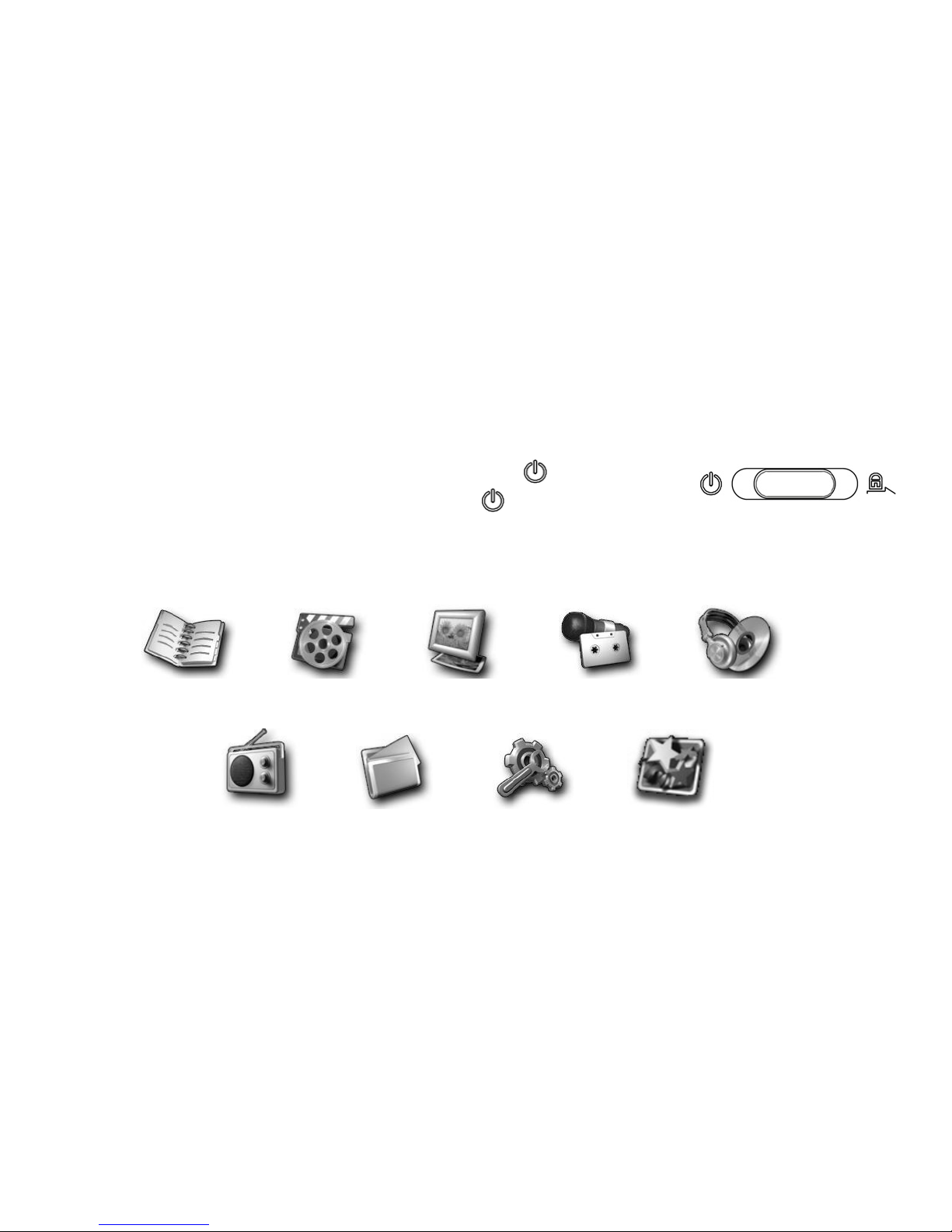
To power on the player, slide the button to .
To power off the player, slide and hold
Menu Icons
Ebook Video Photos Record Music
FM Tuner Browse Settin
g
s Extras
5
Menu Functions
Press M
Nine operations can be selected from the Main Menu
Use the |</>| keypad to browse the menu
Press >ll to select the desired functions
Basic Operation of the Player
Press >ll will either play or pause the file
Press |</>| to choose the next or previous file
Press i/jto adjust volume.
Press and hold for |</>| will Fast Forward or Rewind
Press and hold A-B/will enter recording except when at Music operation

6
Recorded List
FM record List
All Audio Tracks
Favourites
Now Playing (Appear only when there are songs playing)
Music
Music Menu
This option let you search for a song through various means:
Play All
Artist
Album
Genre
Year
From the Music interface, press and hold Mwill enter the Music Operation available.
Add to Favourites
Add the selected song to your favourites playlist
EQ
Press |</>| to select the desired EQ
Press >ll to set the EQ

7
PlayMode
Press |</>| to select the desired Play mode.
Press >ll to set the Play mode
Normal: Play all files sequentially once
Repeat One: Play current file repeatedly
Repeat All: Play all files sequentially and continuously
Random: Play all files randomly and continuously
Rate Track
This option let you rate a song
Setting A-B Clipping
Press A-B/when you want to start the clipping
Press A-B/again where you want the clipping to end
Synchronous Lyrics
You must ensure the Music file has additional .lrc file on the same folder.
E.g. Song.mp3 and Song.lrc. While playing song, the lyrics will be shown automatically.
8
Video
Video Menu
Play All (It will play all the video files in the player)
Internal Media (Browse through the Internal media for video files)
External Media (Browse through the External media for video files)
Play Video
Press |</>| to select the desire video file
Press >ll to play the video
FM Tuner
Press >ll to navigate the preset channel.
At the FM interface, press and hold Mwill enter the FM Operation available.
Preset Actions
Add to preset: Add the current station to a preset channel
Tune to preset: Tune to the preset channel

9
Delete
This option let you delete a preset
Select Yes to enter the Delete function, No to return to previous menu
Press |</>| to select the desired present
Press >ll to delete
Auto Search
It will automatically search and save all available stations
Manual Search
This option will search and stop when there is an available station without saving
Record
This option will let you record the current FM
Photos
Photo Menu
Play All (It will play all the picture files in the player)
Internal Media (Browse through the Internal media for pictures files)
External Media (Browse through the External media for pictures files)
At the Image interface, press and hold Mwill enter the Image Operation.
Table of contents