1Pick a Spot for Your Radio Pick a Spot for Your Radio (continued) 2Install the Magnetic Mount Antenna 3Connect the Audio to Your Vehicle’s Stereo
4Finish the Installation and Power On
5PowerConnect PowerConnect (continued)
6Activate
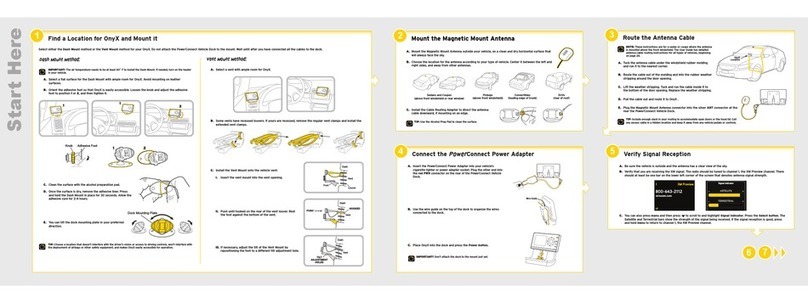
Install the Dash or Vent Mount
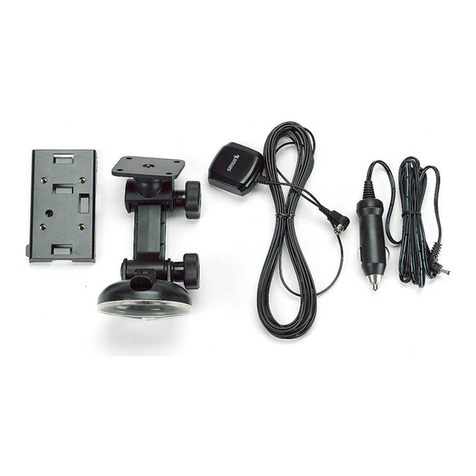
You canuse either the Dash Mount or the Vent Mount for your Sportster 5, depending upon your vehicle and
the location where you want to place your radio.
CAUTION! Make sure yourradio isn’t in a place where it could interfere with driver visibility or safe deployment
of the airbags.
Option 2
Dash
Mount
Installing the Dash Mount:
CAUTION: Theadhesive usedon the Dash Mountmay be difficultto
remove. Do not installthis mount on leathersurfaces(contactyour vehicle
dealerif you are unsureabout yourdash surface), and make sure theair
temperature is at least60°F (15°C) duringinstallation. If it’snot at least
60°F, turn on the heaterin your vehicleto bring thetemperatureup to 60°F.
1 Locate a flat surface forthe Dash Mount. (Options 1, 2, or 3.)
Make sure there is
ample room for the
dock and radio when
installed.
2 Set the orientation
of the mount before
adhering it. Loosen
the knob and adjust
the adhesive foot for the location you
selected:
•Option 1 & Option 3 should be oriented as I.
•Option 2 should be oriented as II.
3 Clean the surface with the
alcohol preparation pad, and let
it dry thoroughly.
4 Attach the Dash Mount to the
PowerConnect Vehicle Dock
using the provided screws.
5 Peel off the adhesive liner.
Position, press, and hold the Dash
Mount in place for 30 seconds.
IMPORTANT! Allowthe Dash Mount
adhesive to cure (dry)for a minimum of
2-4 hours before using the mount.The
best adhesion occurs after 24hours.
6 The dock mounting plate can be tilted in different directions.
Adjust as necessary for your particular vehicle. When the
orientation is correct, tighten the knob.
Option 3
Slide Extended Vent Clamps In Replace End Cap
PUSH
Dash
Vent
Louver
Vent
Vent
Dash Dash
HOOKED
TILT
ADJUSTMENT
HOLES
FOOT
1 2 3
AUDIO ANT
AUDIO ANT
AUDIO
ANT
Mount the Magnetic Mount Antenna
Choose the best location for the antenna considering your vehicle type. Refer to the antenna
placement tips and cautions in the User Guide beginning on page 23.
•Sedan or Coupe: We recommend mounting the antenna above either the front windshield or
the back window.
•Pickup Truck: We recommend mounting the antenna above the front windshield.
•Convertible: We recommend mounting the antenna at the leading edge of the trunk.
•SUV: We recommend mounting the antenna at the rear of the roof.
CAUTION! STOP and read the more specificinstructions in the User Guide for
all types of vehicles — or get someone who knowsvehicles to help — if you don’t
understand what to do. You might accidentally do damage to your vehicle.
Attach the Rubber Tail to the antenna and press
the antenna cable into the Rubber Tail. Use the
Rubber Tailto position the antenna the correct
distance from the edge of the roof or trunk lid.
Clean the surface of the selected mounting
location usingthe alcohol preparationpad and
let it dry thoroughly.Peel the protective material
from the adhesive strips and press the Rubber
Tail firmly into place on the vehicle for 30
seconds.At room temperature(68°F), maximum
adhesion usuallyoccurs within 72 hours. During
this period, avoid car washes and other contact
with the antennaand the Rubber Tail.
Feed the antenna wire under the rubber molding around the front or rear
windshield, and into the seal around the trunk or door. For a convertible, the
cable can be routed directly intothe trunk.
TIP! Use a tool like a blunt plastic putty knife,a credit card, a plastic knife, or a
similar blunt tool to help hide wires along the windshield trim.
Hide the Magnetic Mount Antenna Cable Inside the Vehicle
The best place to hide your antenna cabledepends on your type of vehicle.
When the antenna is mounted at the rear of the vehicle, it’s usually easiest to run
the cable from the rear to the front toward the radio by routing the cable along
the interior trim where it meets the carpet, gently pushing it behind the edges of
the trim. Bring the cable out from the trim and route it under the carpet toward
the dashboard.
When the antenna is mounted at the front of the vehicle, bring the cable into the
rubber weather stripping around the door to the bottom ofthe door opening.
Bring the cable out of the weather stripping and route it
under the carpet toward the dashboard.
Coil any excess cablein a hidden location, such as under
the carpet, keeping it away from any vehicle pedals or
controls. Secure the excess cable with wire ties.
Plug the antenna into the silver ANT connection on the
right side of the dock.
TIP! Avoid damaging or compromisingthe window,
door,and trunk seals.
TIP! For more help, refer to the detailedantenna cable
routinginstructionsfor your typeof vehicle,in the User Guidebeginning on page26.
jump
sel
jump
sel
jump
sel
AUDIO ANT
Decide How to Connect
You will listen tothe Sportster5 through yourvehicle’sstereo system or FM radio.First, the Sportster 5 must be receiving the
SIRIUSsignal. Ensureyour vehicleis outside with theantenna having a clear view of thesky. Your audio connection options are:
• Best: Use the Aux In Cable if your vehicle’s stereo system has
an auxiliary input connection. Plugone end of the cable intothe
greenAUDIO connector on the PowerConnectVehicleDock and
the other end into the vehicle stereosystem’s auxiliary input jack.
Set thestereosystem toplay from theauxiliaryinput source.
• Better: Use a Cassette Adapter if yourvehicle has a built-in cassette
player. Cassette Adaptersare sold separately.Plug the Cassette Adapter
into thegreen AUDIO connector on the PowerConnectVehicleDock. Insert
the Cassette Adapterinto the vehicle’s cassette deck. Set thestereo
system to play fromthe cassettesource.
• Good: Use the PowerConnect feature in the Sportster 5.PowerConnect
plays the audio through your vehicle’s FM radio. When you have finished step 4 (below), you’llfirst need
to find an available FM channel in your area, and then you need to ensure that the Sportster 5 and your
vehicle’s FM radio are tuned to the same available FM channel. (Step 5)
• Best: Usean FM Direct Adapter (FMDA) if none of the above threeaudio connection options works in your
vehicle.The FMDA needs to be installed by a professional installer and directly connectsthe Sportster 5 to
your vehicle’s FM radio.
TIP! Refer to your vehicle’s owners manual to find the location of the auxiliary input jack, or consult the vehicle
dealer.To learn more about purchasing a CassetteAdapter or FMDA, check with the retailer where you bought your
Sportster 5 or go to sirius.com/accessories.
Audio Quality GOOD BETTER BEST
PowerConnect
CassetteAdapter
Aux In Cable
FMDirect Adapter (FMDA)
AUDIO ANT
AUDIO ANT
Connect the PowerConnect Power Adapter
Insert the PowerConnect Power Adapter into your vehicle’s cigarette lighter orpower adapter
socket.Then plug it into the red PWR connector on the left side of the dock.
Place the Radio in the Dock
Insert your Sportster 5 into the dock,
aligning the radio against the rear of
the dock so that the rails on the dock
fit into the mounting slots in the back
of the radio.
Press the Power button toturn it On.
PWR FM
If you have connected the audio in step 3 using the Aux In Cable or Cassette Adapter, continue with step 6.
Tune the Sportster 5 and Vehicle FM Radio to the Same FM Channel
1 Find an Available FM Channel in Your Area
An available FM channel is one that’s not being used byan FM radio station in your area. When you
tune your FM radio to an availablechannel, you should only hear static or silence – not talk or music.
We recommend one of the followingmethods to find an available FM channel:
a. Use the SIRIUS|XM FM Channel Finder at www.sirius.com/fmchannel. Go tothe website and enter
your zip code. The Channel Finder will suggest a list of available FM channels in your area. For
convenience, write downor print out the list.
OR
b. Manuallytune throughyour localFM channelson your vehicle’s FM radio. Locateand createa list of
channels that aren’tbeing usedby any FM radio station. Write down thelist. Once you have created
yourlist of available FM channels, you will needto find theone that provides the bestmatch for the
Sportster 5.
TIP! You’ll need to use the ‘Manual’ tune functionon your vehicle’sFM radio to tune throughevery FM channel
one-by-one.Turn on yourvehicle’s FM radio.Start at 88.1 and use the‘Manual’ tune function on yourvehicle’s FM
radio totune through each FM channel one-by-one (88.1 followedby 88.3 etc.) to locate channelsthat aren’t being
used by a localFM radio station. Writedown each FM channel that hasonly static or silence on it, untilyou reach
107.9.
2 Tune your Vehicle’s FM Radio
a Pick the first FM channel on your list.
b Turn on your vehicle’s FM radio (if youhave not already done so) and tune it to this FM channel.
3 Set Your Sportster 5 to Transmit on the Same FM Channel
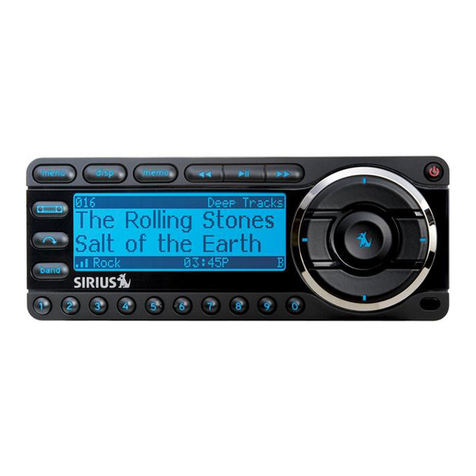
a Press and hold menu until the menu options are displayed.
b Rotate the Control knob and scrollto highlight Settings and press the
Select button.
c FM Transmitter will be highlighted. Press the Select button.
d Set FM Presets will be highlighted. Press the Select button.
e Rotate the Control knob and highlight the storage locationFM2.
Press
the Select button.
f Tune to the FM channel you found in step 1. Rotate the Control knob to
scroll and highlight the desired FM channel. Press the Select button to
select the FM channel.
g The FM channel you selected will be confirmed on the display screen.
The Sportster 5 will tune to the FM channel.
h You should hear SIRIUS through your vehicle’s radio when Sportster 5 is
tuned to channel 184. If you are satisfied with the sound quality, you’re done.
4 You May Need to Try Other FM Channels on Your List
If the chosen FM channel doesn’t work well for you, work down the list of FM channels until you find
one that allows you to hear SIRIUS clearly. Each time, you will need to tune your vehicle’s FM radio
and the Sportster 5 to the same FM channel.
TIP! Youmay find an FM channel with static or silence that does not work with the Sportster 5. It is possible that
some type of inaudible interferenceis present that prevents reception of the Sportster 5 broadcast.Your only
options are to use another FM channel or a differentaudio connection method.
sel
96.3
Activate Your Service
Beforeyou can enjoy Commercial-Free Music, Plus Sports, News, Talk& Entertainment, you needto activate
your Sportster 5.
1 Make sure your Sportster 5 is properly installed, turned on, and receiving the SIRIUS signal so that
you can hear the audio on channel 184.
2 Make a note of your SIRIUS Radio ID. You can find it:
•On channel 0 (zero)
•On a label on the bottom of the gift box
•On the label on the back of your Sportster 5
3 Activate your service:
•Online: Go to www.sirius.com and click on “Install and
Activate”
OR
•By phone: Call 1-888-539-SIRIUS (1-888-539-7474)
4 When your service is activated, yourSpor tster 5 will display an
alert message. To continue, press any button. Thereafter, if you
rotate the Control knob, youcan scroll and tune other channels.
Activation usually takes less than 5 minutes, but sometimes may
take longer. We recommend that your radio remain on until activated.
TIP! If the signal reception
is low, check to seeif the
antenna’s view ofthe sky
is blocked by a tree, a
building, a bridge, or by
anything on the vehicle
roof such as a roof rackor
luggage container,etc.
Adjust until you are
receiving a good signal.
Tocheck the signal, press
and hold menu, rotate the
Control knob and highlight
Signal Indicator. Press the
Select button to display
the Signal Indicator
screen.
Rubber
Antenna
Tail
Protective
Material Strain
Relief
Antenna Cable
Magnetic Mount Antenna
(Upside-Down)